
Web Tracking: Implementing GA4 via Google Tag Manager
This guide explains how to enable web tracking for Client Zone by injecting Google Tag Manager into the Client Zone header and sending data to Google Analytics 4 (GA4).
Where to Add the Script in Trifft
Navigate to: Settings → Touchpoints → Client Zone → Settings tab → Custom Header Code
Custom Header Code: “Add custom HTML code to the header of the client zone. This is useful for embedding scripts such as Google Tag Manager (GTM), Intercom, or other third-party tools.”
Steps:
- Enable Custom Header Code
- Paste your script
- Click Save (top-right corner)
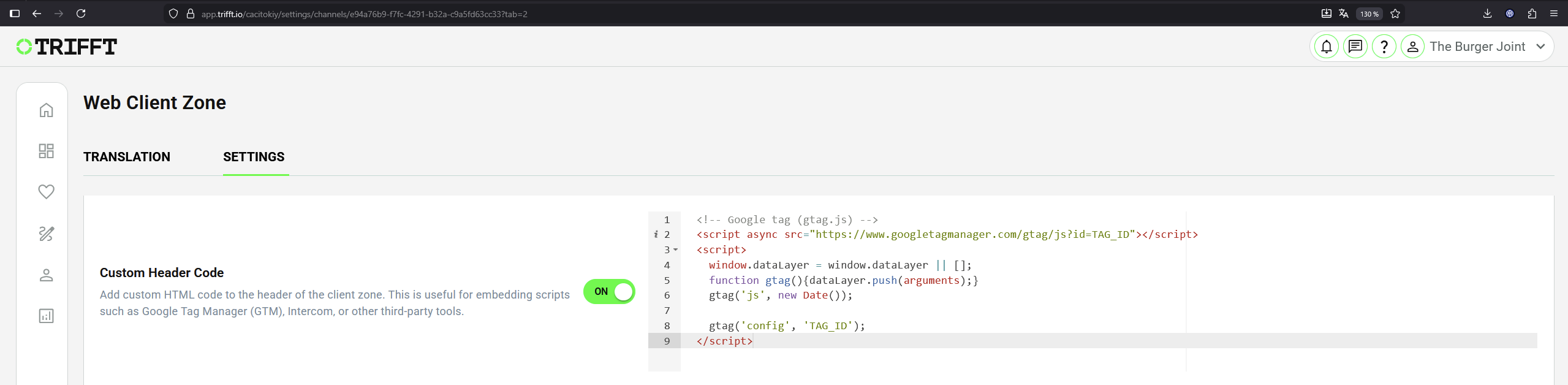
Custom Header Code part in the Client Zone settings
Prerequisites
| Requirement | Notes |
|---|---|
| GA4 Property + Web Data Stream | You need a Measurement ID like G-XXXXXXXXXX |
| GTM Account + Web Container | You need a Container ID like GTM-XXXXXXX |
| Access to Trifft Client Zone settings | The path above |
Recommended Approach
Use GTM (recommended) and configure GA4 inside GTM.
Why:
- cleaner governance (tags, triggers, versions)
- easier debugging (Preview/Tag Assistant)
- avoids duplicate tracking if multiple scripts are added later
Step 1 — Get Your IDs
1.1 GA4 Measurement ID
In GA4:
- Go to Admin
- Data streams → Web
- Copy Measurement ID (format:
G-XXXXXXXXXX)
Example: G-PSW1MY7HB4
1.2 GTM Container ID
In GTM:
- Open your Web container
- Copy Container ID (format:
GTM-XXXXXXX)
Example: GTM-ABCDE12
Step 2 — Configure GA4 in GTM
In GTM:
- Go to Tags → New
- Tag Configuration: select Google tag (GA4)
- Set Measurement ID to your GA4 ID:
{GA4_MEASUREMENT_ID} - Triggering: select All Pages
- Save
- Submit / Publish the container
Step 3 — Add GTM to Trifft Client Zone (Custom Header Code)
In Trifft: Settings → Touchpoints → Client Zone → Settings tab → Custom Header Code
Paste this snippet and replace {GTM_CONTAINER_ID}:
  <!-- Google tag (gtag.js) -->
  <script async src="https://www.googletagmanager.com/gtag/js?id=TAG_ID"></script>
  <script>
    window.dataLayer = window.dataLayer || [];
    function gtag(){dataLayer.push(arguments);}
    gtag('js', new Date());

    gtag('config', 'TAG_ID');
  </script>
Testing / Verification
1) GTM Preview (Tag Assistant)
- In GTM click Preview
- Open the Client Zone URL in the same browser session
- Confirm:
- GTM is loaded
- Your Google tag (GA4) fires on All Pages
- No errors are shown in the preview
2) GA4 DebugView
- In GA4 go to Admin → DebugView
- With GTM Preview active, refresh the Client Zone page
- You should see events arriving (at minimum
page_view)
3) GA4 Realtime
- Open Realtime in GA4
- Visit the Client Zone
- Confirm active users/events
Common Pitfalls / Troubleshooting
| Issue | Likely cause | Fix |
|---|---|---|
| Nothing appears in GA4 | GTM container not published | GTM → Submit / Publish |
| Nothing appears in GA4 | Wrong IDs | Verify {GTM_CONTAINER_ID} and {GA4_MEASUREMENT_ID} |
| Preview shows tags firing, but GA4 still empty | Ad blocker / privacy extensions | Test in Incognito / disable blockers |
| Duplicate page views | Both GTM and direct GA4 installed | Use one approach (prefer GTM) |
| DebugView is empty | Not testing in debug mode | Use GTM Preview and refresh |