
Custom CSS in the Web Portal
The Loyalty Web Portal supports a controlled set of static CSS class names that can be safely overridden. This allows you to restyle the Web Portal to match your brand identity while keeping TRIFFT responsible for all functional updates, feature releases, and UI changes.
Custom CSS is typically used to:
- Apply brand colors, fonts, and layout rules
- Adjust spacing, density, or typography
- Modify how components such as coupons, headers, and footers appear
- Hide unused modules
- Achieve full brand alignment even when using TRIFFT’s underlying technology
Only the documented static classes should be used for overrides. All other classes are dynamically generated and may change during builds.
Where to Configure Custom CSS
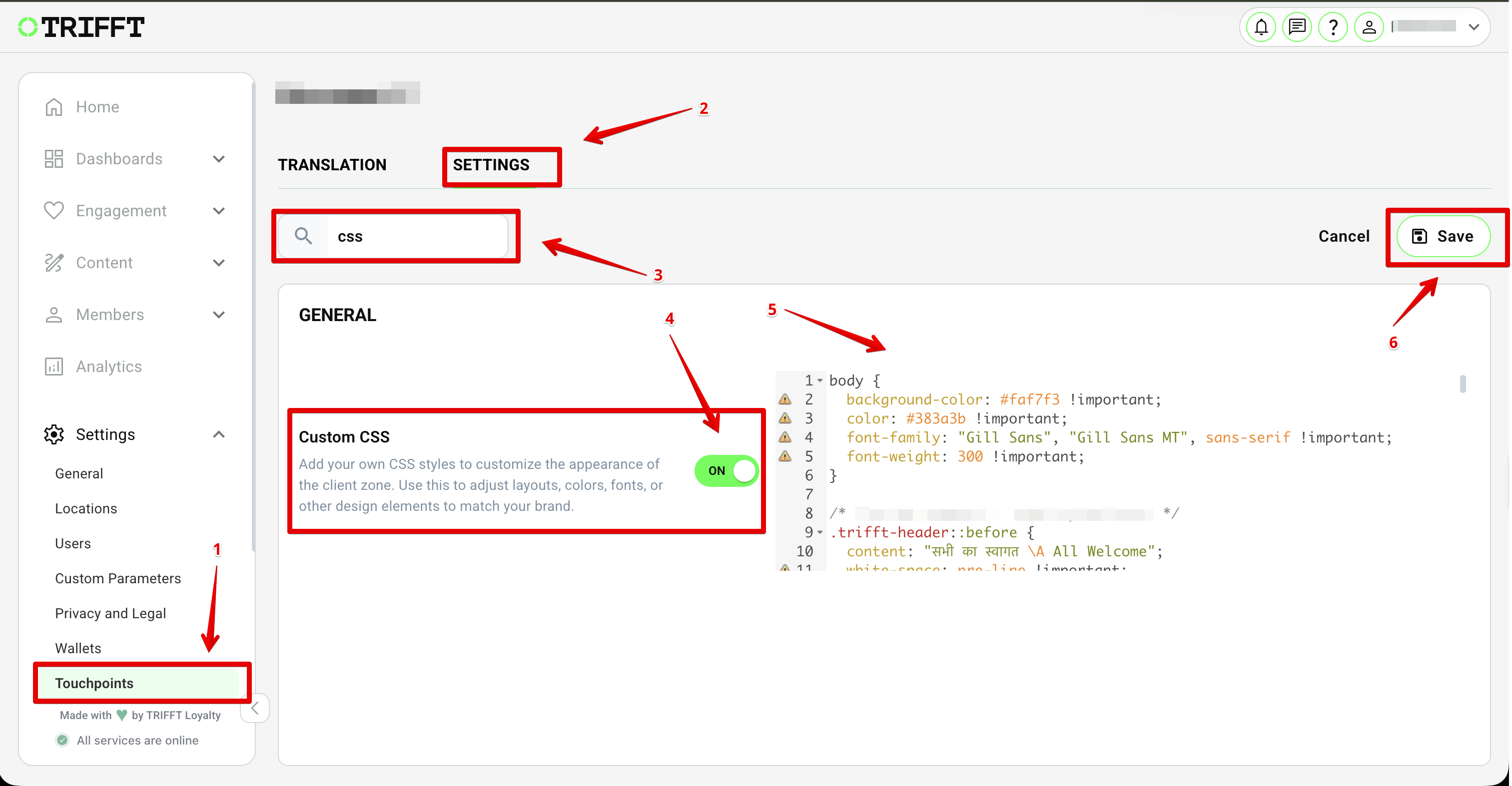
- In TRIFFT Admin, open Settings in the left sidebar.
- Select Touchpoints > Select previously-created Web Portal touchpoint you want to edit.
- Open the Settings tab at the top.
- Use the search bar and type CSS.
- Select Custom CSS.
- Turn the toggle ON and enter your stylesheet.
- Click Save.
Where to find custom CSS setting in TRIFFT Administration:
How to Apply and See Your Changes
Because browsers cache stylesheets, you may not see your changes immediately.
After saving your CSS, perform a hard refresh on the Loyalty Web Portal.
Hard Refresh Shortcuts (Abbreviated)
macOS:
Chrome / Firefox: Command + Shift + R
Safari: Command + Option + R
Windows:
Chrome / Edge / Firefox: Ctrl + Shift + R or Ctrl + F5
If changes still do not appear, clear browser cache or open the portal in a private window.
How to Apply and See Your Changes
Because browsers cache stylesheets, you may not see your changes immediately. After saving your CSS, perform a hard refresh on the Loyalty Web Portal.
Hard Refresh Shortcuts (Abbreviated)
macOS: Chrome / Firefox: Command + Shift + R Safari: Command + Option + R
Windows: Chrome / Edge / Firefox: Ctrl + Shift + R or Ctrl + F5
If changes still do not appear, clear browser cache or open the portal in a private window.
How to Apply Overrides
CSS entered into this editor is injected on top of the Web Portal’s compiled stylesheet.
.trifft-header {
  background-color: #002244;
}

.trifft-coupon-card {
  border-radius: 12px;
  border: 1px solid #cccccc;
}
Changes take effect immediately after a hard refresh.
Working Examples
Example 1 — Header Restyle
.trifft-header {
  background-color: #111111;
  padding: 12px 24px;
}

.trifft-header-logo img {
  height: 40px;
}
Example 2 — Minimalist Coupon Cards
.trifft-coupon-card {
  box-shadow: none;
  border: 1px solid #e3e3e3;
  border-radius: 8px;
}

.trifft-coupon-use-button {
  background-color: #000;
  color: #fff;
}
Example 3 — Hide the Instagram Feed
.trifft-instagram {
  display: none;
}
Static CSS Class Reference
The following static classes are safe to override. Exact contents reproduced from the uploaded specification.
Global Layout & Components
| CSS Class | Route / Context | Description |
|---|---|---|
| trifft-header | Layout (All) | Main container for the top header content. |
| trifft-header-logo | Layout (All) | The logo image within the header. |
| trifft-header-buttons | Layout (All) | Wrapper for the right-side icons (Points, Bell, Profile). |
| trifft-header-point | Layout (All) | The pill/capsule displaying the user's point balance. |
| trifft-header-notifications | Layout (All) | The bell icon wrapper for notifications. |
| trifft-header-profile | Layout (All) | The profile icon (person) link. |
| trifft-menu | Layout (All) | Container for the main navigation links (Dashboard, History). |
| trifft-content | Layout (Auth/Body) | The left/main column of the application body. |
| trifft-sidebar | Layout (Body) | The right column (usually contains Deals/Sidebar). |
| trifft-footer | Layout (All) | The main wrapper for the page footer. |
| trifft-footer-content | Layout (All) | The inner grid container of the footer. |
| trifft-footer-column | Layout (All) | A single column within the footer. |
| trifft-footer-link | Layout (All) | An individual link item within a footer column. |
| trifft-made-text | Layout (All) | The "Made with ♥ by TRIFFT" copyright text. |
| trifft-title | Shared | Generic main page title. |
| trifft-subtitle | Shared | Generic page subtitle or explanatory text. |
Authentication
Routes: /, /pass-login, /register, /otp-verify, /register-confirm
| CSS Class | Route / Context | Description |
|---|---|---|
| trifft-auth-img | Auth Layout | The hero image on the left side of the login/register screen. |
| trifft-auth-form | Auth Layout | The form container on the right side. |
| trifft-auth-title | /, /pass-login | Main heading for Sign In or Link Card screens. |
| trifft-login-buttons | /, /pass-login | Wrapper for login action buttons (Submit, Register, Back). |
| trifft-register-title | /register | Main heading for the Sign-Up screen. |
| trifft-register-step | /register | Text indicating the current registration step. |
| trifft-register-form | /register | Wrapper for registration form fields. |
| trifft-register-form-buttons | /register | Wrapper for Next/Back buttons. |
| trifft-consent-label | /register | Label text for GDPR/Marketing consents. |
| trifft-register-confirm-title | /register-confirm | Heading on the success screen after registration. |
| trifft-register-confirm-icon | /register-confirm | Success icon displayed after registration. |
| trifft-otp-verify-title | /otp-verify | Heading for the OTP verification screen. |
| trifft-otp-buttons | /otp-verify | Buttons wrapper on the OTP screen. |
| trifft-otp-resend | /otp-verify | The "Resend code" link. |
Profile
Route: /profile
| CSS Class | Route / Context | Description |
|---|---|---|
| trifft-profile-header | /profile | Top section containing the title and the edit icon. |
| trifft-profile-params | /profile | Section displaying user details (Name, Email, Custom parameters). |
| trifft-profile-params-row | /profile | A single row of user data (Icon + Title + Value). |
| trifft-profile-links | /profile | Container for custom links or legal documents. |
| trifft-profile-footer | /profile | Bottom section containing legal links and the Logout button. |
Coupons
Routes: /coupons, /coupon/:id
| CSS Class | Route / Context | Description |
|---|---|---|
| trifft-coupons-wrapper | /coupons | Grid container displaying the list of coupons. |
| trifft-coupon-card | /coupons | Wrapper for a single coupon card. |
| trifft-coupon-dots | /coupons | Decorative dots/teeth separator. |
| trifft-coupon-content | /coupons | Text content area of a coupon card. |
| trifft-coupon-validity | /coupons | Text displaying validity dates. |
| trifft-coupon-use-button | /coupons | Main action button to use/activate the coupon. |
| trifft-coupon-activated-button | /coupons | Button style when coupon is already active. |
| trifft-coupon-detail-card | /coupon/:id | Wrapper for the top section of the coupon detail view. |
| trifft-coupon-detail-image | /coupon/:id | Image wrapper in the detail view. |
| trifft-coupon-detail-content | /coupon/:id | Text content area in the detail view. |
| trifft-coupon-detail-title | /coupon/:id | Coupon name/title. |
| trifft-coupon-detail-description | /coupon/:id | Markdown description text. |
| trifft-coupon-detail-buttons | /coupon/:id | Action buttons container. |
| trifft-coupon-activate-modal | Modal | Confirmation modal when activating a coupon. |
| trifft-coupon-activate-submit | Modal | "Confirm" button inside the modal. |
| trifft-coupon-activate-cancel | Modal | "Cancel/Later" button inside the modal. |
News & Messages
Route: /news
| CSS Class | Route / Context | Description |
|---|---|---|
| trifft-notifications | /news | Container for the list of messages/news. |
| trifft-notifications-card | /news | A single message card in the list. |
Loyalty Card
Route: /card
| CSS Class | Route / Context | Description |
|---|---|---|
| trifft-card-points | /card | Section displaying the total points above the barcode/QR code. |
Dashboard
Route: /
| CSS Class | Route / Context | Description |
|---|---|---|
| trifft-instagram | / | Wrapper for the Instagram feed widget on the homepage. |