
Custom Parameters Other Functions
This Ongoing Management Guide provides the steps required to maintain and optimize Custom Parameters.
Updating Custom Parameters
- Navigate to Custom Params: Log in to the TRIFFT Content Cockpit and go to Settings > Custom Parameters.
- Edit Parameter: Select an existing custom parameter to modify its settings.
- Final check and Save: Make the final check of your adjustments and click Save button in the top right corner.
Managing Custom Parameters on the entity
- Open the entity where your custom parameter sits.
- Make your adjustments accordingly. You can find 2 examples of custom parameters on entities Venue and Coupons below.
Use case #1 - Setting up a Parking option of your Venue Custom Parameter:
Let’s say you want the app to show which venues offer parking and which do not. First, you need to create a Parking custom parameter and then set the required value for this parameter for each specific venue.
Example of Venue custom parameter Parking in the settings of Custom Parameter:
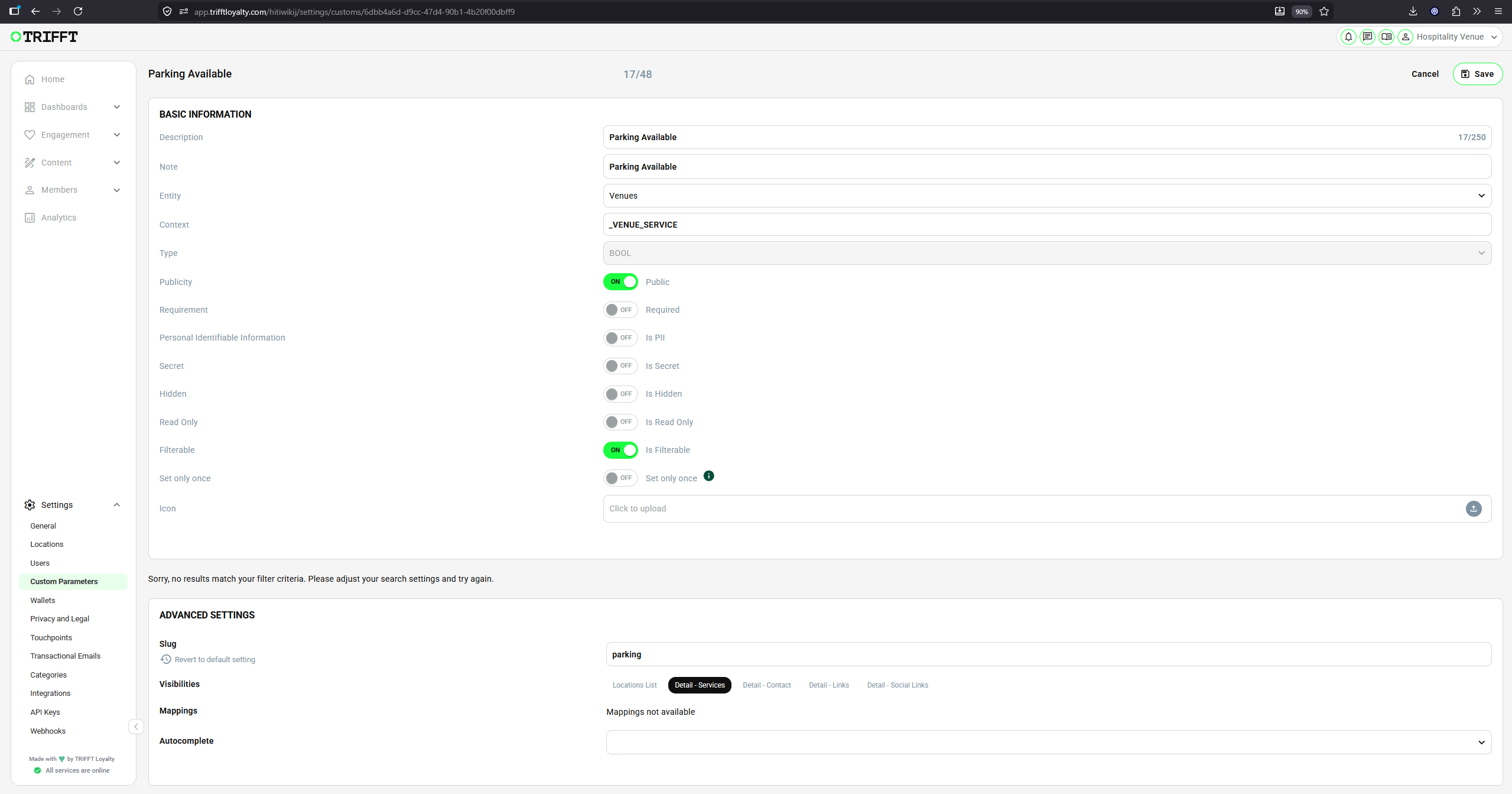
Example of Venue Custom Parameter - Parking
Venue settings - navigate to Settings → Location and open one of your locations:
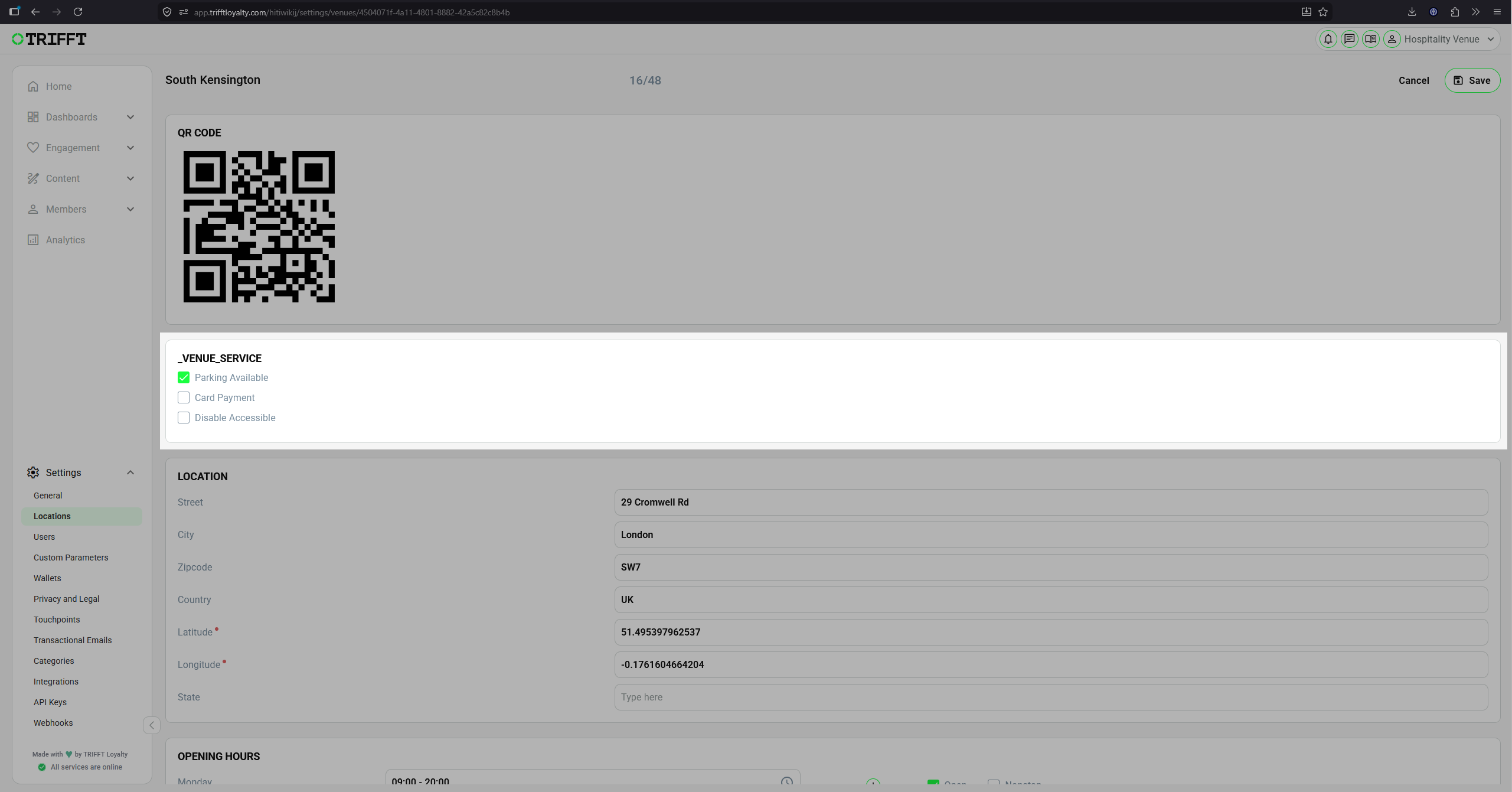
Example of Venue Settings
Final Result in the App - custom parameter visible in the detail of chosen Venue in the Services tab:
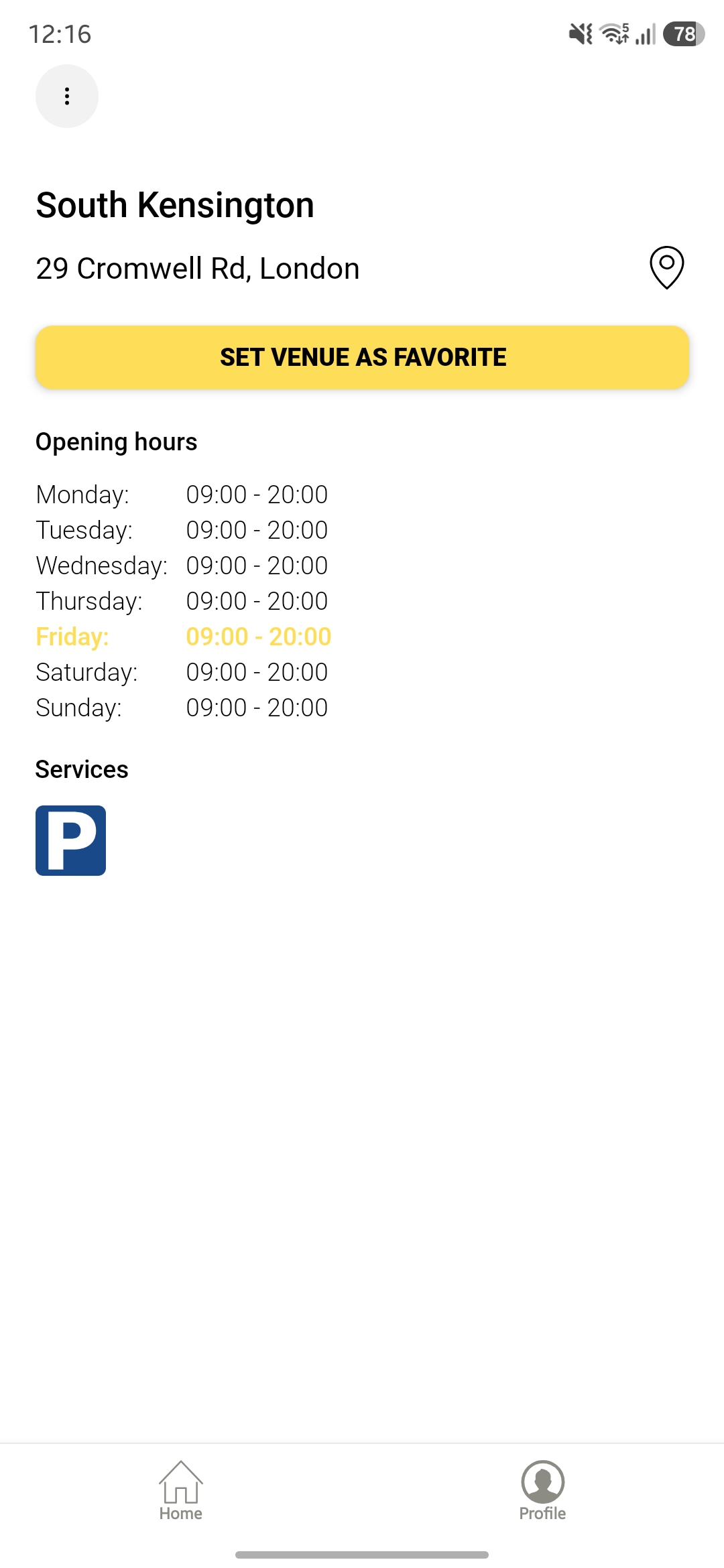
Example of Parking visibility in the App
Use case #2 - Setting up a Parking option of your Venue Custom Parameter:
Let’s say you have an integration with your POS system, but the POS can identify a specific discount only by its ID. In this case, you need to create a custom parameter with a slug used for communication between TRIFFT and your POS system. Then, in the settings of the specific coupon, enter the same ID that the POS uses to apply the discount.
Example of Coupon custom parameter Discount ID in the settings of Custom Parameter
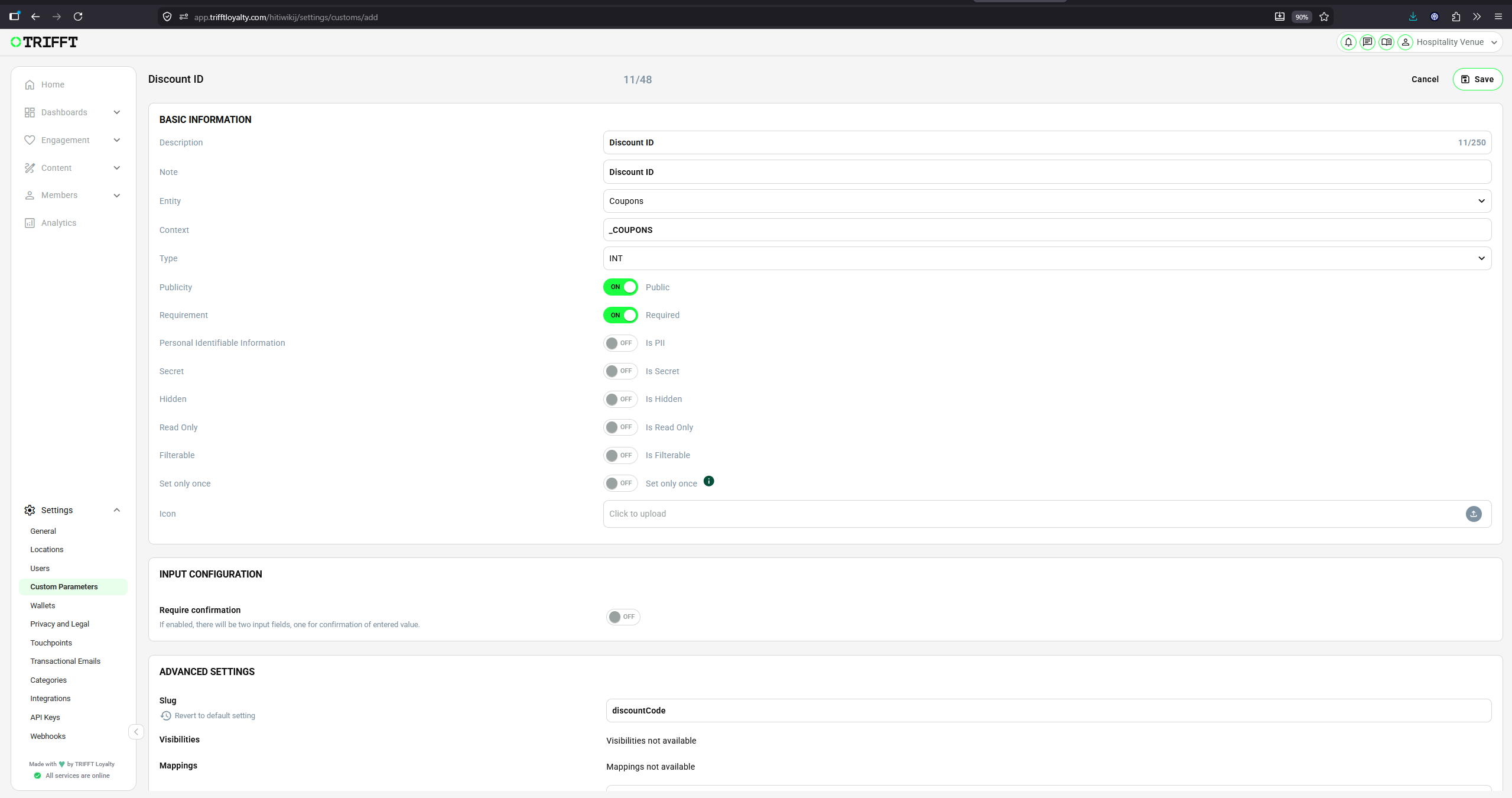
Example of Coupon Custom Parameter - Discount ID
Coupon settings - navigate to Engagement → Coupons and open one of your coupons:
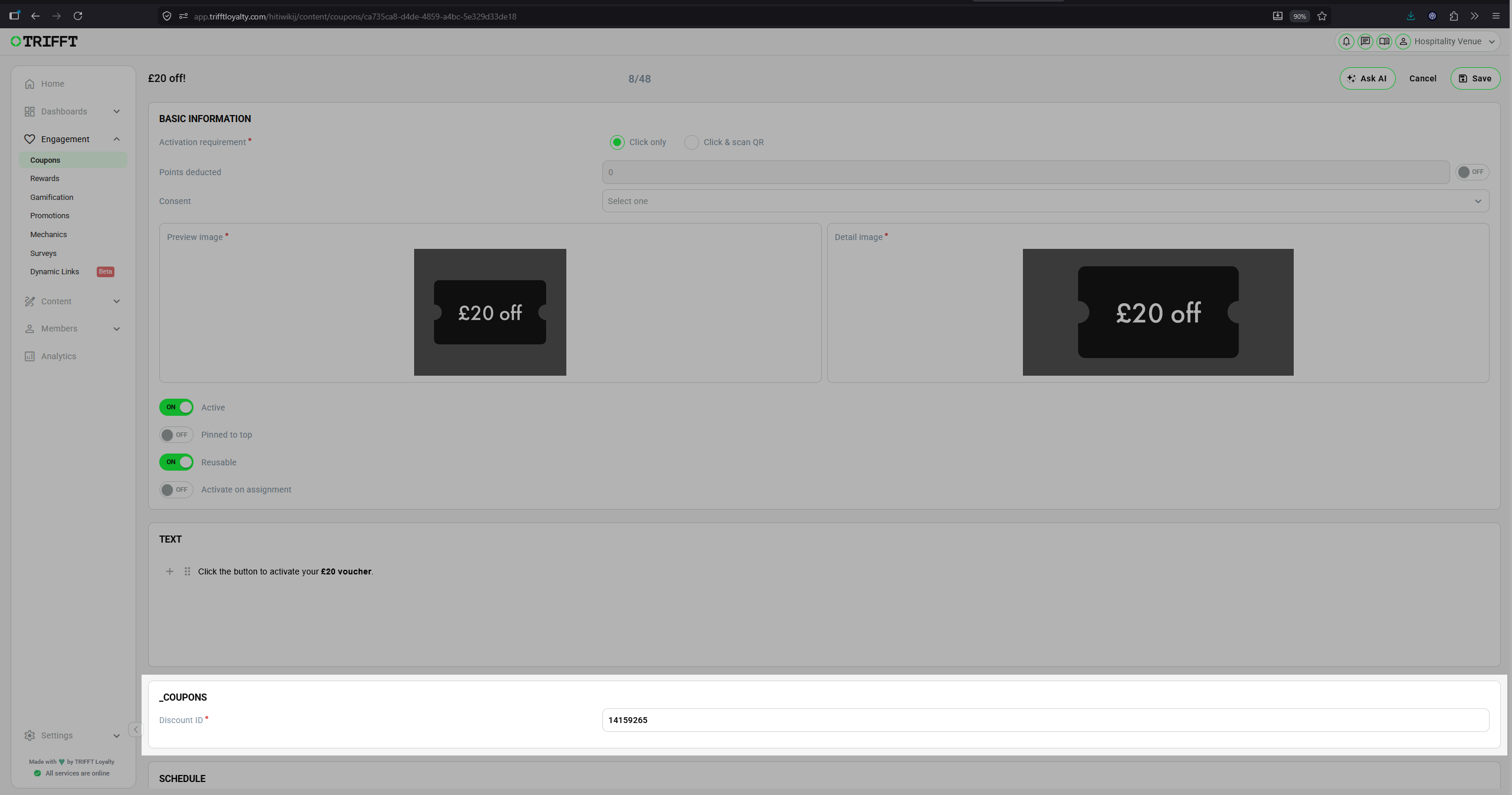
Example of Coupon Settings
Ongoing management checklist
-
Data Quality Audit: Periodically verify that data flowing from Shopify or POS matches the assigned attribute types to prevent sync failures.
-
Redundancy Check: Archive or delete parameters that are no longer used in active segments or automated flows to maintain system performance.
-
Security Audit: Confirm that sensitive internal parameters are not accidentally toggled as "Visible" to members in their profile settings.
-
External Tool Sync: Verify that any changes to parameter names in TRIFFT are updated in mapped fields within Klaviyo or Bloomreach.
Updated 6 days ago