
Pages & List Set Up
Step-by-step Pages setup
1. Open the Pages panel
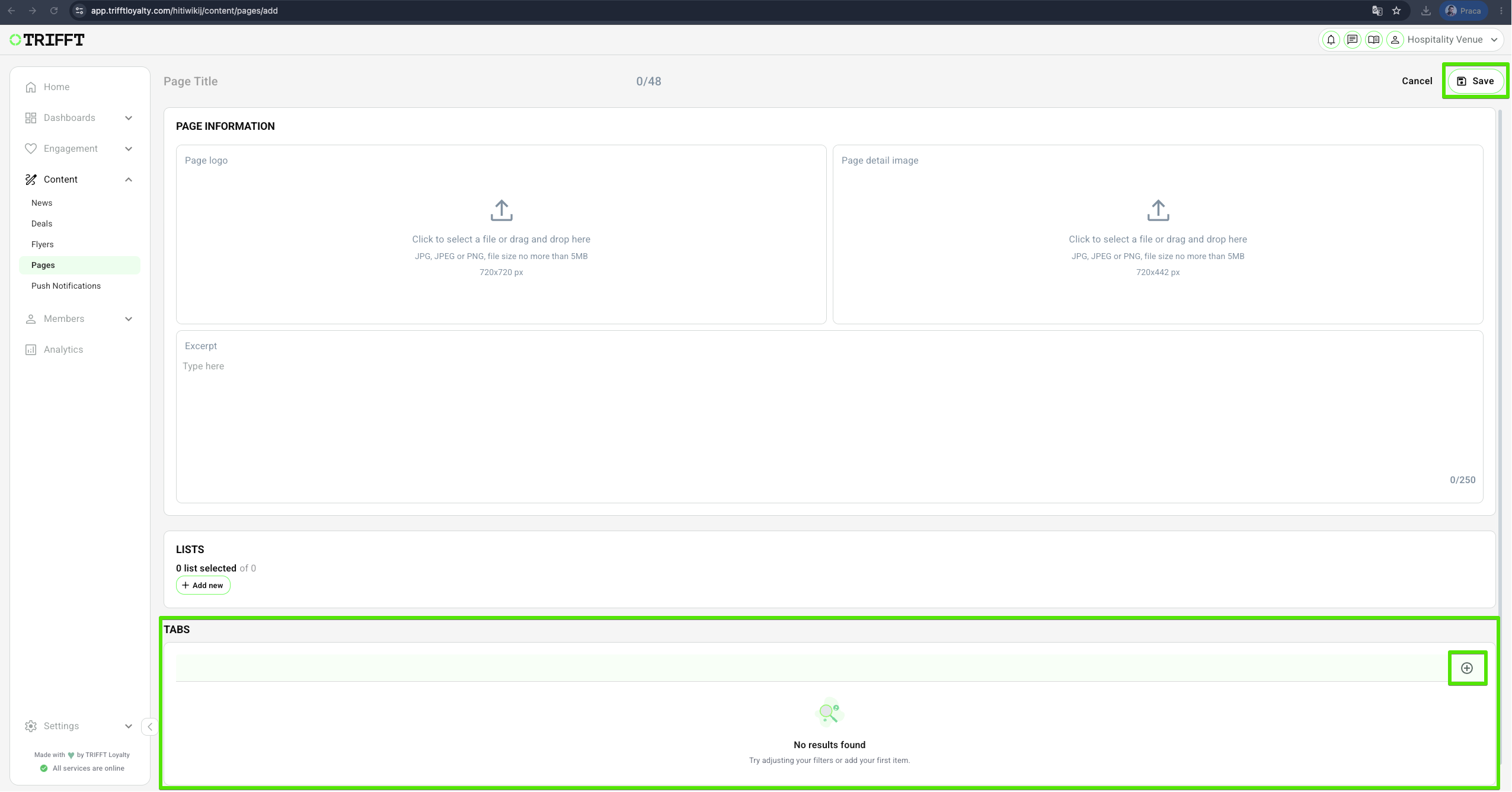
- Access the Content Cockpit and go to Content > Pages > Page type > Pages > Add new.
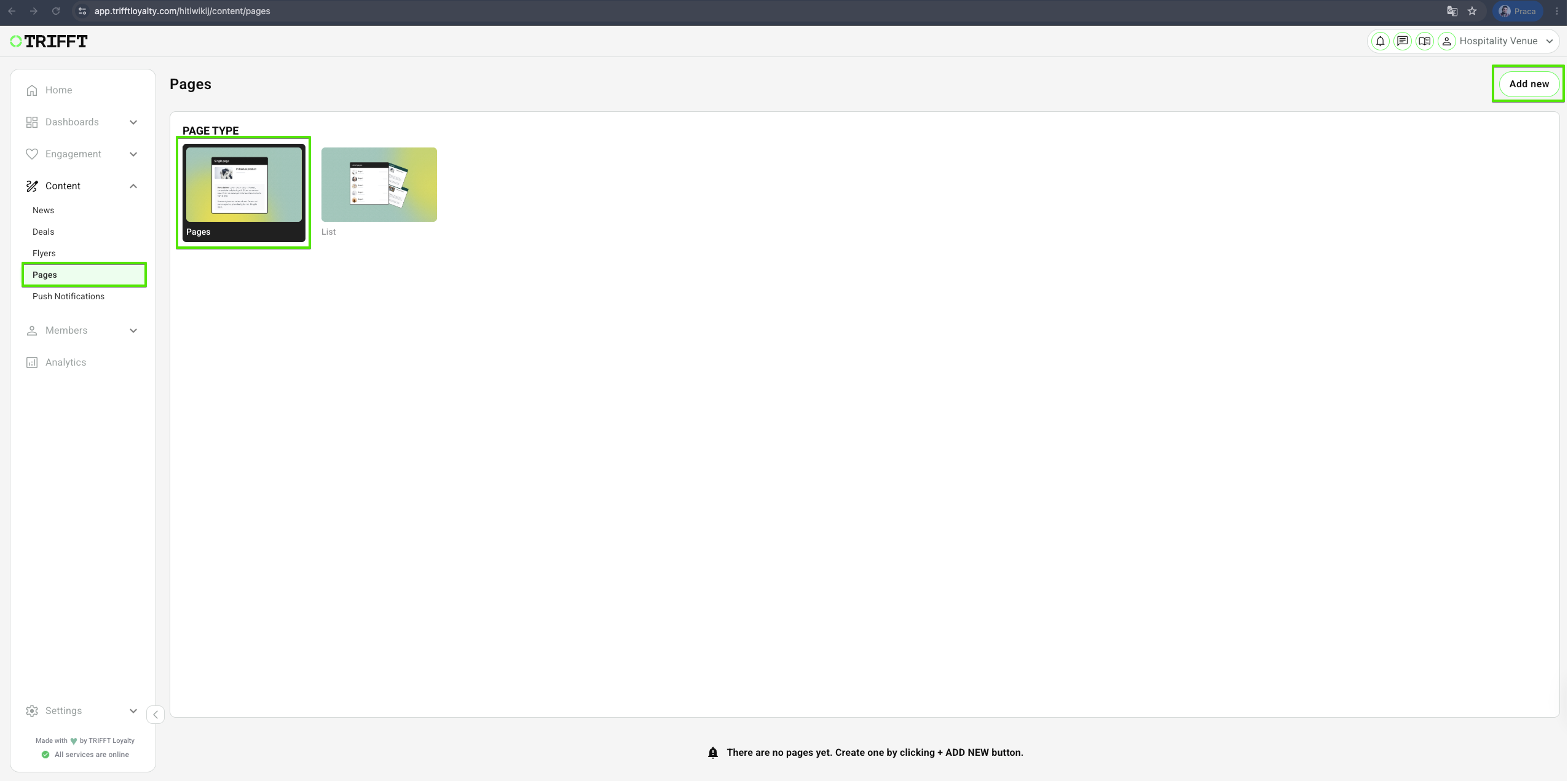
- Select Type (TABS/HTML): here you can find detailed information on TABS & HTML
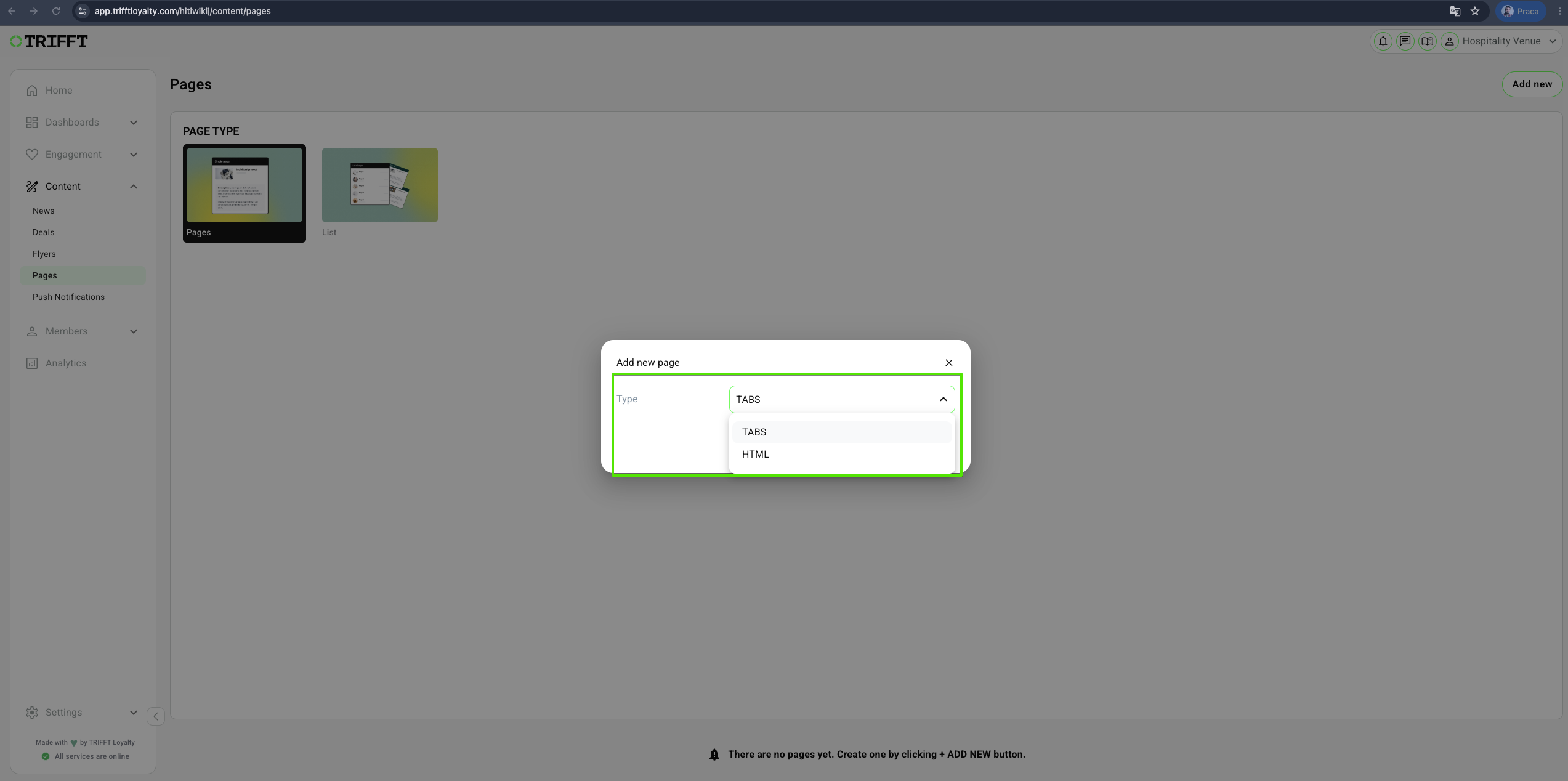
- Enter the Page Title
- Upload Page logo
- Upload Page detail image
- Enter Excerpt text
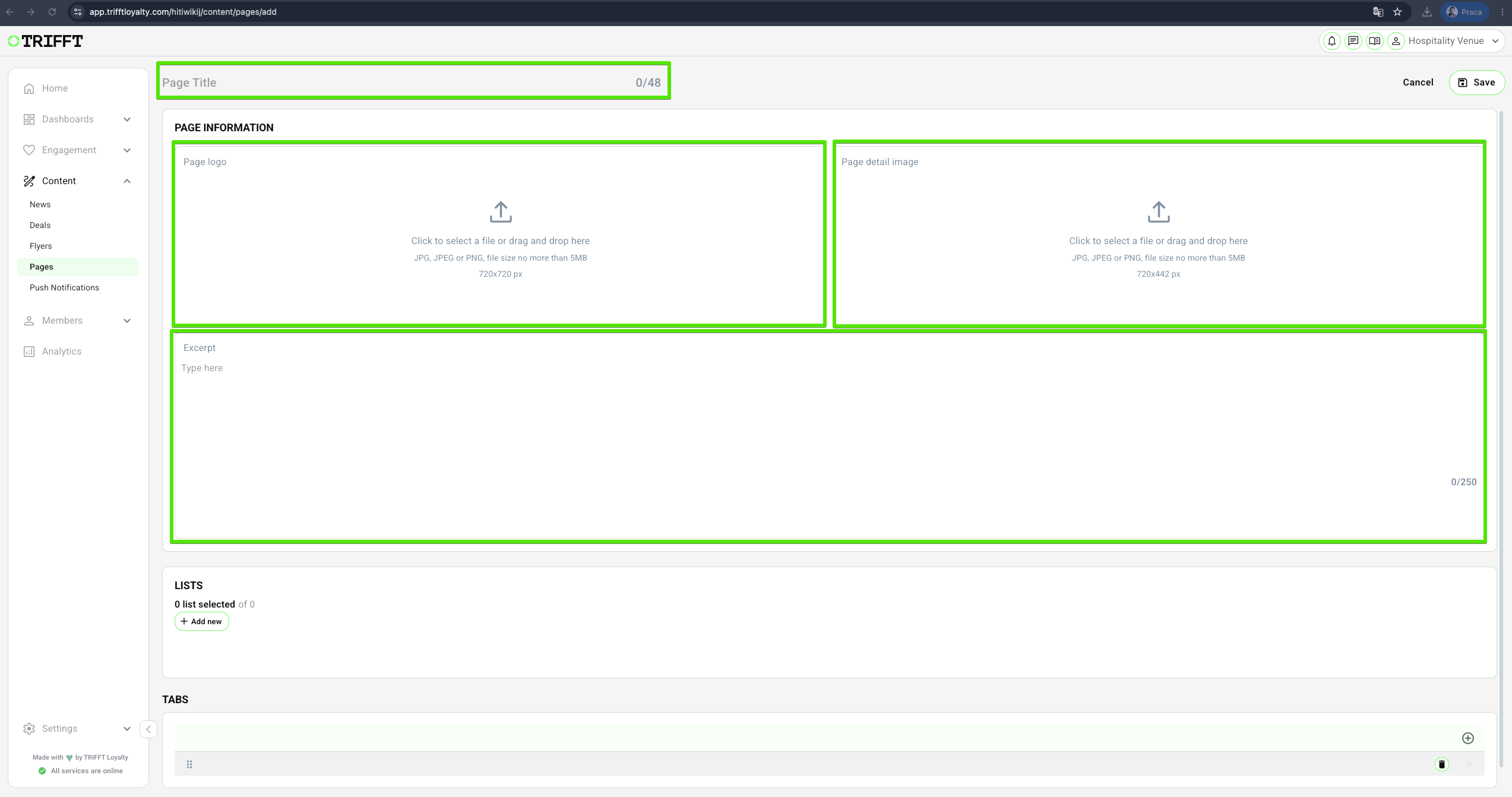
- Select Lists
-
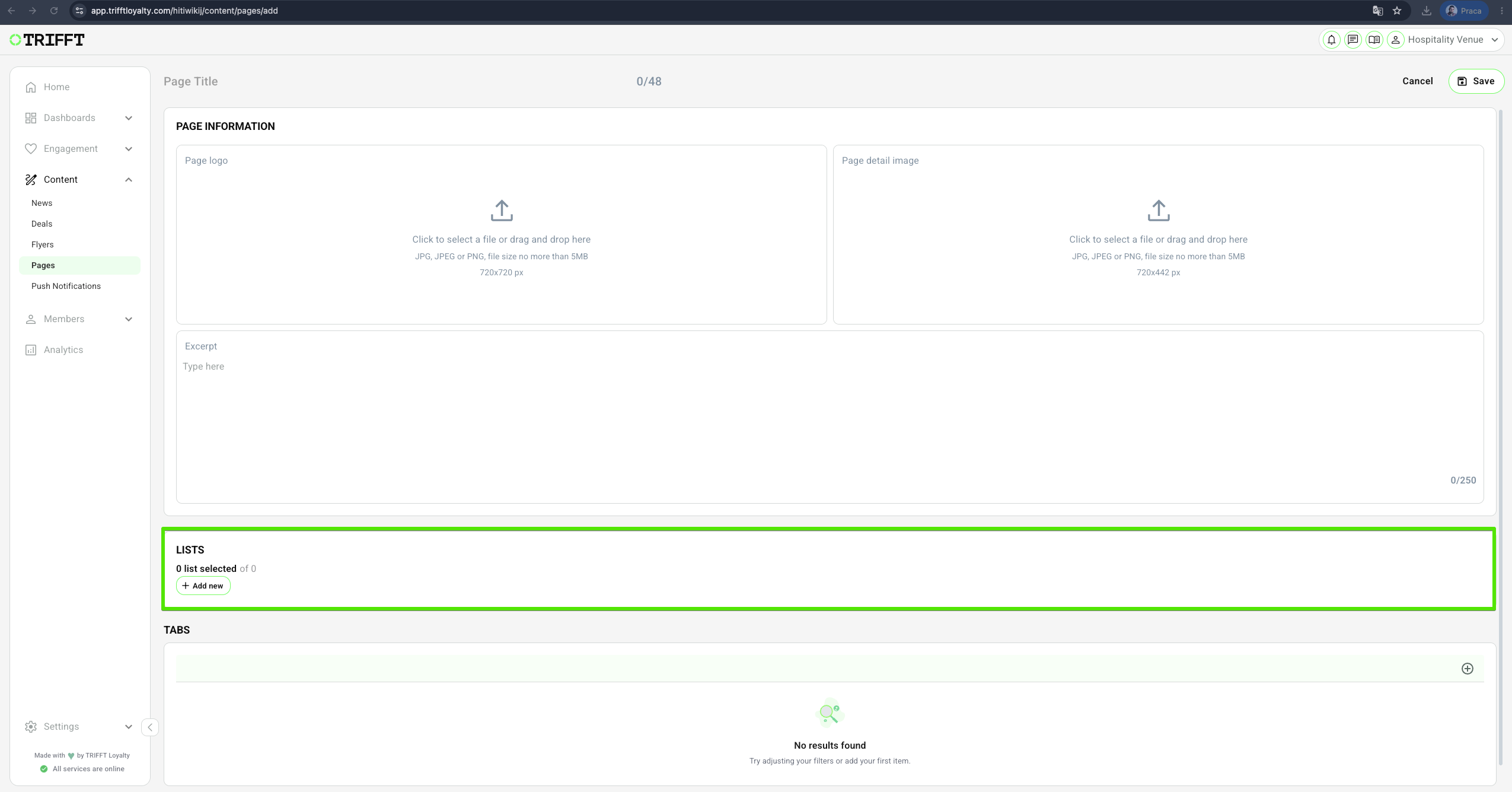
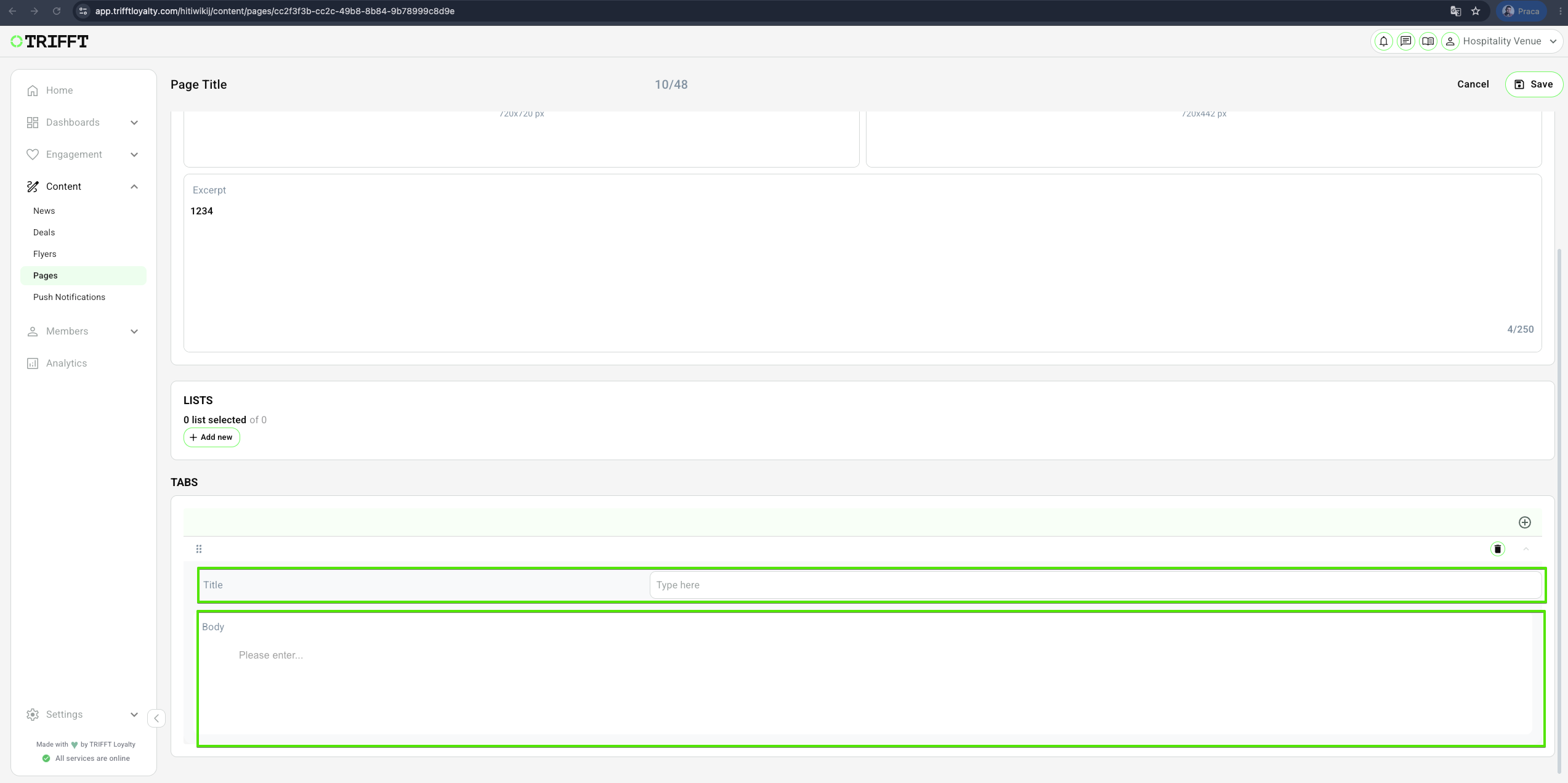
Add Tabs by clicking + and Save
You may add any number of tabs by clicking the + button. You may also add a custom name and description to each tab.
Step-by-step List setup
1. Open the Pages panel
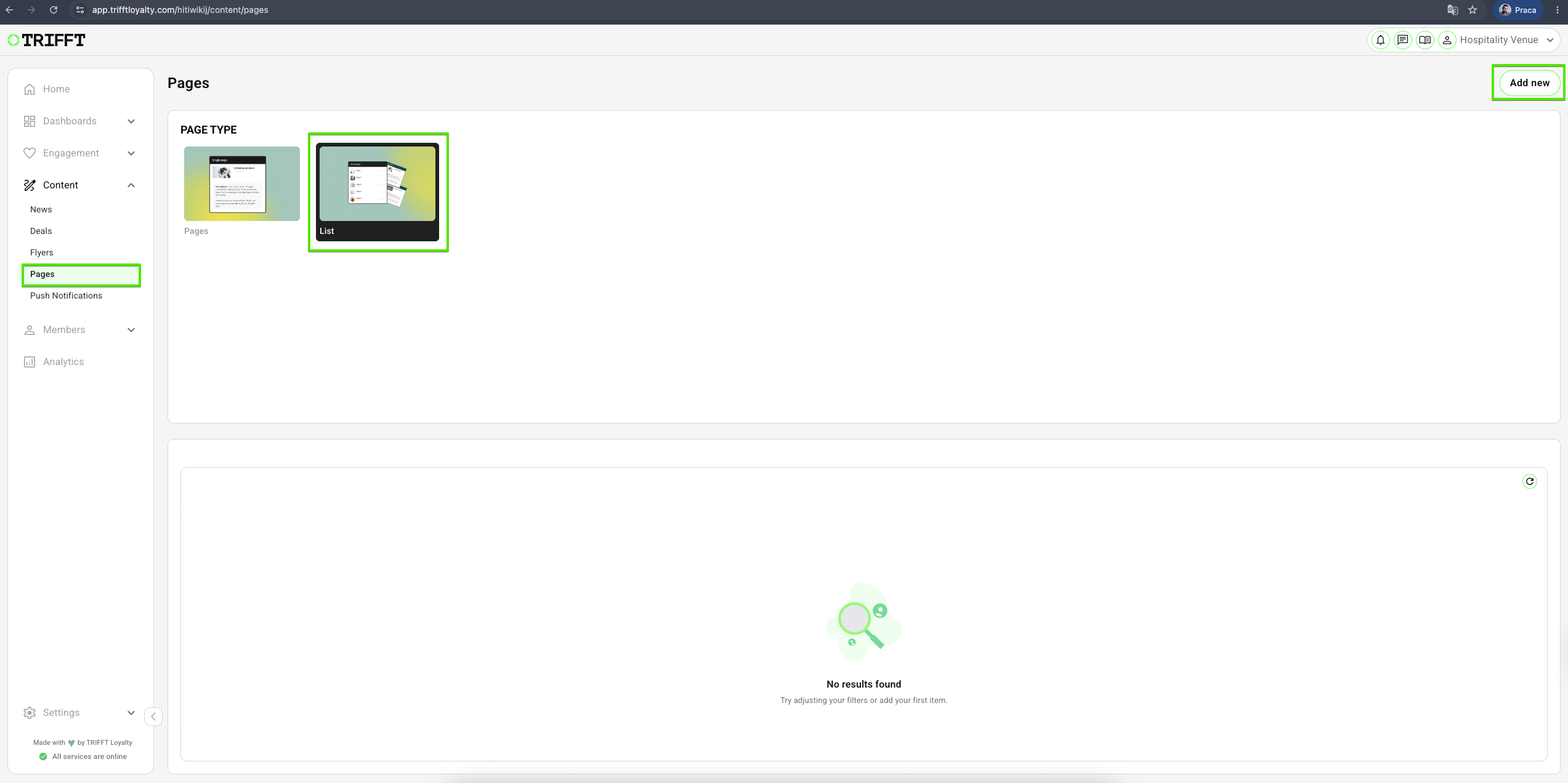
- Access the Content Cockpit and go to Content > Pages > Page type > List > Add new.
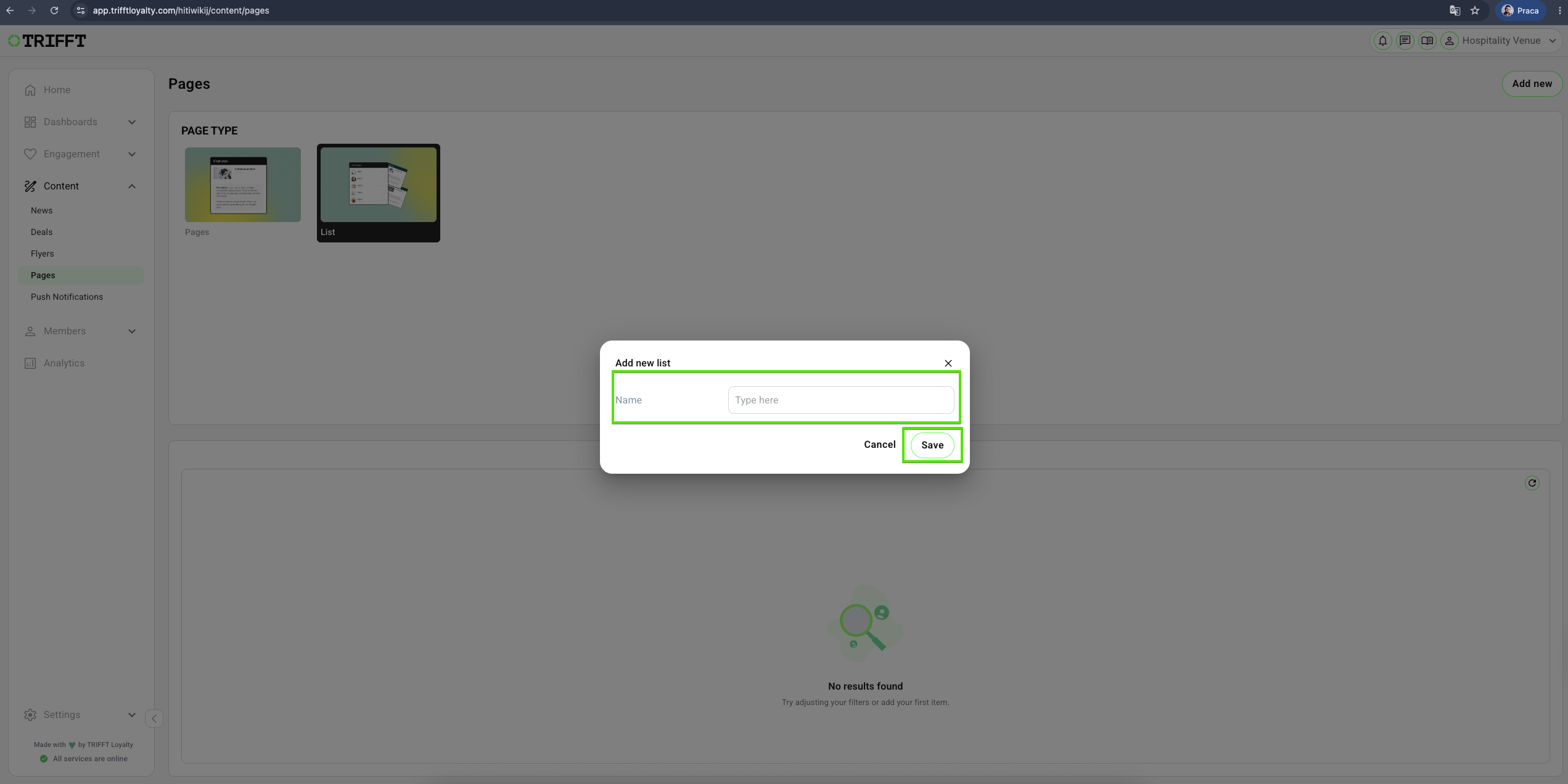
- Enter the List Name and Save.
This Technical Setup Guide provides the configuration steps required to manage and publish the Pages function within the TRIFFT Cockpit.
| Topic / function | Pages |
|---|---|
| Audience | CRM / Marketing Ops / Implementation |
| Goal | Provide step-by-step setup for static content (FAQs, T&Cs, Guides) |
| Prereq systems | TRIFFT Cockpit, Mobile App or Web Portal channel |
Prerequisites
- Access: Ensure you have the Admin or Editor role to access the Content > Pages module in the Cockpit.
- Data: Have your final legal text (T&Cs, Privacy Policy) or program guides ready for copy-pasting.
- Assets: If your page requires visual aids (e.g., a "How it Works" infographic), prepare images in high resolution and optimized for mobile viewing.
Configuration checklist
- Slug Uniqueness: The URL slug is unique and contains no special characters or spaces.
- Translation Completion: Every active language has a translated title and body to prevent "blank page" errors.
- Link Verification: All internal deep links and external URLs have been clicked and verified in the app preview.
- Responsive Check: The page layout (especially if images are included) renders correctly on both iOS and Android screen sizes.
- Navigational Placement: The page is correctly linked in the app's main menu or within a specific widget.
Updated 15 days ago
Did this page help you?