
Leaflets Set Up
Step-by-step setup
1. Open the Flyers panel
- Access the Content Cockpit and go to Content > Flyers > Add new.
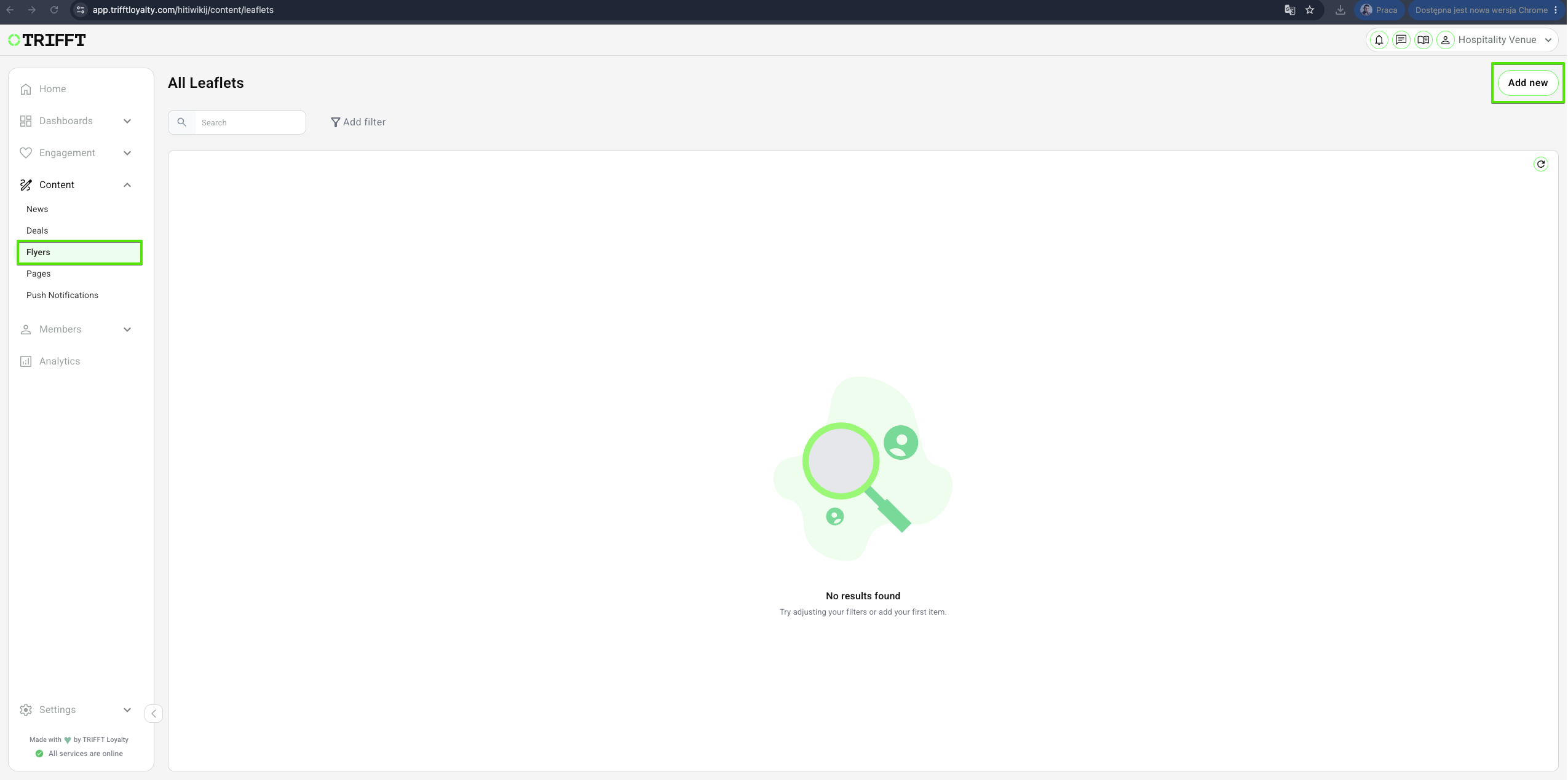
2. Basic information
- Enter the Flyer Title
- Upload a Preview Image: Upload an image that will serve as a preview for the Leaflet. This image will be displayed in the Flyers list for easier identification.
- Upload the PDF Document: Select and upload the PDF file that will be linked with the Flyer.
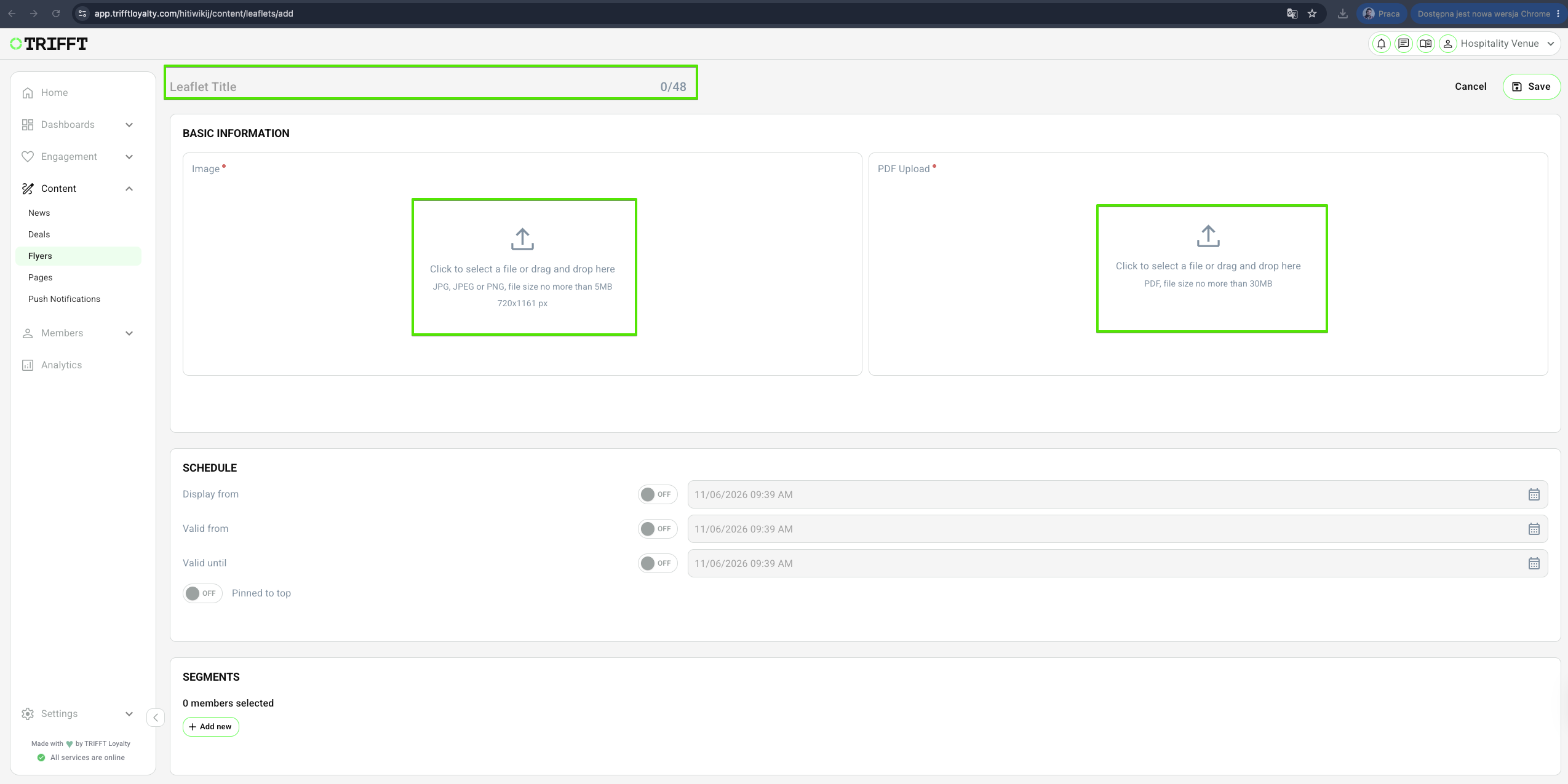
2. Schedule
- Set up the dates: Display from, Valid from, Valid until
- Pin to top - keeps the Leaflet at the top of the list
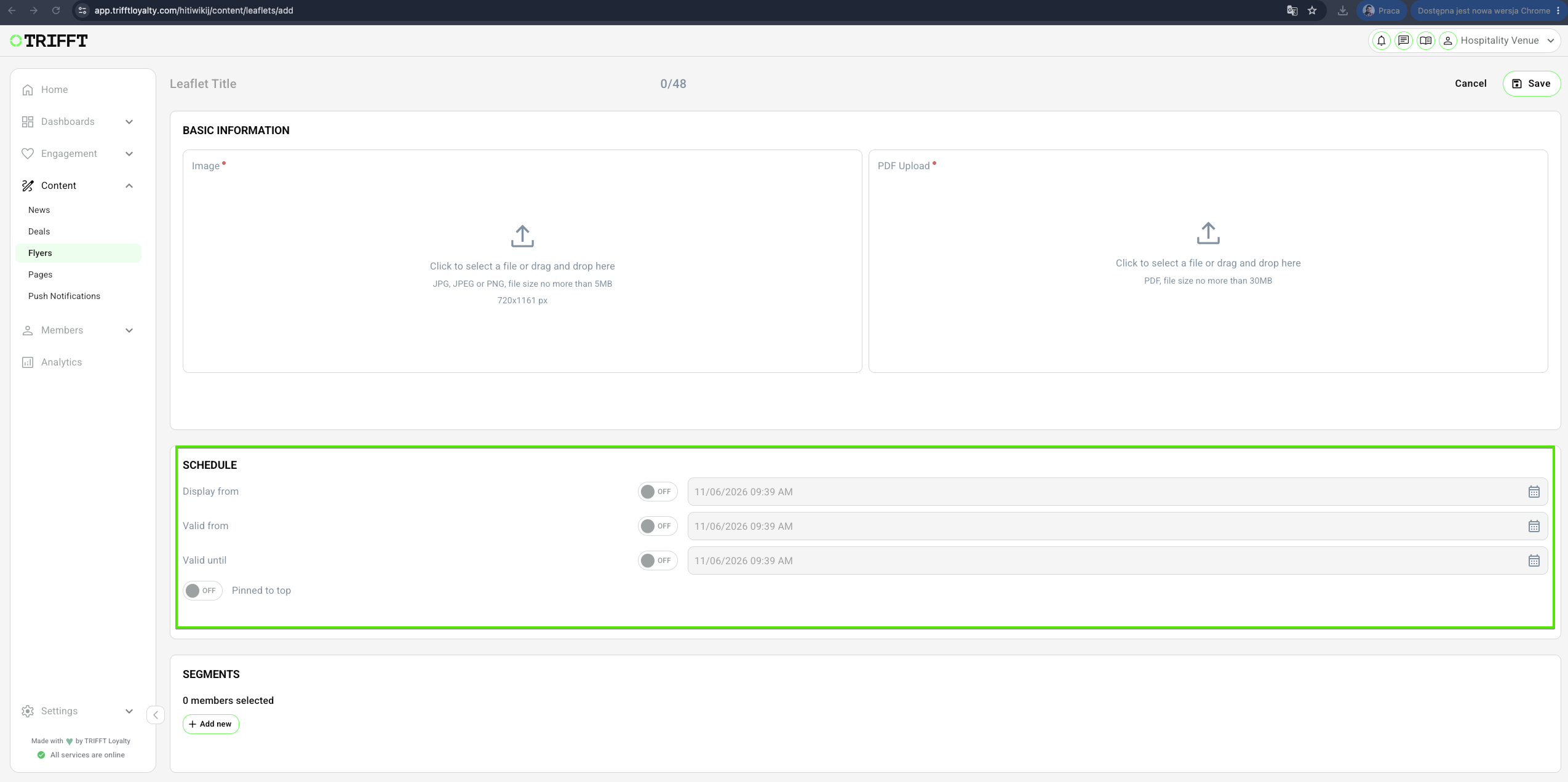
2. Segments
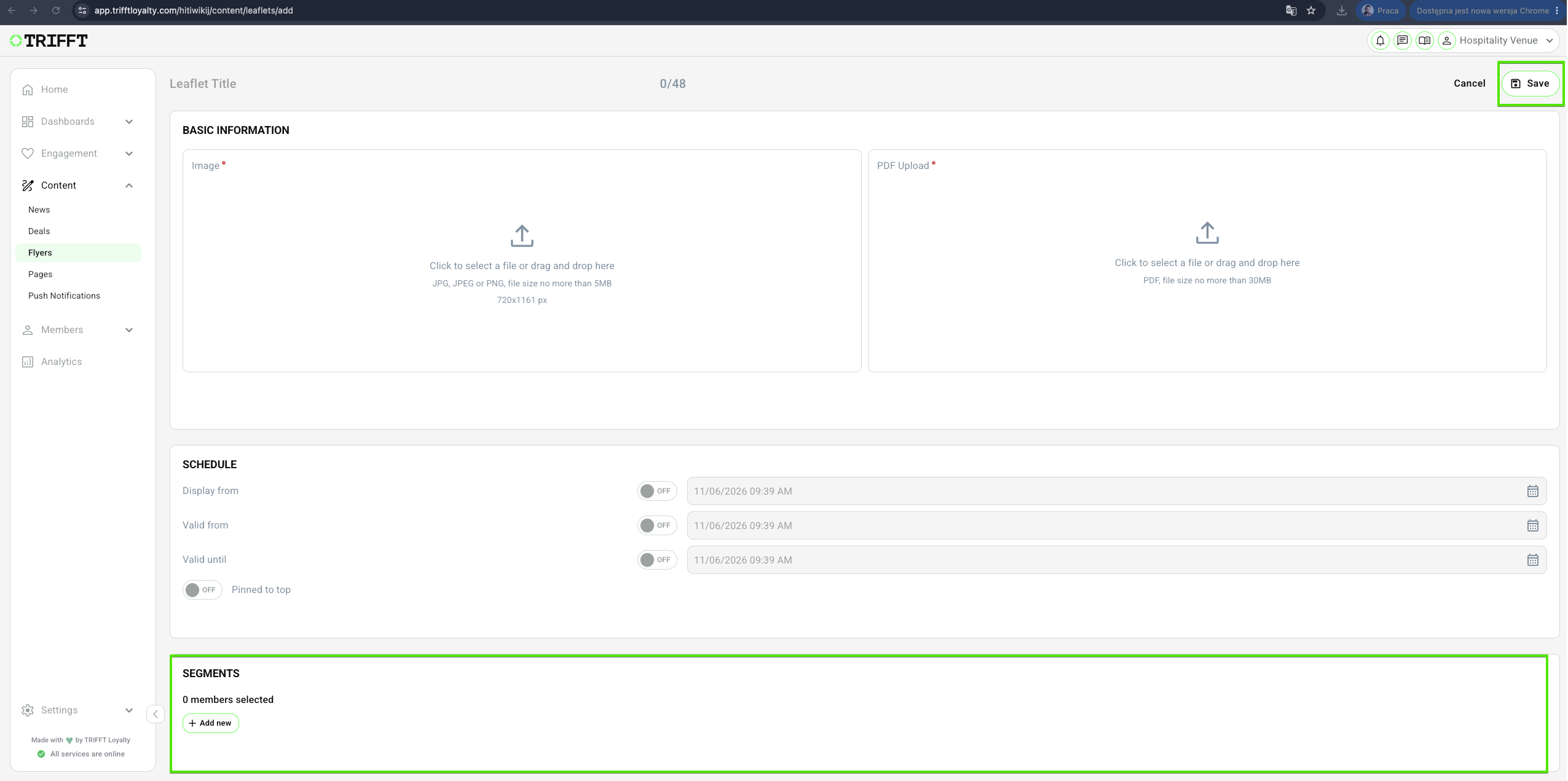
- Click Add New to select a segment. Select the desired segment to define who can view the Flyer. Save the Flyer in the top-right corner to publish the Leafle
This Technical Setup Guide provides the configuration steps required to manage and publish the Flyer function within the TRIFFT Cockpit.
| Topic / function | Leaflet |
|---|---|
| Audience | CRM / Marketing Ops / Implementation |
| Goal | Provide step-by-step setup for digitizing and targeting flyers/catalogs |
| Prereq systems | TRIFFT Cockpit, Mobile App or Web Portal channel |
lyer
Prerequisites
- Access: Ensure you have the Admin or Editor role in the Cockpit to manage content modules.
- Data: Confirm your Venue list is updated if you plan to use store-specific targeting.
- Assets: Prepare high-resolution images or PDF files of the flyer or catalog, ensuring file sizes are optimized for mobile loading speeds.
Configuration checklist
- Readability Check: Verify that the flyer text remains legible when viewed on a standard mobile screen.
- Alignment: Ensure the promotion dates printed on the flyer match the Cockpit scheduling dates.
- Translation Audit: Check that titles are correctly translated for all active app languages to avoid "fallback" errors.
- Targeting Logic: Confirm location filters correctly include or exclude the intended venues.
- Navigation Verification: Confirm the leaflet appears in the designated section of the Mobile App or Web Portal.
Updated about 1 month ago
Did this page help you?