
Users Other Functions
This Ongoing Management Guide provides the configuration steps required to maintain and optimize Users within the Content Cockpit.
| Topic / function | Users |
|---|---|
| Audience | Project Owner / Admin |
| Goal | Maintain, edit, pause, troubleshoot, and improve the setup over time |
Other functions covered
- Modifying Permissions: Adjusting roles (e.g., promoting an Editor to Admin).
- Deactivating Accounts: Removing access for offboarded employees to maintain security.
Edit User Permissions
You can update the permissions of existing users at any time to control which sections and features they can access within the platform. This allows you to adjust access levels as responsibilities change without creating a new account.
- Navigate to Settings → Users and open the detail of User.
- Change their role and click the Save button in the top right corner.
Delete User
Users can also be permanently removed from the project when access is no longer needed. Deleting a user will revoke their access to the project and remove them from the user list.
- Open the list of your Users.
- Select the User and click the 3 dots icon (you can also use right-click).
- Click Delete and confirm the deletion in the pop-up.
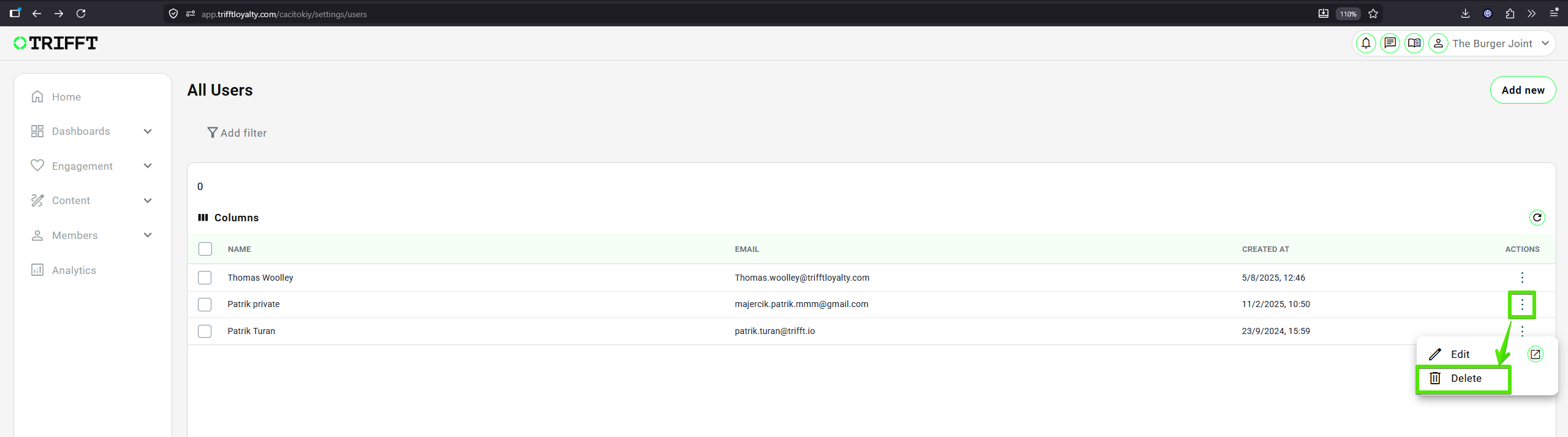
Deleting User
Ongoing management checklist
- Quarterly Role Audit: Periodically review the user list to ensure high-level permissions (Admin/Owner) are only held by necessary personnel.
- Immediate Offboarding: Deactivate user accounts immediately upon a team member's departure to prevent unauthorized access.
- Entity Alignment: Check that users assigned to specific venues are updated if they transfer to different store locations.
- Security Protocol Update: Ensure all active users have updated their passwords in accordance with your company's security policy.
Updated about 1 month ago
Did this page help you?