
Promo Events Other Functions
Adding Promo codes
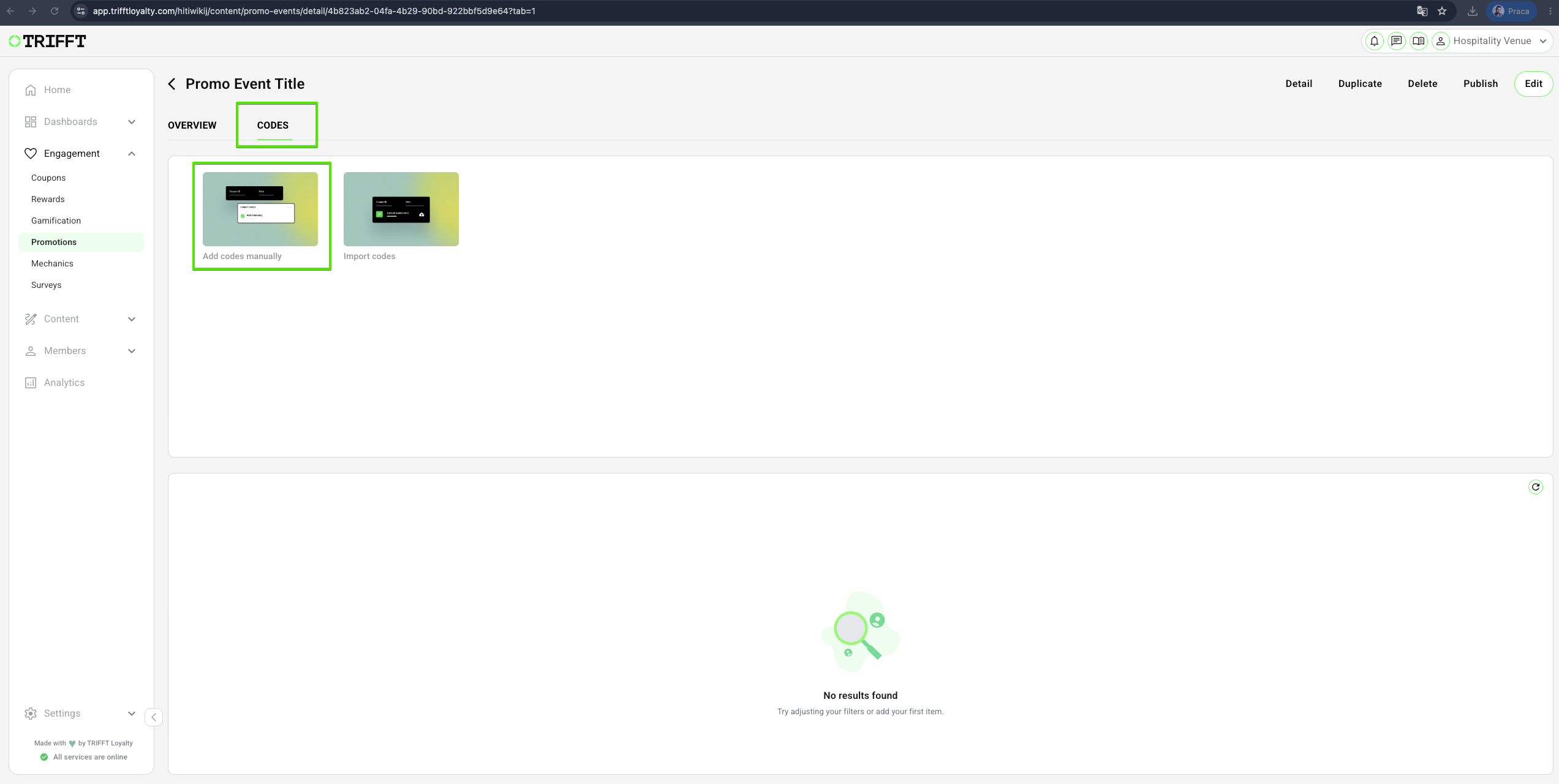
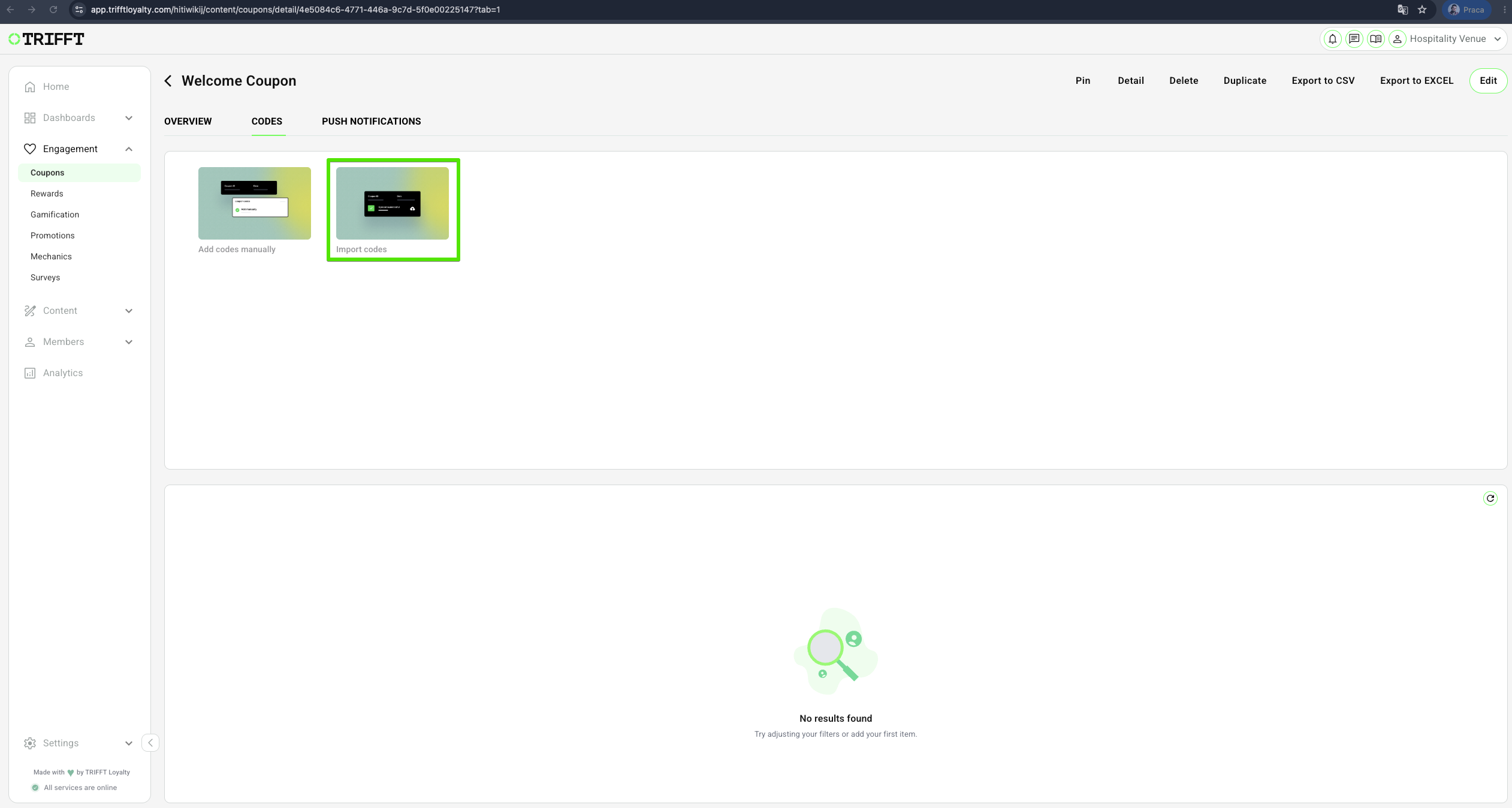
- After creating and saving the promo event, its detail page opens. Navigate to the Codes tab, where you can assign a promo code to this event. You can create codes manually or import them from a CSV or XLS file.
- For creating a code manually, click Add codes manually, or you can import the list of your codes.
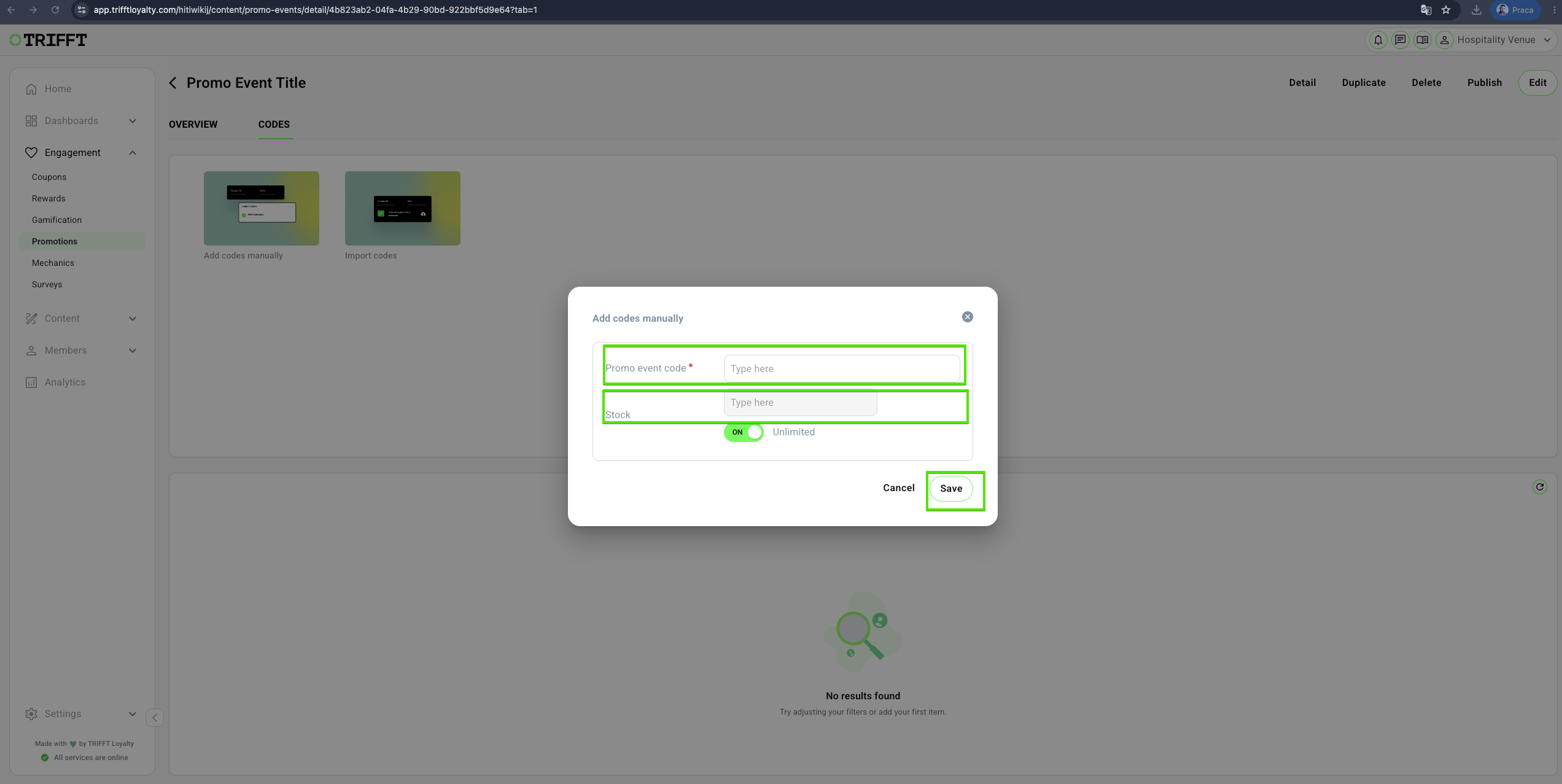
- In the new window, enter the desired code.
- Optional: If you want to limit the number of times the code can be used, check the Stock option and set the allowed usage limit.
- Click Save to confirm.
- Once saved, the promo code is set, and the promo event is successfully configured.
Importing Codes
- You can download the coupon_codes_example.csv file for reference
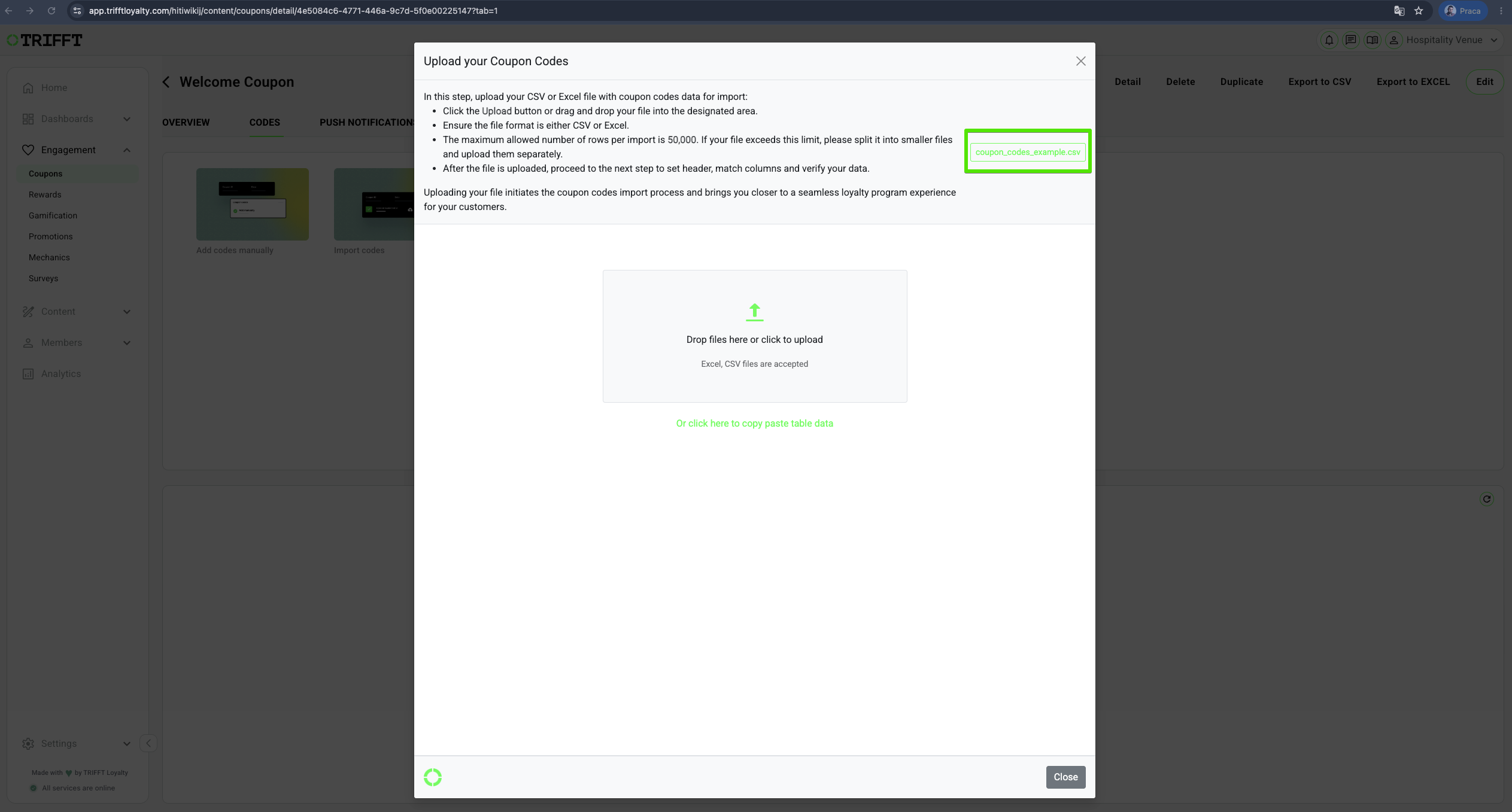
- Upload the Codes
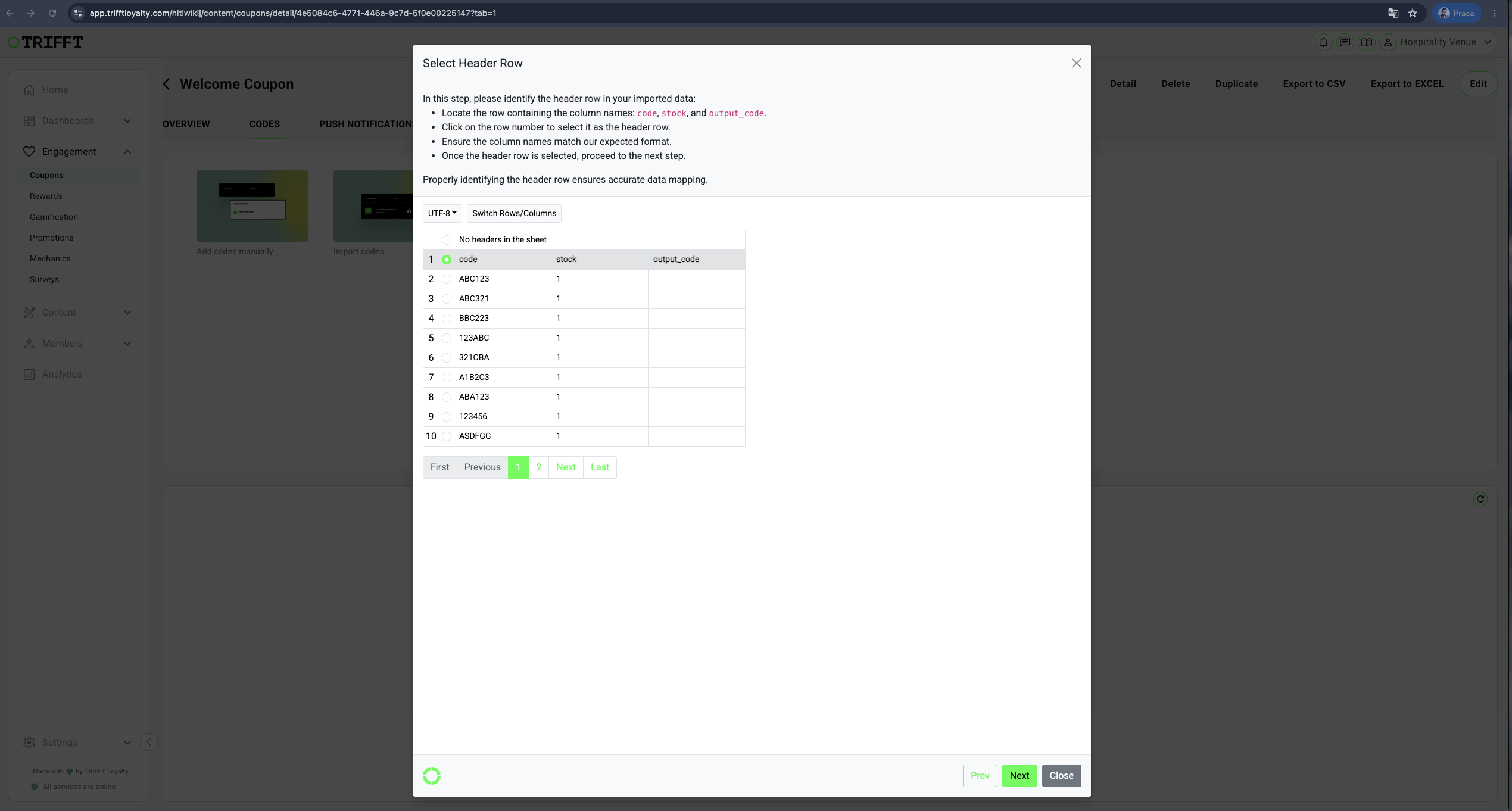
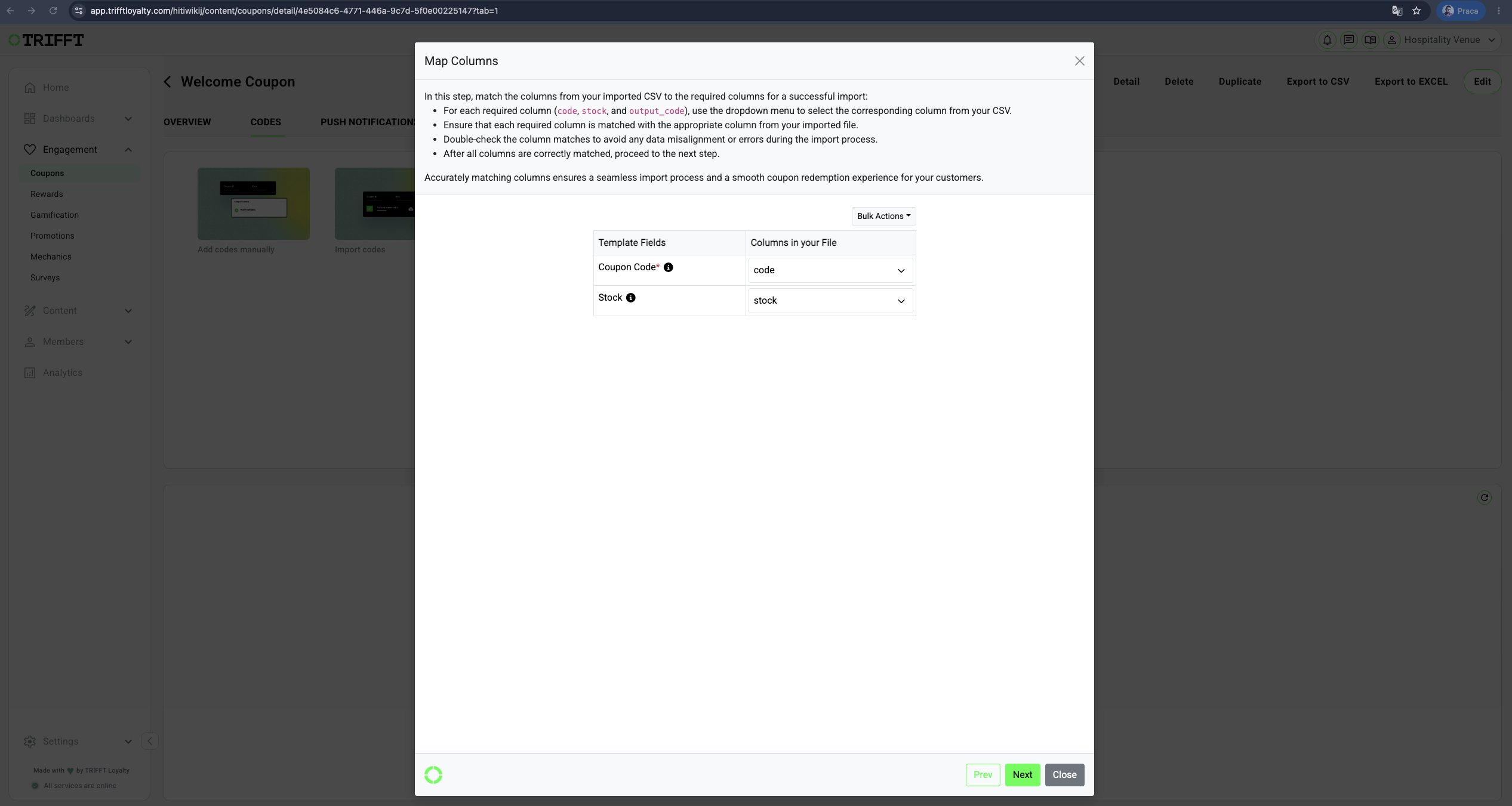
- Follow the guidelines:
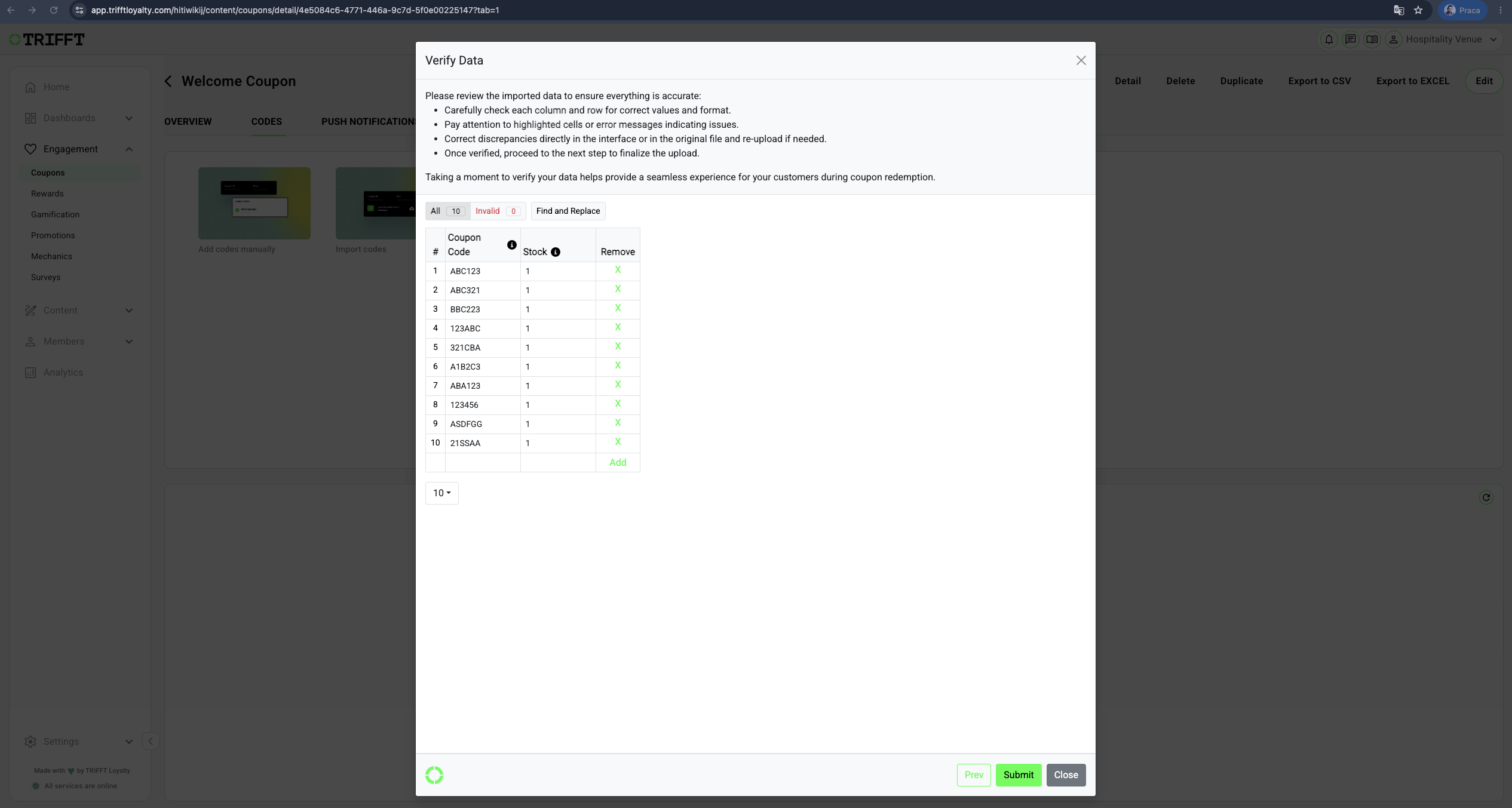
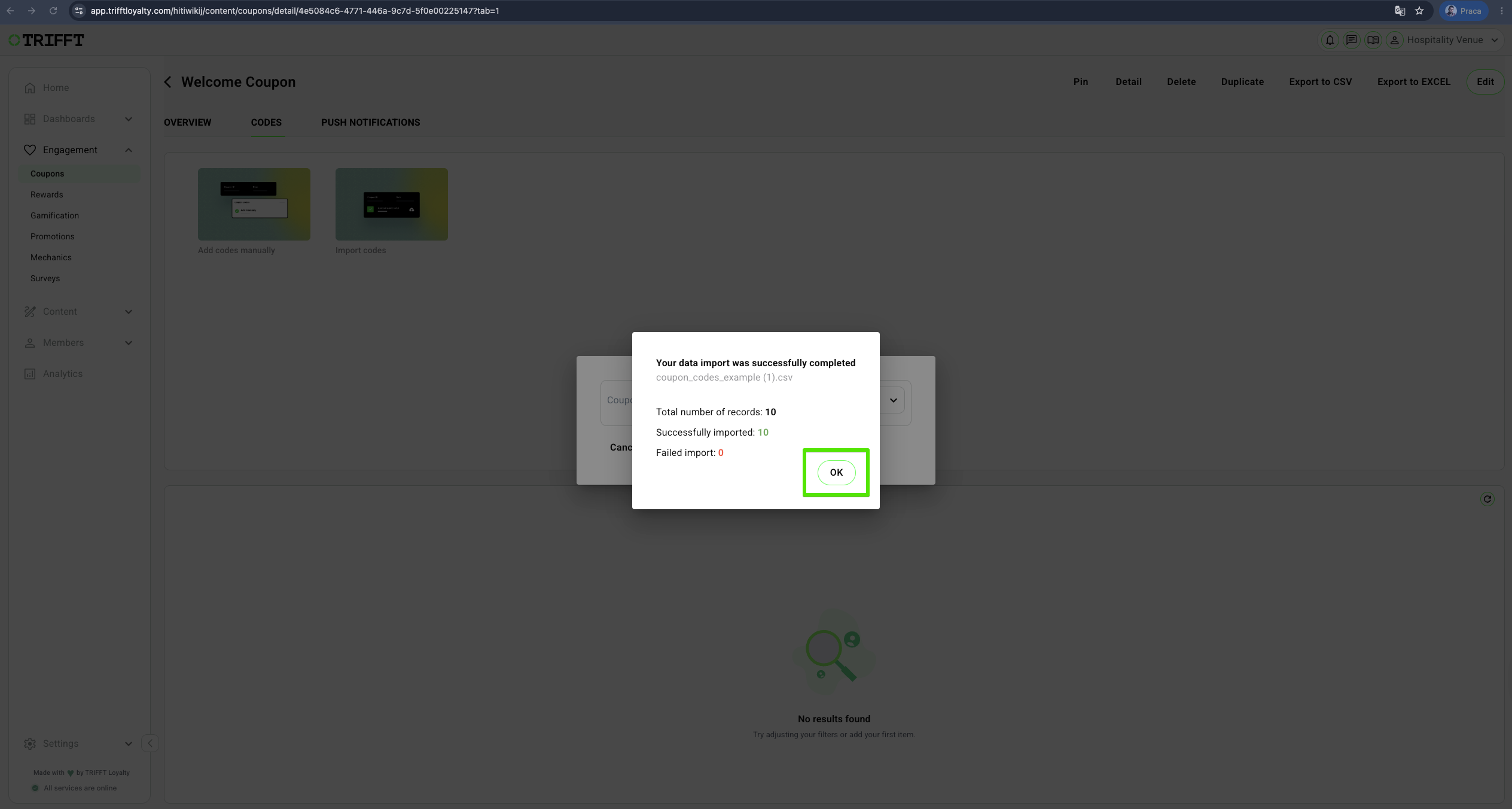
- Verify data and submit:
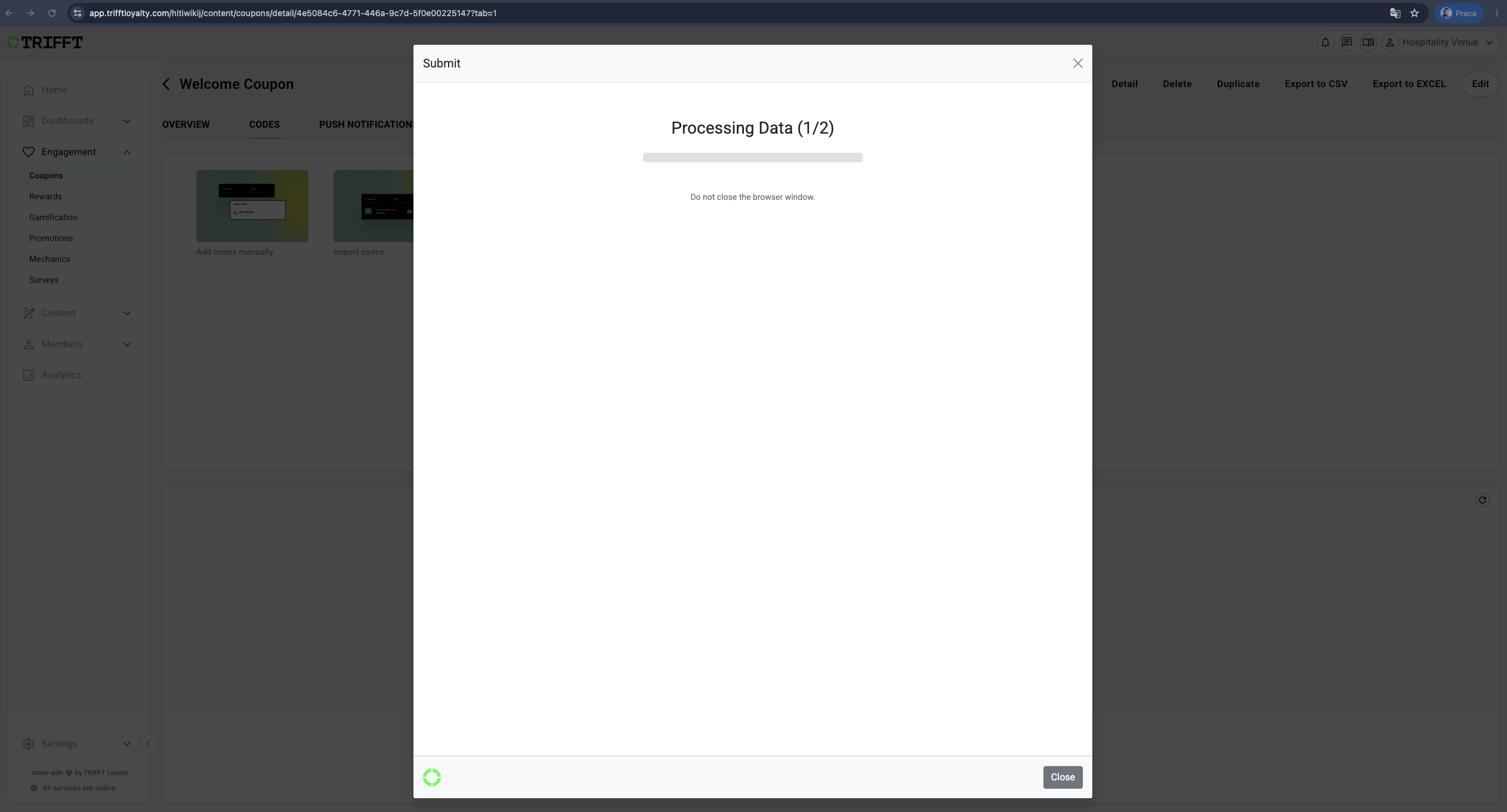
- Confirm the process by clicking OK:
Edit Promo Events
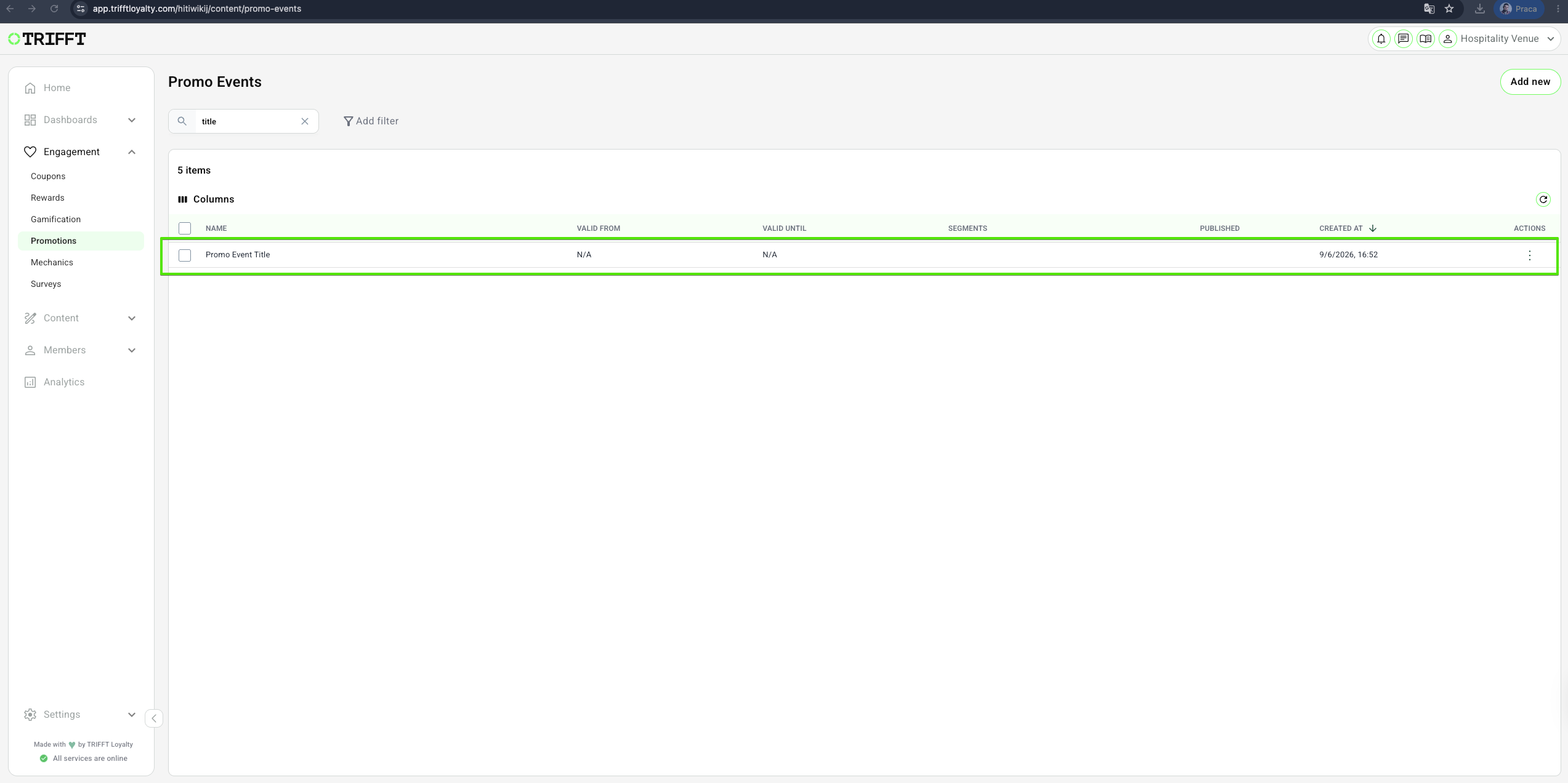
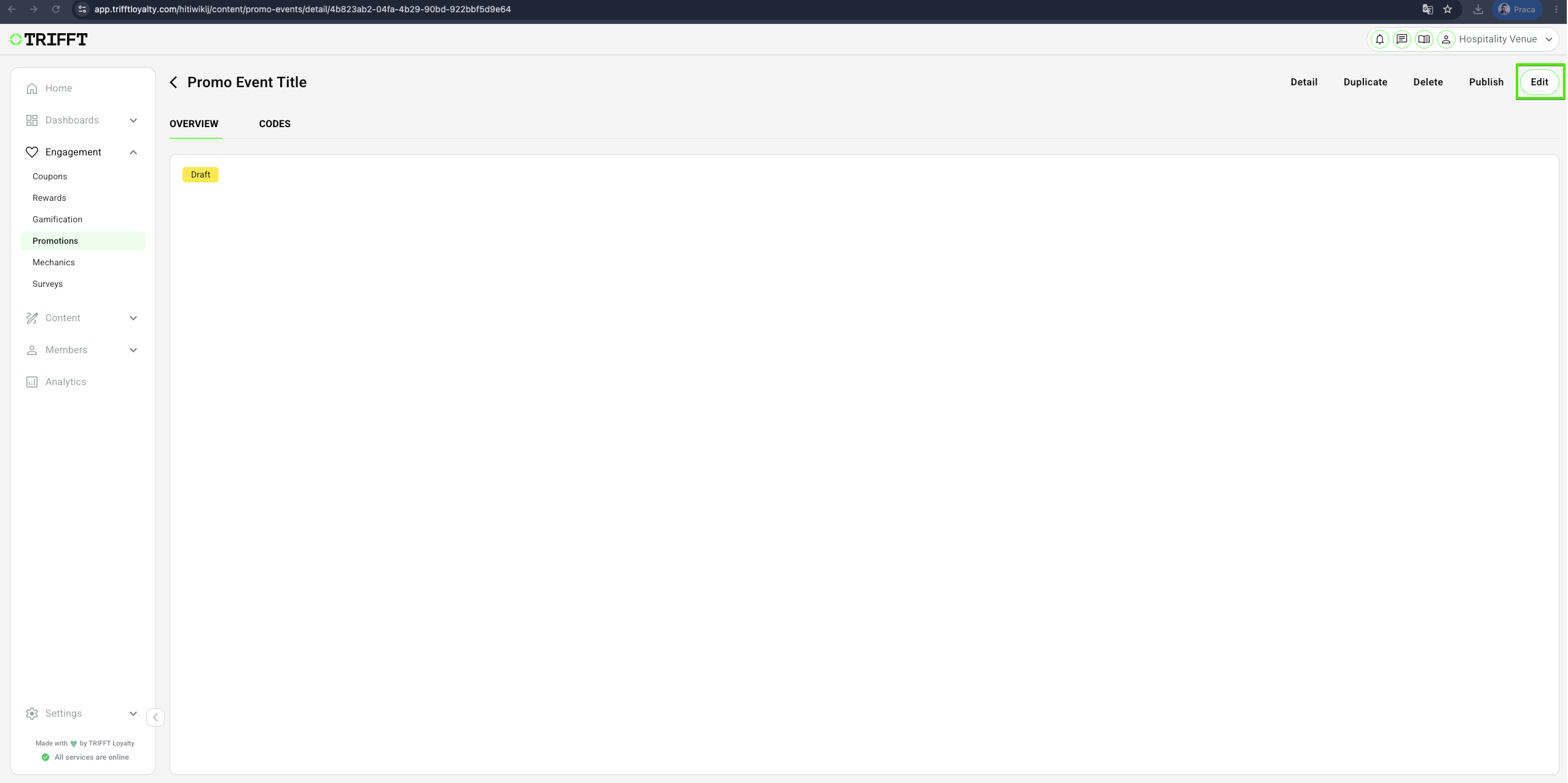
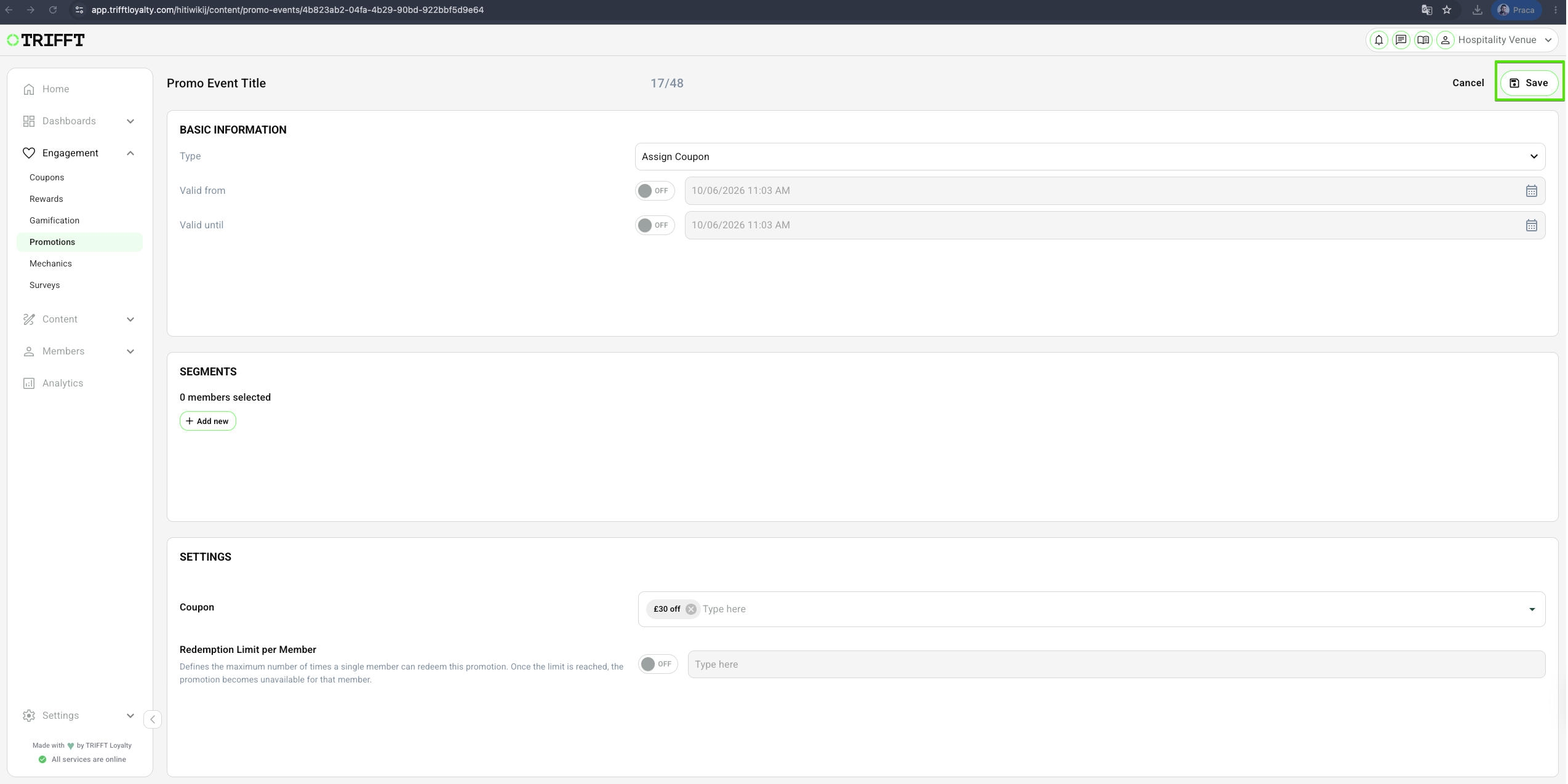
- Navigate to Engagement > Promotions > Click the desired Promotion > Edit > Make your changes & Save.
Duplicate Promo Events
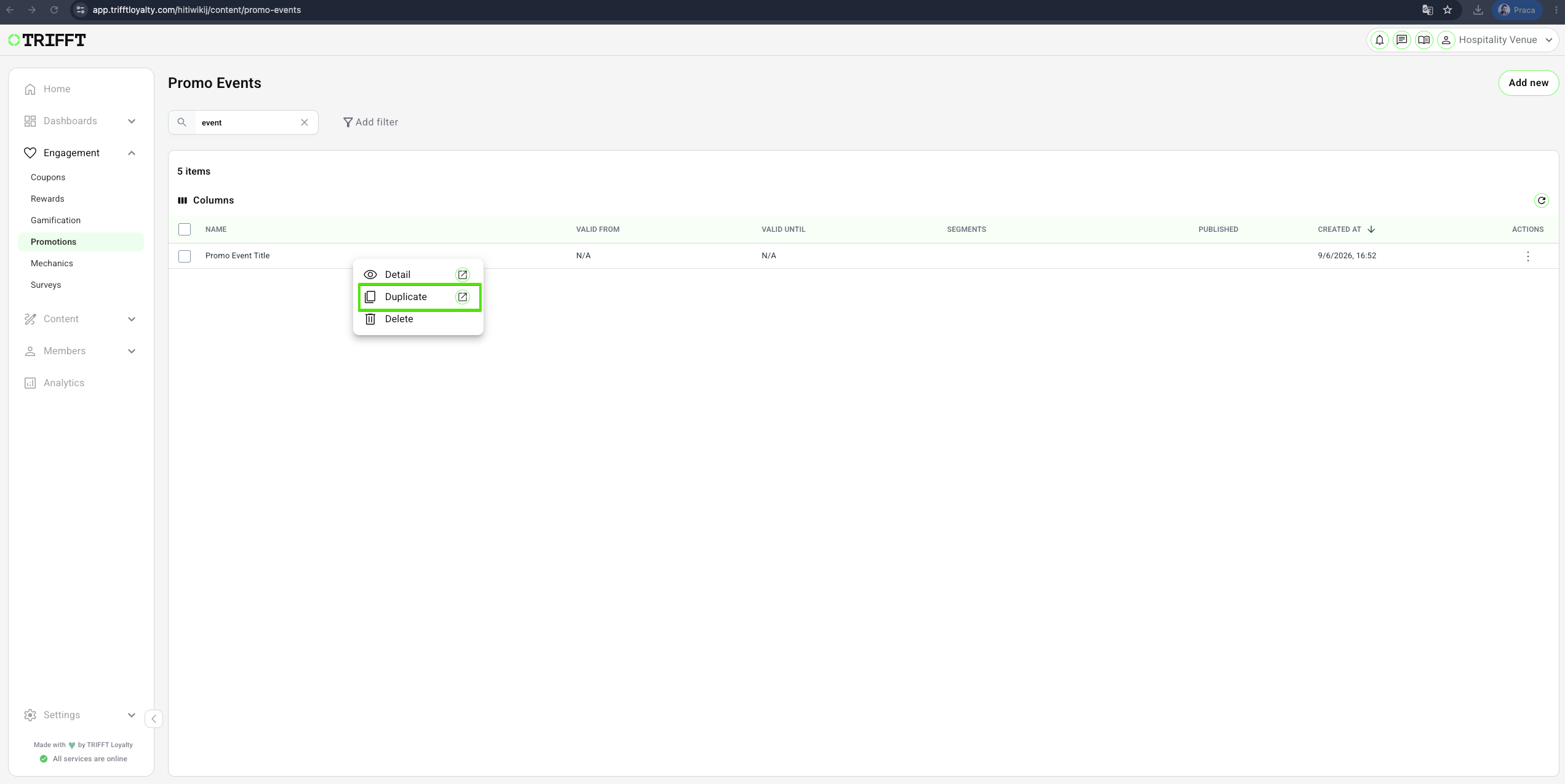
- Navigate to Content Cockpit > Engagement > Promotions > Right-click the desired Promotion > Duplicate & Save.
Delete Promo Events
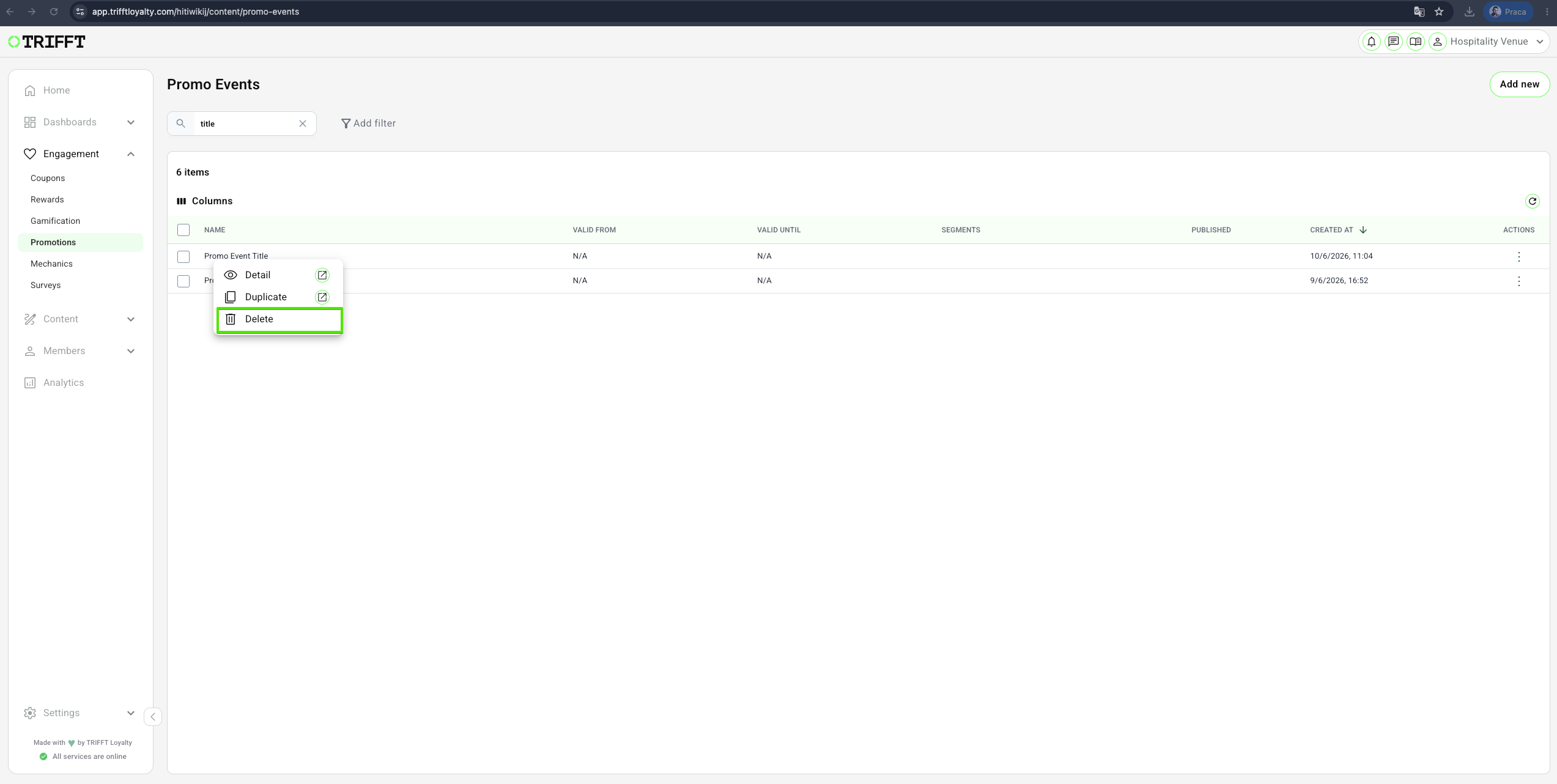
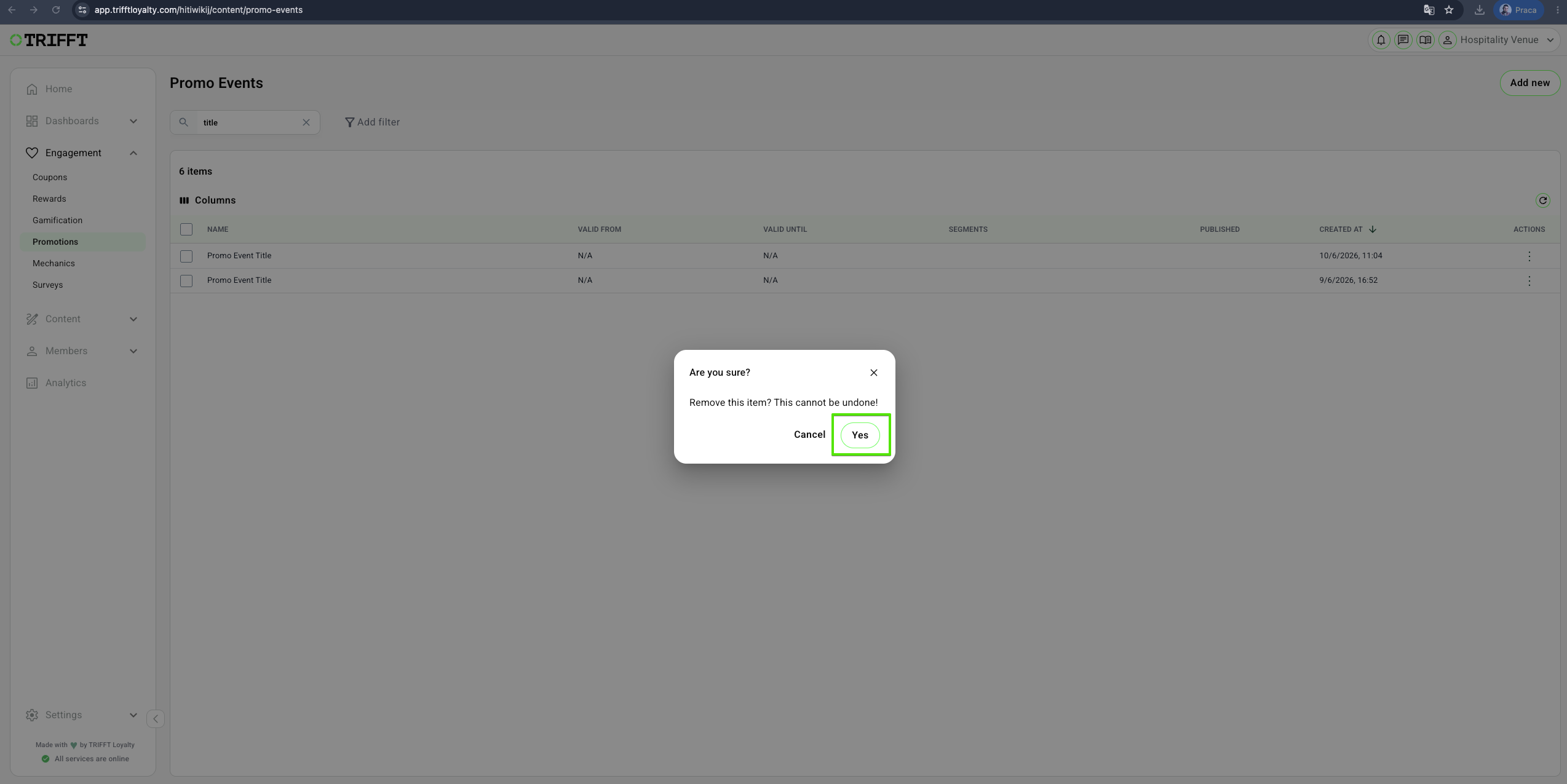
- Navigate to Content Cockpit > Engagement > Promotions > Right-click the desired Promotion > Delete & Confirm with Yes.
Efficiency Tip — Cloning saves significant time by preserving complex product filters and segmentation rules from previous campaigns.
Updated about 1 month ago
Did this page help you?