
Mobile App Other Functions
This Ongoing Management Guide provides the steps required to maintain, update, and optimize the Mobile App channel within the Content Cockpit.
Other functions covered
- Linking your content - Linking your content with the external URLs or internal app sections.
- Homepage Layout Optimization: - Adding, removing, or reordering dashboard widgets (e.g., Progress Bar, Member ID).
- Branding & Asset Updates: - Refreshing app icons, splash screens, and brand colors.
- Onboarding Maintenance: - Updating the intro slides to reflect new program features or rewards.
- Credential Management: - Updating expiring Apple (.p8) or Firebase (JSON) certificates for push notifications.
- Version Control: - Initiating and monitoring new app builds for store submission.
Linking your content
Content links serve to incorporate additional links into various content types such as News Articles, Deals, and certain types of Widgets (e.g., Static Widget, Links Widget, etc.). There are three distinct types of Content Links available, depending on the content being edited. The available types may differ depending on the content that is being edited.
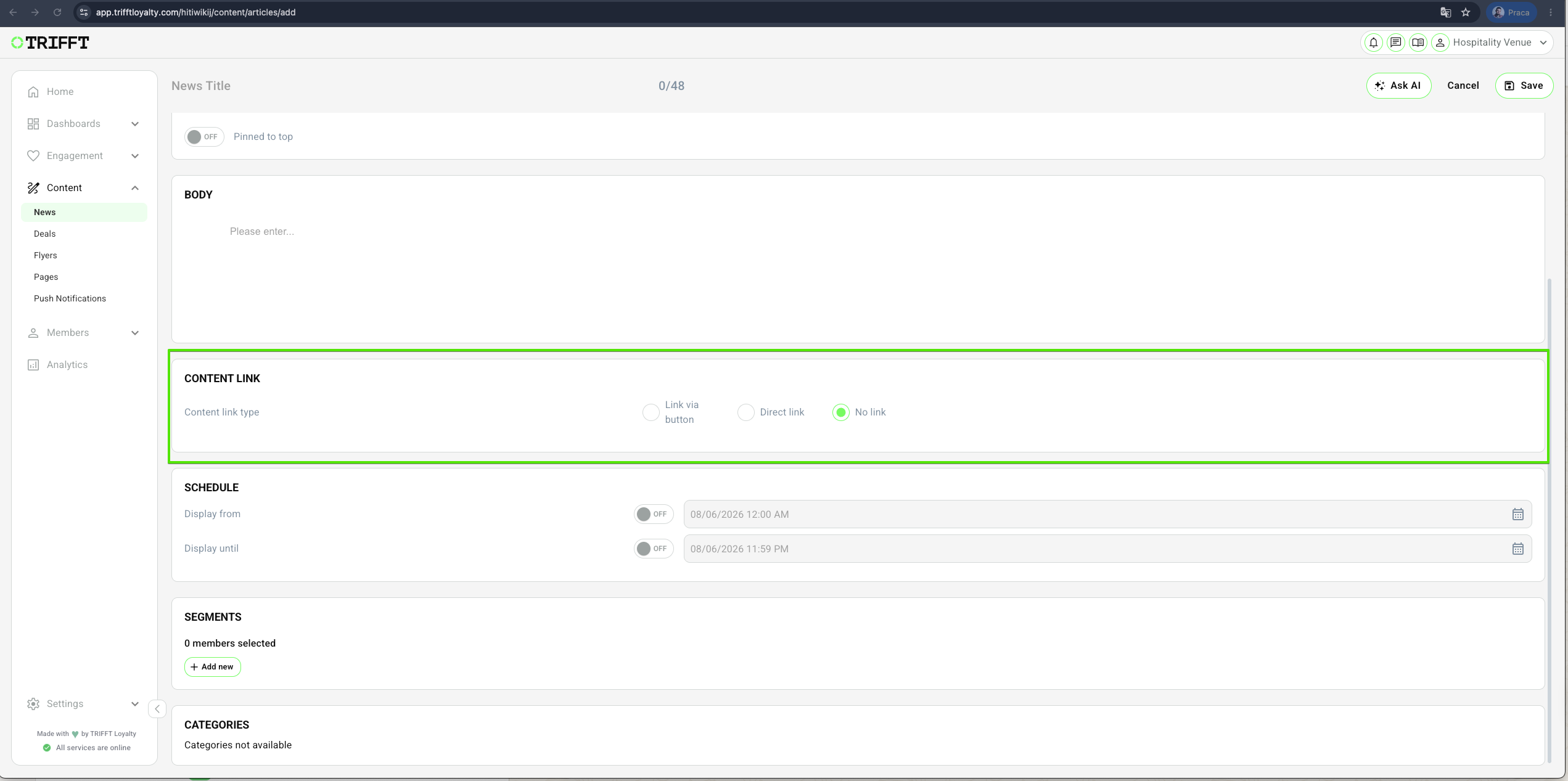
No Link
Select "No Link" if you do not wish to include any links.
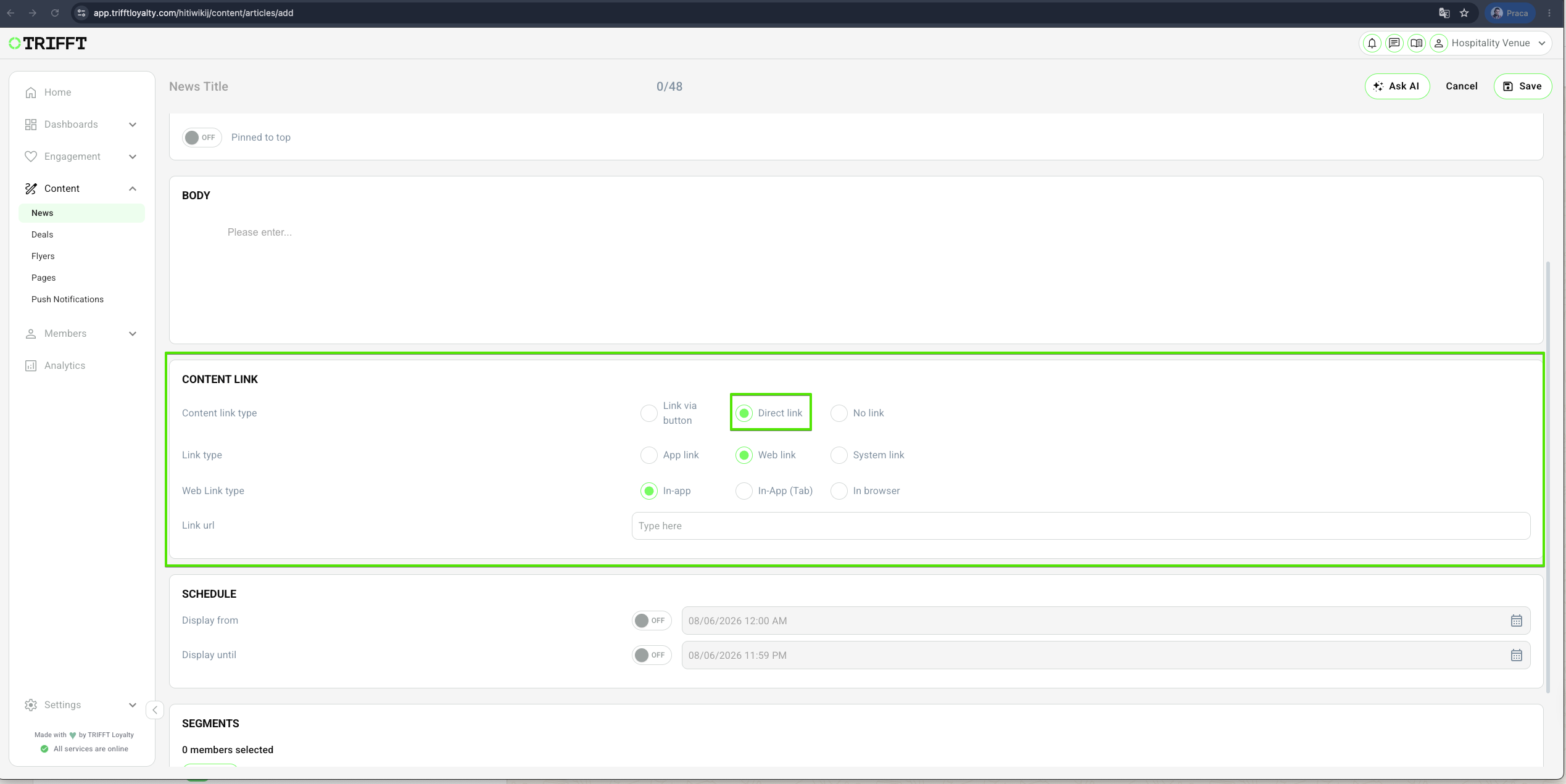
Direct Link
Choosing "Direct Link" will immediately redirect members to the specified link upon click.
Link via Button
This feature incorporates the link directly into the body of the content, presenting it as a clickable button within the content itself. Members must first open the Content to view the button link and then click the button to redirect to the specified link.
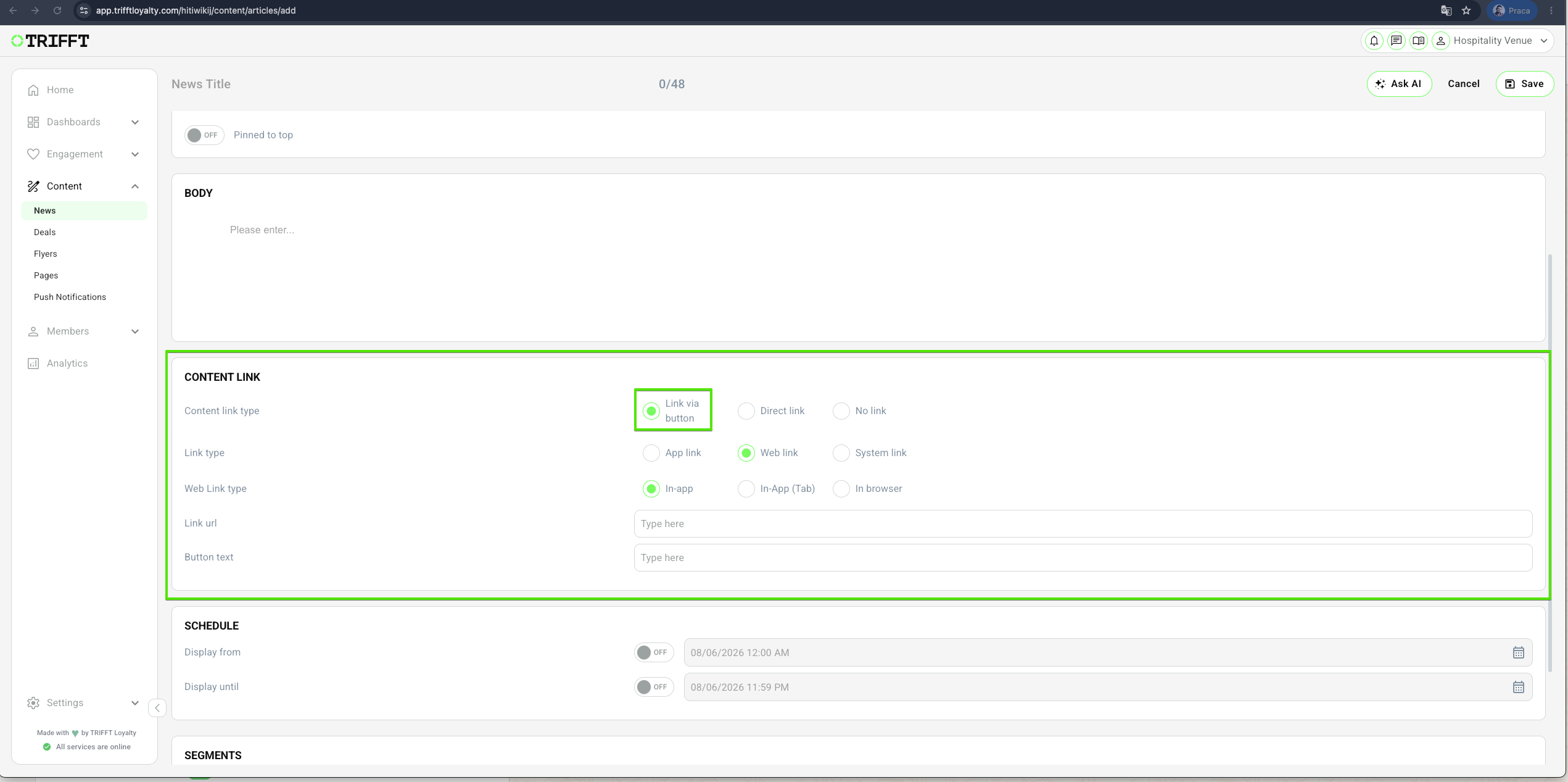
When a Content link type other than "No link" is selected, you will get access to additional link types for greater control. There are three distinct link types available.
App link
Utilize the app link option to direct users to specific sections within the app. Choose from various app screens via the dropdown menu to redirect members accordingly.
Web Link
This link redirects users to external URLs. With Web Link, you can specify whether to open the link within the app or in a new browser tab.
System link (Share App Feature)
This type of link enables Members to share it across different channels. This Share App Feature allows for seamless sharing of content through social media, email, or messaging platforms, making it easy for users to invite friends, family, or colleagues.
Action description (Example: Updating the Homepage Layout and Widgets)
- Navigate to Mobile App Settings: Log in to the TRIFFT Cockpit and go to Settings > Channels > Mobile App.
- Access Layout Editor: Click on the Dashboard or Layout tab to see the current arrangement of homepage elements.
- Manage Widgets: Click Add Widget to introduce new features (like a "Featured Deal" banner) or use the drag-and-drop handles to reorder existing ones.
- Configure Widget Logic: For each widget, define the source content (e.g., a specific News category) or the target segment authorized to see it.
- Refresh Visuals: If needed, navigate to the Branding tab to upload updated Splash Screens or adjust the Primary Hex Color.
- Verify Technical Keys: Go to the Push Settings tab to ensure Firebase and Apple certificates are active; replace them if they are nearing expiration.
- Add Testing Steps: Use a staging device or the "Preview" mode in the Cockpit to verify that the new layout and branding render correctly.
- Enable and Confirm: Click Save. If the changes require a new binary (like an icon change), trigger a Build Request for the TRIFFT technical team.
Ongoing management checklist
- Widget Performance: Periodically review the homepage to ensure the most important widgets (Member QR Code) remain "above the fold".
- Certificate Expiry: Set calendar reminders to renew Apple APNs certificates before they expire to avoid push notification downtime.
- Onboarding Relevance: Review onboarding slides every quarter to ensure they don't feature expired rewards or old campaign imagery.
- Deep Link Integrity: Verify that "Featured" banners on the homepage still point to active and published News or Deals.
- Store Compliance: Ensure splash screens and app descriptions are updated whenever a major brand identity change occurs.
- Analytics Health: Check the Tracking tab to confirm that GA4/GTM IDs are still correctly firing events for the latest app version.
Updated about 1 month ago