
Users Set Up
This guide covers how to manage internal team access to the Content Cockpit.
Prerequisites
Admin role required — Only users with the Admin role can manage internal team access.
Before you begin, gather the following:
| Requirement | Details |
|---|---|
| Data | Corporate email addresses and names of team members. |
Step-by-step setup
1. Open User Management
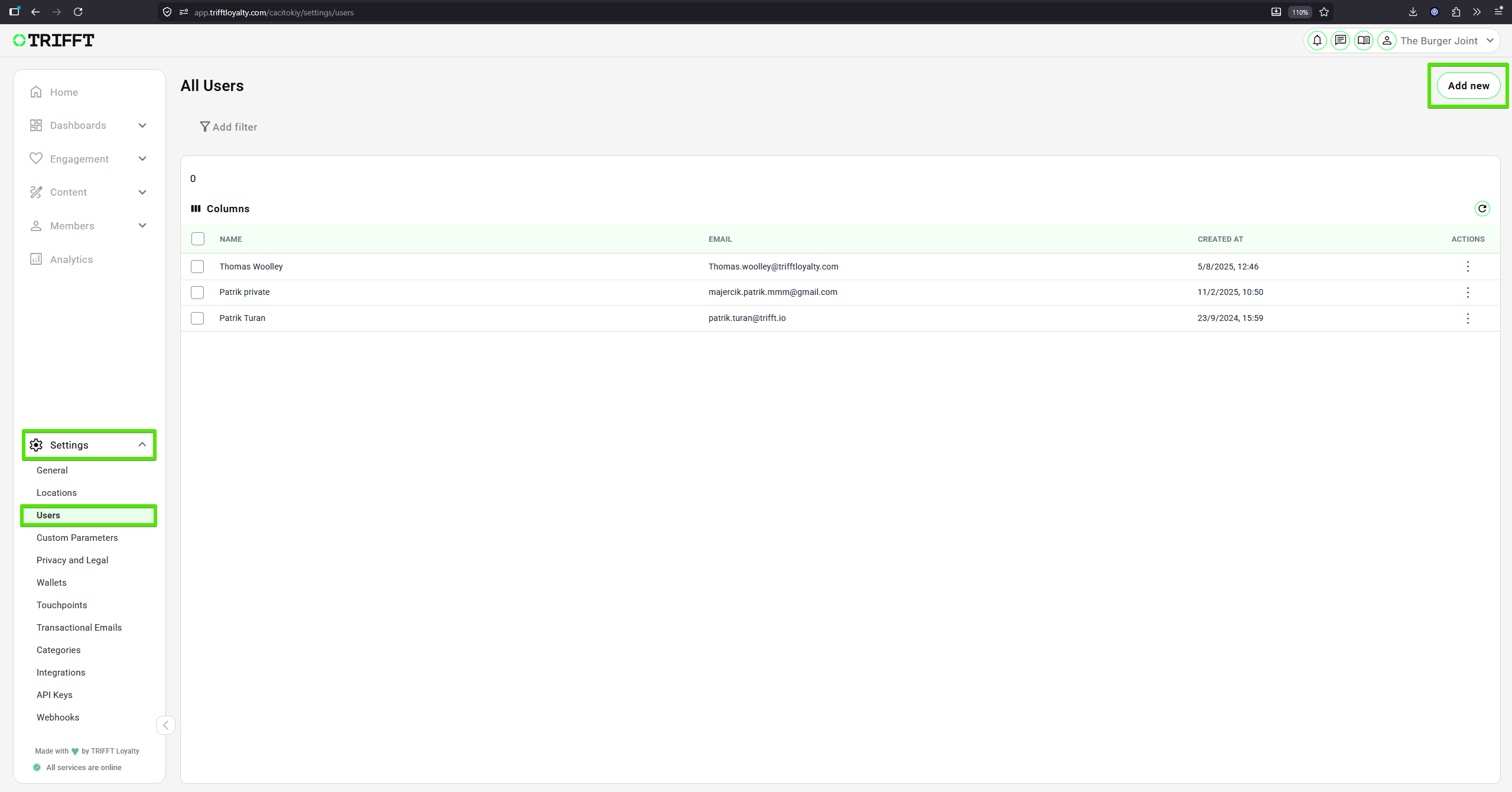
- Navigate to Settings > Users.
2. Initiate invitation
- Click Add new.
3. Provide user details
- Enter the User's Name and Email Address. Once you click Grant access the invitation email will be sent.
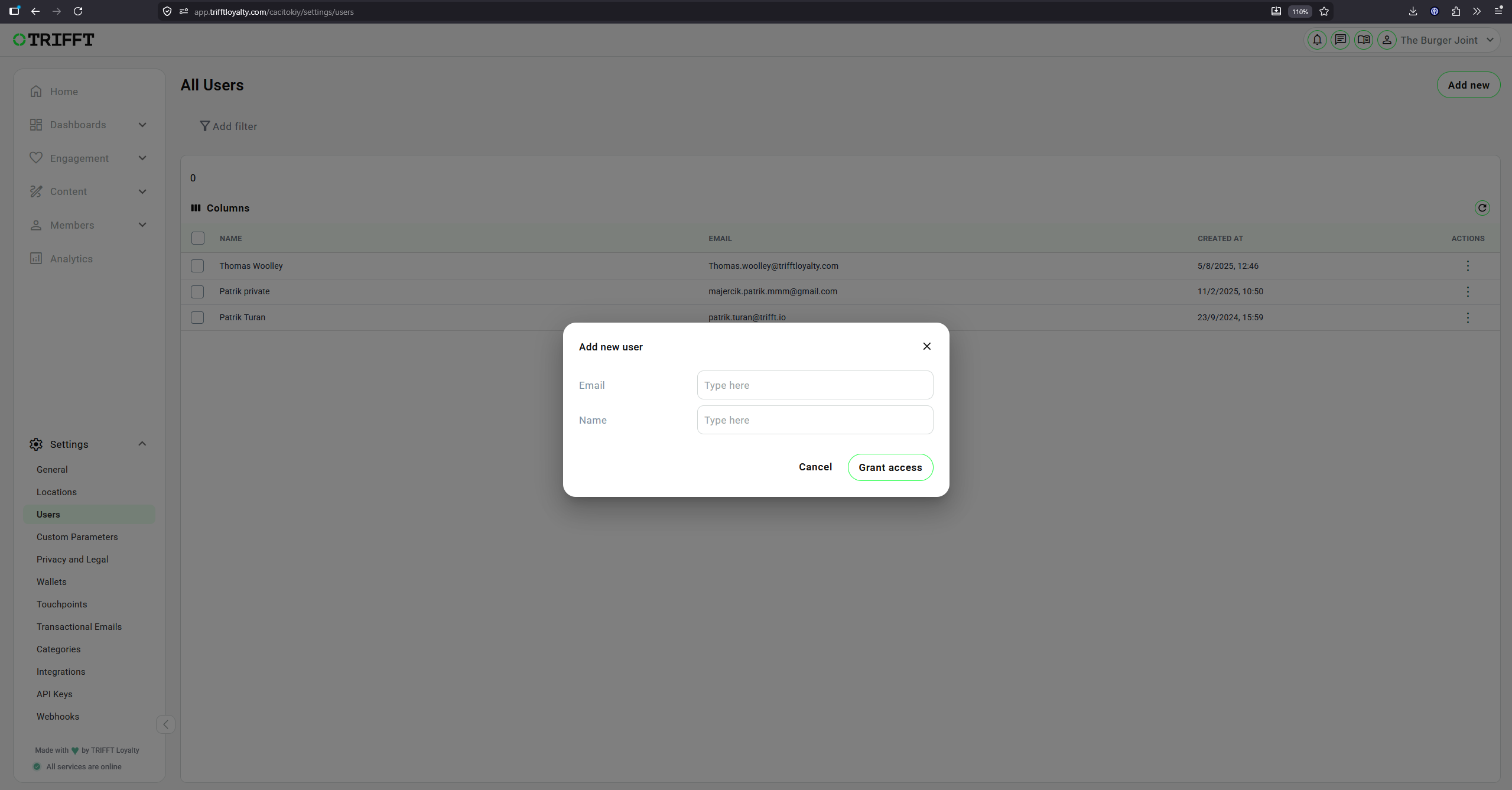
Granting access for a new User
4. Assign a role
- Assign a Role (choose from Admin, Manager, Content Editor, Support or Customize your own role).
- Click Save in the top right corner.
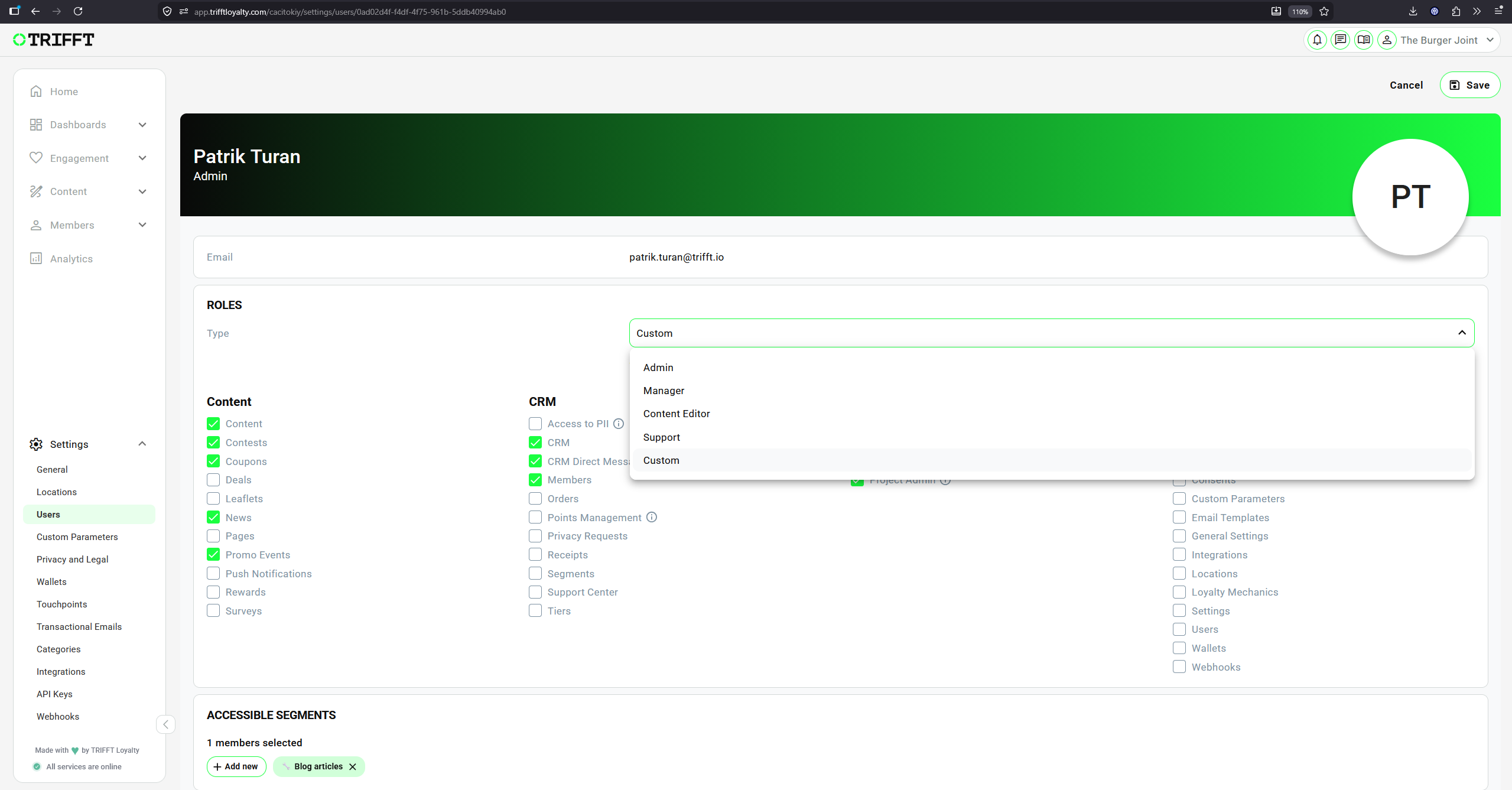
Example of User with Custom access only to some Content and CRM sections
5. Define access scope
- Restrict access to specific Segments if needed.
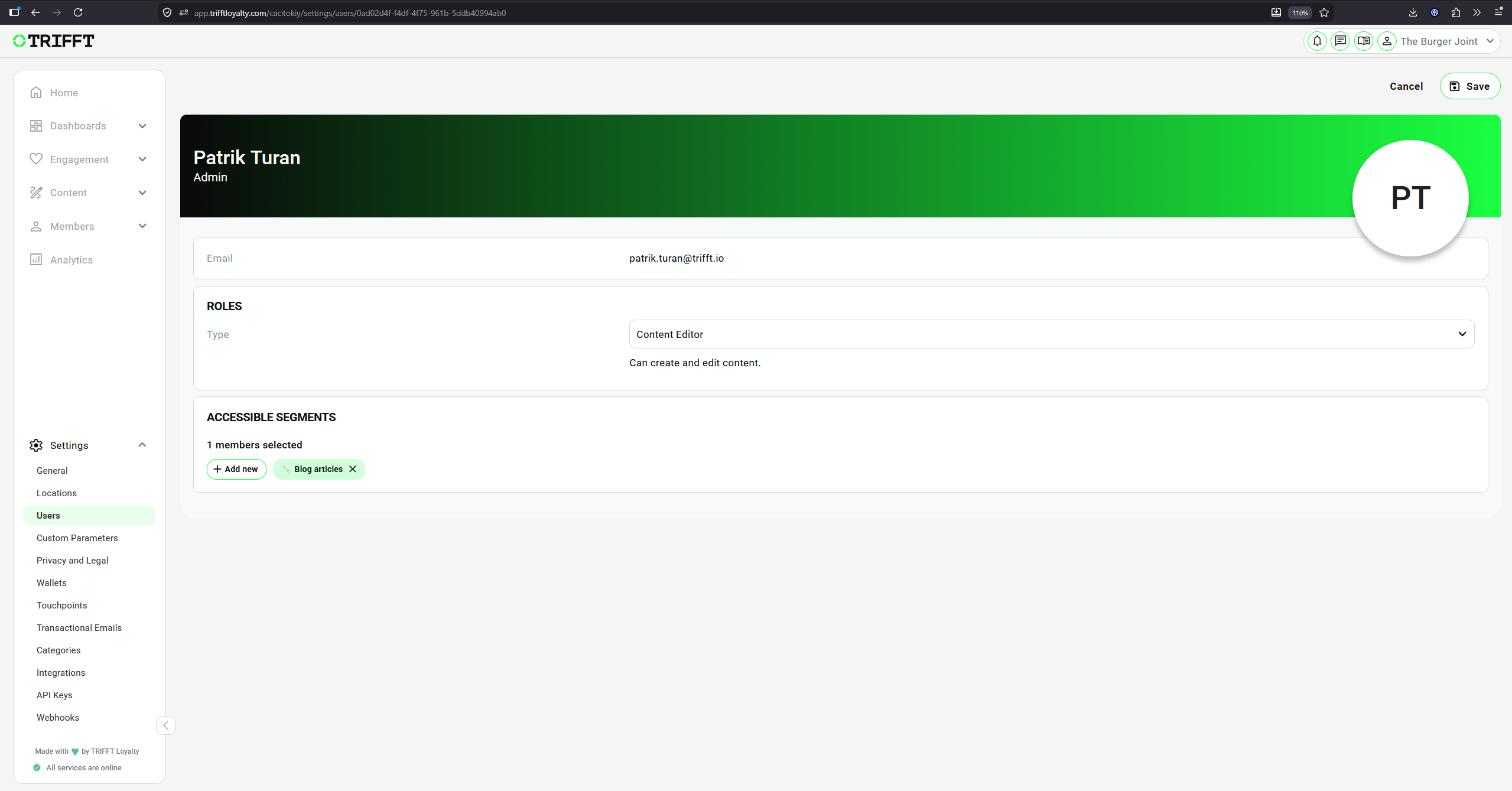
Example of User with Content Editor role and access only to one specific Segment
Configuration checklist
Run through this checklist before going live:
Security & Permissions
- The principle of 'Least Privilege' is applied (only give necessary access)
- Email domain matches the approved corporate list
- Admin roles are limited to key personnel only
Maintenance
- Old users/agencies are deactivated upon project completion
Updated 3 months ago
Did this page help you?