
Promo Events Set Up
This guide covers how to set up Promo Events in TRIFFT from scratch, including validation steps.
Create a new Promo Event
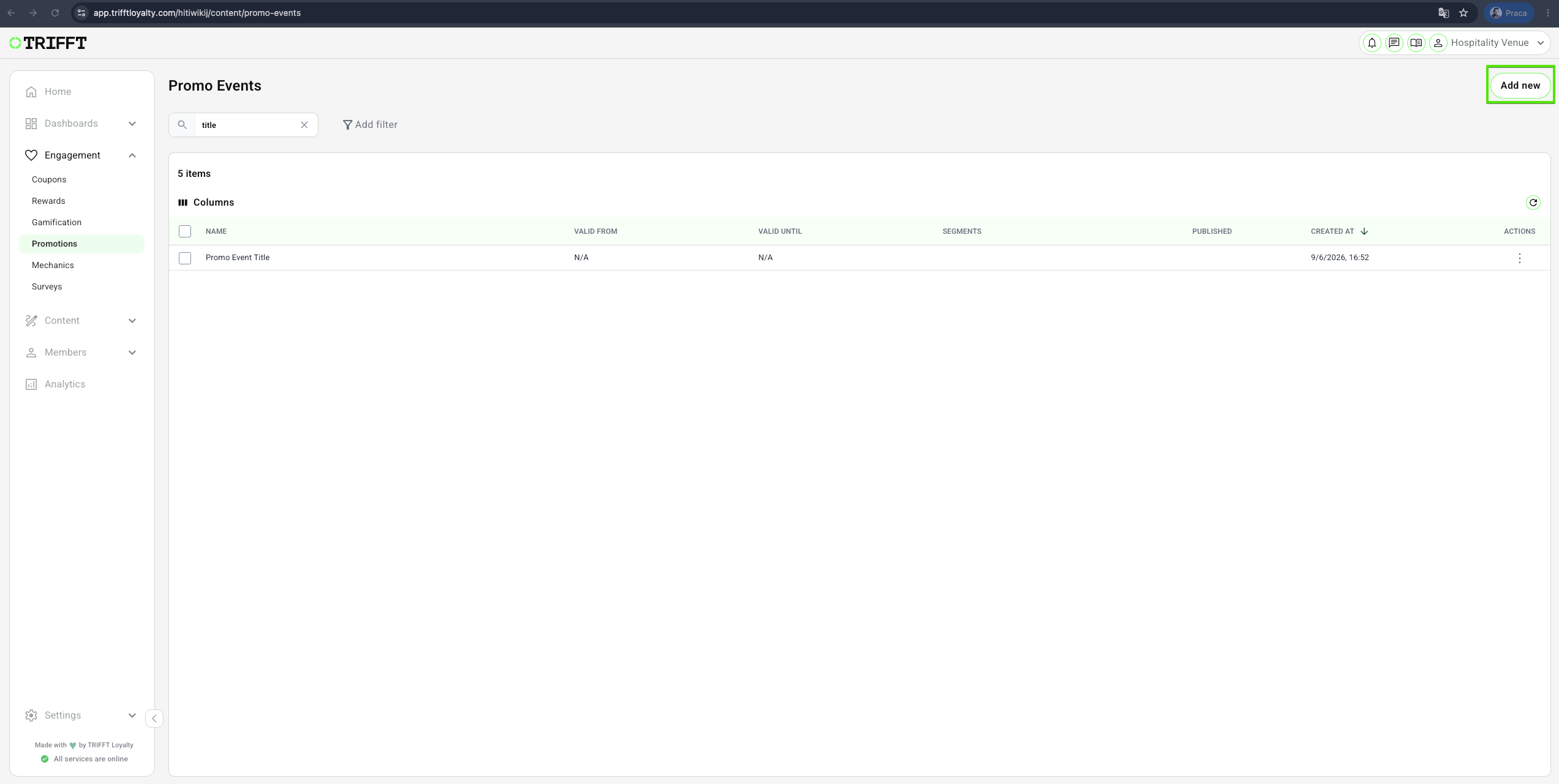
- Navigate to Content Cockpit > Engagement > Promotions to access the list of existing promotions.
- Click Add New in the top-right corner.
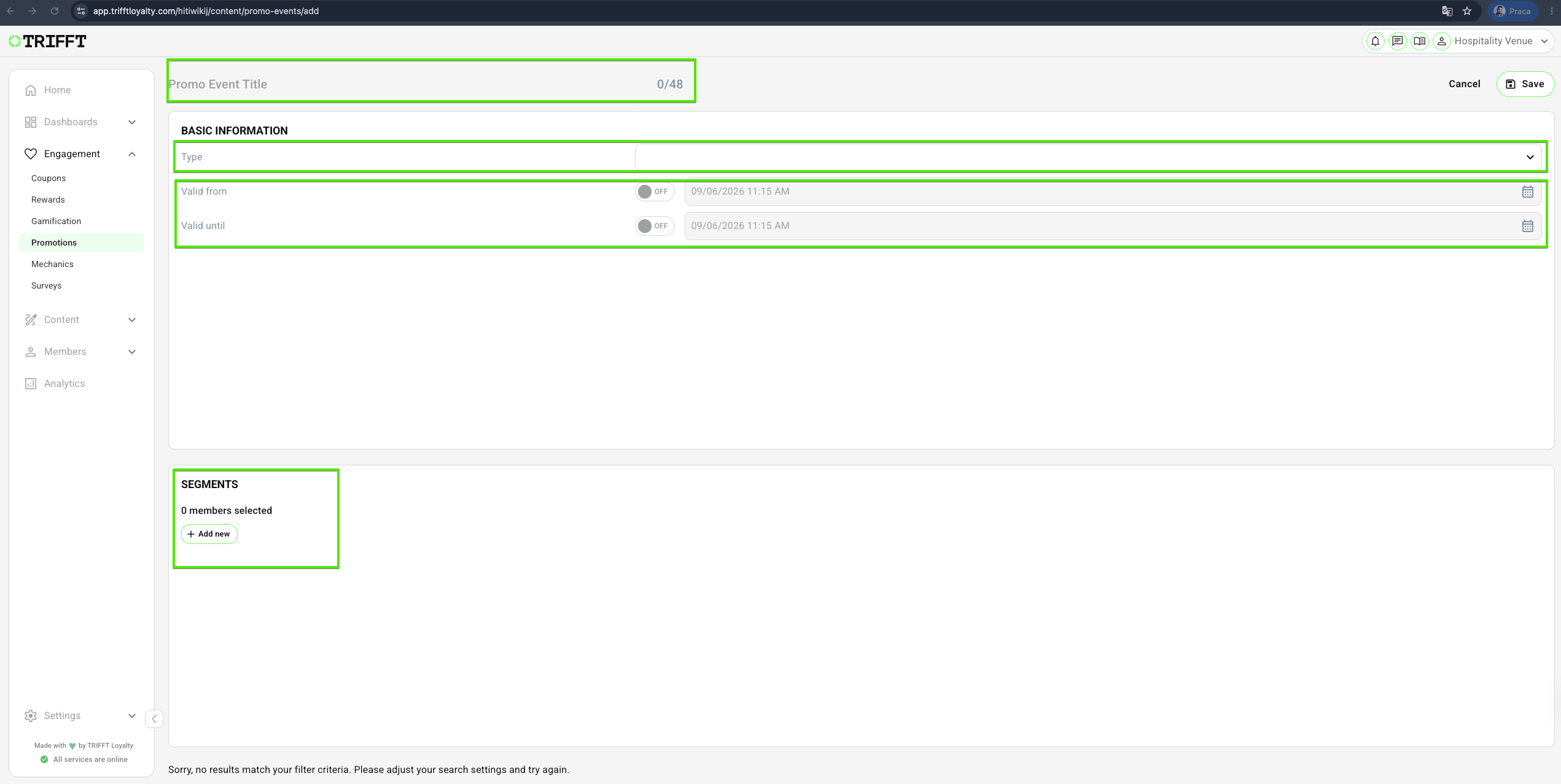
Fill in Promo Event details
- Enter a descriptive Promo Event Title for internal reference.
- Selecting the Type means setting up the trigger of your promotion.
- Validity Period – Set the start and end date for when the promo code can be used.
- Add Segments - more information on segments
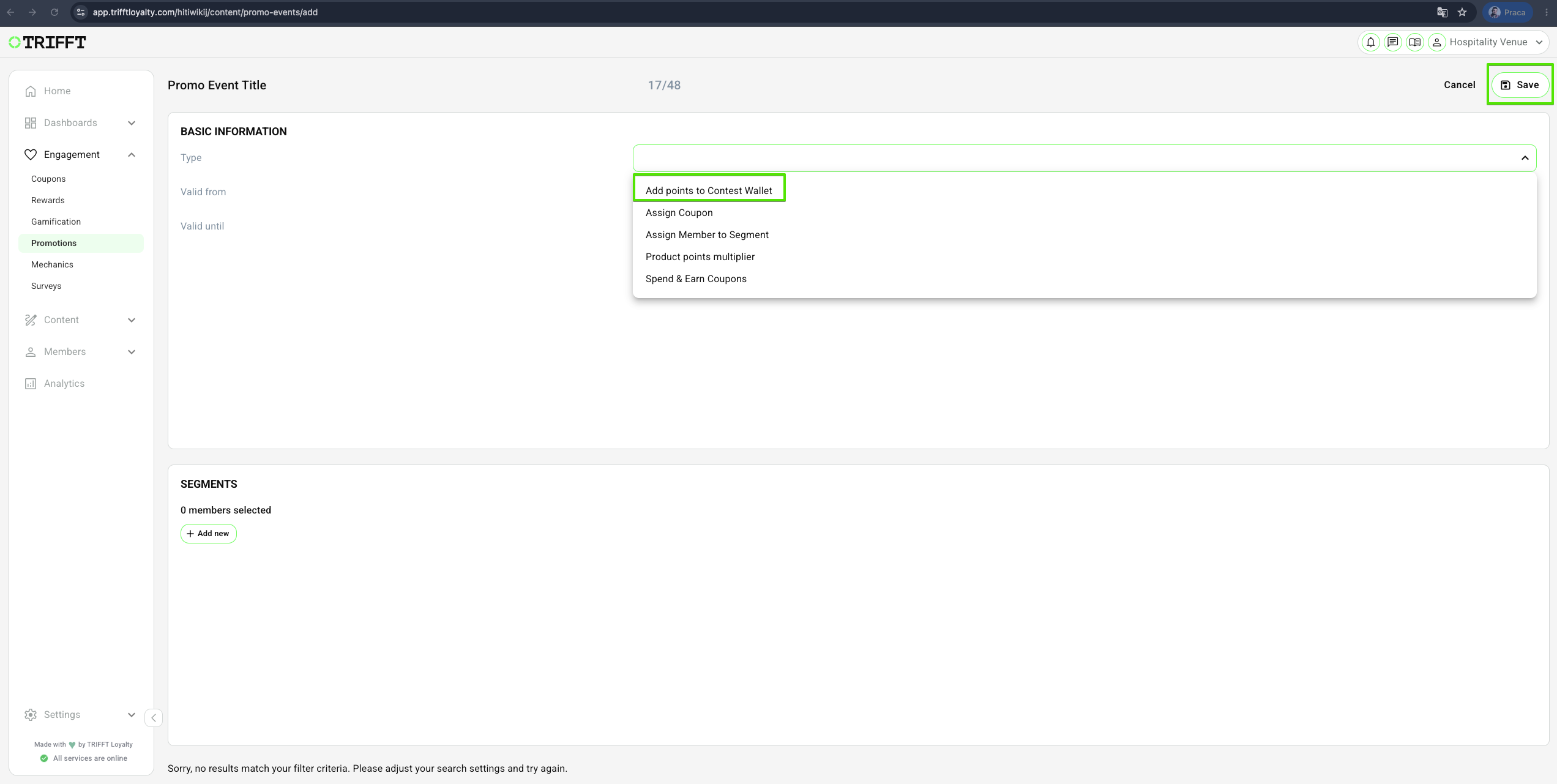
Add points to Contest Wallet
A promotion that allows members to enter a promo code and receive points directly into their Contest Wallet.
- Select the promo event Type Add points to Contest Wallet.
- Click the Save button in the top-right corner.
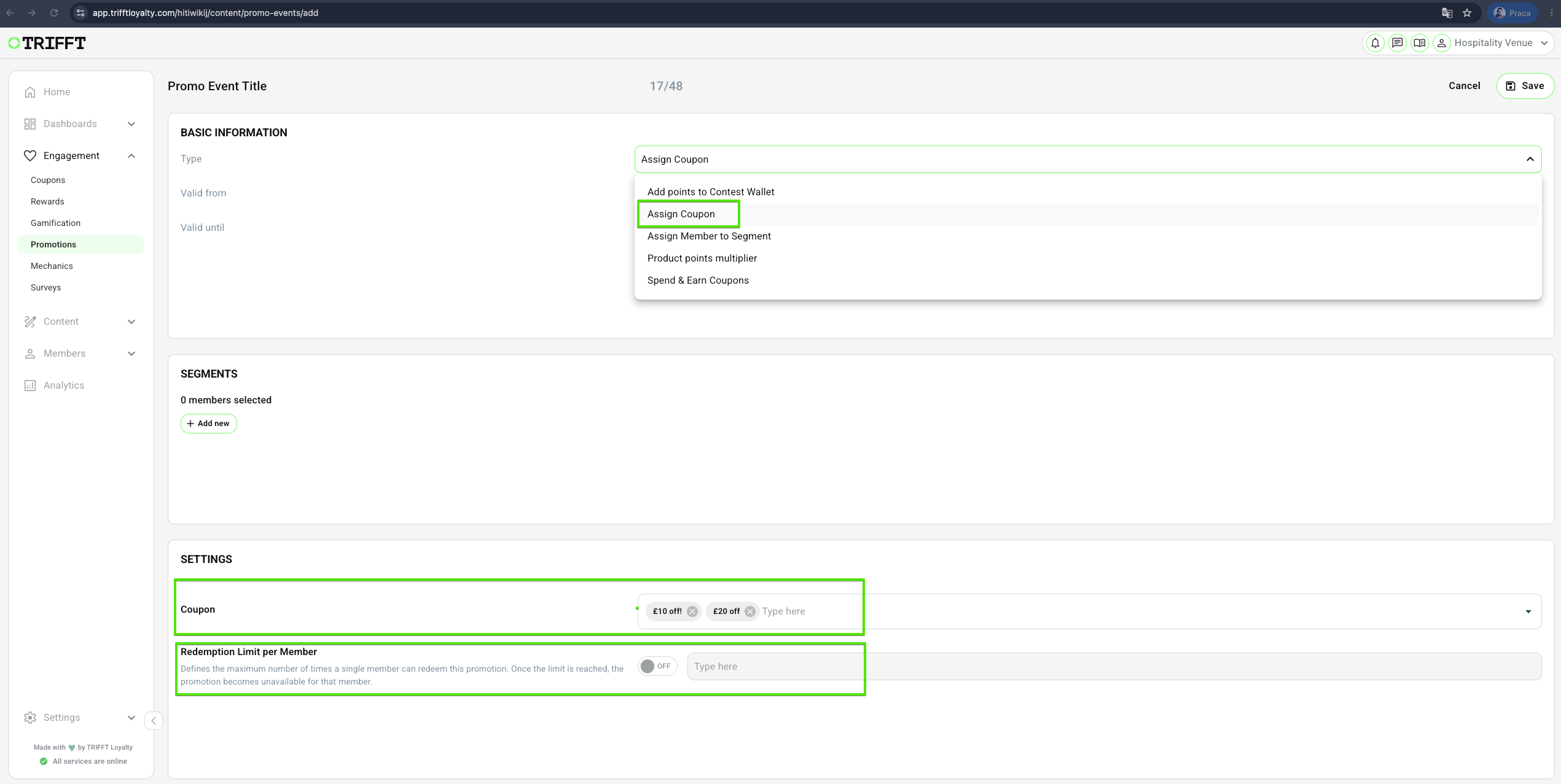
Assign Coupon
A promotion that allows members to enter a promo code and receive a coupon assigned directly to their account.
- Select the promo event Type Assign Coupon.
- A list of all coupons stored in your project will appear.
- Choose the Coupon in Settings that should be assigned to the customer (you can choose multiple coupons) and click the Save button in the top-right corner.
- Set Redemption Limit per Member- Defines the maximum number of times a single member can redeem this promotion. Once the limit is reached, the promotion becomes unavailable for that member.
Assign Member to Segment
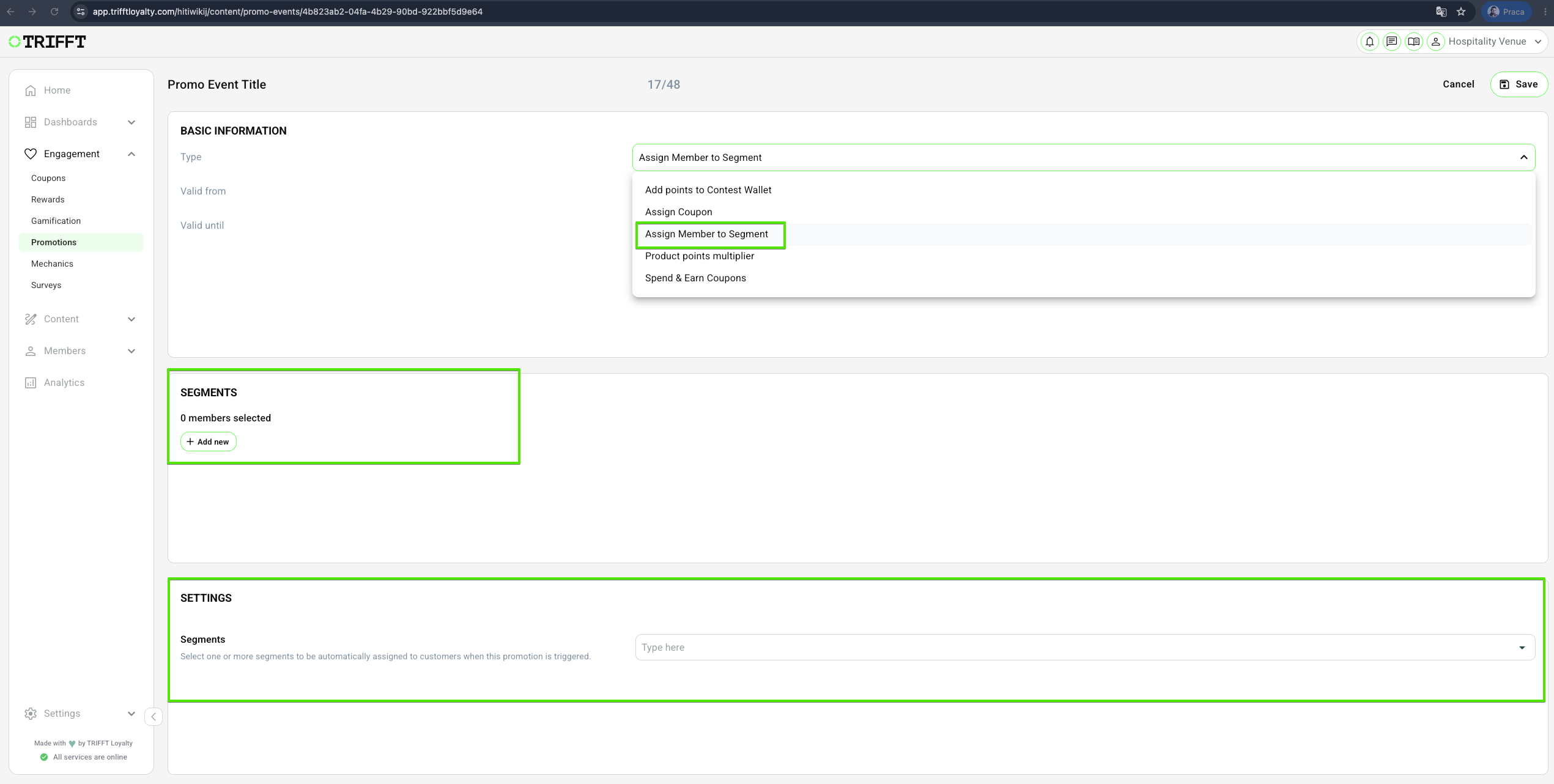
A promotion that allows members to enter a promo code and be assigned to a specific segment.
- Select the promo event Type Assign Member to Segment.
- A list of all segments stored in your project will appear.
- Select the Segment to which the promo code should assign the customer and click the Save button in the top-right corner. Only customers from this segment will be able to use this promotion.
- Settings - Segments - Select one or more segments to be automatically assigned to customers when this promotion is triggered.
Product Points Multiplier
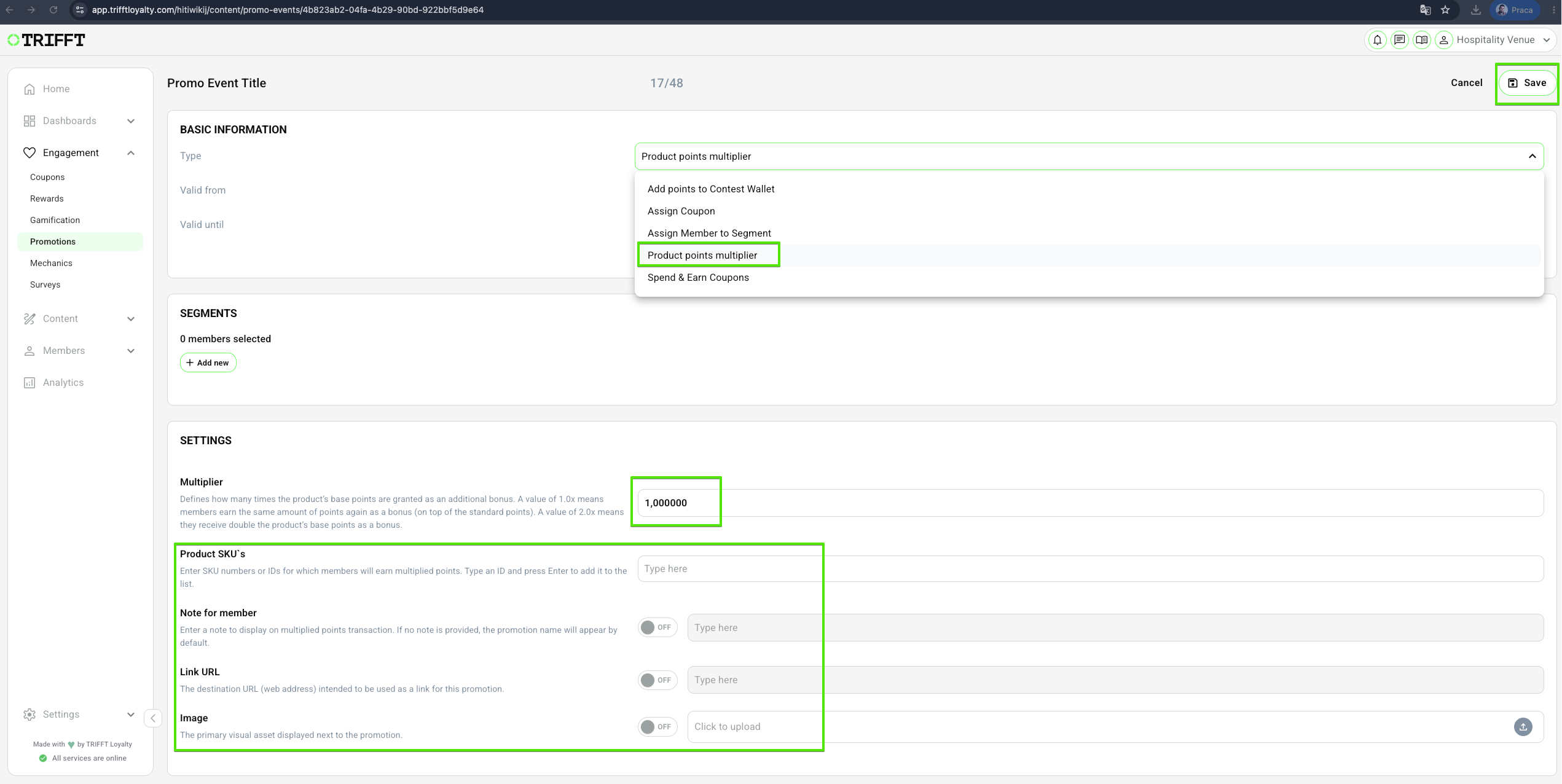
A promotion that grants multiplied product points to members within selected segments.
- Select the promo event Type Product points multiplier
- Select the Segment
- Define the Multiplier - how many times the product’s base points are granted as an additional bonus.
- Optional, you can also set:
- Product SKU`s or IDs for which members will earn multiplied points
- Note for member - Enter a note to display on the multiplied points transaction. If no note is provided, the promotion name will appear by default.
- Link URL - The destination URL (web address) intended to be used as a link for this promotion.
- Image - The primary visual asset displayed next to the promotion.
- Click the Save button in the top-right corner.
Spend & Earn Coupons
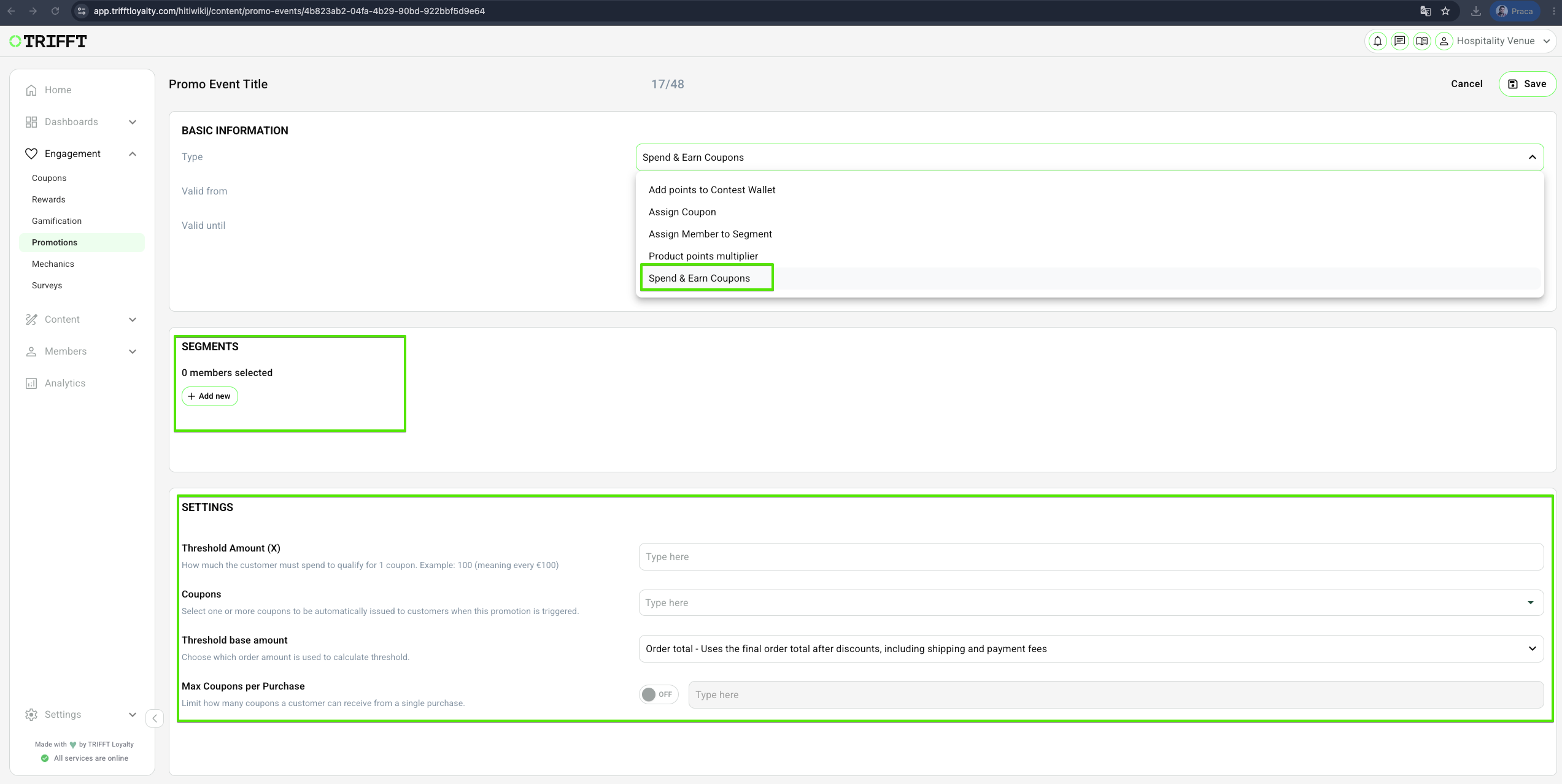
A transaction-based promotion that rewards members with coupons when their purchase meets the defined spending conditions.
- Select the promo event Type Spend & Earn Coupons
- Select the Segment
- Populate the Settings
Adding Promo codes
If you are using a promotion that uses promo codes as a trigger of the promotion, please navigate to: Other Functions → Adding Promo Codes
Configuration checklist
Run through this checklist before going live:
Technical Validation
- The multiplier is correctly applied to the 'Base' earning rule
- Product exclusions match the current inventory strategy
- The POS team has been notified of the expected traffic spike
Communication & Teasers
- Banners are scheduled to go live before the event starts (Teaser Mode)
- The 'Last Chance' push notification is scheduled before the event ends
Updated 3 months ago