
Wallets Set Up
This guide covers the technical configuration of TRIFFT Wallets. This refers to the loyalty engine (earn/burn rules), not Apple/Google mobile passes.
Prerequisites
Admin or CRM Lead role required — Ensure you have the 'Admin' or 'CRM Lead' role in the TRIFFT Content Cockpit.
Before you begin, gather the following:
| Requirement | Details |
|---|---|
| Data | Point conversion rates (e.g., $1 = 1 point) and product SKU lists. |
| Integrations | Shopify/POS sync for transaction data. |
Step-by-step setup
1. Open the Wallets panel
-
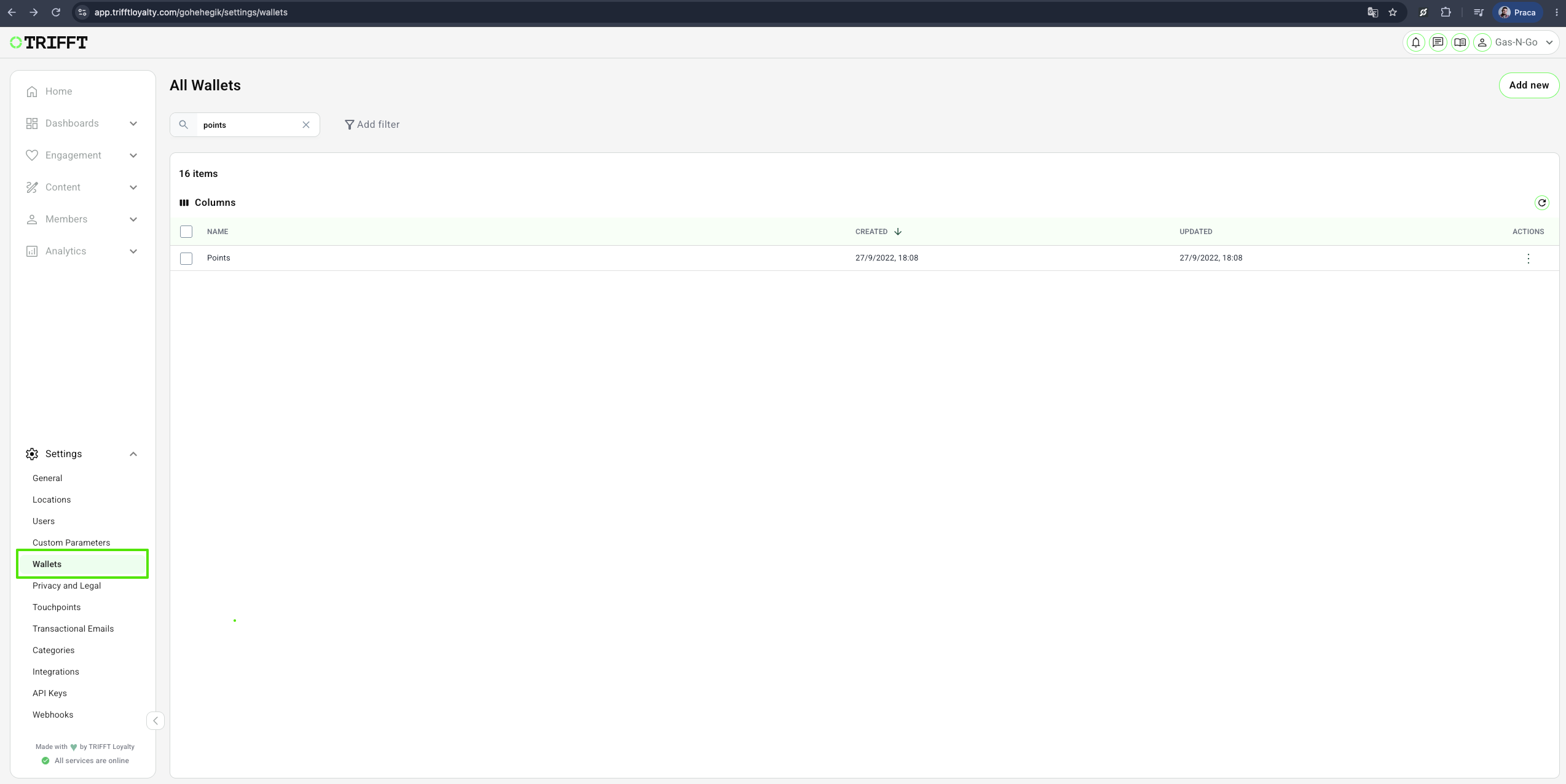
Navigate to Settings > Wallets in the TRIFFT Content Cockpit.
2. Create a new wallet
-
Click Add new and define the Wallet Name (e.g.,
Main PointsorVIP Credits) and Slug (A unique identifier used for API communication and references to the custom parameter).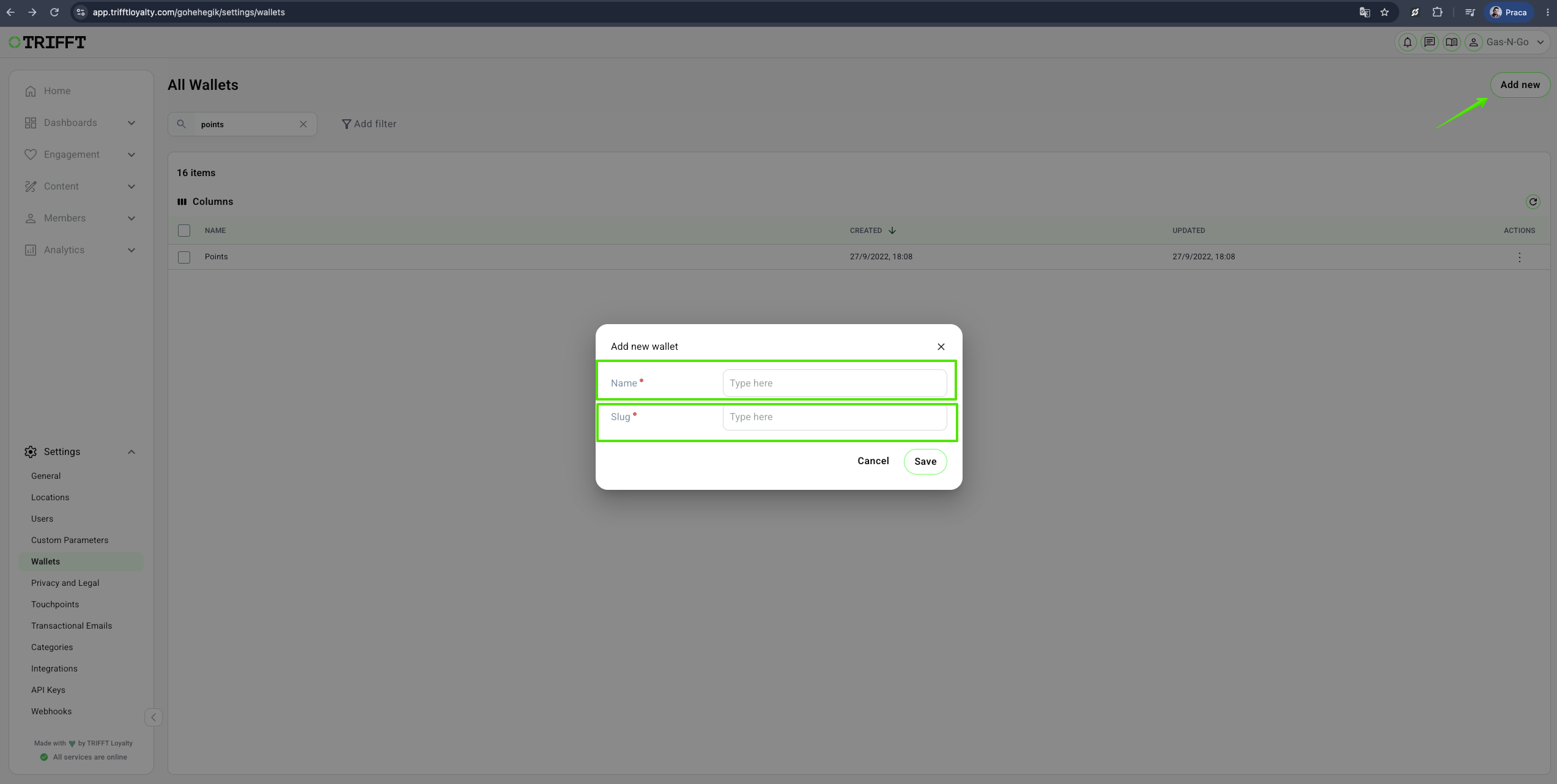
3. Set the Credit delay (optional)
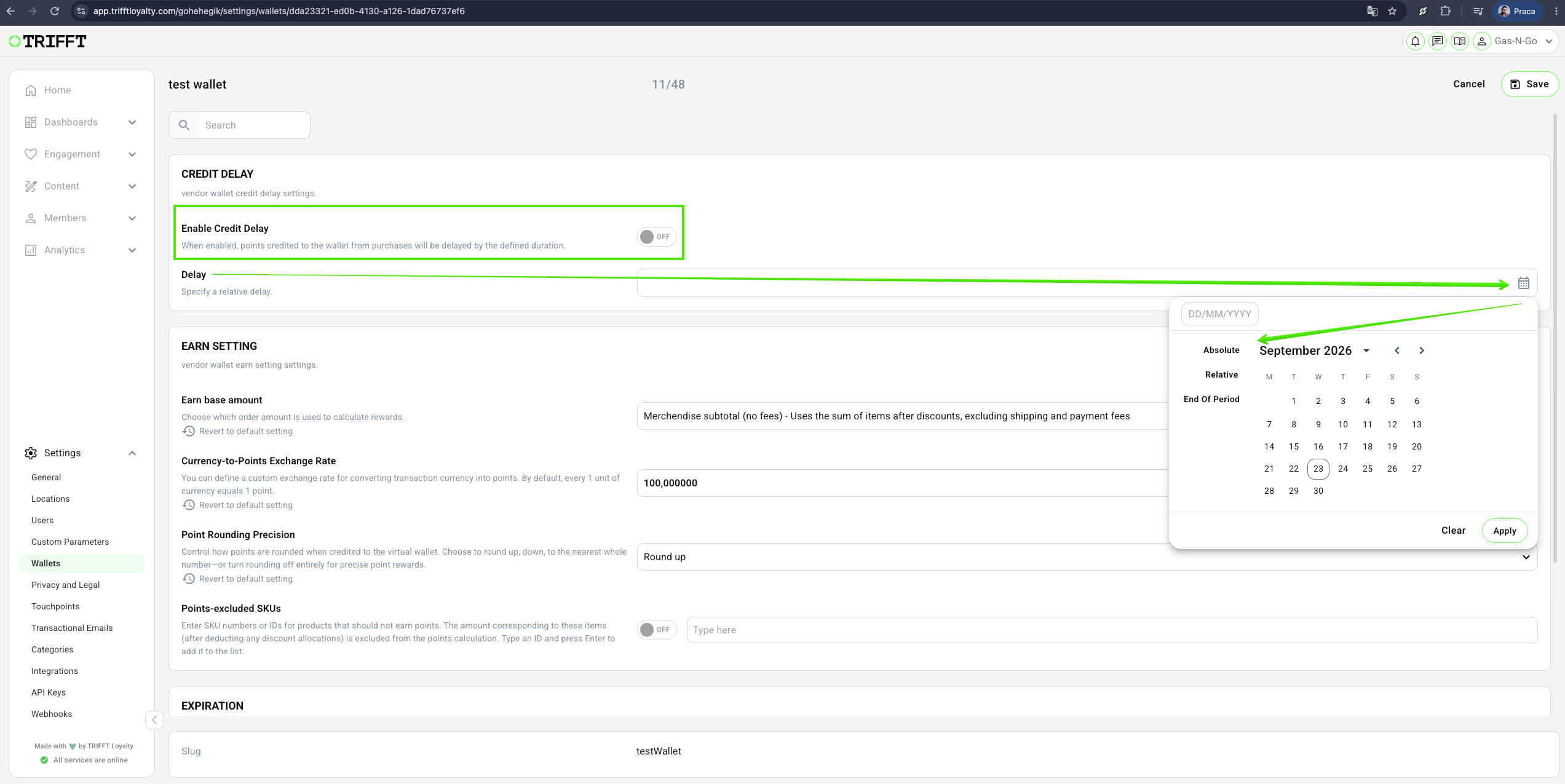
- "Enable Credit Delay" toggle - When enabled, points credited to the wallet from purchases will be delayed by the defined duration.
- Delay - Specify a relative delay
4. Set the base earning settings
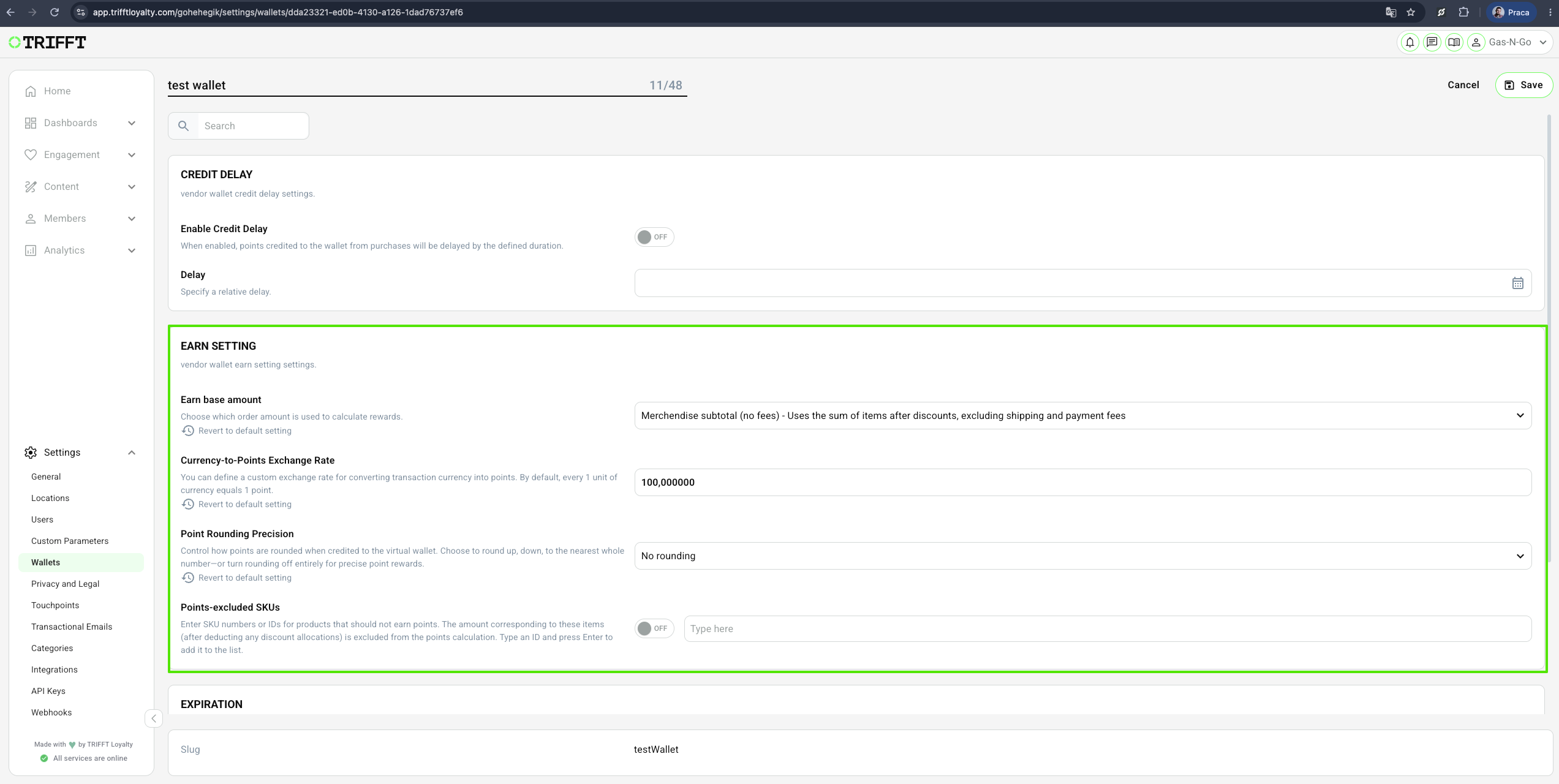
- Define the:
- Earn base amount - Choose which order amount is used to calculate rewards.
- Order total - Uses the final order total after discounts, including shipping and payment fees
- Merchendise subtotal (no fees) - Uses the sum of items after discounts, excluding shipping and payment fees
- Currency-to-Points Exchange Rate - You can define a custom exchange rate for converting transaction currency into points. By default, every 1 unit of currency equals 1 point.
- Point Rounding Precision - Control how points are rounded when credited to the virtual wallet. Choose to round up, down, to the nearest whole number—or turn rounding off entirely for precise point rewards.
- No rounding
- Round up
- Round down
- Round to nearest
- Points-excluded SKUs - Enter SKU numbers or IDs for products that should not earn points. The amount corresponding to these items (after deducting any discount allocations) is excluded from the points calculation. Type an ID and press Enter to add it to the list.
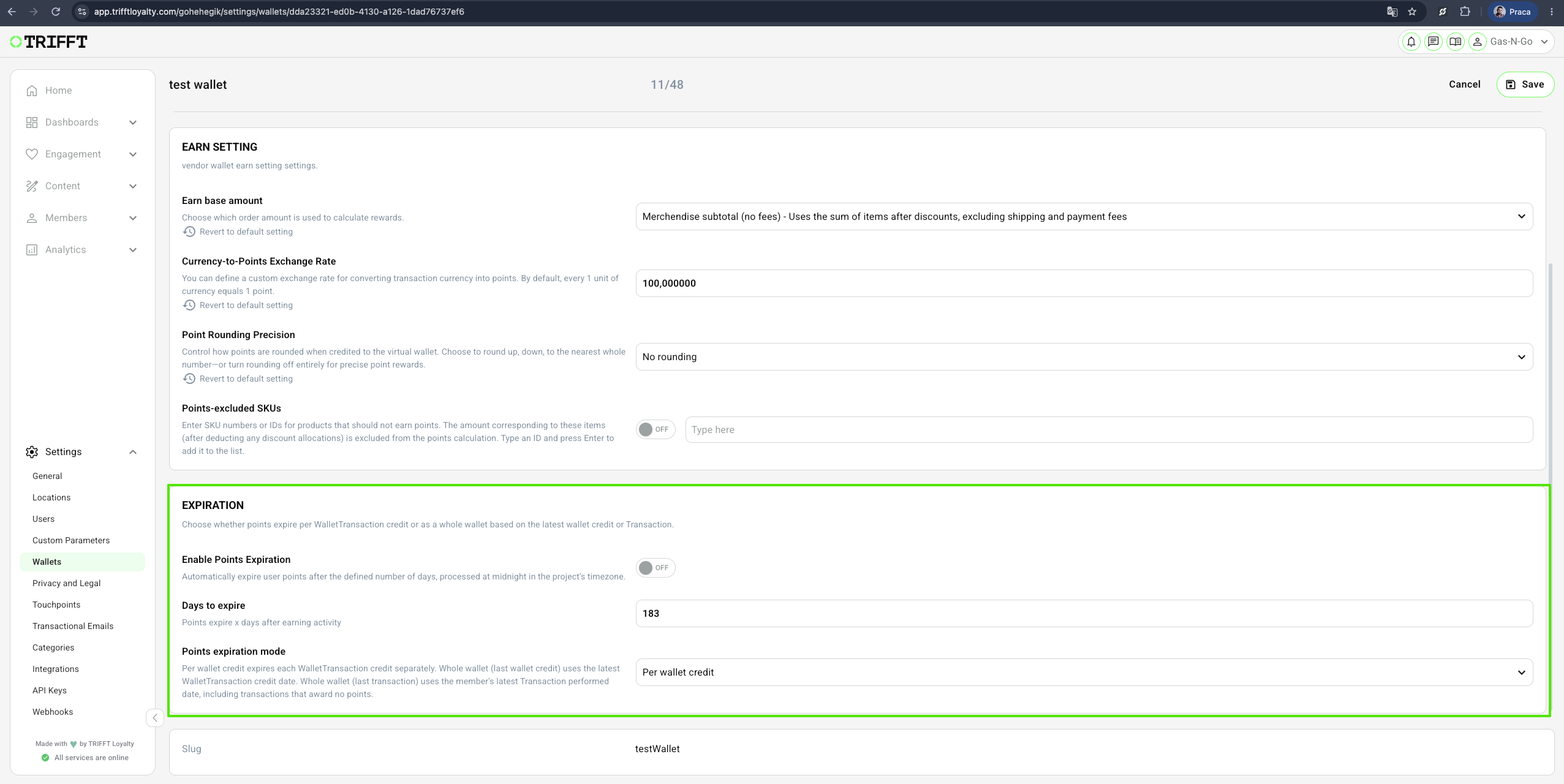
5. Set point expiry logic
- Choose the Point Expiry logic: Choose whether points expire per WalletTransaction credit or as a whole wallet based on the latest wallet credit or Transaction.
- Enable Points Expiration - Automatically expire user points after the defined number of days, processed at midnight in the project’s timezone.
- Days to expire - Points expire x days after earning activity
- Points expiration mode - Per wallet credit expires each WalletTransaction credit separately. Whole wallet (last wallet credit) uses the latest WalletTransaction credit date. Whole wallet (last transaction) uses the member's latest Transaction performed date, including transactions that award no points.
- Per wallet credit
- Whole wallet (last wallet credit)
- Whole wallet (last transaction)
6. Final validation
- Save and perform a Dry Run transaction to verify point calculation logic.
Configuration checklist
Run through this checklist before going live:
Sustainability & Logic
- Conversion ratio (Earn vs. Burn) is mathematically sustainable
- Round-up/down logic for partial points is defined
- Wallet is correctly linked to the active Member Tier structure
Technical Settings
- Tax/Shipping exclusion settings are correctly toggled
- Expiry notifications are scheduled in the Automations tab
Updated 21 days ago
Did this page help you?