
Bloomreach Other Functions
| Topic / function | Bloomreach Integration |
|---|---|
| Audience | Marketing Manager / CRM Manager / Project Admin / Integration Manager / Developer |
| Goal | Extend the core integration with reusable Scenarios, loyalty automation, Weblayers, mobile-app personalization, push strategies, and custom event payloads. |
Other functions covered
- Pre-built Scenario Patterns: Welcome, birthday, welcome bonus, tier-up, anniversary, and post-purchase NPS.
- Birthday Reward Design: Capture birthday data, assign a reward, and coordinate email, push, and Weblayers.
- Web Portal Personalization: Use Bloomreach Weblayers in the TRIFFT Client Zone.
- Mobile App Personalization: Connect a TRIFFT content block with Bloomreach In-App Personalization using a Placeholder ID.
- Push Strategy: Choose between high-volume uniform pushes and personalized one-to-one delivery.
- Custom Event Library: Send selected TRIFFT events to Bloomreach with project-specific JSON payloads.
Build Bloomreach Scenarios with TRIFFT
Bloomreach Scenarios can use a TRIFFT event as a trigger, apply conditions and delays, send communication, and call TRIFFT APIs through webhook presets.
| Approach | Best for |
|---|---|
| Pre-built Scenario pattern | Fast implementation of common loyalty journeys. |
| Custom Scenario | Advanced eligibility, custom event logic, brand-specific communication, or multi-step rewards. |
Custom Scenarios can combine:
- Bloomreach email and SMS nodes.
- Mobile push nodes.
- Weblayers.
- TRIFFT webhook actions.
- Wait nodes and time delays.
- Conditional splits.
- A/B tests and cascaded branches.
- Frequency caps and duplicate-prevention conditions.
In-store and Web Portal personalization

Bloomreach Weblayers can display contextual content inside the TRIFFT Web Portal / Client Zone.
A legacy implementation estimate is approximately 1–2 hours: around 10 minutes for tracking, 30–45 minutes for the Weblayer, and 30–60 minutes for testing and scheduling.
Prerequisites
- A live TRIFFT Client Zone.
- An active Bloomreach integration.
- Bloomreach Weblayers enabled.
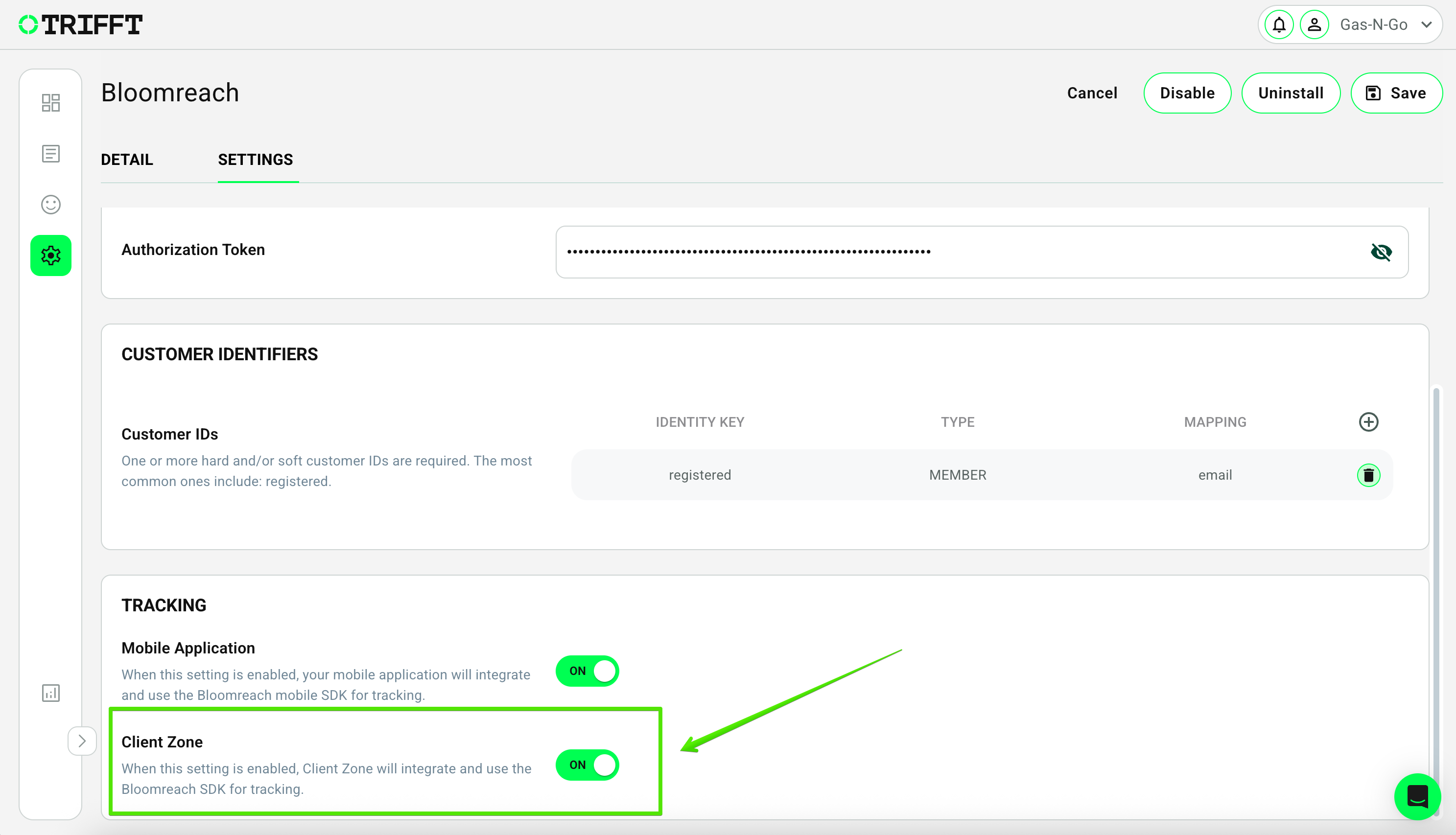
- Client Zone tracking enabled in Settings → Integrations → Bloomreach → Settings → Tracking.
How it works
1. Enable tracking in TRIFFT
Navigate to Settings → Integrations → Bloomreach, tab to Settings, scroll down to Tracking, and toggle Client Zone to ON.
2. Create Bloomreach Weblayers
Design your message using Bloomreach's Weblayer editor. Use segmentation, A/B testing, and scheduling to tailor experiences.
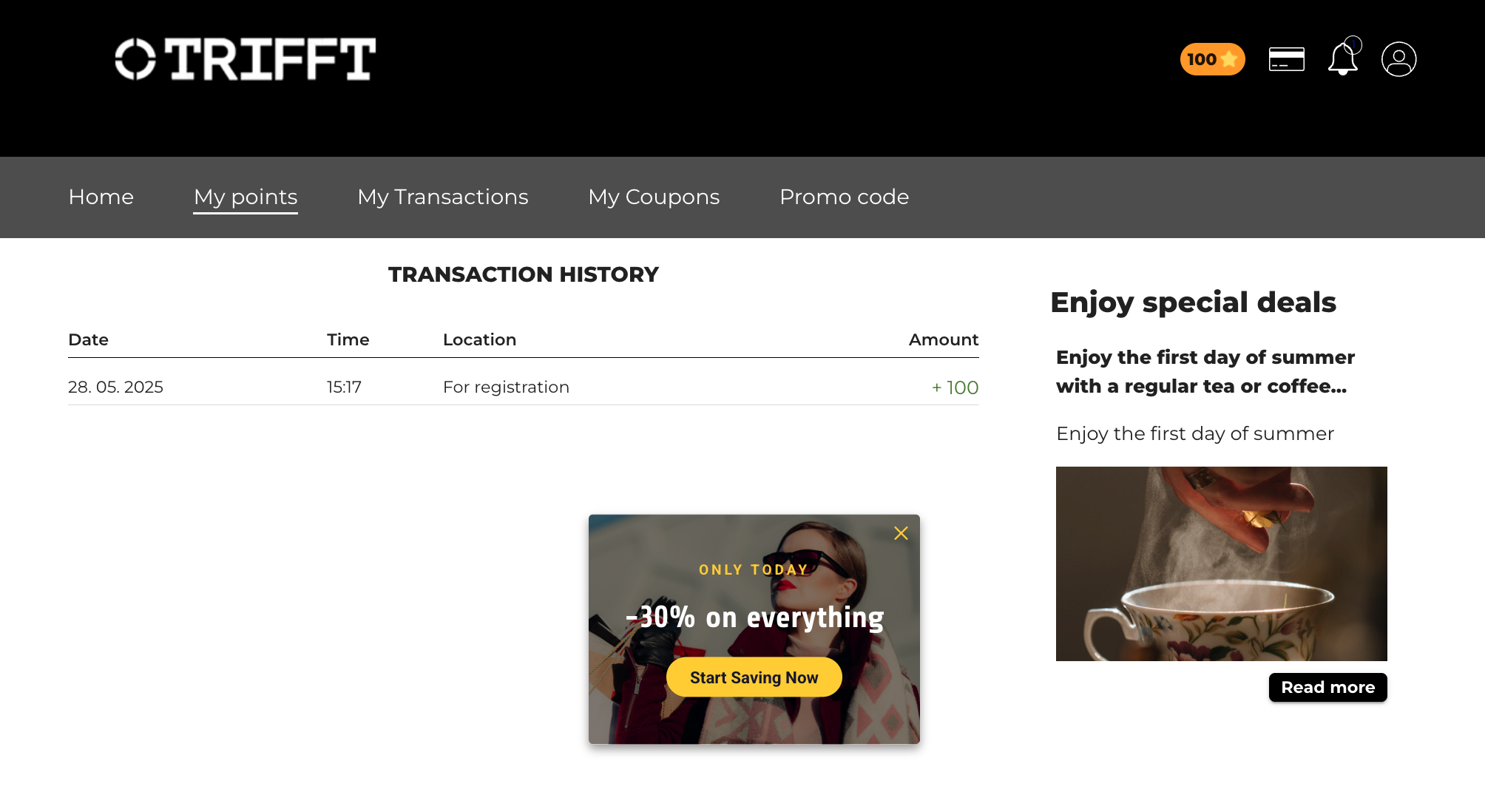
3. Display in Client Zone
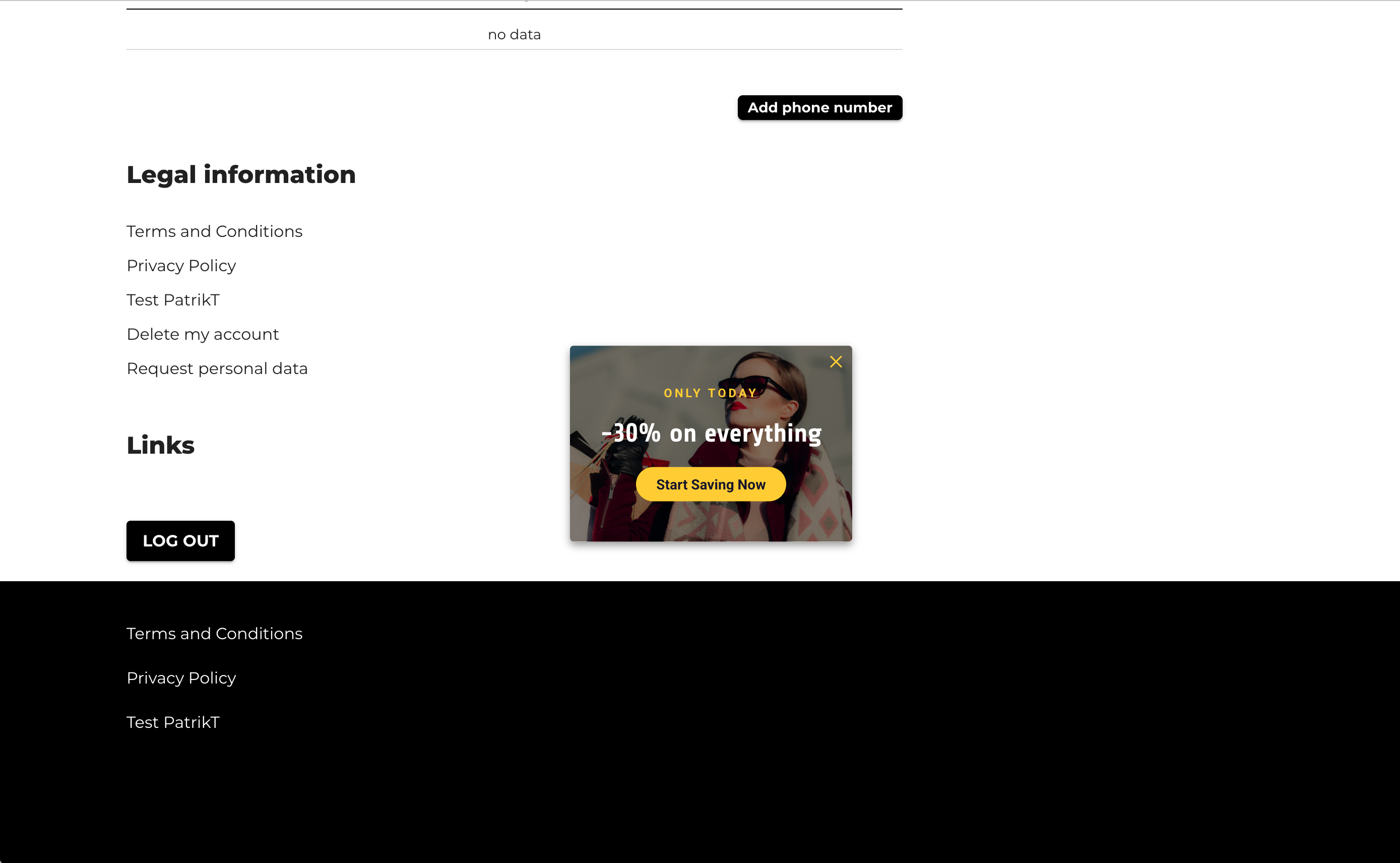
Your Weblayers will now appear contextually in the Client Zone – either when the customer logs in (self-service) or when a shop assistant accesses the view.
Customer-facing use cases
- Time-sensitive discounts.
- Campaign announcements.
- Loyalty benefits.
- Point-expiration reminders.
- Dynamic offers based on profile or behavior.
Staff-facing clienteling use cases
- Current tier and recent loyalty activity.
- Product suggestions based on interests or previous behavior.
- VIP status and exclusive eligibility.
- Contextual prompts for the shop assistant.
Best practices
- Use short copy and a clear call to action.
- Match the brand and store environment.
- Use Bloomreach segmentation, A/B testing, and scheduling.
- Refresh content regularly.
- Review Weblayer performance in Bloomreach analytics.
Personalize TRIFFT Mobile App content
Bloomreach In-App Personalization can control who sees a specific content block in the TRIFFT Mobile App without changing the app's backend logic or publishing a new app version for each content update.
Prerequisites
- Active TRIFFT and Bloomreach integration.
- TRIFFT events and profile data flowing to Bloomreach.
- TRIFFT Mobile App enabled.
- Mobile App version 2.1.5 or higher.
- Access to TRIFFT Mobile App settings and Bloomreach In-App Personalization.
1. Add a Bloomreach content block in TRIFFT
- Go to Settings → Touchpoints → Mobile App → Homepage or another dynamically built page.
- Add a Bloomreach In-App content block.
- Configure layout options such as corner style, margins, and spacing.
- Enter a unique Placeholder ID.
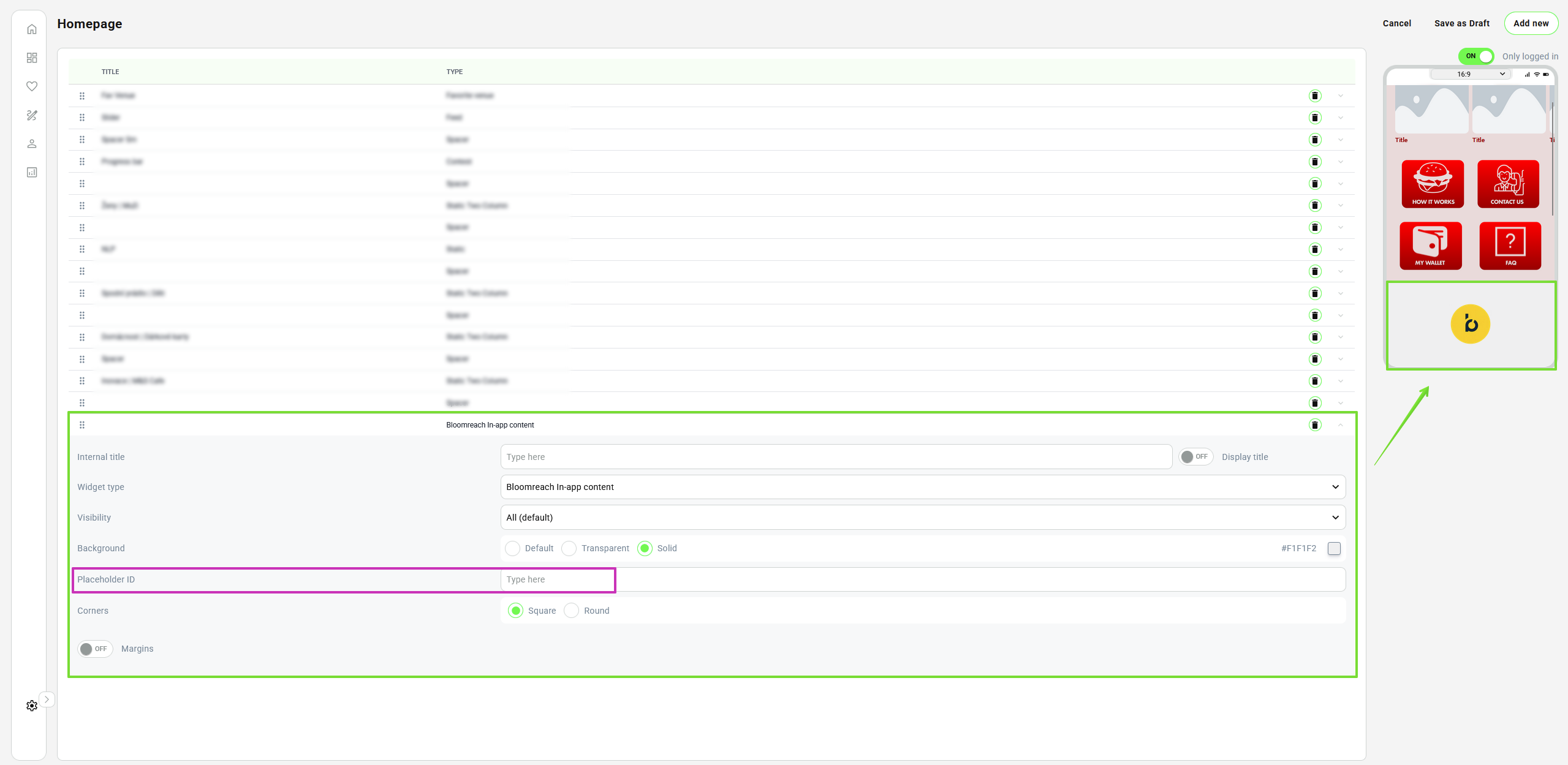
TRIFFT controls the placement and surrounding layout. It does not control the campaign audience or personalized variant.
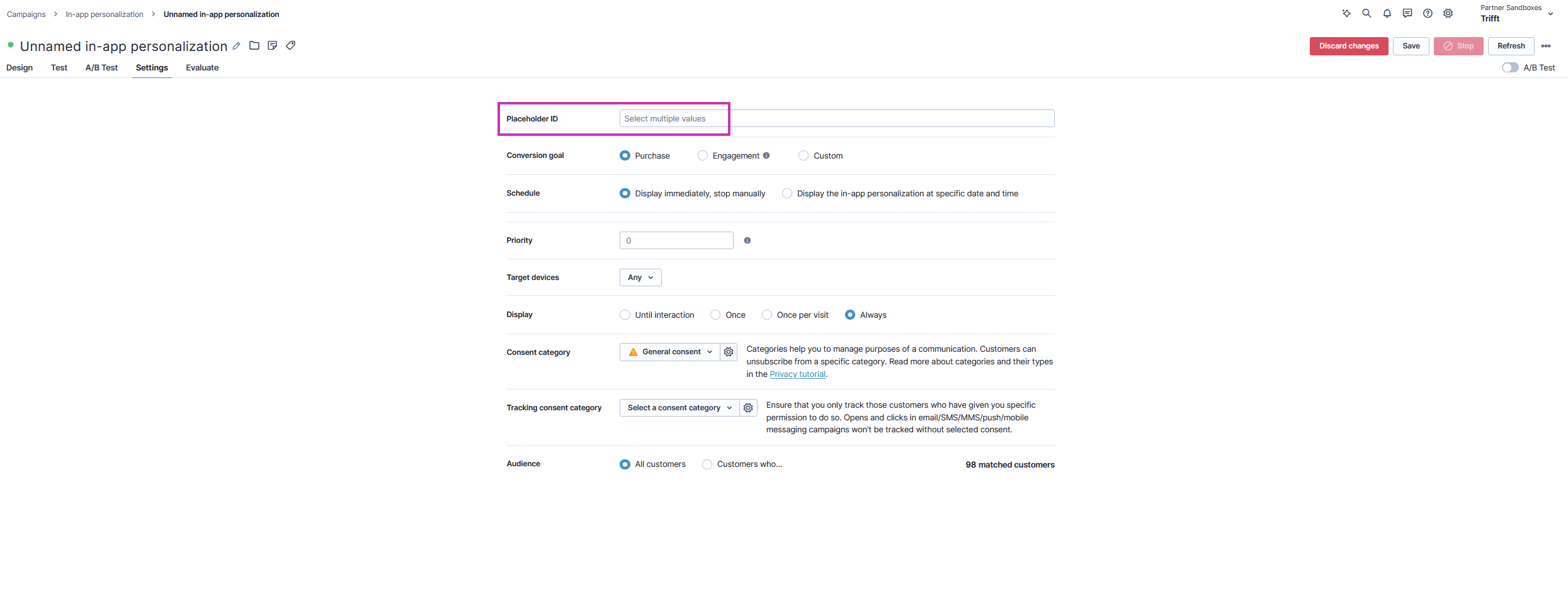
2. Create an In-App campaign in Bloomreach
- Go to Campaigns → In-App Personalization.
- Create the campaign and content design.
- Enter the exact same Placeholder ID used in TRIFFT.
- Configure the audience.
- Configure display rules, timing, variants, and contextual conditions.
- Activate the campaign.
3. Test the content
Open the app as an eligible test member and navigate to the page containing the block.
If content does not appear, verify:
- Placeholder ID spelling and capitalization.
- Campaign status.
- Customer audience eligibility.
- App version.
- Event and profile synchronization.
The content loads after the page loads, so a short delay is expected. There is no fallback content when the TRIFFT and Bloomreach Placeholder IDs do not match.
Example: custom stamp or challenge campaign
- TRIFFT sends purchase and engagement events to Bloomreach.
- Bloomreach evaluates progress and audience eligibility.
- Each member sees an appropriate card, design, or message.
- The TRIFFT app layout remains unchanged.
Limitations
- Content is not proactively pushed to the page.
- Real-time load timing is not guaranteed.
- Audience and variant logic lives in Bloomreach.
- TRIFFT controls placement, not personalization decisions.
How to Send Push Notifications via TRIFFT and Bloomreach
Two Types of Push Notifications
1. Topic Push Notifications
- Delivered via Google or Apple topic system.
- Same message to all recipients (e.g., "New deal on pasta!").
- Cannot include personalization (e.g., no
{first_name}). - Can be sent to TRIFFT segments (like "Pizza lovers", "Pasta lovers").
- Best sent through:
- TRIFFT Content Cockpit (via segment)
- Or directly from Bloomreach using webhook calls to segments (not device topics)
2. One-to-One Push Notifications
- Personalized per user (e.g., “Hi John, you’ve earned a new reward!”).
- Typically used for:
- Transactional messages
- Personalized marketing campaigns
- Sent from Bloomreach one-by-one via API (
/v1/member/{uuid}/message/notification) - Must be rate-limited and spread over time to avoid issues.
✅ Recommended Approaches
Option A: Use TRIFFT Segments with Topic Pushes
- Create segments in TRIFFT (can be filled via Bloomreach via webhook).
- Send one uniform message to the whole segment.
- Use when:
- Message doesn’t need personalization.
- You want to reach many people efficiently.
- Safe and stable: no risk of duplication, minimal rate limiting issues.
Option B: Use Bloomreach for Personalized Push notifications (One-to-One)
- Send individually personalized messages from Bloomreach to TRIFFT via API.
- Use wait nodes or AB test cascades to spread the load gradually.
- Needed when:
- Personalization (e.g., name, rewards) is required.
- Timing of messages should vary.
- ⚠️ Must be handled carefully to avoid:
- Google/Apple rate limiting
- Message duplication
- TRIFFT API overload
What Happens If You Blast Without Rate Limiting?
- TRIFFT API limits can be overwhelmed (especially with 100k+ recipients).
- Google or Apple may throttle delivery, resulting in:
- Delayed or dropped pushes
- Some users receiving multiple notifications
- Bloomreach may retry on its own, sending the same push multiple times.
✅ Best Practices Summary
| Use Case | Method | Personalization | Safe Volume |
|---|---|---|---|
| Campaign to “Pizza lovers” segment | Topic push via TRIFFT Content Cockpit | ❌ No | ✅ High |
| Transactional reward notification | One-to-one via Bloomreach API | ✅ Yes | ✅ Yes as going one by one following a transaction event |
Campaign push with {first_name} | One-to-one via Bloomreach API | ✅ Yes | ⚠️ Needs rate limiting and wait/AB nodes |
🛡️ Preventative Controls
To keep pushes safe, reliable, and compliant:
- Use TRIFFT segments to group users logically.
- In Bloomreach:
- Add wait times between push batches.
- Use A/B test splits or cascaded branches to reduce load spikes.
- Use per-client API keys to track and isolate traffic.
- Avoid sending more than a few hundred personalized pushes per minute without coordination.
Comparison
| Use case | Recommended method | Personalization | Volume guidance |
|---|---|---|---|
| Uniform campaign to a segment | TRIFFT segment/topic push | No | High-volume friendly. |
| Notification after an individual transaction | One-to-one API push | Yes | Naturally distributed by event timing. |
| Personalized campaign to a large audience | One-to-one API push | Yes | Requires batching, waits, and controlled throughput. |
Push Notification Setup for TRIFFT White-Label Apps via Bloomreach
Prerequisites
Before configuring the integration, ensure the following:
-
Your white-label mobile app is provisioned and distributed by TRIFFT.
-
The app includes the Bloomreach Mobile SDK.
-
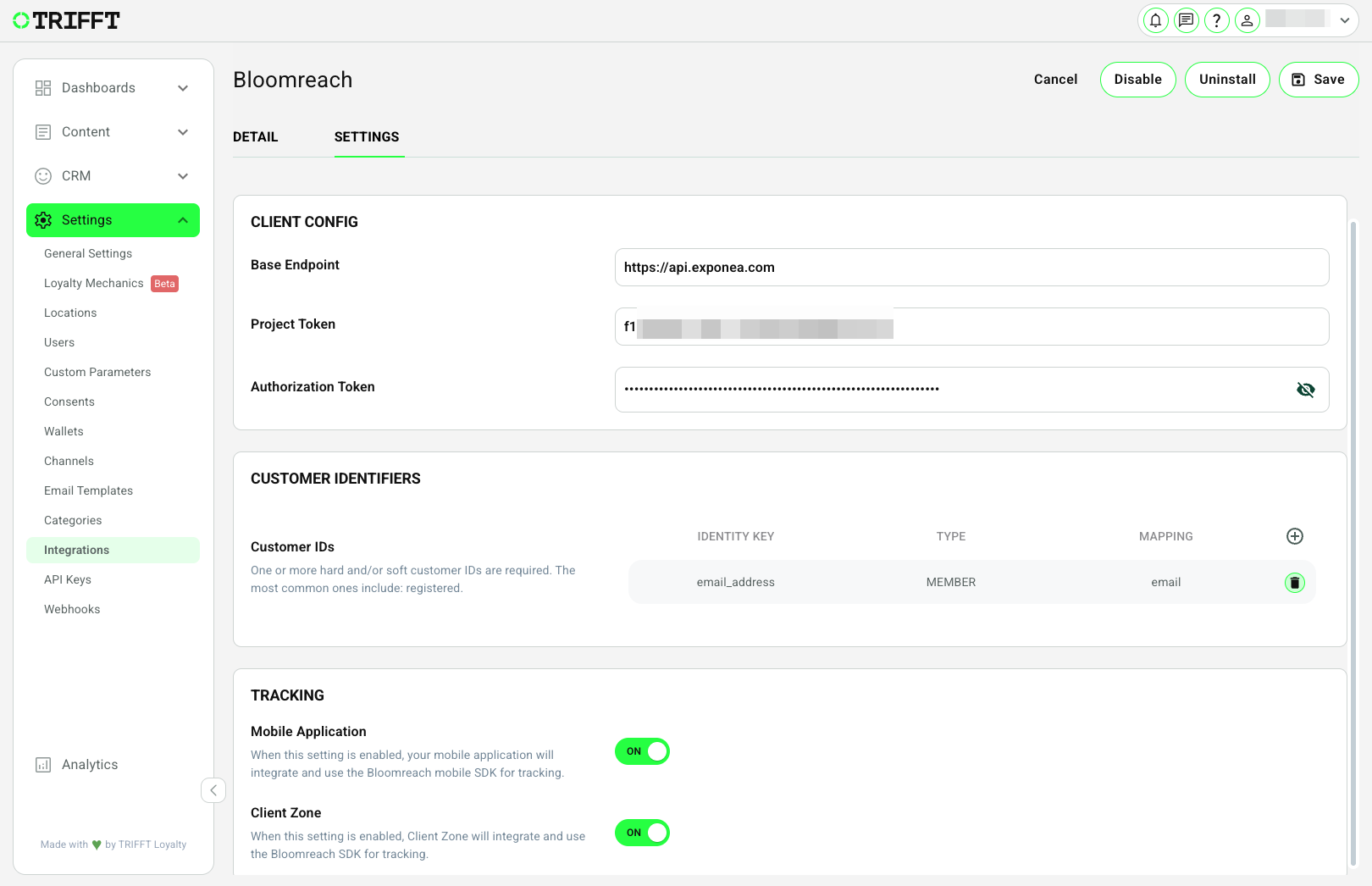
In your TRIFFT Content Cockpit under Integrations → Bloomreach, make sure:
- The Bloomreach integration is enabled
- The base endpoint, project token, and authorization token are properly configured
Step-by-Step Integration with Apple Push Notification Service
Step 1: Open Bloomreach Push Integration Settings
Navigate to:
Data & Assets → Integrations → Add New Integration → Apple Push Notification Service
Open the Apple Push Notification Service integration editor.
Step 2: Fill Out Required APNs Credentials
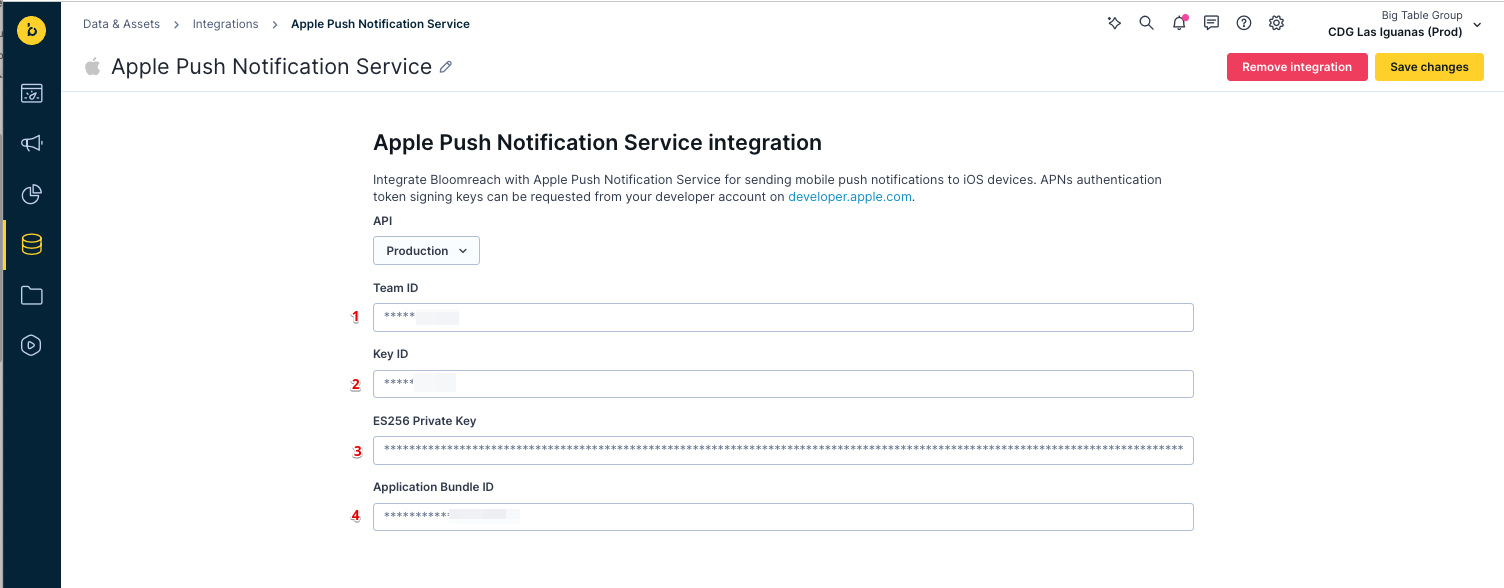
Format for Private Key
The private key must include the full block in this exact format:-----BEGIN PRIVATE KEY-----
[KEY CONTENT HERE]
-----END PRIVATE KEY-----
Example values:
Important Notes:
• TRIFFT provides all the required IDs
• The Key ID and Private Key must be generated separately for each individual mobile app (or at minimum for your company projects) https://developer.apple.com/account/resources/authkeys/list.
• After downloading the .p8 key file, open it in a text editor to copy and paste the full content, including headers.
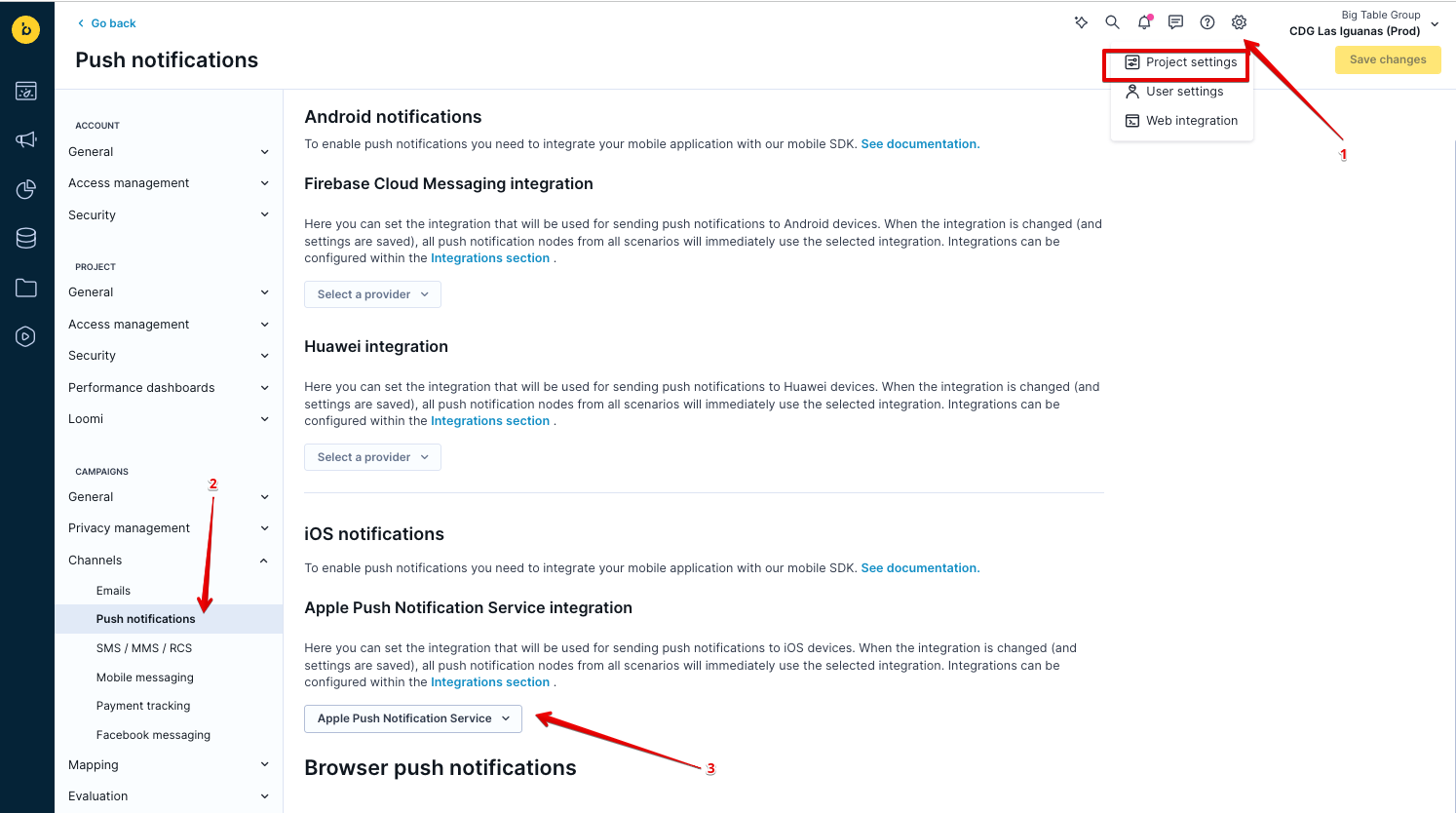
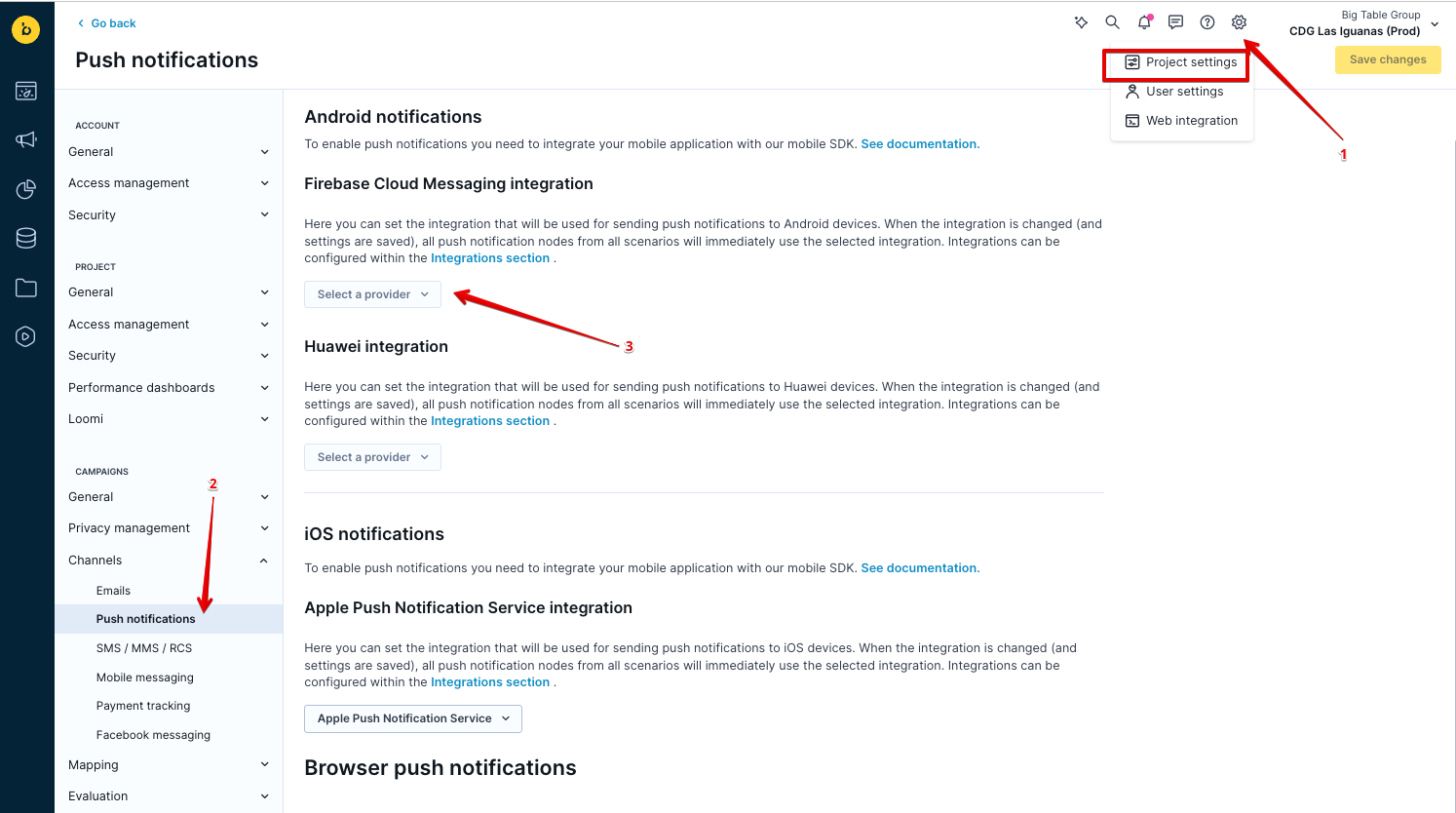
Step 3: Assign the Integration to iOS Notifications
Go to:
Settings → Project settings → Channels → Push notifications
Under iOS notifications, select the following:
Apple Push Notification Service → Apple Push Notification Service
Click Save changes.
How to Obtain Apple Credentials
These credentials are generated via your Apple Developer account:
- Visit: https://developer.apple.com/account/resources/authkeys/list
- Click + to create a new APNs key
- Download the .p8 private key and save it securely
- Copy the following:
- Key ID from the confirmation screen
- Team ID from your Apple Developer account profile
- Bundle ID from the app’s identifier under Certificates → Identifiers
Step-by-Step Integration with Firebase Cloud Messaging (Android)
Step 1: Open Bloomreach Push Integration Settings
Navigate to:
Data & Assets → Integrations → click on Add New Integration
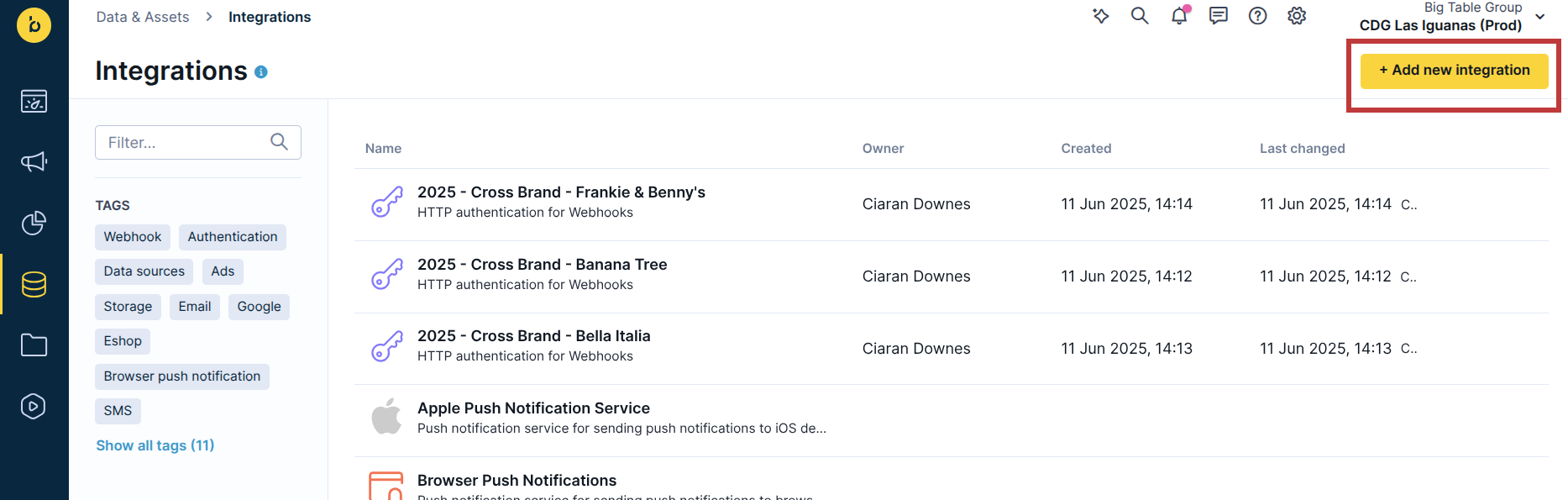
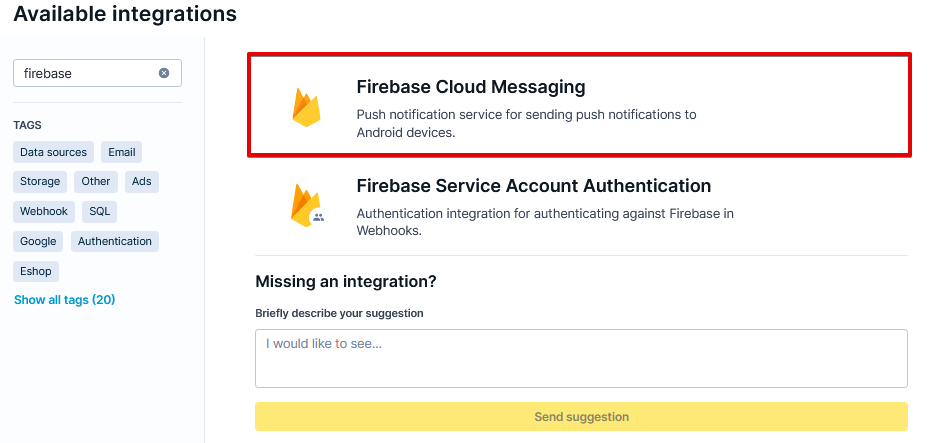
In the filter, search for Firebase and select Firebase Cloud Messaging.
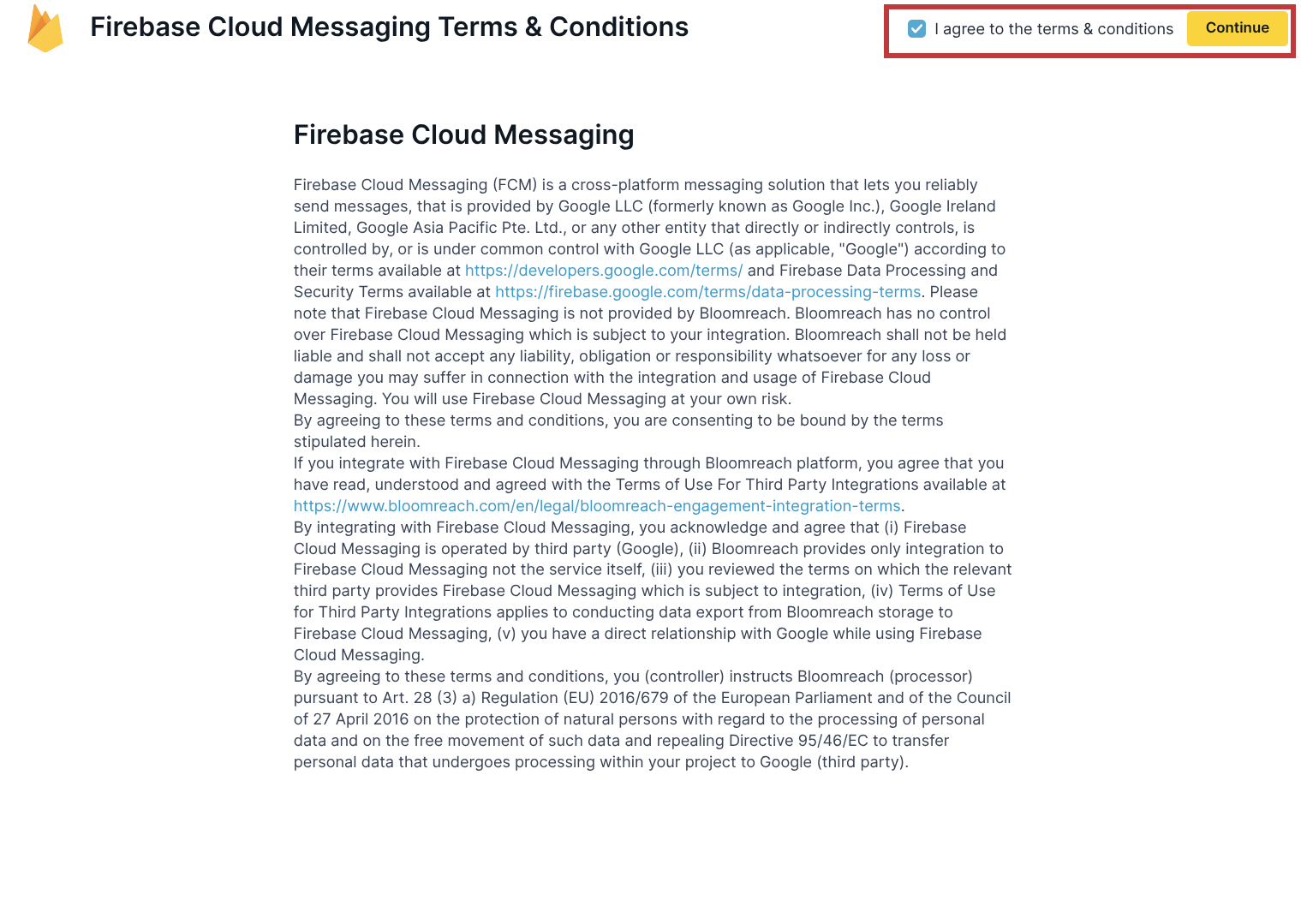
Accept the terms & conditions, then click Continue.
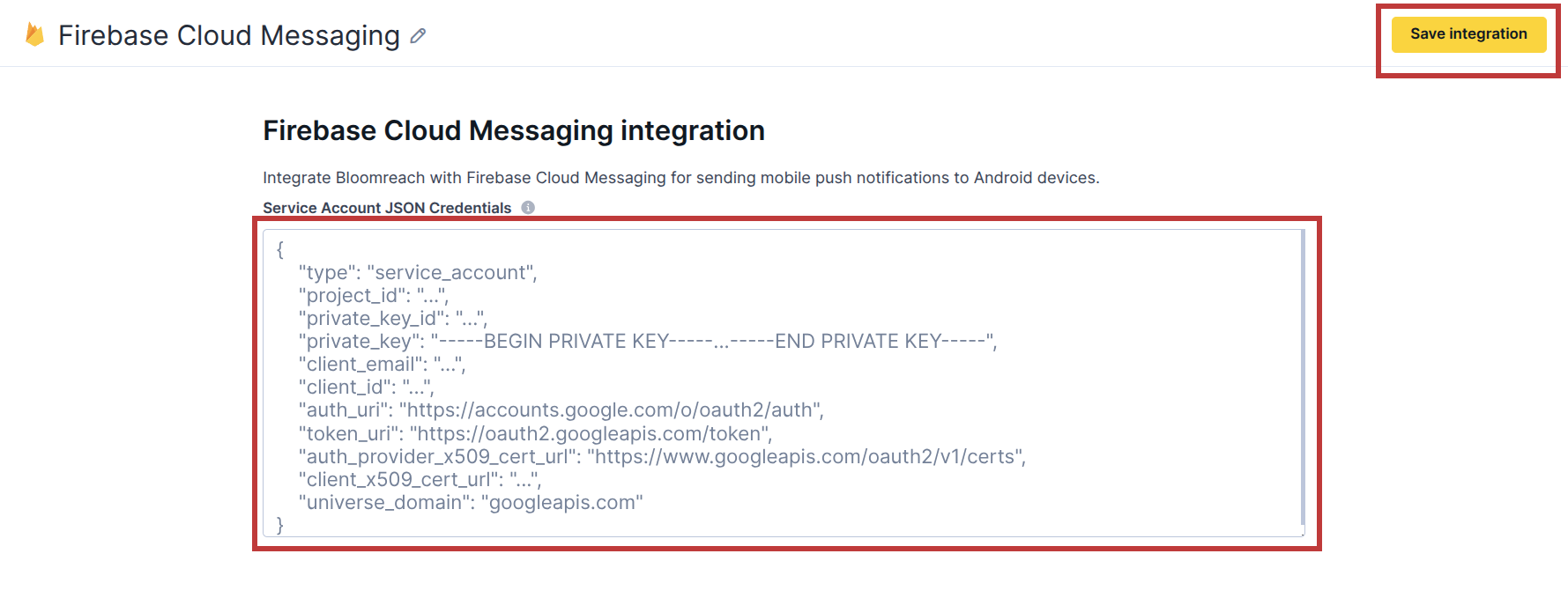
Step 2: Fill Out Required APNs Credentials
Open the Firebase Cloud Messaging integration editor by clicking on it.
The private key must include the full block in this exact format:-----BEGIN PRIVATE KEY-----
[KEY CONTENT HERE]
-----END PRIVATE KEY-----
Example values:
Important Notes:
- Ask the developers to obtain a private Firebase service account key.
- This key can only be generated once. For security reasons, the steps to generate it are not included here.
- Regenerating the key will invalidate the previous one.
Step 3: Assign the Integration to Firebase Cloud Messaging
Go to:
Settings → Project settings → Channels → Push notifications
Under Android notifications, select the following:
Firebase Cloud Messaging integration → Firebase Cloud Messaging
Click Save changes.
Testing the Setup
-
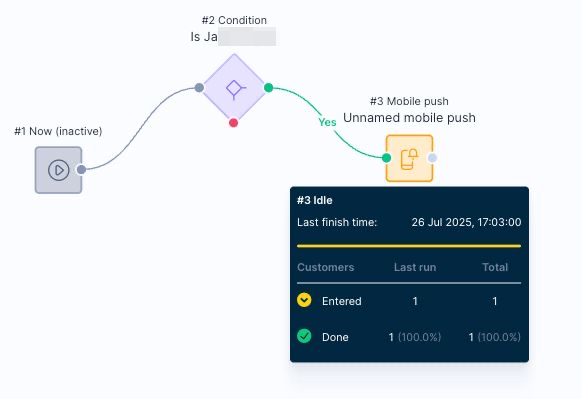
Create a basic scenario in Bloomreach (e.g., using a manual trigger or a small test segment).
-
Add a mobile push node to the flow.
-
Run the flow using a test user who has a valid push token for iOS/Android.
-
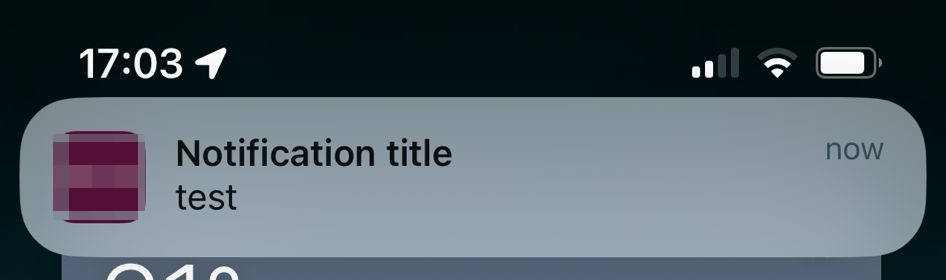
Confirm delivery by checking for the notification on the test device.
Custom TRIFFT → Bloomreach event library
The following examples are starting points. Event names, project-specific Custom Parameters, venue parameters, and customer_ids must be adapted to the Bloomreach project.
Confirm the Bloomreach Hard ID and Soft ID configuration before copying any payload. Bloomreach can return
200while leaving the event unassigned when the identifier keys do not match the project settings.
Coupon redeemed
TRIFFT event: User Redeemed Coupon
Bloomreach event: trft_perk_redeemed
{
  "event_type": "trft_perk_redeemed",
  "properties": {
    "perk_id": "{{ coupon.id }}",
    "perk_name": "{{ coupon.name }}",
    "venue_id": "{{ venue.id }}",
    "venue_name": "{{ venue.name }}",
    "venue_aztec_id": "{{ venue.param.aztecVenueId }}",
    "site_id": "{{ venue.param.siteId }}"
  },
  "customer_ids": {
    "email_address": "{{ member.email }}",
    "trfft_loyalty_id": "{{ member.id }}"
  },
  "timestamp": "{{ event.created_at | date('U') }}"
}
Member verified
TRIFFT event: User Was Verified
Bloomreach event: trft_registration
{
  "event_type": "trft_registration",
  "properties": {
    "member_id": "{{ member.id }}",
    "birth_date": "{{ member.param.birth_date | date('U') }}",
    "first_name": "{{ member.param.first_name }}"
  },
  "customer_ids": {
    "email_address": "{{ member.email }}",
    "trfft_loyalty_id": "{{ member.id }}"
  },
  "timestamp": "{{ event.created_at | date('U') }}"
}
Member created
TRIFFT event: User Was Created
Bloomreach event: trft_registration_started
{
  "event_type": "trft_registration_started",
  "properties": {
    "member_id": "{{ member.id }}",
    "birth_date": "{{ member.param.birth_date | date('U') }}",
    "first_name": "{{ member.param.first_name }}"
  },
  "customer_ids": {
    "email_address": "{{ member.email }}",
    "trfft_loyalty_id": "{{ member.id }}"
  },
  "timestamp": "{{ event.created_at | date('U') }}"
}
Contest drawn
TRIFFT event: Member Contest Drawn
Bloomreach event: trft_contest_drawn
{
  "event_type": "trft_contest_drawn",
  "properties": {
    "contest_id": "{{ contest.id }}",
    "contest_name": "{{ contest.name }}",
    "contest_token_id": "{{ contest_token.id }}",
    "coupon_id": "{{ coupon.id }}",
    "coupon_name": "{{ coupon.name }}",
    "user_coupon_id": "{{ event.assignedUserCouponId }}"
  },
  "customer_ids": {
    "email_address": "{{ member.email }}",
    "trfft_loyalty_id": "{{ member.id }}"
  },
  "timestamp": "{{ event.created_at | date('U') }}"
}
Contest token assigned
TRIFFT event: Contest Token Was Assigned To User
Bloomreach event: trft_contest_token_assigned
{
  "event_type": "trft_contest_token_assigned",
  "properties": {
    "contest_id": "{{ contest.id }}",
    "contest_name": "{{ contest.name }}",
    "contest_token_id": "{{ contest_token.id }}"
  },
  "customer_ids": {
    "email_address": "{{ member.email }}",
    "trfft_loyalty_id": "{{ member.id }}"
  },
  "timestamp": "{{ event.created_at | date('U') }}"
}
Marketing consent signed
TRIFFT event: User Signed Consent Text
Bloomreach event: trft_marketing_consent
{
  "event_type": "trft_marketing_consent",
  "properties": {
    "consent_id": "{{ event.consentId }}",
    "consent_text_id": "{{ event.consentTextId }}"
  },
  "customer_ids": {
    "email_address": "{{ member.email }}",
    "trfft_loyalty_id": "{{ member.id }}"
  },
  "timestamp": "{{ event.created_at | date('U') }}"
}
Coupon activated
TRIFFT event: User Activated Coupon
Bloomreach event: trft_perk_activated
{
  "event_type": "trft_perk_activated",
  "properties": {
    "perk_id": "{{ coupon.id }}",
    "perk_name": "{{ coupon.name }}"
  },
  "customer_ids": {
    "email_address": "{{ member.email }}",
    "trfft_loyalty_id": "{{ member.id }}"
  },
  "timestamp": "{{ event.created_at | date('U') }}"
}
Loyalty card added
TRIFFT event: User Card Was Added
Bloomreach event: trft_loyalty_number_added
{
  "event_type": "trft_loyalty_number_added",
  "properties": {
    "user_card_id": "{{ metadata._aggregate_id }}",
    "card_number": "{{ event.number }}",
    "card_type": "{{ event.userCardType }}"
  },
  "customer_ids": {
    "email_address": "{{ member.email }}",
    "trfft_loyalty_id": "{{ member.id }}",
    "trft_loyalty_number": "{{ event.number }}"
  },
  "timestamp": "{{ event.created_at | date('U') }}"
}
Member removed from segment
TRIFFT event: User Was Removed From Segment
Bloomreach event: trft_segment_unset
{
  "event_type": "trft_segment_unset",
  "properties": {
    "segment_id": "{{ segment.id }}",
    "segment_name": "{{ segment.name }}",
    "segment_type": "{{ segment.type }}",
    "segment_slug": "{{ segment.slug }}"
  },
  "customer_ids": {
    "email_address": "{{ member.email }}",
    "trfft_loyalty_id": "{{ member.id }}"
  },
  "timestamp": "{{ event.created_at | date('U') }}"
}
Mobile app opened
TRIFFT event: App Event Was Logged
Bloomreach event: trft_app_opened
{
  "event_type": "trft_app_opened",
  "properties": {
    "app_version": "{{ event.params.app_version }}",
    "app_platform": "{{ event.params.app_platform }}"
  },
  "customer_ids": {
    "email_address": "{{ member.email }}",
    "trfft_loyalty_id": "{{ member.id }}"
  },
  "timestamp": "{{ event.created_at | date('U') }}"
}
Favorite venue changed
TRIFFT event: User Changed Favorite Venue
Bloomreach event: trft_favourite_venue_set
{
  "event_type": "trft_favourite_venue_set",
  "properties": {
    "venue_id": "{{ venue.id }}",
    "venue_name": "{{ venue.name }}",
    "venue_aztec_id": "{{ venue.param.aztecVenueId }}",
    "site_id": "{{ venue.param.siteId }}"
  },
  "customer_ids": {
    "email_address": "{{ member.email }}",
    "trfft_loyalty_id": "{{ member.id }}"
  },
  "timestamp": "{{ event.created_at | date('U') }}"
}
Member anonymized
TRIFFT event: User Was Anonymized
Legacy Bloomreach event name: trft_annonymization
{
  "event_type": "trft_annonymization",
  "customer_ids": {
    "trfft_loyalty_id": "{{ member.id }}"
  },
  "properties": {
    "member_id": "{{ member.id }}"
  },
  "timestamp": "{{ event.created_at | date('U') }}"
}The event name above preserves the spelling used by the legacy implementation. Do not rename an existing production event without updating the Bloomreach Scenarios and reporting that depend on it.
Transaction created
TRIFFT event: Transaction Was Created
Bloomreach event: trft_transaction_challenge
{
  "event_type": "trft_transaction_challenge",
  "properties": {
    "amount": "{{ event.transactionAmount / 100 }}",
    "location_name": "{{ venue.name }}"
  },
  "customer_ids": {
    "email_address": "{{ member.email }}",
    "trfft_loyalty_id": "{{ member.id }}"
  },
  "timestamp": "{{ event.created_at | date('U') }}"
}
Ongoing management checklist
Scenario governance
- Every reward Scenario has duplicate-prevention logic.
- Frequency caps are configured for recurring communication such as NPS.
- Test audiences are used before production activation.
- Webhook retries cannot issue the same reward repeatedly.
Personalization
- Weblayer and In-App audiences are reviewed regularly.
- Placeholder IDs are documented and unique.
- Mobile content is tested on the minimum supported app version.
Push delivery
- Uniform high-volume messages use segment/topic delivery where possible.
- Personalized one-to-one sends are distributed over time.
- API and push-provider errors are monitored.
Event quality
- Hard ID and Soft ID mapping remains consistent.
- Project-specific properties are documented.
- Deprecated or misspelled legacy event names are not changed without migration planning.
Updated 3 months ago