
Shopify Set Up
Installation
Video Overview: Installation Walkthrough
Video Overview: Installation Walkthrough
- Log in to your Shopify Admin Dashboard.
- Navigate to Apps and search for the TRIFFT Loyalty Platform.
- Enter your TRIFFT credentials in the provided fields.
- Select the TRIFFT project you want to connect.
- Click Authorize to complete the integration setup.
- You will be redirected to TRIFFT Administration.
- Complete the onboarding process in TRIFFT Administration.
Configuring the App
Follow the onboarding steps in TRIFFT Administration under Settings > Integrations > Shopify. Key steps include:
Enable and Configure Widgets
- Configure Product Screen.
- Configure Header to show shopper’s points.
- Configure Transaction History Page.
Configure Checkout Page
- In Shopify admin, go to Online Store > Themes > Customize.
- Navigate to Template > Checkout and customer accounts.
- Switch to Apps in the left menu and select TRIFFT: Checkout Coupon.
- Save the changes.
- To enable the Earn & Burn feature, activate it in Shopify Integration Settings in TRIFFT Admin.
Installation
- In Shopify Admin, open Point of Sale > Settings > Click Smart Grid.
- Select Location, click Add Tile > Embedded Apps > TRIFFT Loyalty Platform.
- Save the changes.
Note: The extension can also be installed directly via the Shopify POS mobile app.
Usage
- Add items to the basket.
- Tap on the TRIFFT Loyalty POS App.
- Scan a loyalty card or enter a member’s card number, phone number, or email.
- Apply the discount.
- Proceed with checkout.
Note: Additional settings are required in TRIFFT to enable email and phone number pairing.
Checking Member Account Activity
- Create a test transaction in either eCommerce or POS.
- Locate the member in CC → Member List.
- Review the Activity Overview and Loyalty Account tabs.
Setting Up Shopify Discounts in TRIFFT
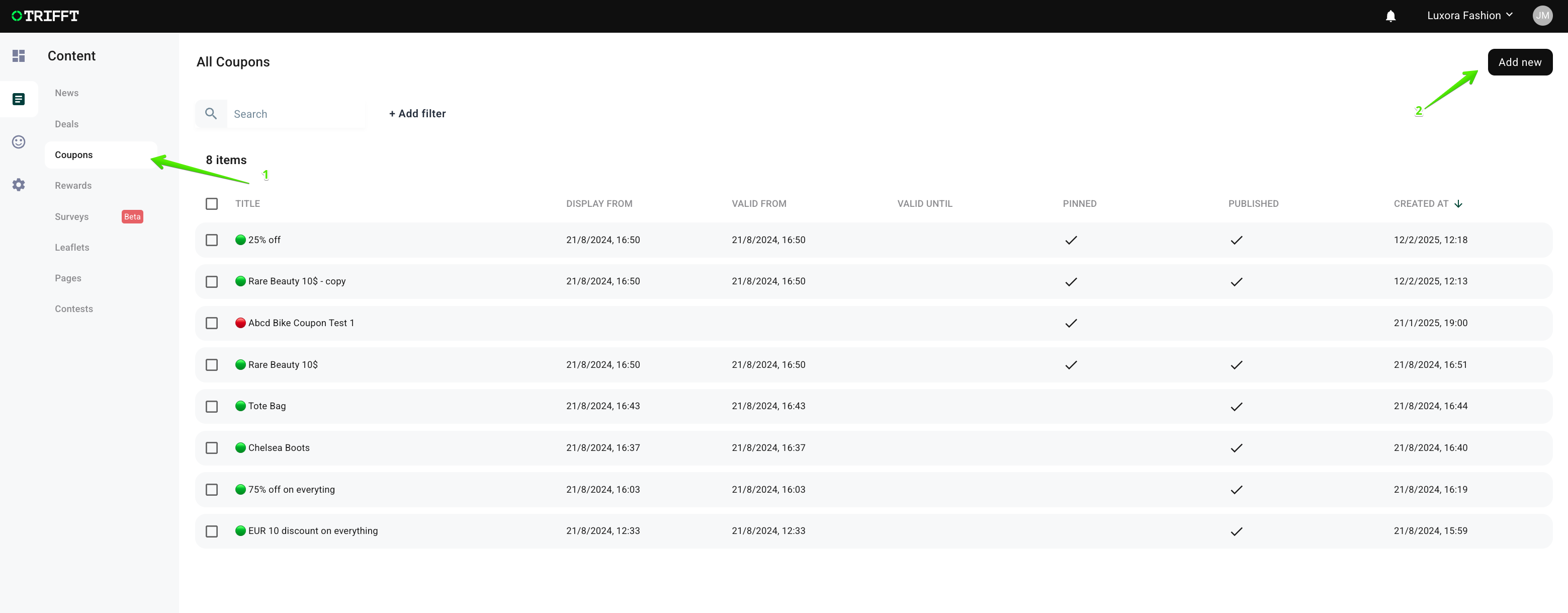
Step 1: Create a Coupon in TRIFFT
- Navigate to the Coupons section in TRIFFT.
- Click Create New Coupon or Duplicate an Existing Coupon and configure it according to your needs.
Step 2: Create a Discount in Shopify
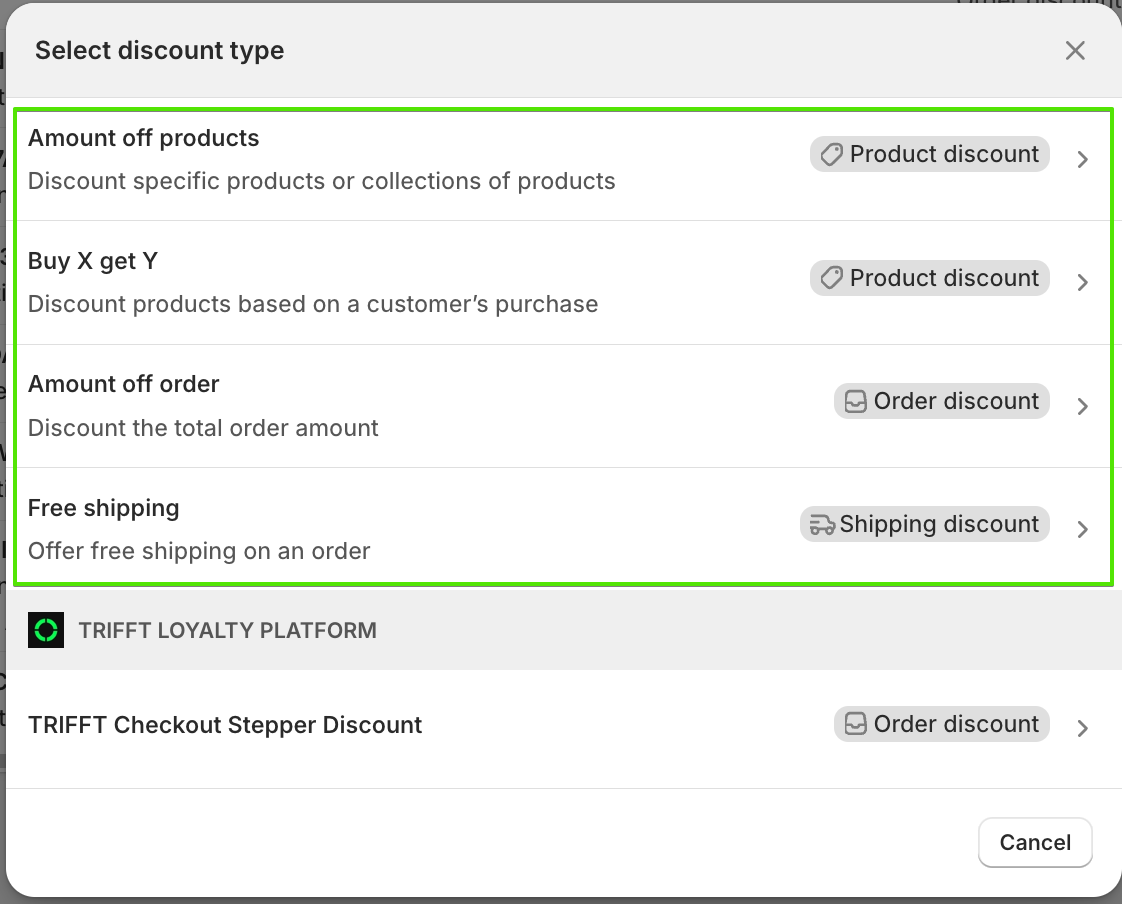
- In Shopify, go to the Discounts section and click Create Discount.
- Select the Discount Type
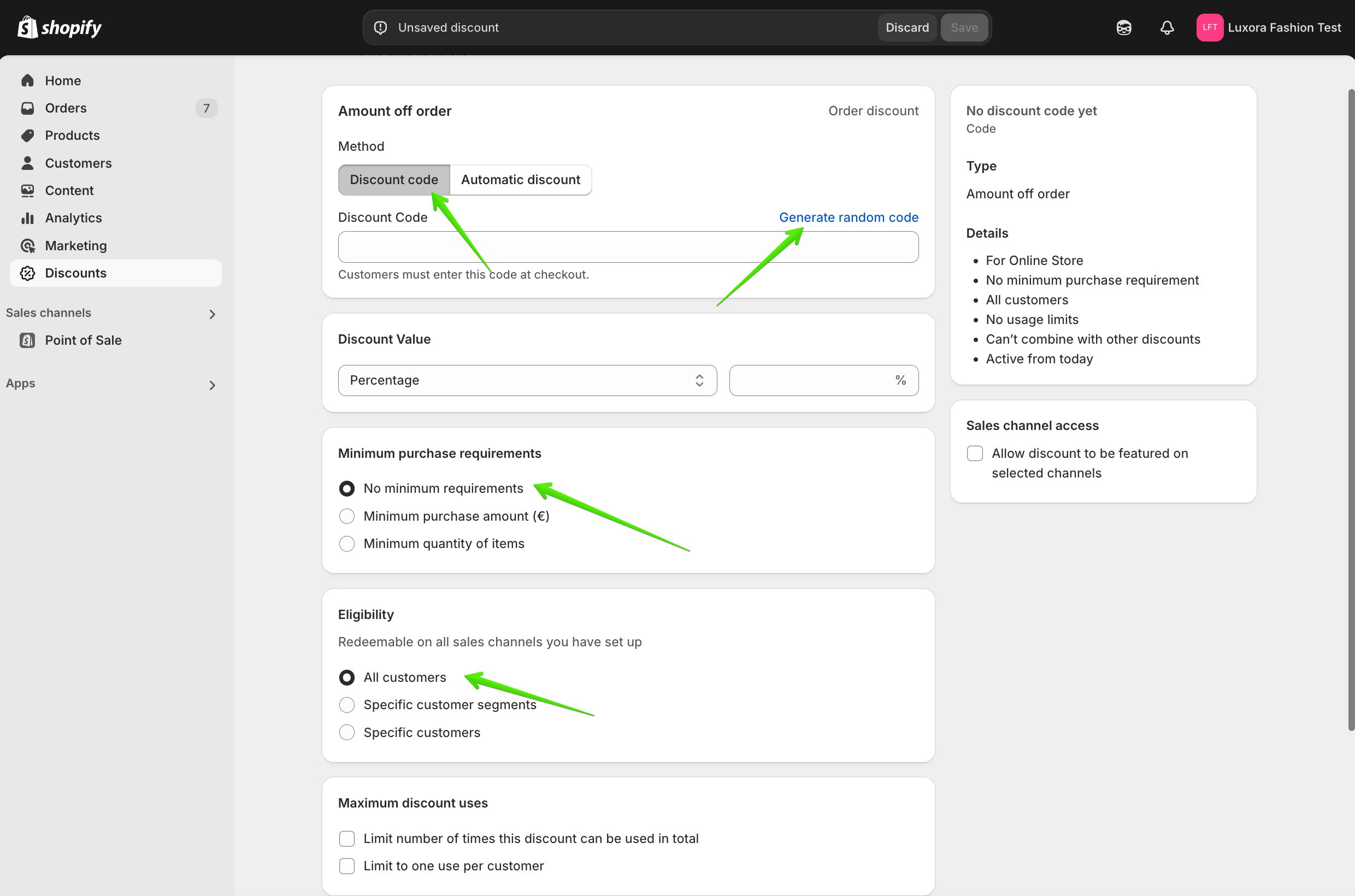
- Choose Discount Code and generate a random discount code.
- Configure the remaining discount settings according to your requirements.
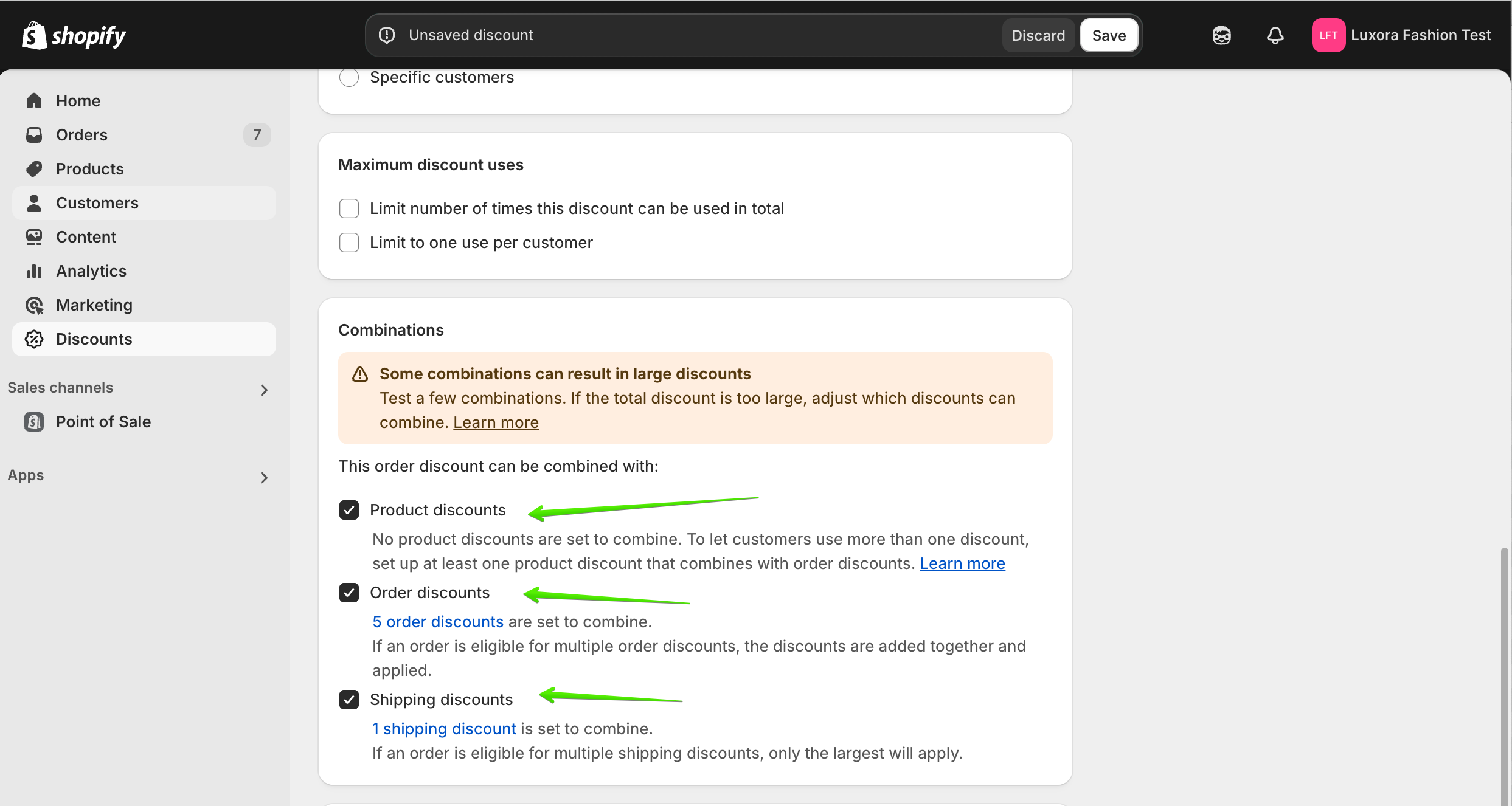
- The discount must be set up as follows:
- Ensure Combine with Order Discounts is enabled.
- This is required for the stepper to function correctly.
- Ensure Combine with Order Discounts is enabled.
- Click Save to finalize the discount.

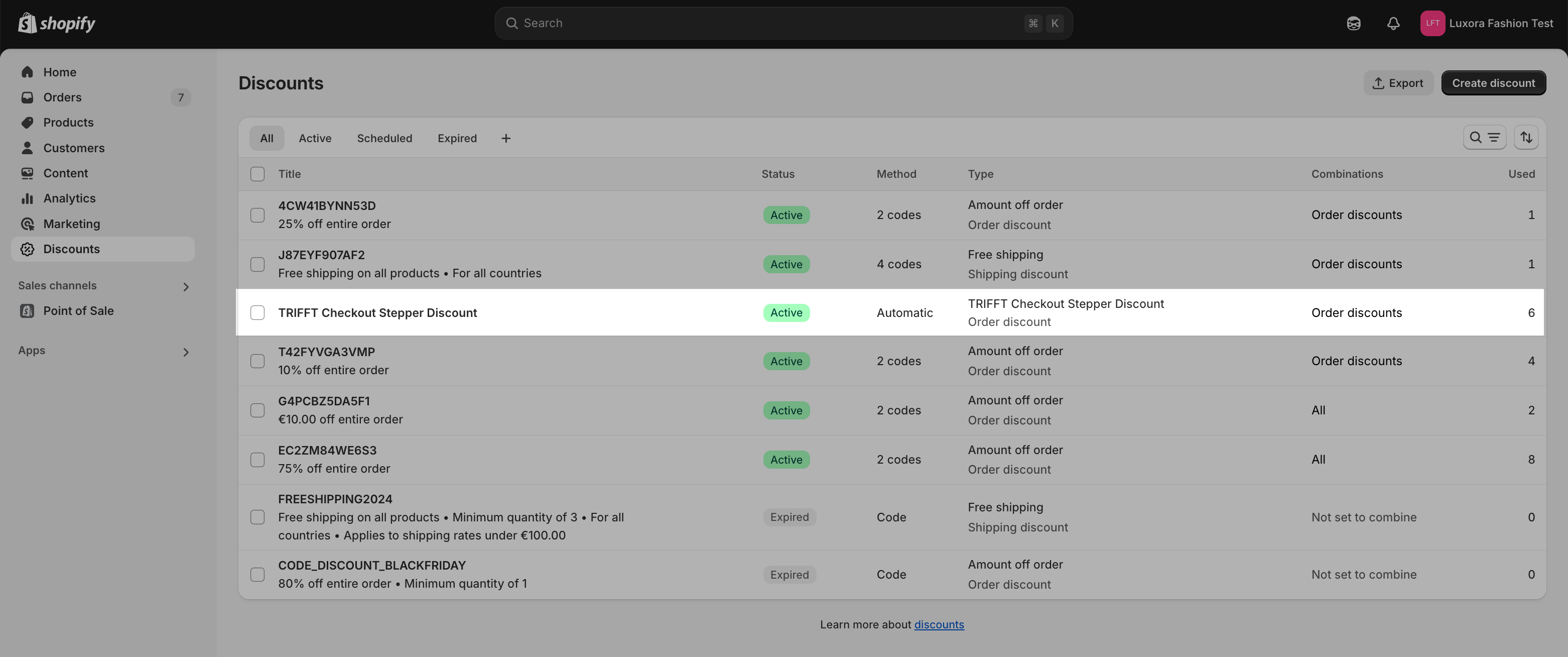
Important: Never delete the Checkout Stepper Discount Reward, or the stepper will not work. If the stepper discount stops functioning, turn the toggle off and on again to reset it.
Step 3: Link Shopify Discount to TRIFFT
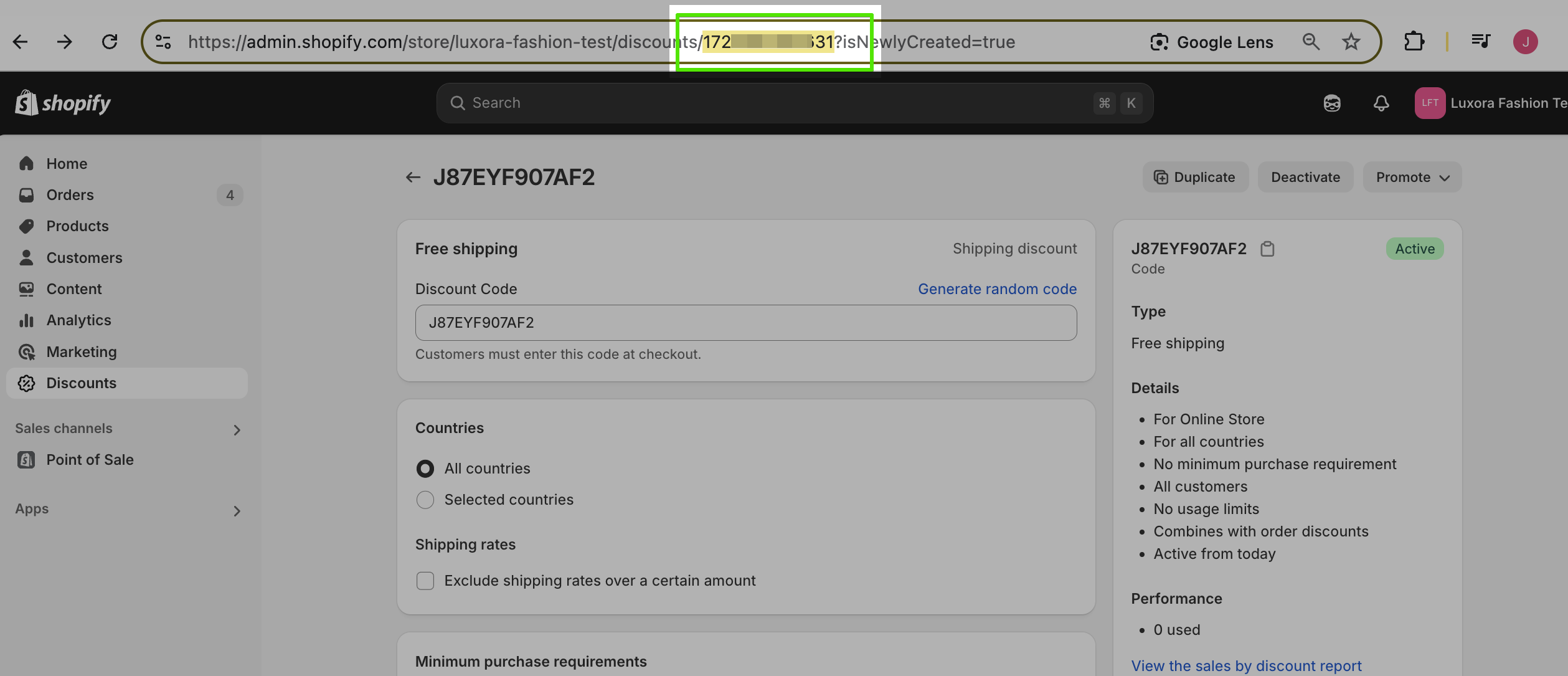
- Copy the Shopify Discount ID from the URL.
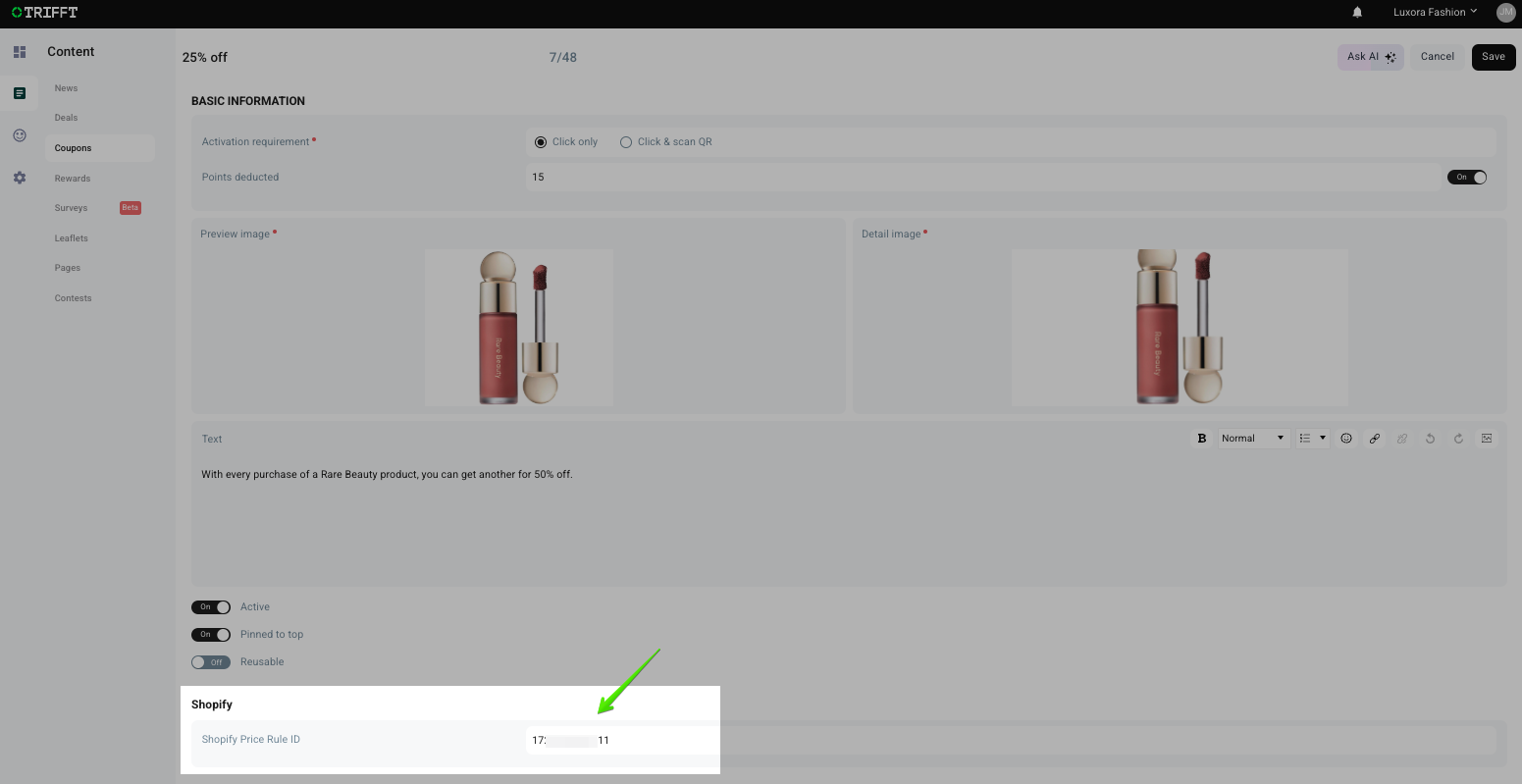
- Go to TRIFFT and locate the corresponding coupon.
- Paste the Shopify Discount ID into the Shopify Price Rule ID field.
- Save the changes.
Updated 3 months ago
Did this page help you?