
Push Notification Set Up
Step-by-step setup
1. Open the Push notifications panel
- Access the Content Cockpit and go to Content > Push notifications > Add new.
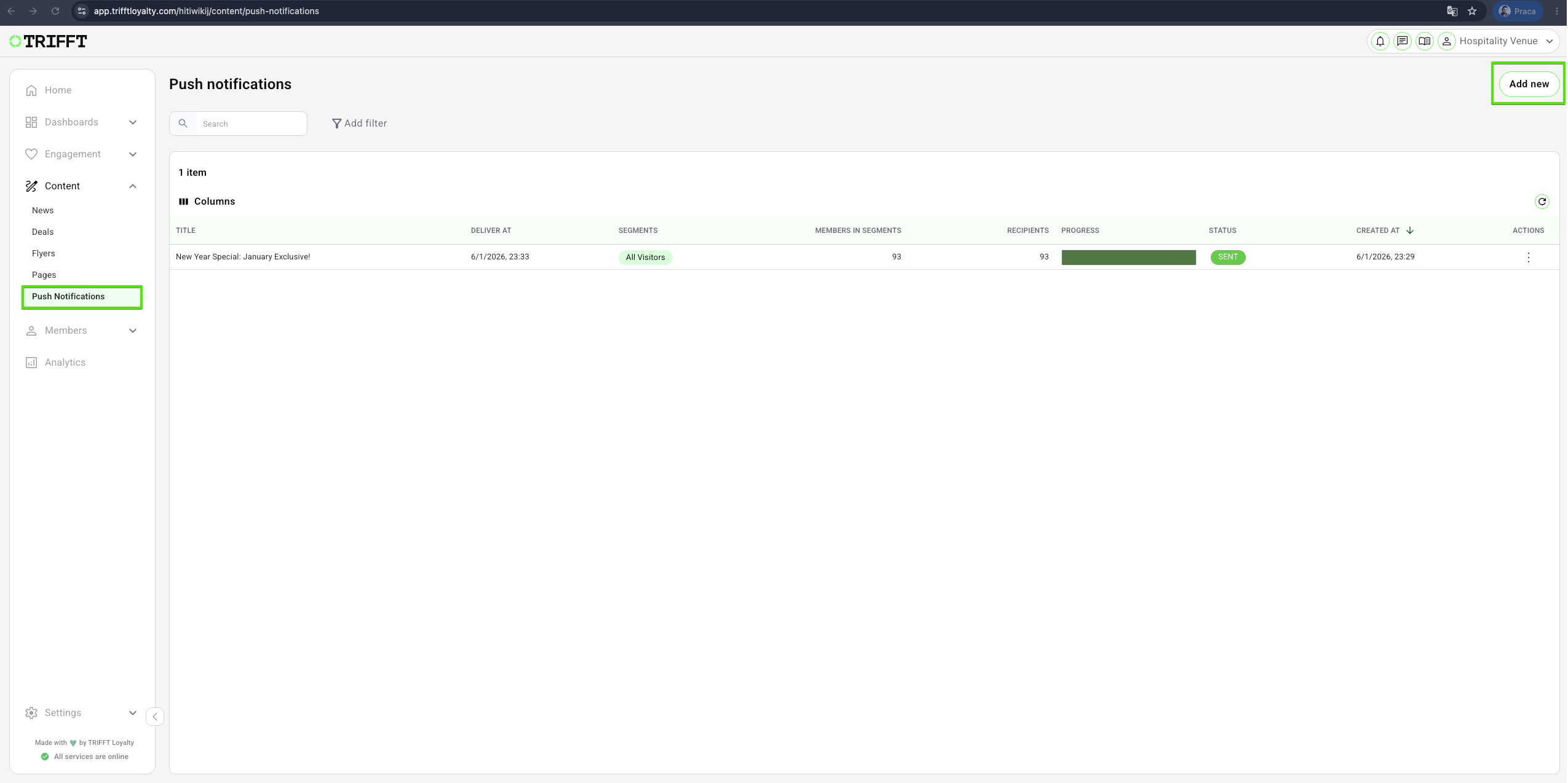
Push Notification Settings
After the previous step, you’ll see a form with the following fields:
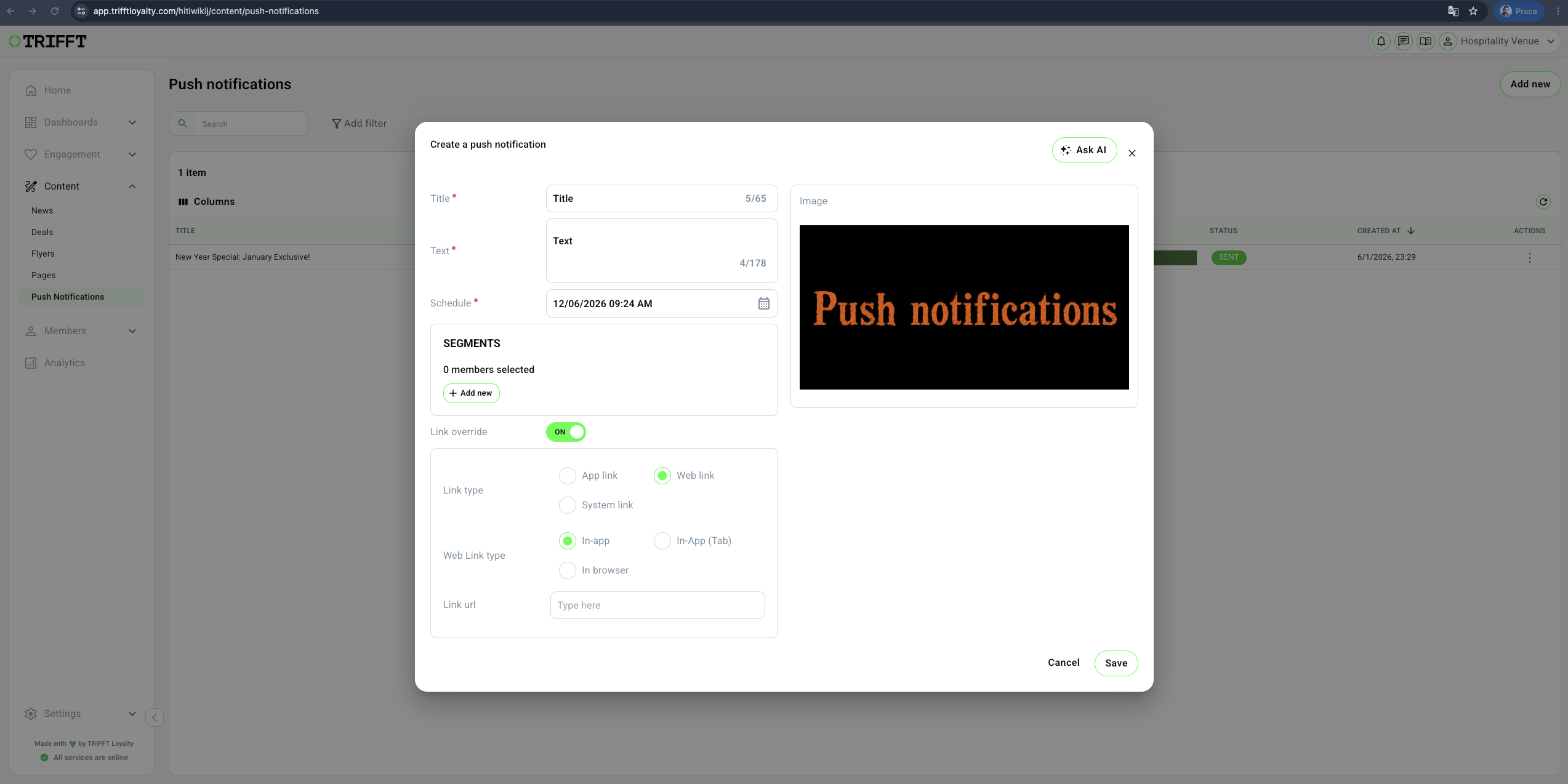
Required Fields
| Field | Description |
|---|---|
| Title | The headline of your push (max 65 characters) |
| Text | The body text of the push message (max 178 characters) |
| Schedule | Choose when the push should be sent |
| Segments | Select which customer segment(s) will receive the notification |
Optional Fields
| Field | Description |
|---|---|
| Image | Visual banner for the push. Allowed formats: JPG, JPEG, PNG. Max size: 5MB. Recommended dimensions: 1024x512 px |
| Link override | Define a custom action when the user taps the notification |
| Link type | There are three types of links: •App link – Opens a specific section or content in the app • Web link – Opens a URL (can open in-app, in an in-app tab, or in an external browser) • System link – Executes system action (e.g. Share) |
Final Step: Save
Once all required fields are filled in, click the “Save” button in the bottom-right corner.
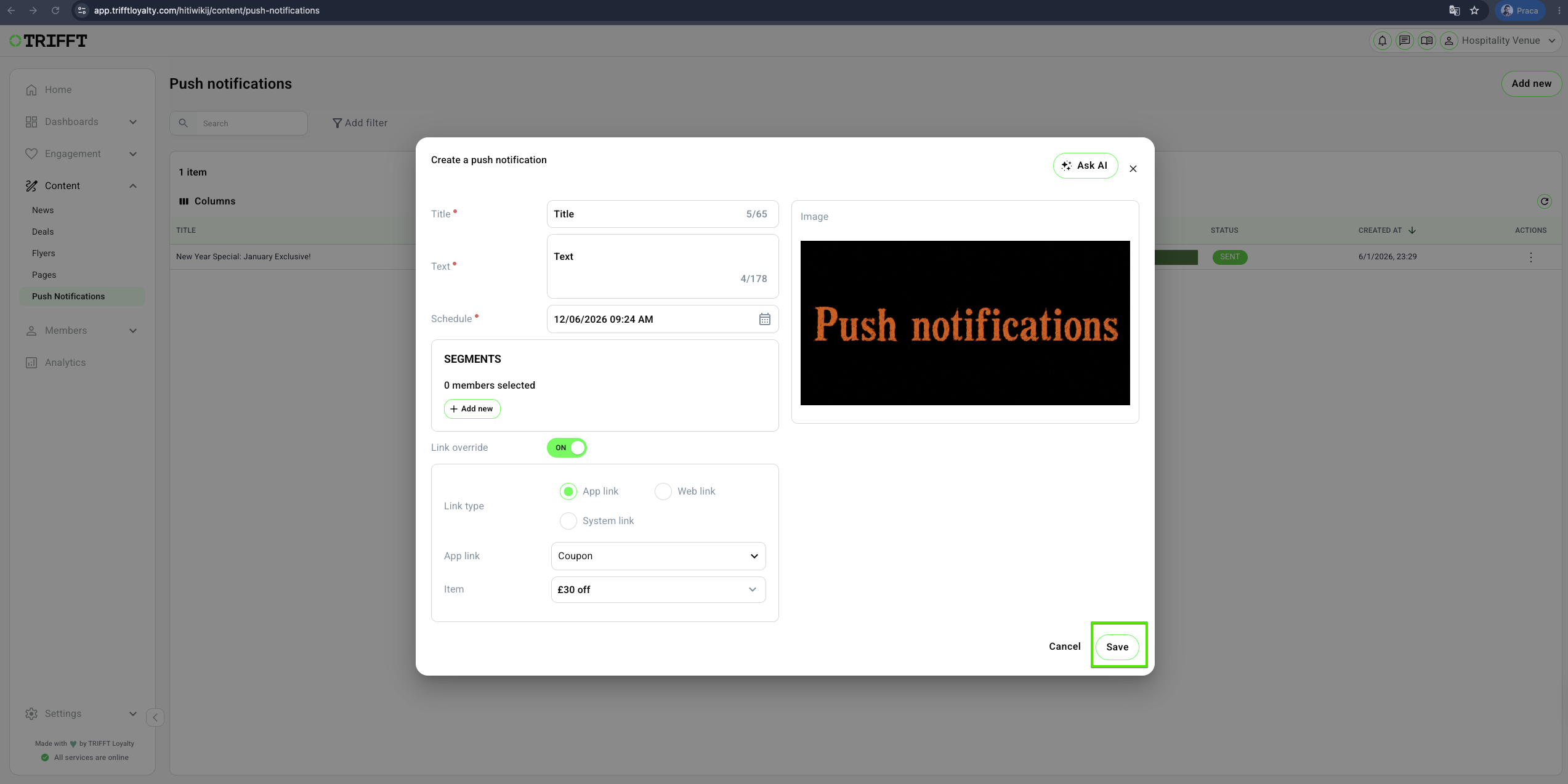
Important: After saving, the push notification will begin processing and can no longer be edited or deleted. Make sure all the information is correct before clicking save.
Push notifications are one of the easiest and most effective ways to keep your customers engaged—don’t let them go unused!
Prerequisites
- Access: Ensure you have the Admin or Editor role in the Cockpit to access the Marketing/Communication modules.
- Credentials: Confirm that Firebase Cloud Messaging (FCM) or Apple Push Notification service (APNs) keys are correctly configured in the Project Settings.
- User Consent: Targeted members must have an active app installation and granted "Push Notification" consent within their device settings.
- Deep Link Targets: If linking to a specific Deal or News article, ensure that the content is already "Published" and active.
Configuration checklist
- Deep Link Validation: The notification correctly opens the intended in-app screen or external webpage.
- Audience Count: The estimated recipient count matches your expected segment size.
- Character Limits: The title and body are optimized to ensure they aren't truncated on standard mobile lock screens.
- Personalization: All dynamic variables (tokens) are correctly formatted and resolve in the test message.
- Frequency Caps: Ensure the message does not violate your brand's daily or weekly communication limit per user.
Updated 3 months ago
Did this page help you?