
Coupons Other Functions
In this article you will learn how to manage other functions like coupon codes, custom parameters on coupons and you will also find use cases for expiration override function.
Adding Coupon Codes
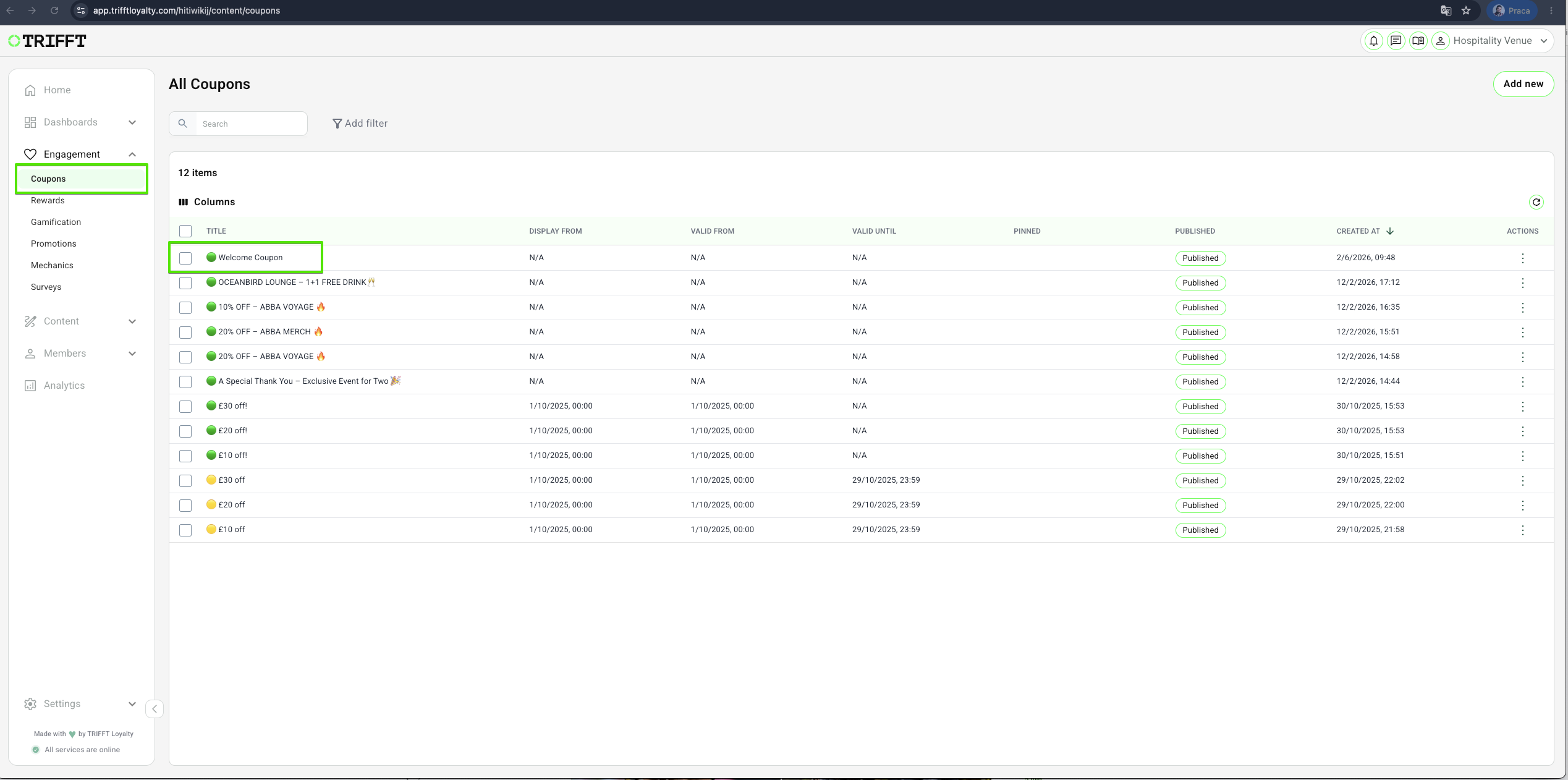
1. Access the Content Cockpit and go to Engagement > Coupons > Select Desired Coupon.
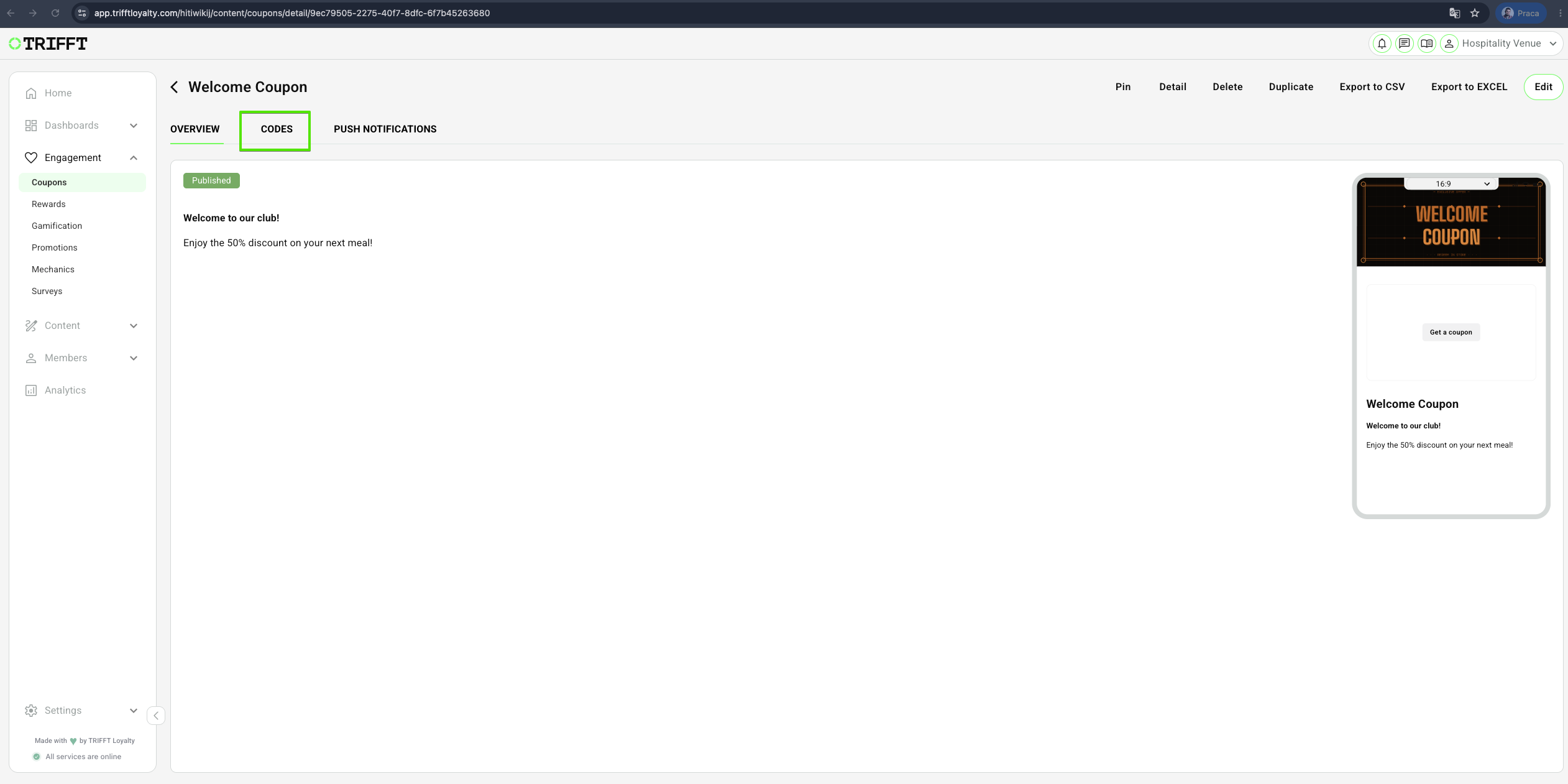
2. Click on CODES
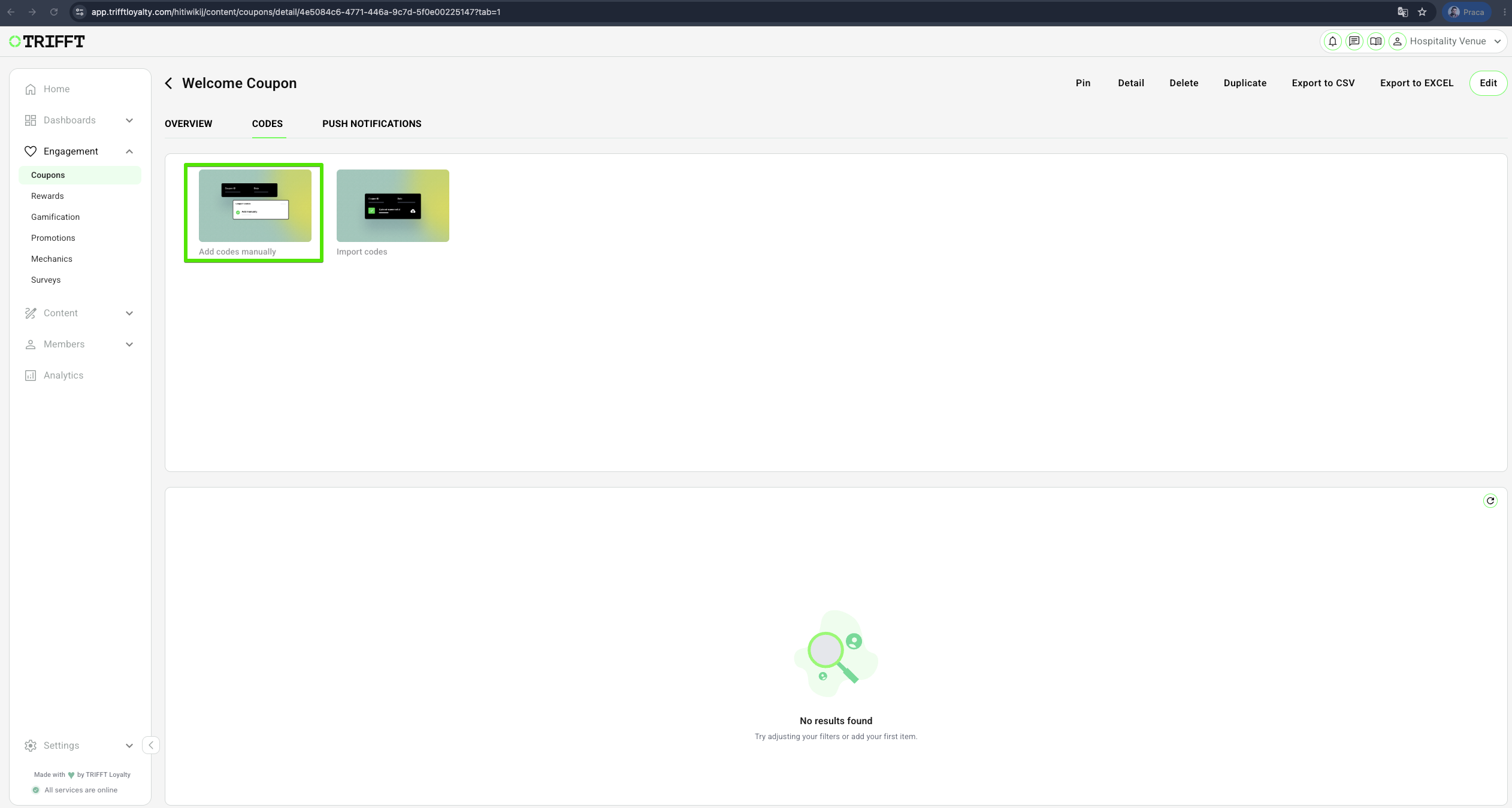
3. Add codes manually
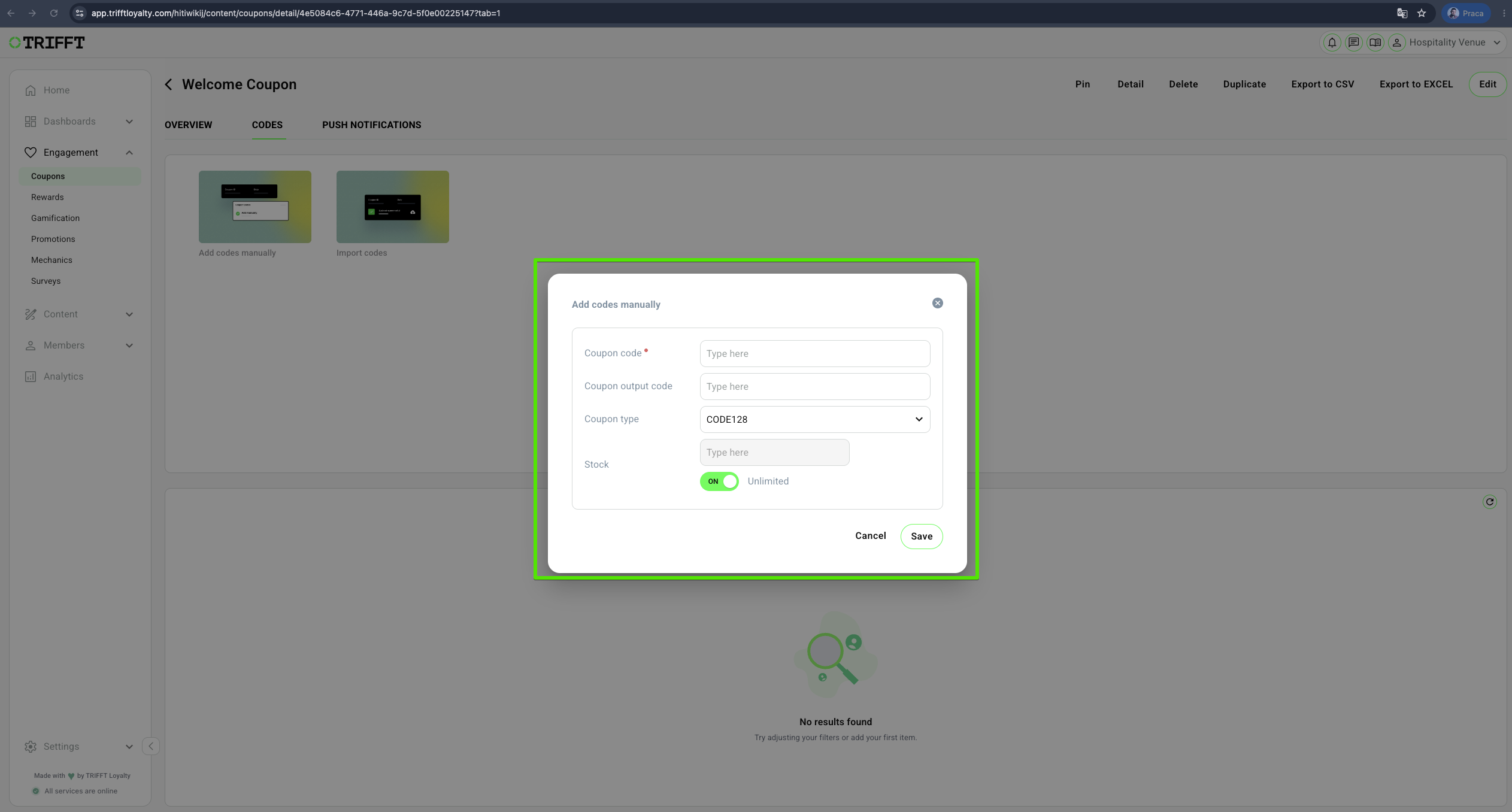
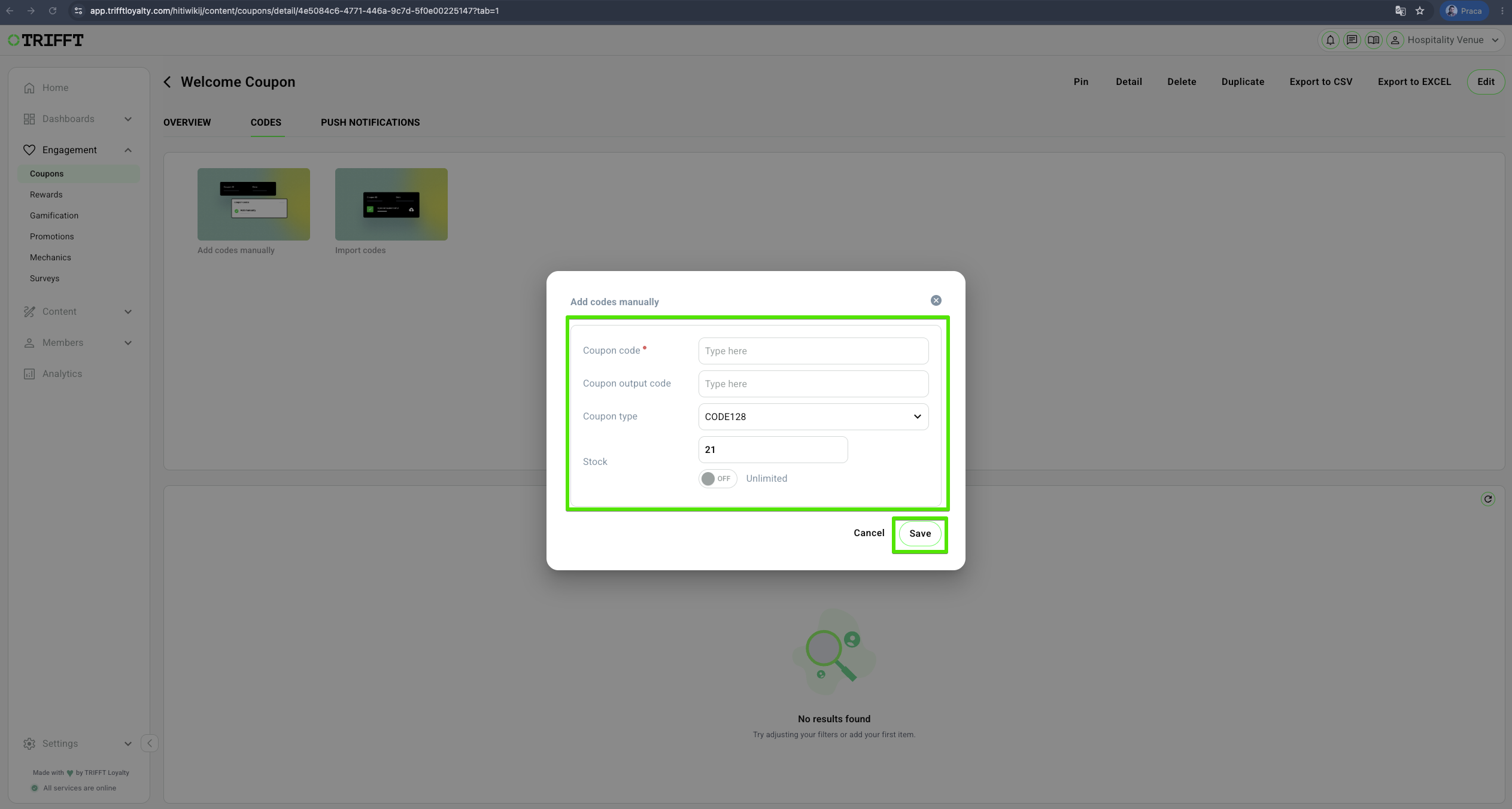
4. Fill in the Coupon Code details
TRIFFT supports a wide variety of Coupon Code Types. You can learn more about the types here:
Coupon Code Types:
| Type | Description | Typical Use Cases |
|---|---|---|
| AZTEC | A compact 2D barcode that can encode data in a square grid pattern. | Commonly used in transport ticketing and boarding passes due to its ability to be read even when partially damaged. |
| CODABAR | A linear barcode that encodes numeric data along with a few special characters. | Widely used in libraries, blood banks, and logistics systems. |
| CODE128 | A high-density linear barcode that supports all 128 ASCII characters. | Used widely in logistics, shipping, and retail due to its compact nature and ability to store more data. |
| CODE39 | A variable-length barcode that encodes alphanumeric characters. | Commonly used in inventory management and manufacturing, but requires more space compared to CODE128. |
| CODE93 | A more compact and secure variant of CODE39 that supports the full ASCII character set. | Used in logistics and inventory tracking applications. |
| DATAMATRIX | A 2D barcode that encodes data in a square or rectangular grid of black and white cells. | Commonly used in manufacturing, healthcare, and small item labeling due to its compact size. |
| EAN8 | A shortened version of EAN13 using 8 digits, designed for small packaging. | Used in retail where limited space is available on the product. |
| EAN13 | A 13-digit barcode primarily used for retail products worldwide. | Common in European markets and follows the International Article Numbering (EAN) system. |
| ITF | A numeric-only barcode that encodes pairs of digits using interleaved patterns. | Commonly used on cardboard boxes and outer packaging in retail and logistics. |
| MAXICODE | A fixed-size 2D barcode developed by UPS for high-speed scanning. | Used primarily in postal and parcel delivery systems for sorting and tracking. |
| PDF417 | A 2D barcode that can store large amounts of data, including text and binary information. | Commonly used in ID cards, transport tickets, and applications requiring high data capacity. |
| QRCODE | A two-dimensional barcode that can store URLs, text, and other data. | Widely used in mobile payments, ticketing, and marketing applications due to its fast readability and high data storage capacity. |
| TEXT | A plain text format where the coupon code is stored as simple alphanumeric characters without barcode encoding. | Suitable when barcode scanning is not required and the code is entered manually. |
| UPCA | A 12-digit barcode primarily used in North America for retail products. | Designed for scanning at the point of sale and follows the Universal Product Code (UPC) standard. |
| UPCE | A compressed version of UPCA, eliminating unnecessary zeros to create a more compact barcode. | Typically used on smaller packaging where space is limited. |
5. Fill out the fields
Add details in the format supported by the Coupon Type:
| Field | Description |
|---|---|
| Coupon Code | Internal code used for identification purposes. |
| Output Code | Code displayed to Members after coupon activation. |
| Coupon Type | Character encoding format of the coupon code. |
| Stock | Specify the number of available coupon codes or enable the unlimited option. |
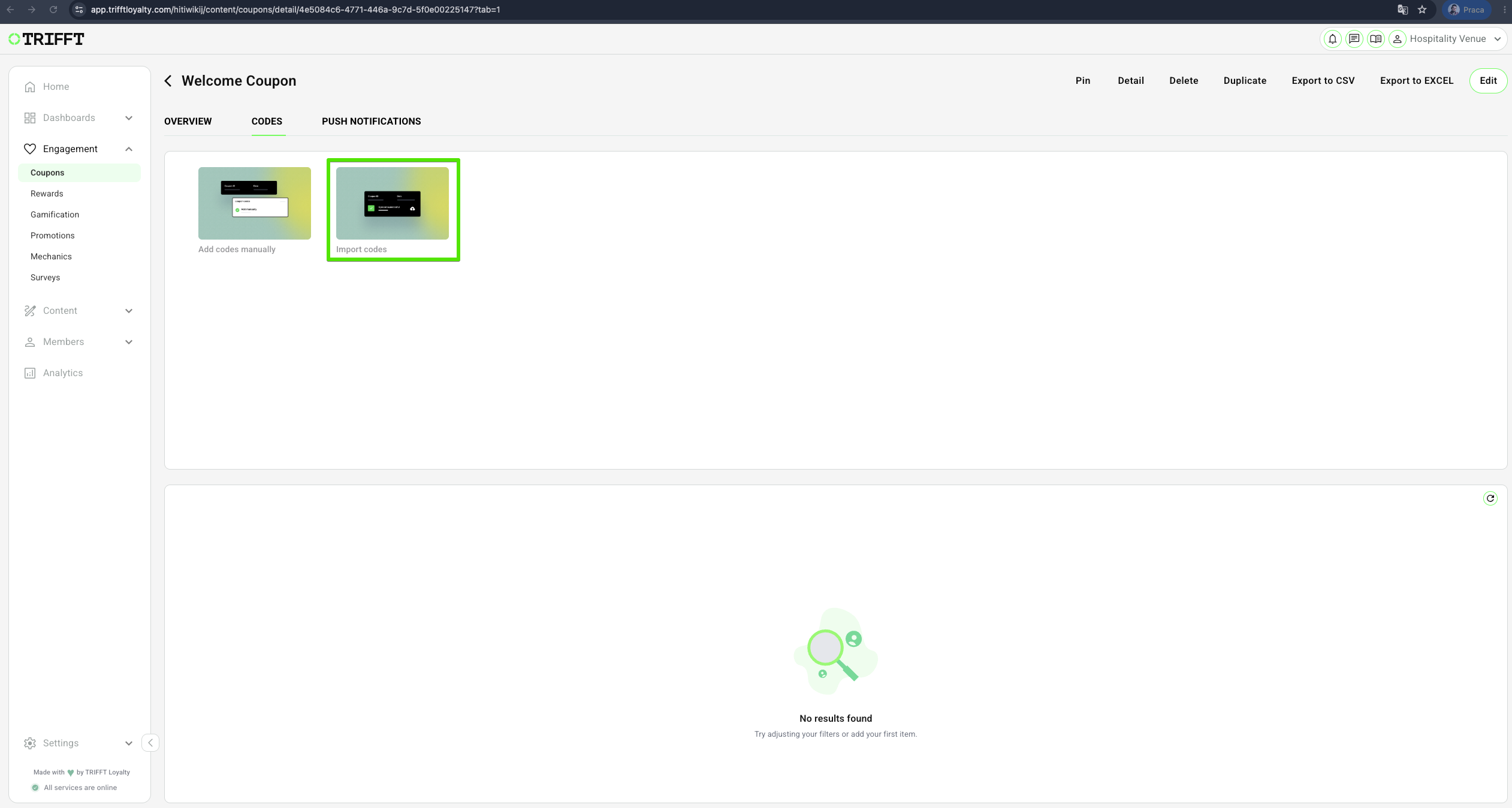
6. Importing Codes
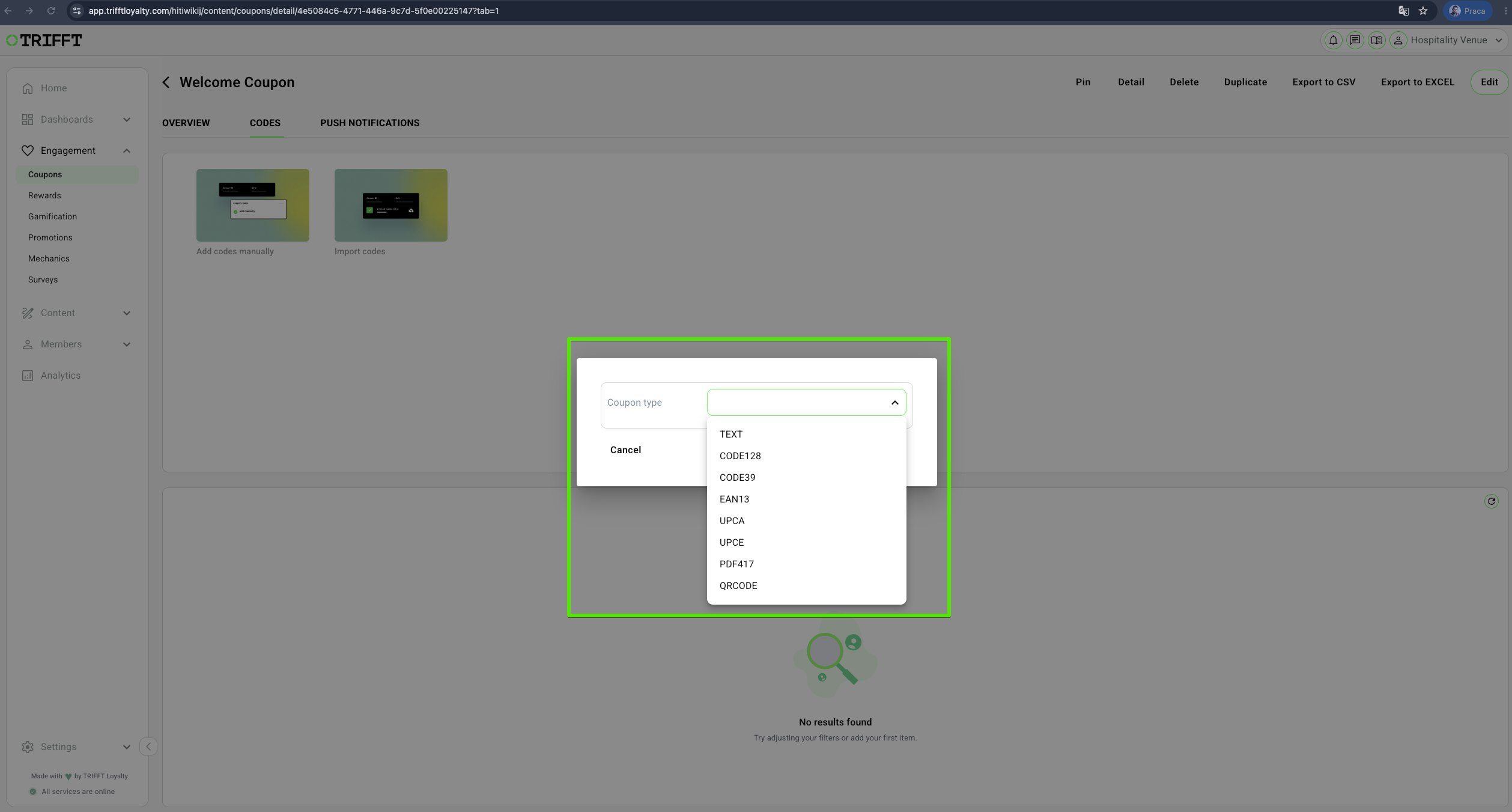
7. Select the Coupon type and click Import
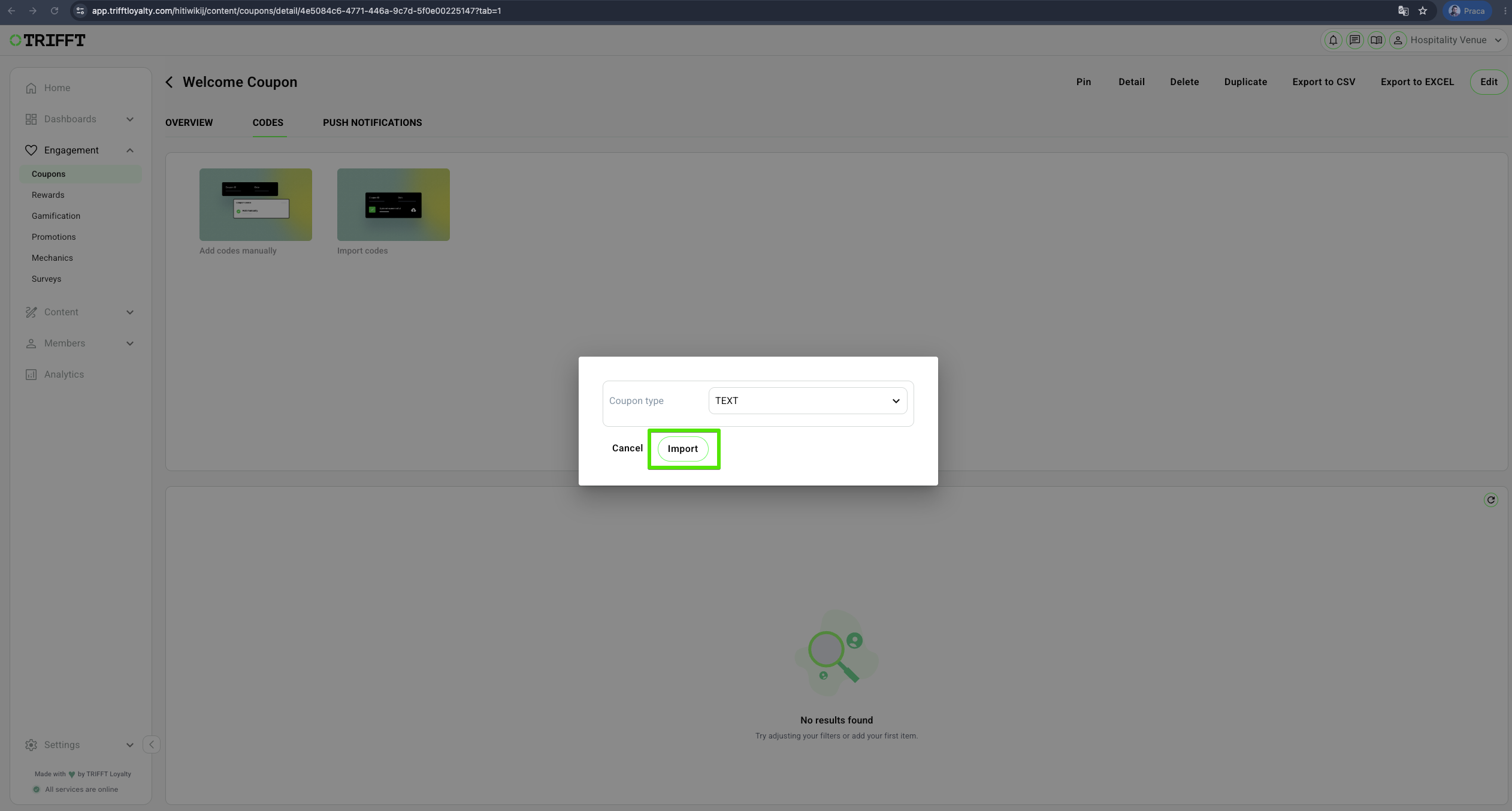
8. You can download the coupon_codes_example.csv file for reference
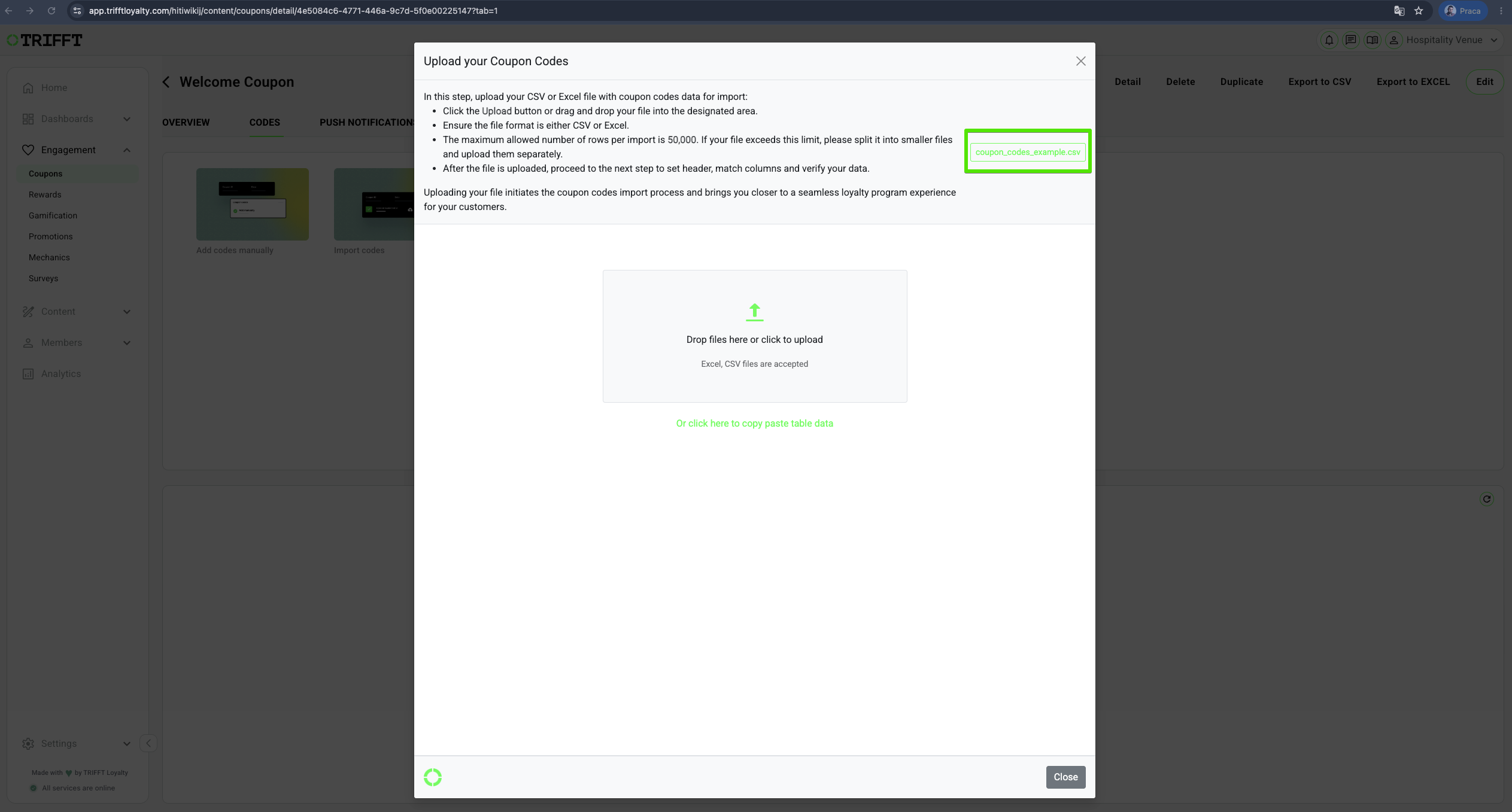
9. Upload the Codes
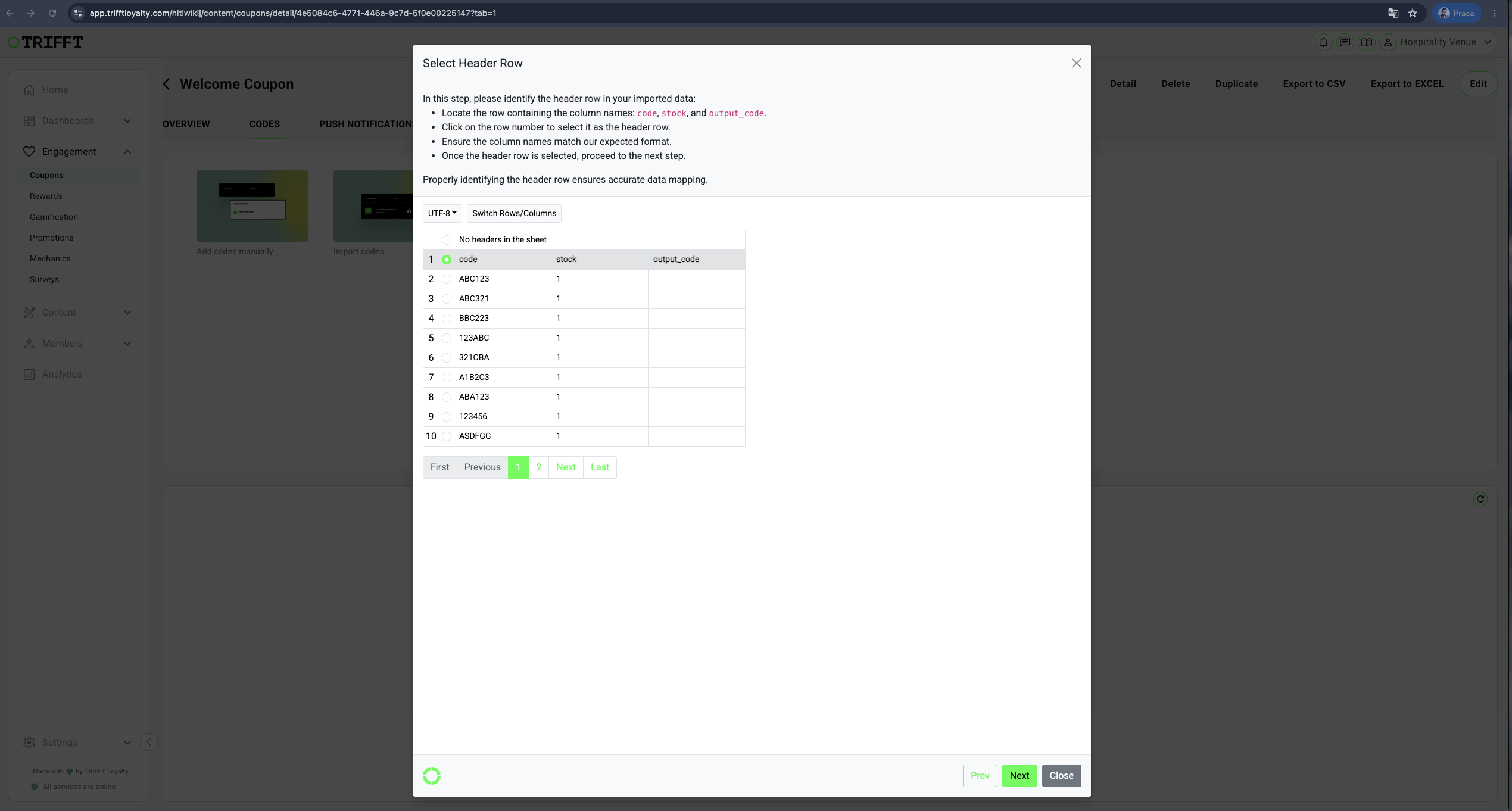
- Follow the guidelines:
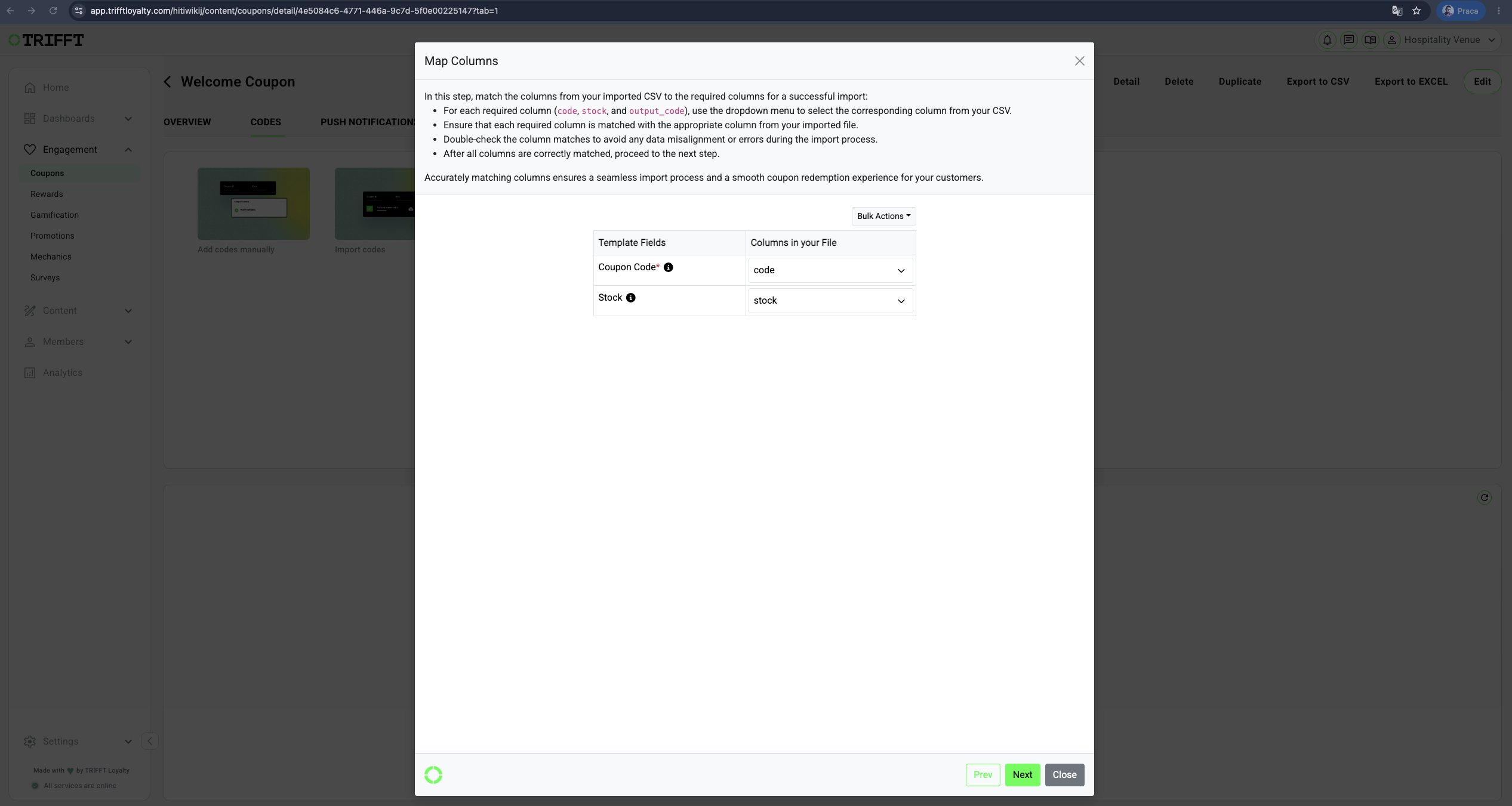
- Verify data and submit:
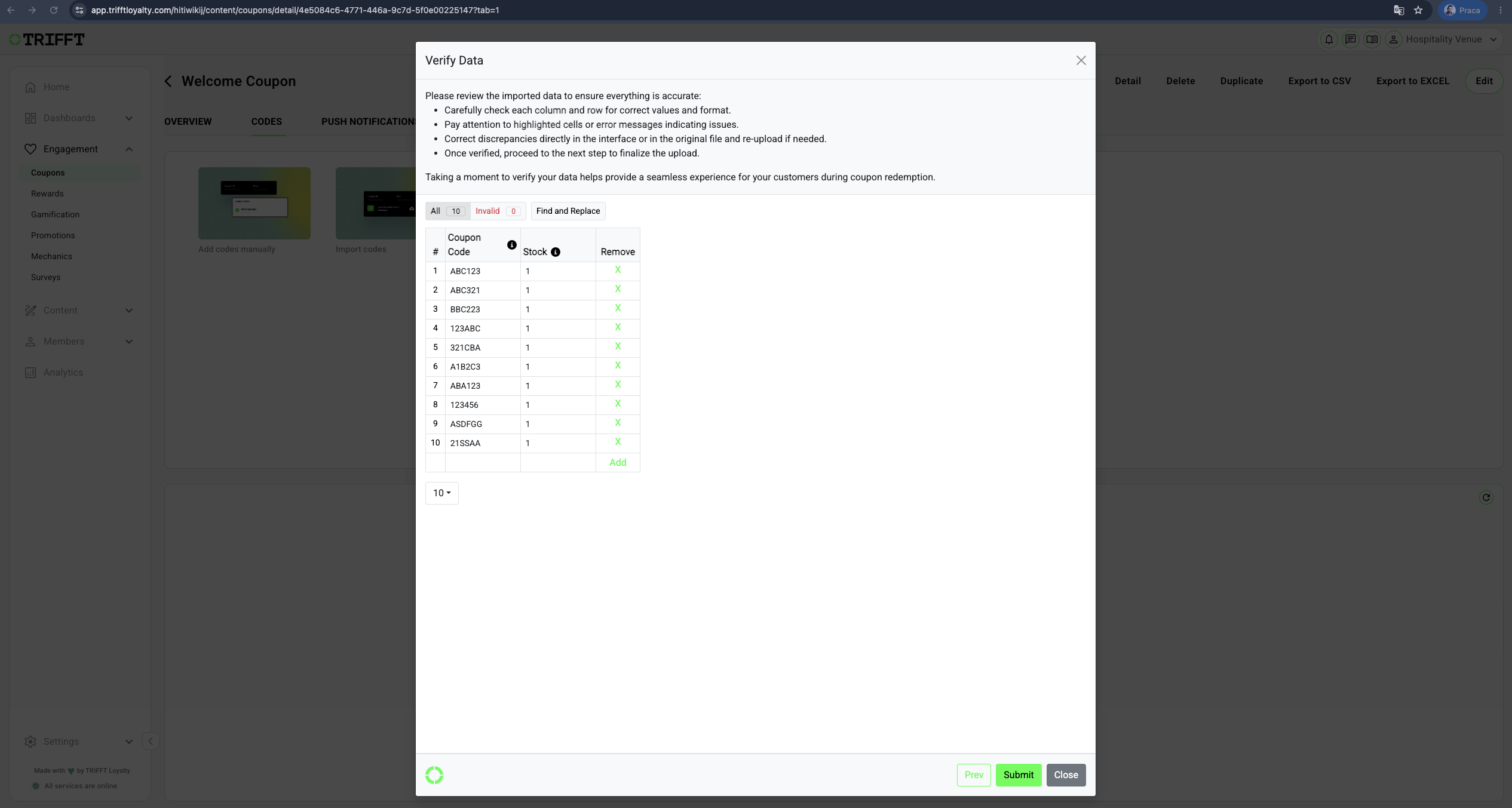
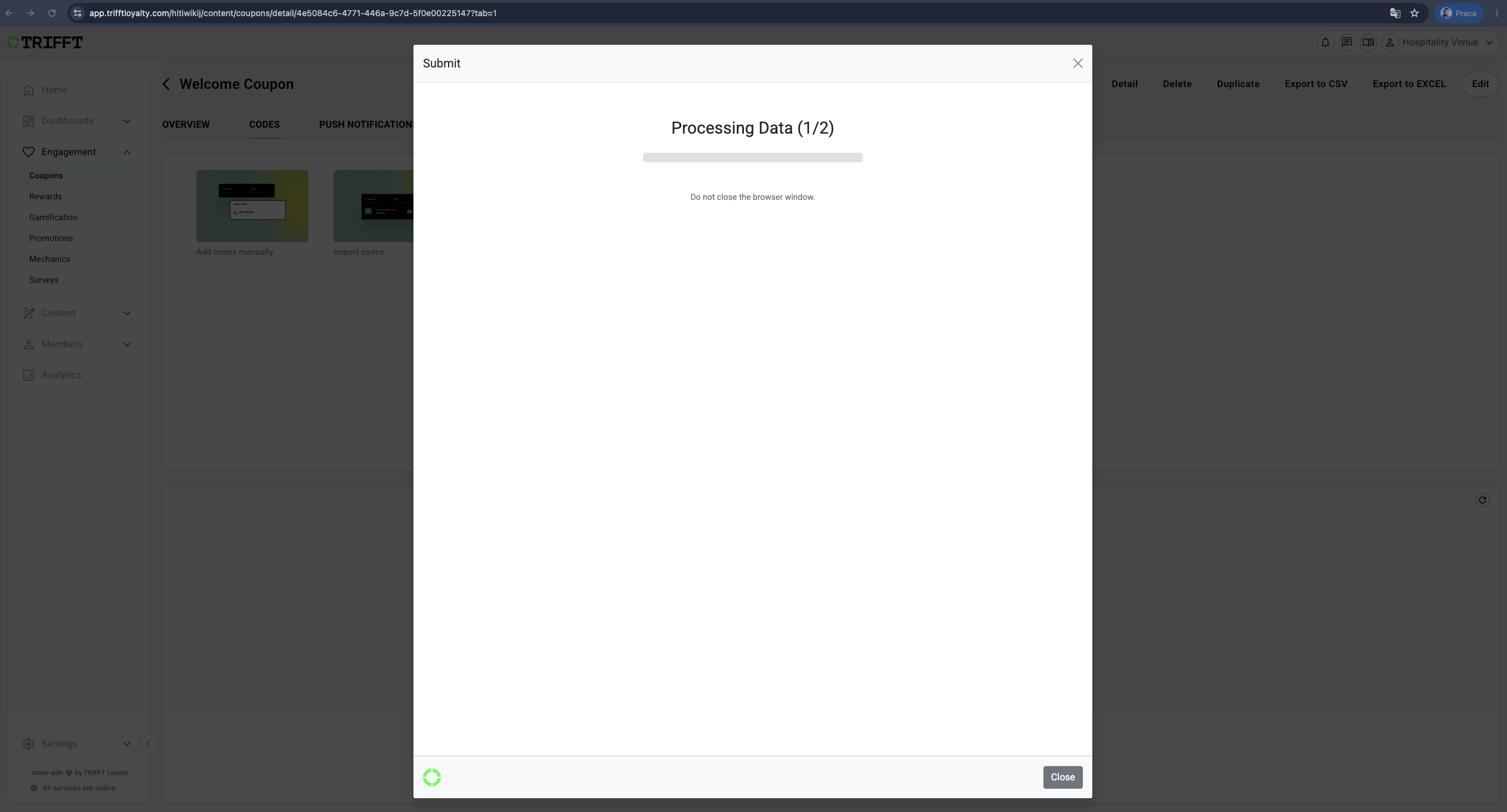
- Confirm the process by clicking OK:
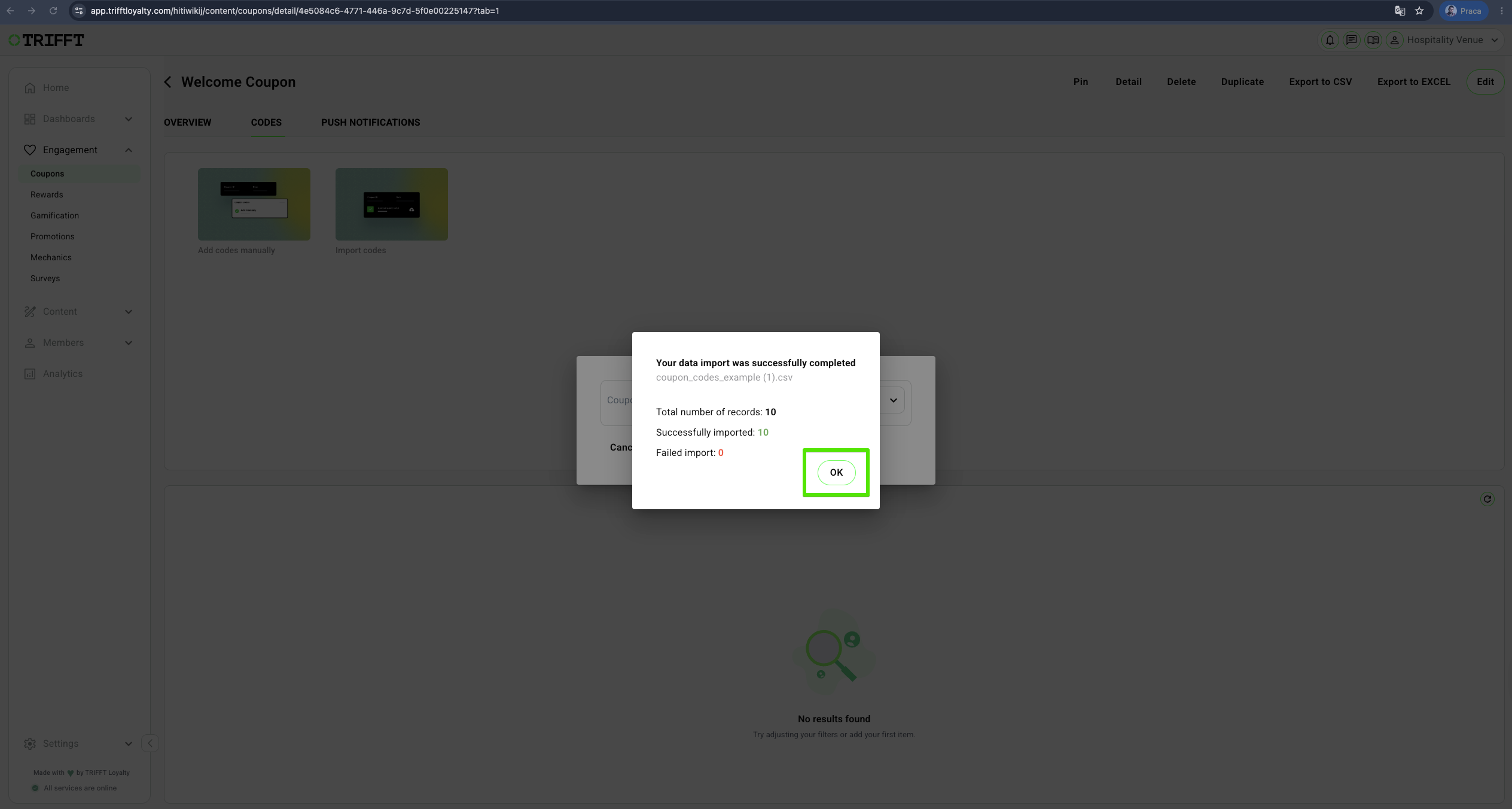
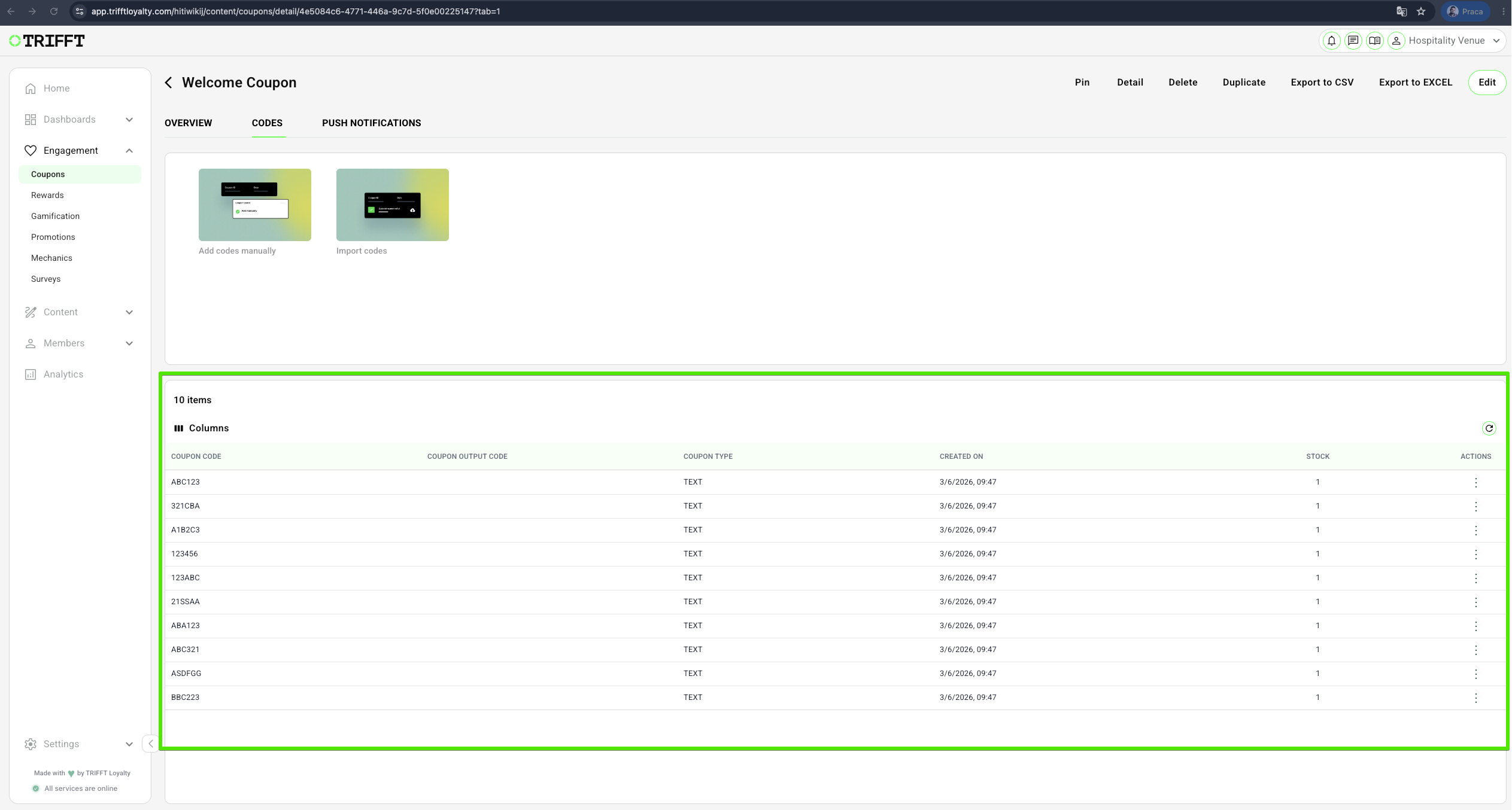
- The codes will be visible in the table:
Refresh on the number of Coupon Codes
The total coupon code count displayed in the system does not update in real time. It refreshes on a scheduled interval of approximately 15–30 minutes.
This delay is intentional. Coupon tables can contain very large numbers of codes, and computing an exact live count on every request would put unnecessary load on the database and slow down queries. Instead, the count is cached and refreshed periodically.
What this means in practice: after adding or removing codes, the displayed count may not reflect the change immediately. Wait up to 30 minutes before treating a mismatch as an error.
Editing coupons
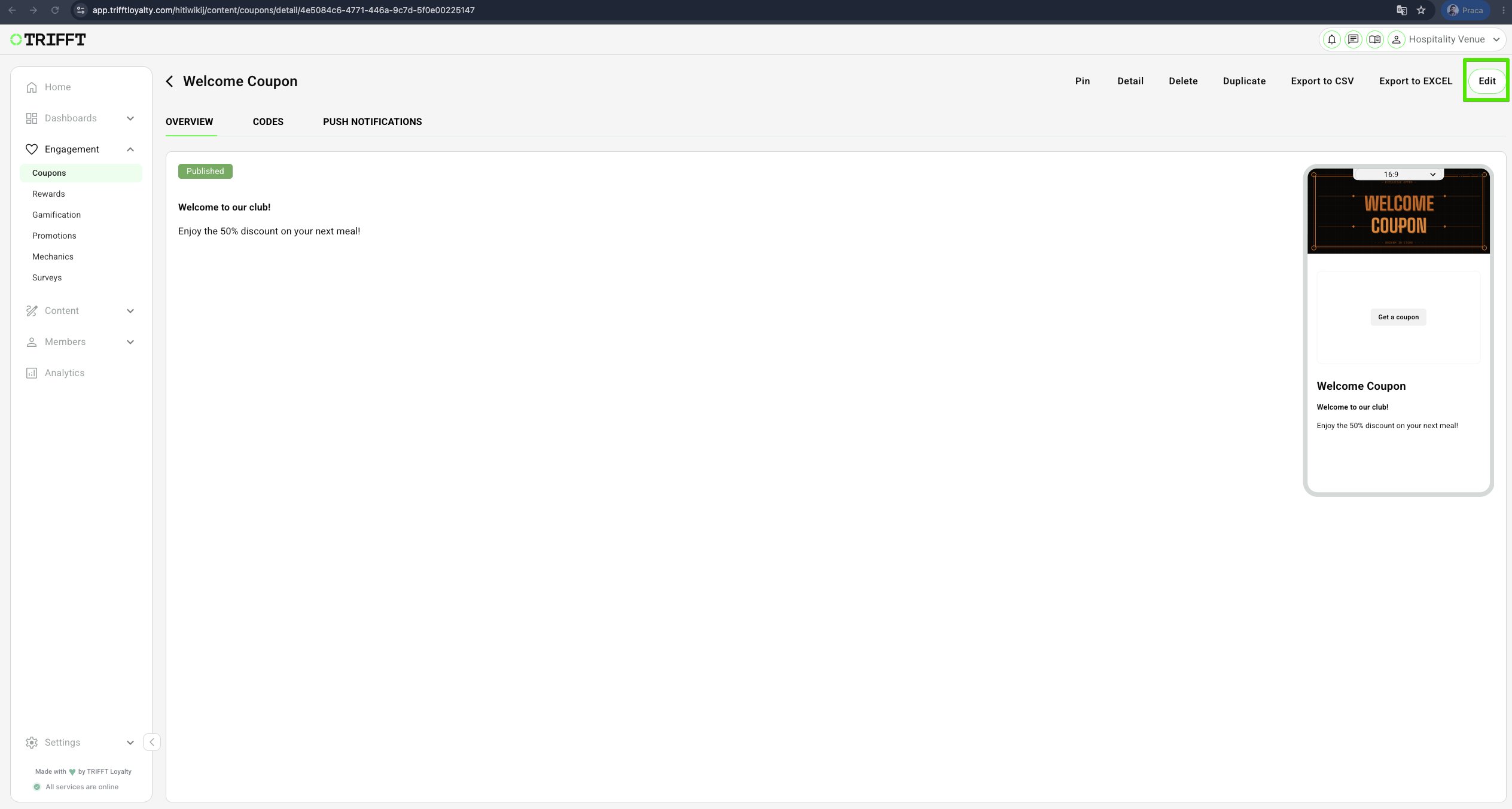
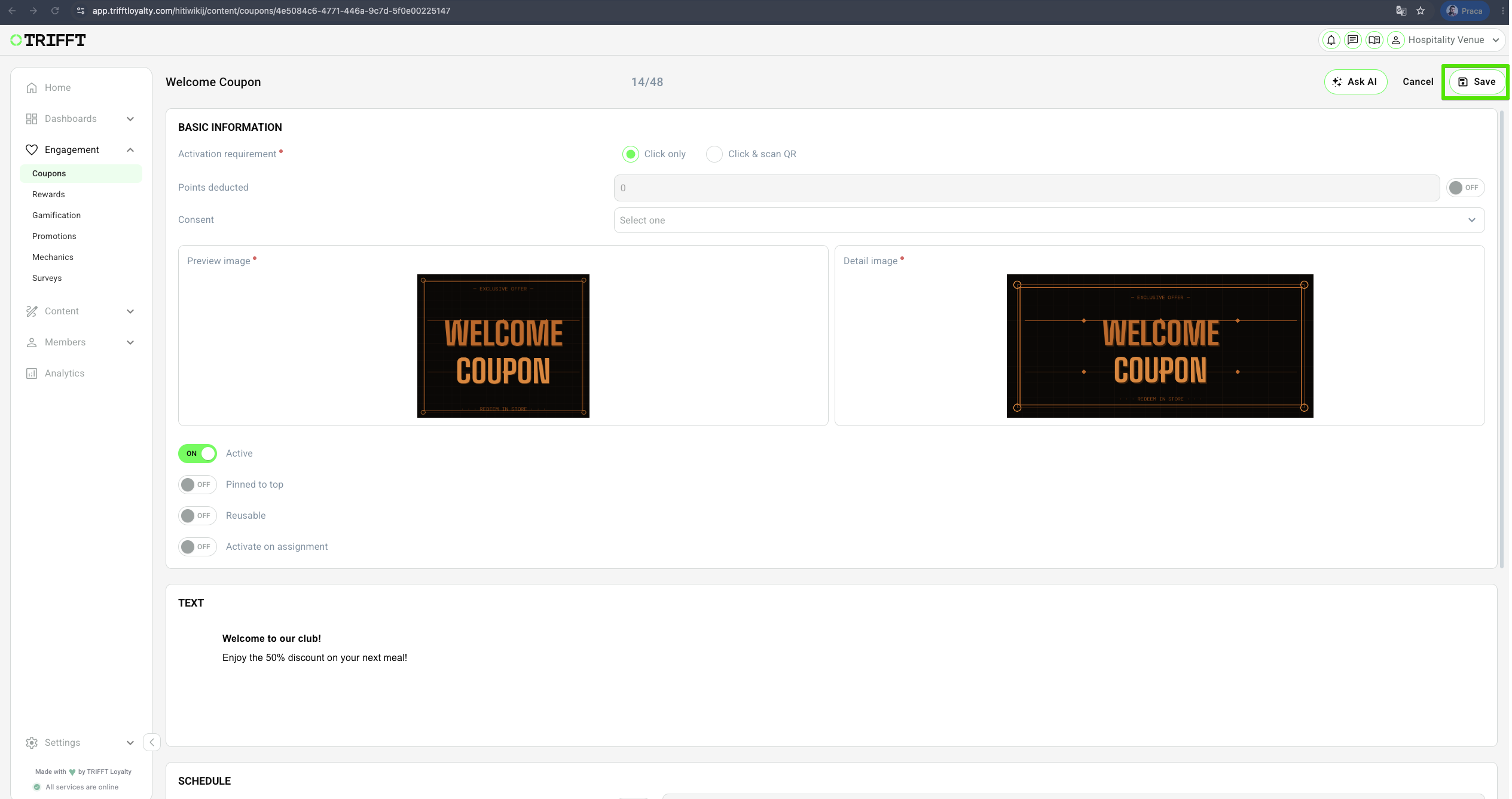
1. Go to Content Cockpit > Engagement > Coupons > Click the desired Coupon
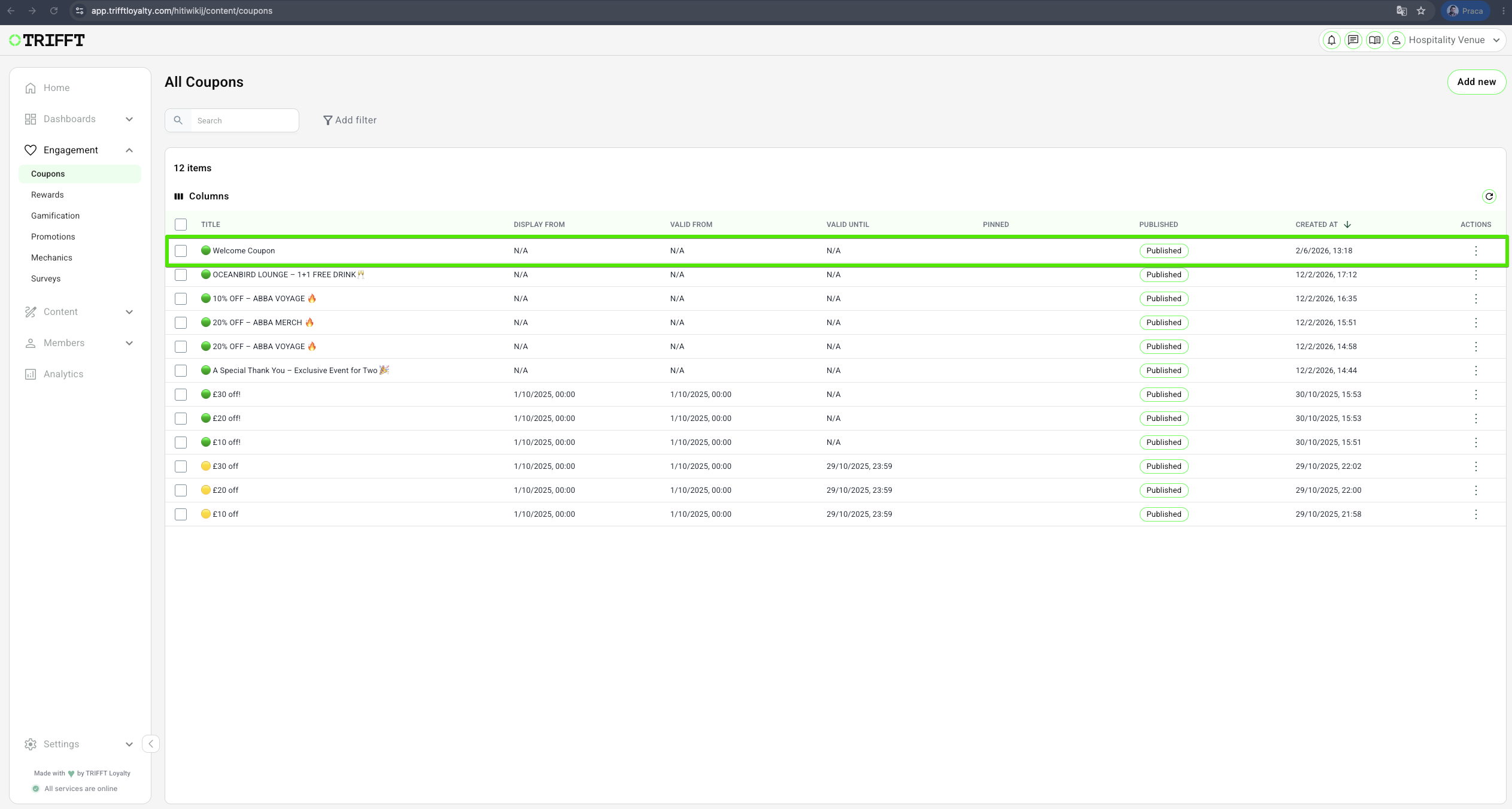
2. Click on Edit, make your changes, and Save
Duplicating coupons
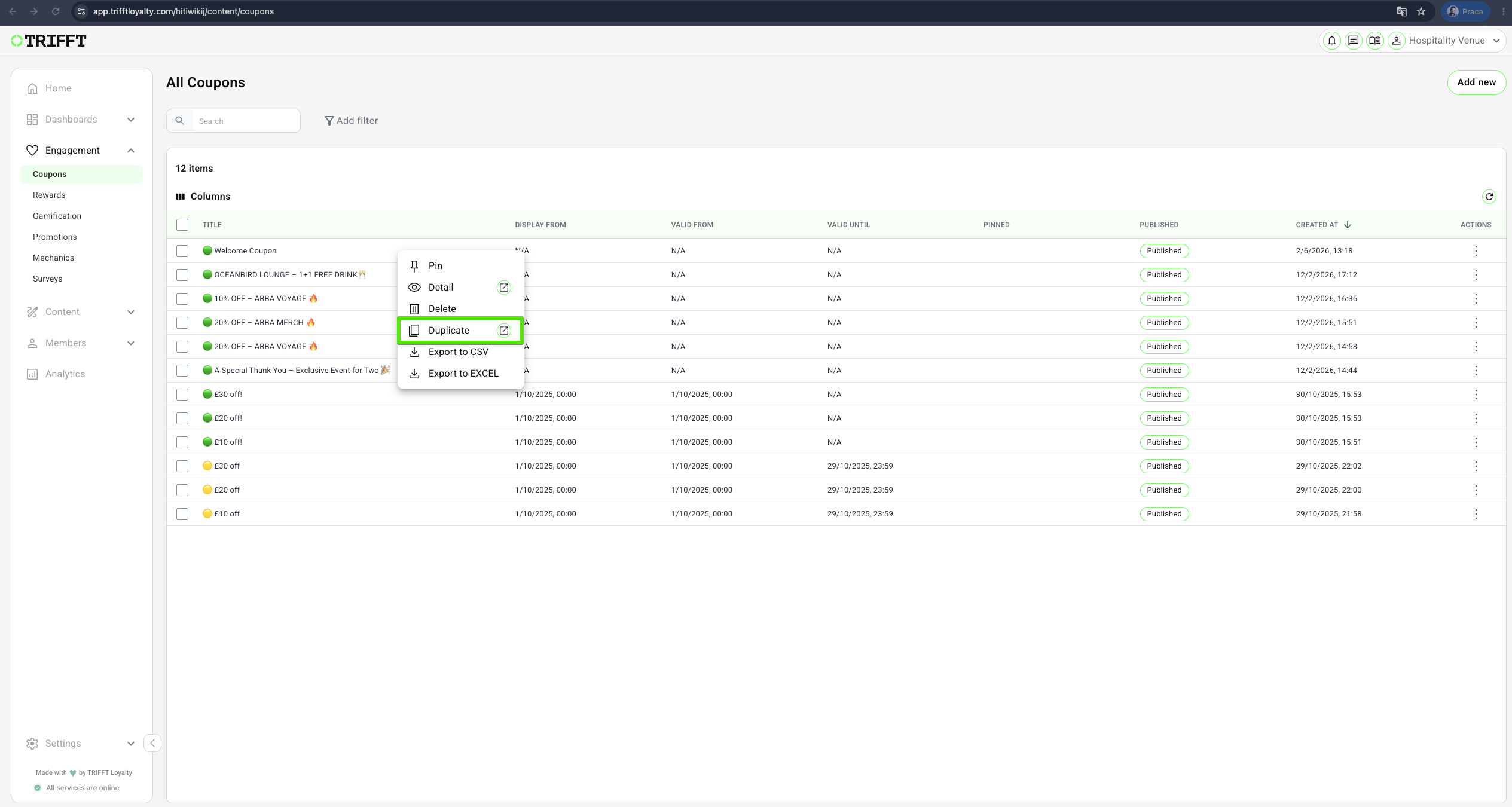
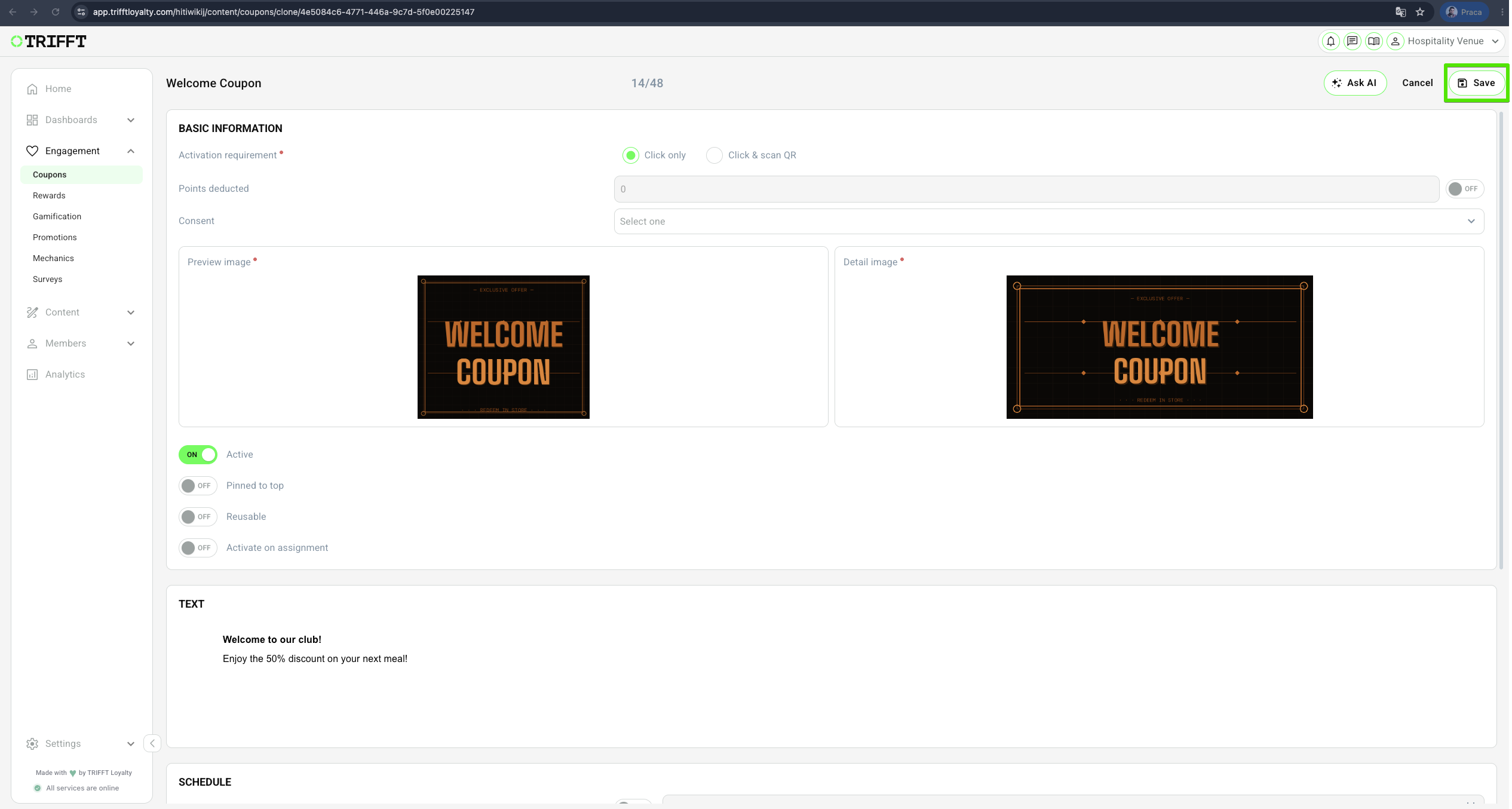
1. Go to Content Cockpit > Engagement > Coupons > Right-click the desired Coupon > Duplicate & Save
Deleting coupons
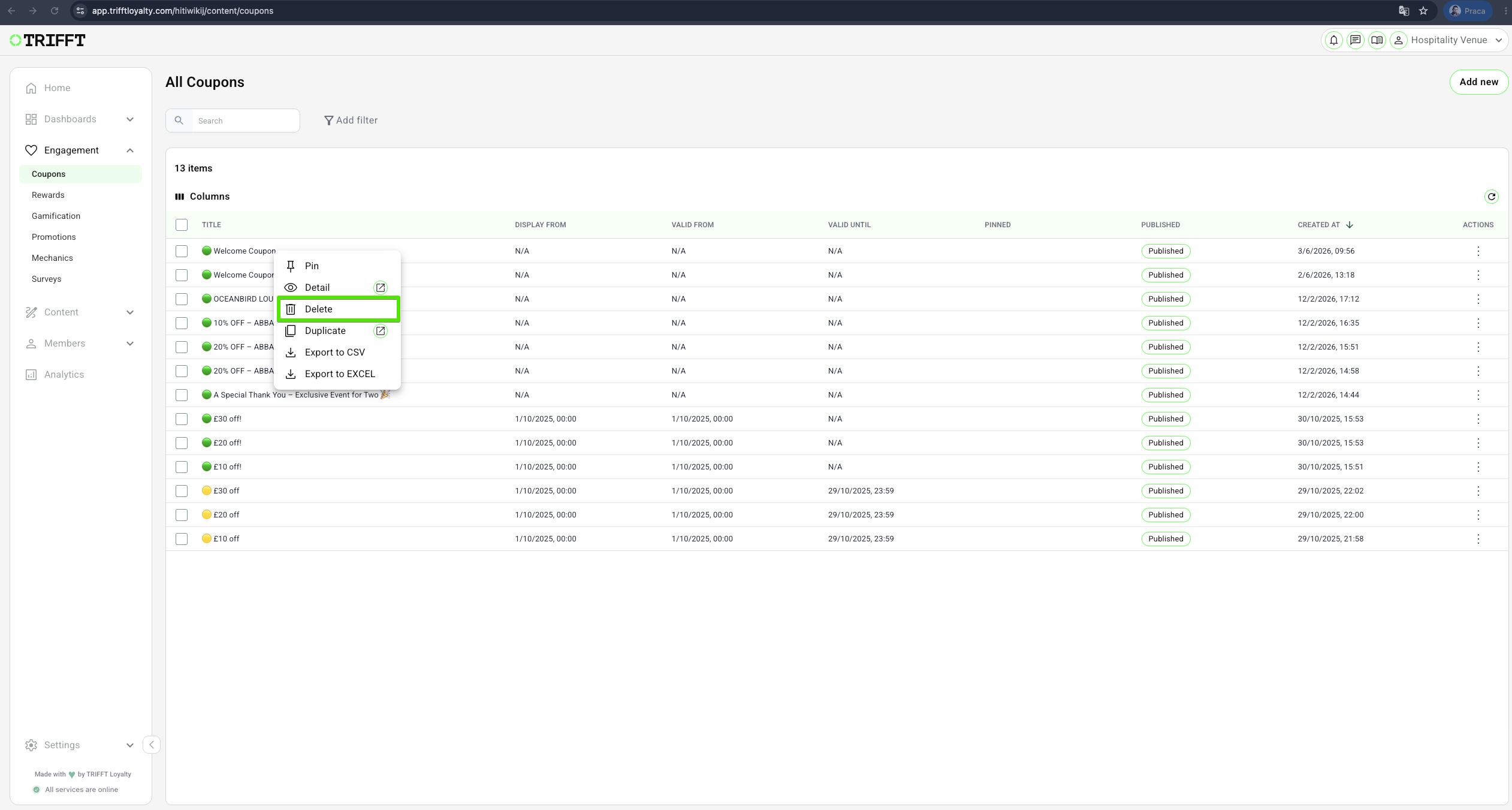
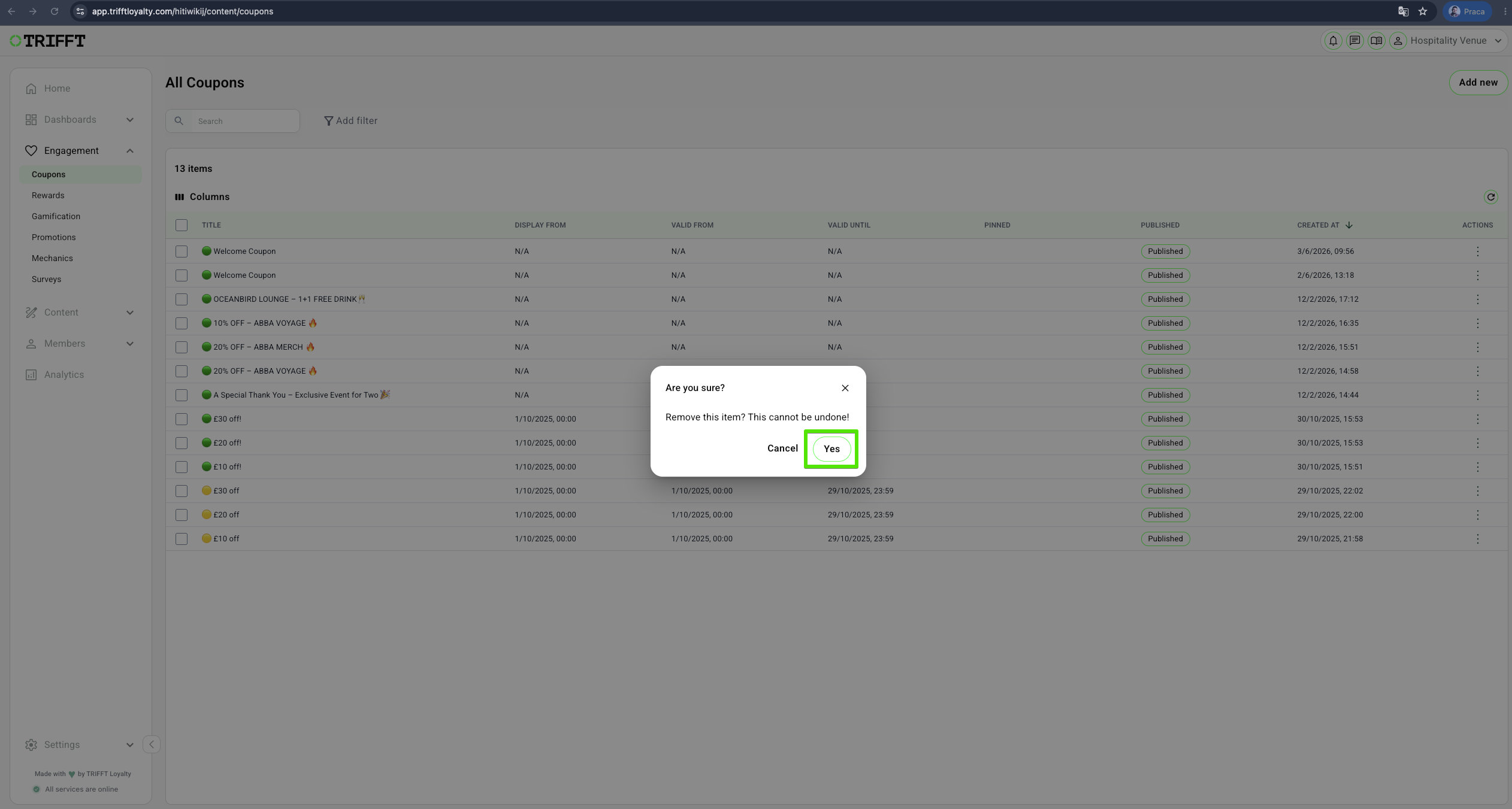
1. Go to Content Cockpit > Engagement > Coupons > Right-click the desired Coupon > Delete & Confirm with Yes
Export Coupon Analytics (Activation, Redemption)
1. Go to Content Cockpit > Engagement > Coupons > Right-click the desired Coupon > Export to CSV/EXCEL
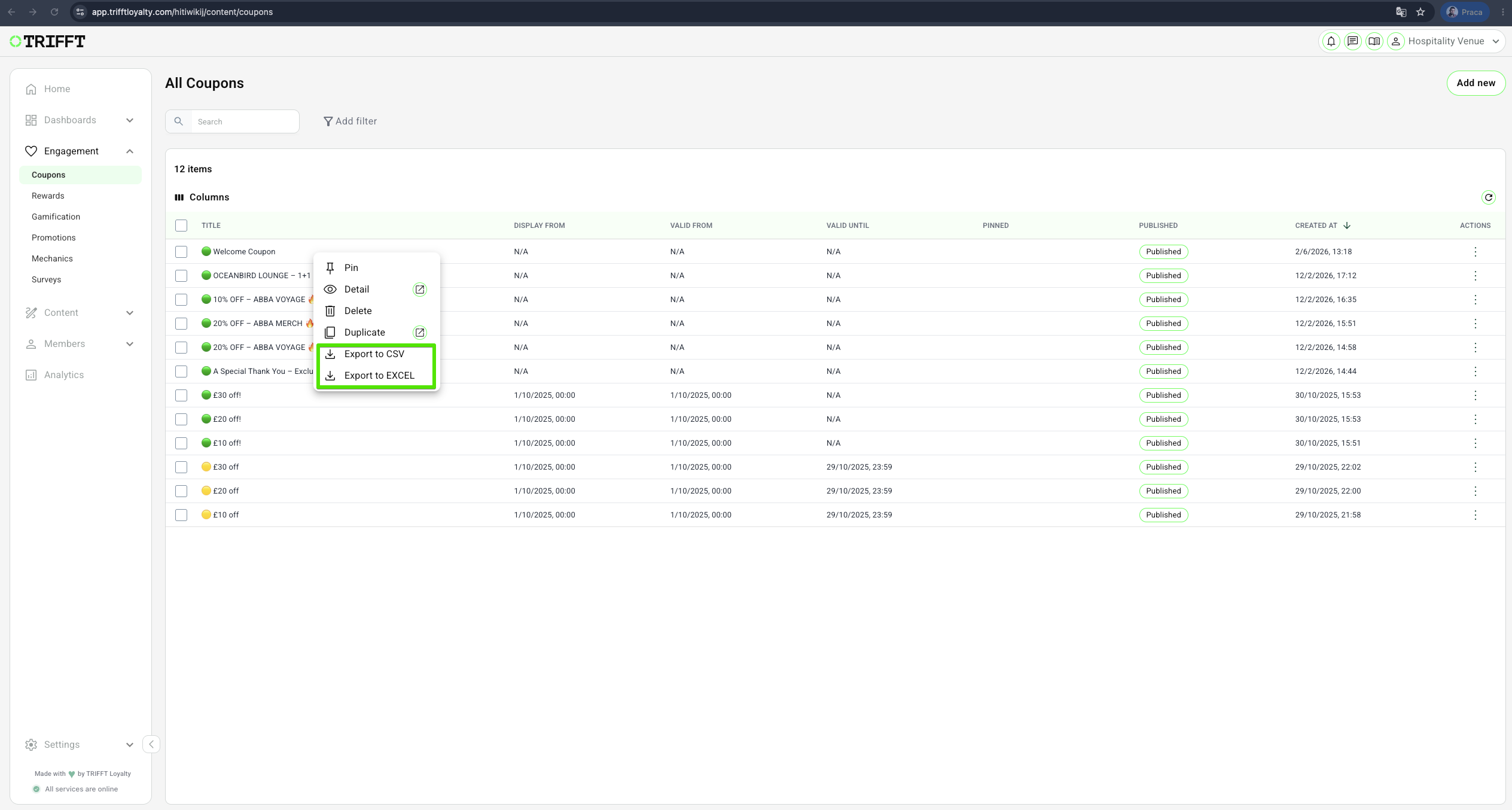
When the report is ready, you will receive an email with a link to download the report
Configuring Coupon Expiration Overrides
Overview
This guide provides a detailed explanation of configuring and managing coupon expiration overrides for both Assignment and Activation scenarios. Proper configuration ensures precise control over coupon validity, aligning with business requirements and promotional strategies.
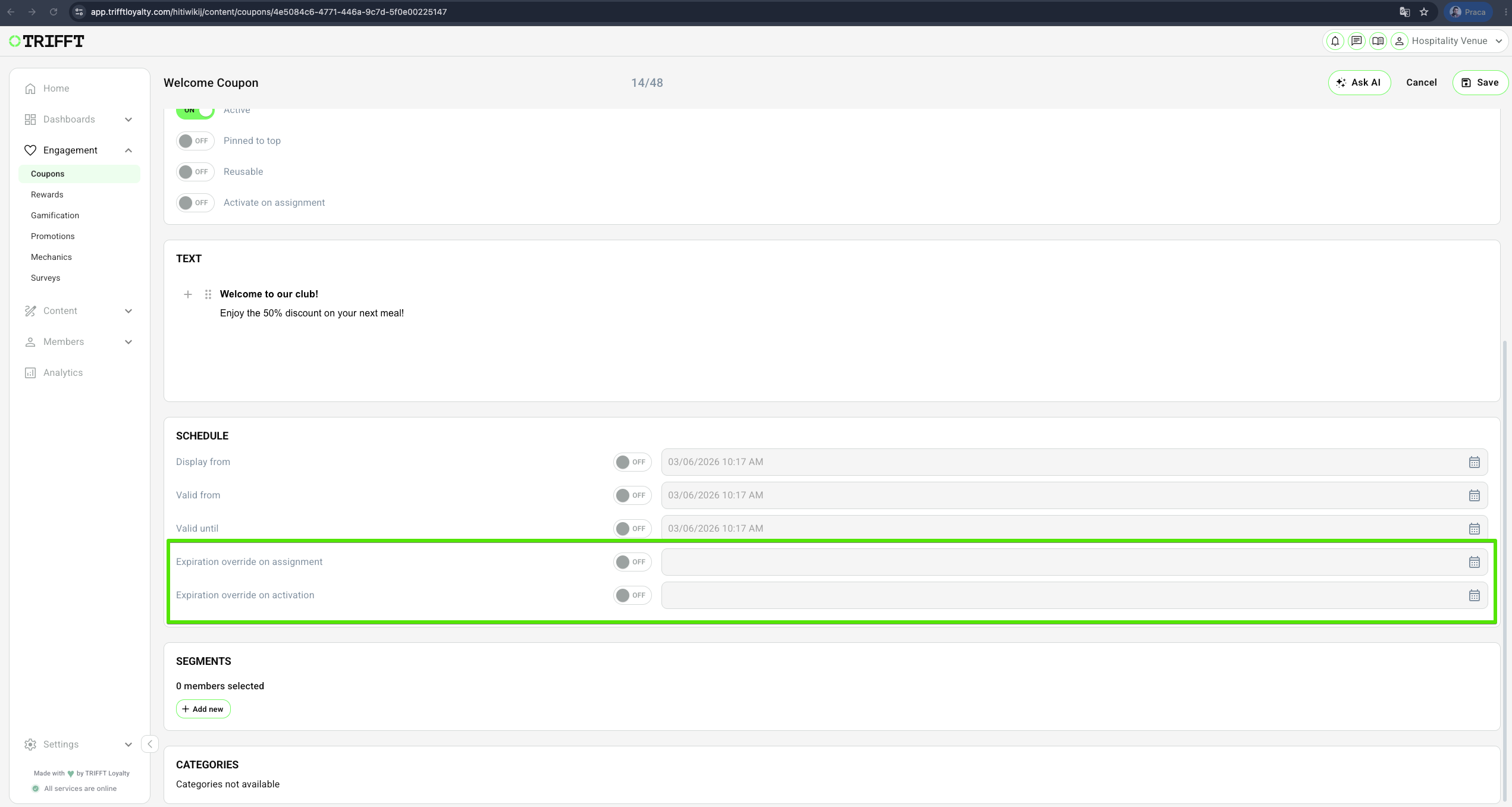
Expiration Override Settings
Expiration Override on Assignment
- Defines how long a coupon remains valid after being assigned to a user, but before activation.
- Overrides the global coupon validity setting for the specified duration.
- If left unset, the system defaults to the Valid Until date configured in the coupon settings.
Expiration Override on Activation
- Specifies the validity period after a coupon is activated.
- Essential for time-sensitive offers that require controlled post-activation validity.
- If not configured, the system defaults to the Valid Until date or provides indefinite validity if no expiration is set.
Configuration Steps
1. Setting Expiration Override on Assignment
- Navigate to the Coupon Details page Content Cockpit > Engagement > Coupons.
- Under Schedule, configure:
- Expiration Override on Assignment: Enter the desired validity duration (e.g., "5 minutes").
- Ensure that the Valid Until setting does not conflict with the override (disable if unnecessary).
- Click Save to apply the configuration.
Behavior:
- If the coupon is not activated within the specified duration, it expires automatically.
- If activated before expiration, the system follows the activation rules.
2. Setting Expiration Override on Activation
- Navigate to the Coupon Details page Content Cockpit > Engagement > Coupons.
- Under Schedule, configure:
- Expiration Override on Activation: Enter the desired validity duration post-activation.
- Ensure that the Valid Until setting aligns with the override or is left blank for indefinite validity.
- Click Save to apply the configuration.
Behavior:
Upon activation:
- If an Expiration Override is set, the coupon remains valid for the specified duration.
- If no override is set, the system reverts to the Valid Until date or remains valid indefinitely if no expiration date exists.
Scenarios
Scenario 1: Assignment Expiration Without Activation
Configuration:
- Set Expiration Override on Assignment to 5 minutes.
- Leave Expiration override on activation empty.
Outcome:
- The coupon expires 5 minutes after assignment, unless activated within that time.
Scenario 2: Assignment and Activation with Overrides
Configuration:
- Set Expiration Override on Assignment to 5 minutes.
- Set Expiration Override on Activation to 10 minutes.
Outcome:
- The coupon remains valid for 5 minutes post-assignment.
- If activated within that period, it remains valid for an additional 10 minutes.
Scenario 3: No Expiration on Override Assignment
Configuration:
- Leave Expiration override on assignment empty.
- Set Expiration override on activation to 15 minutes.
Outcome:
- The coupon remains valid indefinitely upon assignment.
- After activation, it remains valid for 15 minutes.
Best Practices
Avoid Conflicts: Ensure that the Valid Until setting does not unintentionally override the expiration logic configured in the Assignment or Activation overrides.
Testing Configurations: Validate all coupon configurations in a staging environment to confirm expected behavior before deployment.
Additional Notes
If a coupon has no Valid Until date and no Expiration Override, it will remain valid indefinitely unless manually deactivated (Active toggle switched off).
To ensure indefinite validity, leave both expiration override fields empty.
By following this guide, businesses can optimize coupon validity settings to align with promotional strategies while maintaining control over coupon lifecycles.
Coupon visibility logic (Pool-based vs. Assignable coupon)
A coupon can be configured in one of two ways:
- Pool-based coupon – added to a segment and visible only to members included in that segment.
- Assignable coupon – not added to any segment and visible only to members it has been assigned to, for example through a referral program, contest, or manual assignment.
Assignable coupons must not be included in any segment.
If an assignable coupon is added to a segment, it will become visible only to members in that segment and will disappear from the accounts of all other members, even if the coupon was already assigned to them.
Custom Parameters
What Are Custom Parameters?
Definition: Custom Parameters allow you to dynamically modify coupon attributes when assigning them to customers. This means that a coupon’s value or text can change based on the assigned parameter.
Purpose: By leveraging Custom Parameters, you can create more personalized coupon experiences for your customers, making your promotions more flexible and efficient.
By utilizing the API, you can dynamically assign coupons with varying values. For details on assigning a coupon to a member, refer to the API documentation: Assign a Coupon to a Member
Configuring Custom Parameters
Before using Custom Parameters in coupons, you need to create them in the system.
1. Creating a Custom Parameter
To set up a Custom Parameter, navigate to: Content Cockpit > Settings > Custom Parameters
Follow the guide on Custom Parameters to create a new parameter.
2. Custom Parameter Settings
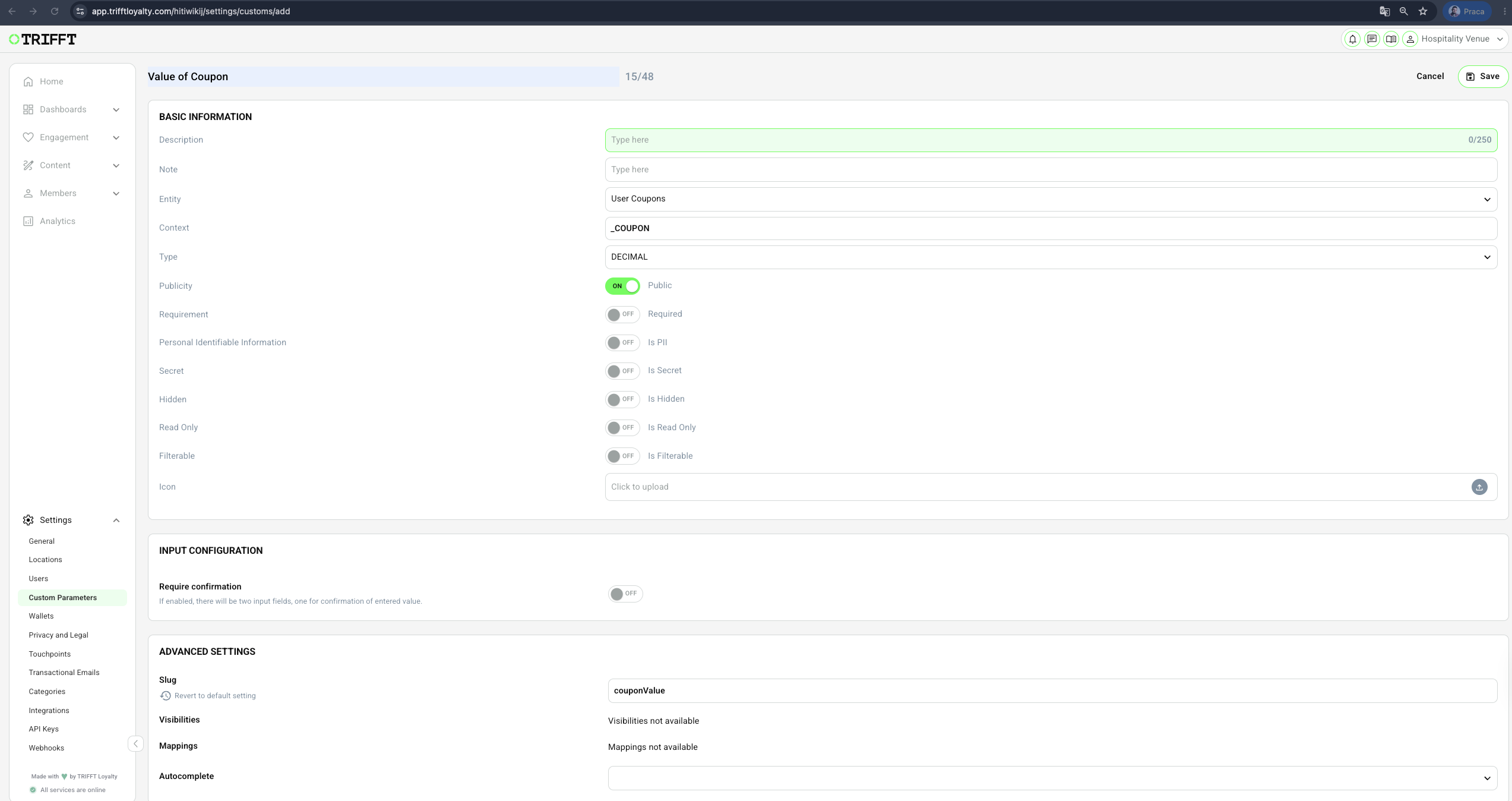
When creating a Custom Parameter for use with coupons, ensure that:
- Entity =
User Coupons - Context =
_Coupon
Additional settings should be configured as shown in the following screenshot:
Using Custom Parameters in Coupons
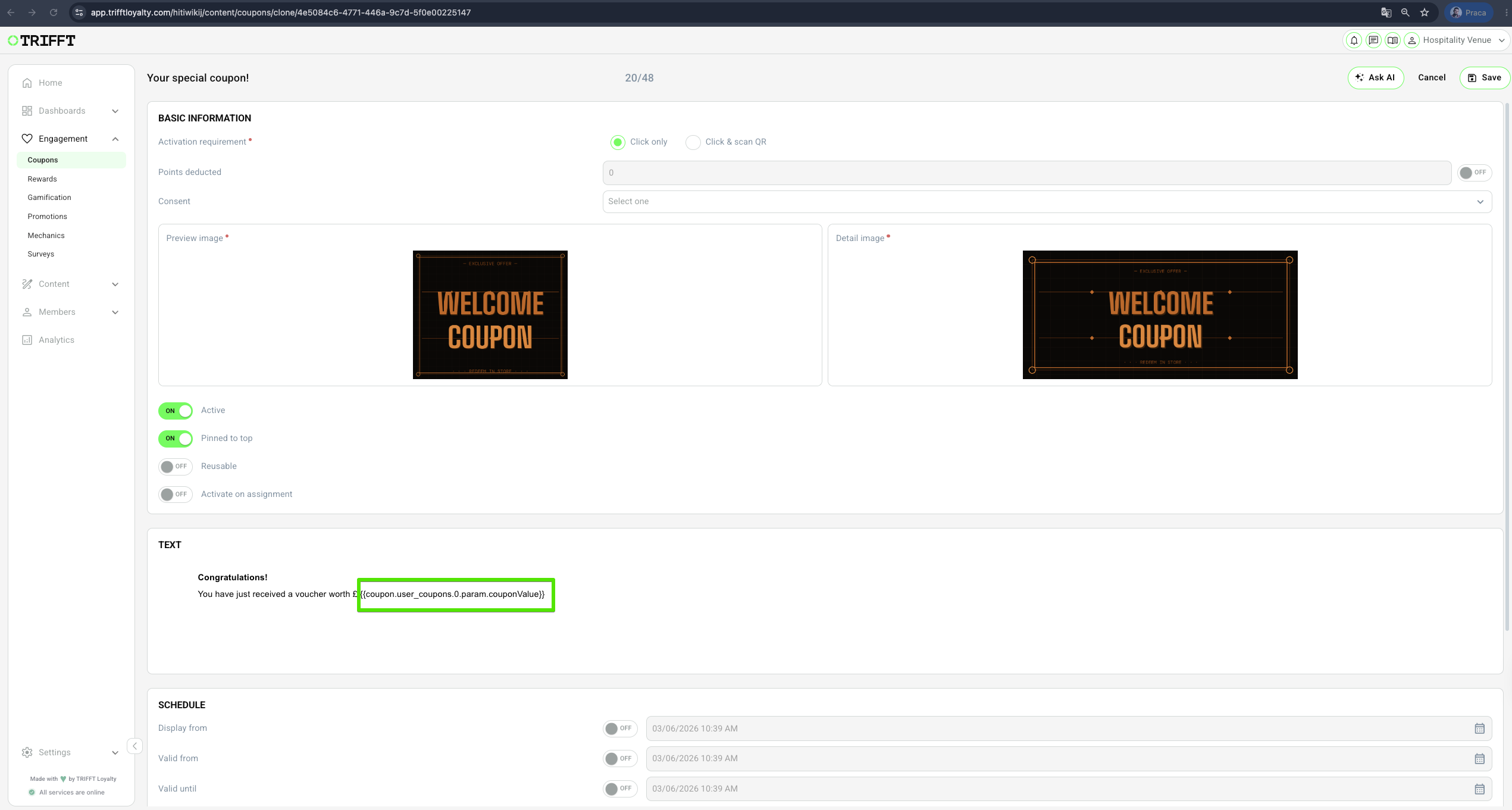
Once a Custom Parameter is created, it can be referenced inside a coupon’s description using the following syntax: {{coupon.user_coupons.0.param.**slug**}} where "slug" corresponds to the slug name of the created Custom Parameter.
When assigning the coupon via API, the Custom Parameter should be provided inside the "params" object. The assigned value will then be displayed inside the coupon text dynamically.
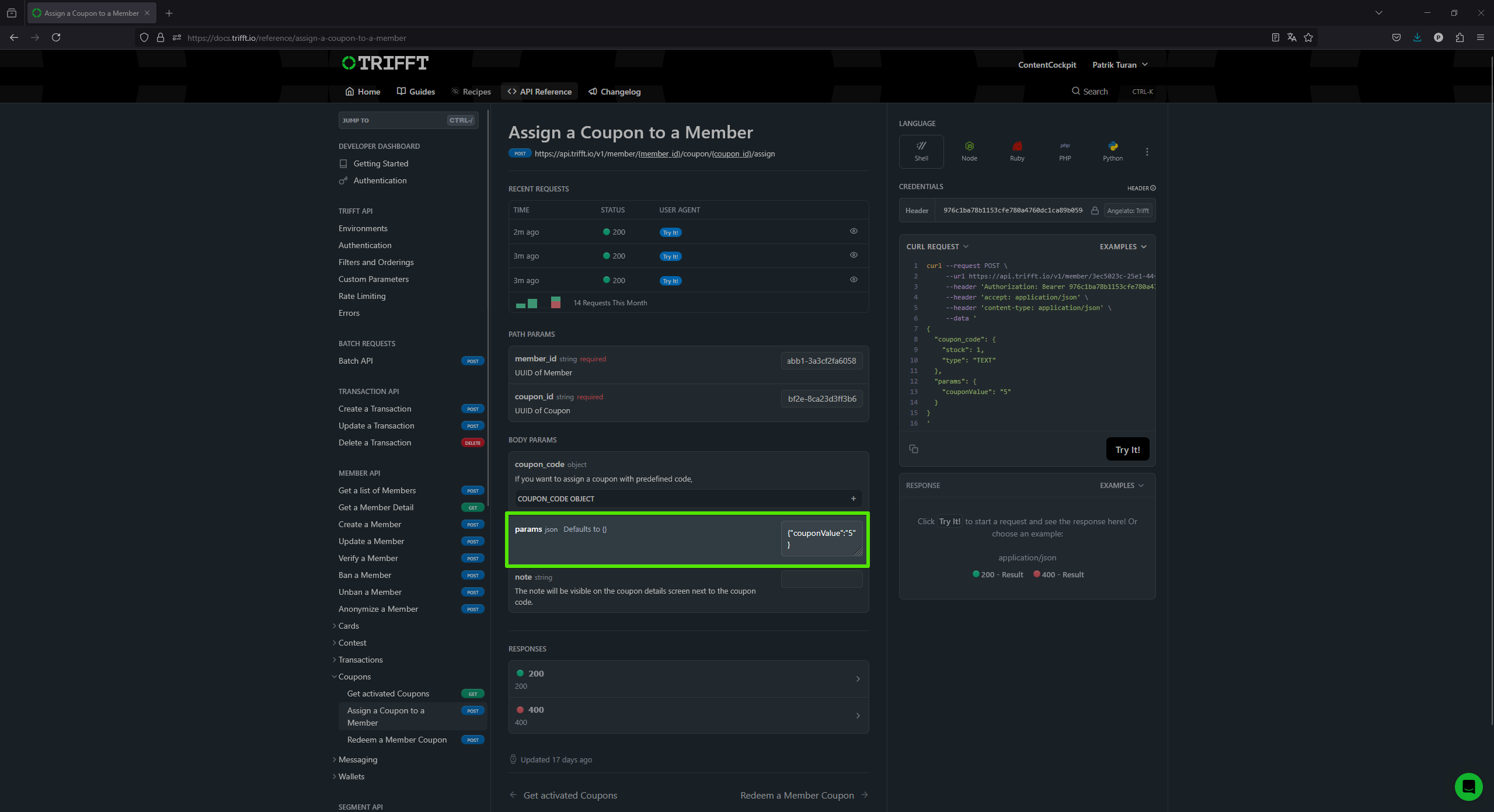
API Assign a Coupon to a Member - params
Example Use Case
Scenario:
A company wants to distribute a coupon to customers with a dynamically assigned discount value.
Steps:
-
Create a Generic Coupon
- The coupon description should include the placeholder:
{{coupon.user_coupons.0.param.slug}}
- The coupon description should include the placeholder:
-
Create a Custom Parameter
- Configure the parameter under Content Cockpit > Settings > Custom Parameters
- Ensure the correct Entity and Context are set.
-
Assign the Coupon Using API
- Use the Assign a Coupon to a Member API.
- Fill the
"params"object with the desired value:{ "params": { "slug": "500" } } - The coupon will be added to the customer with the correct dynamic value.
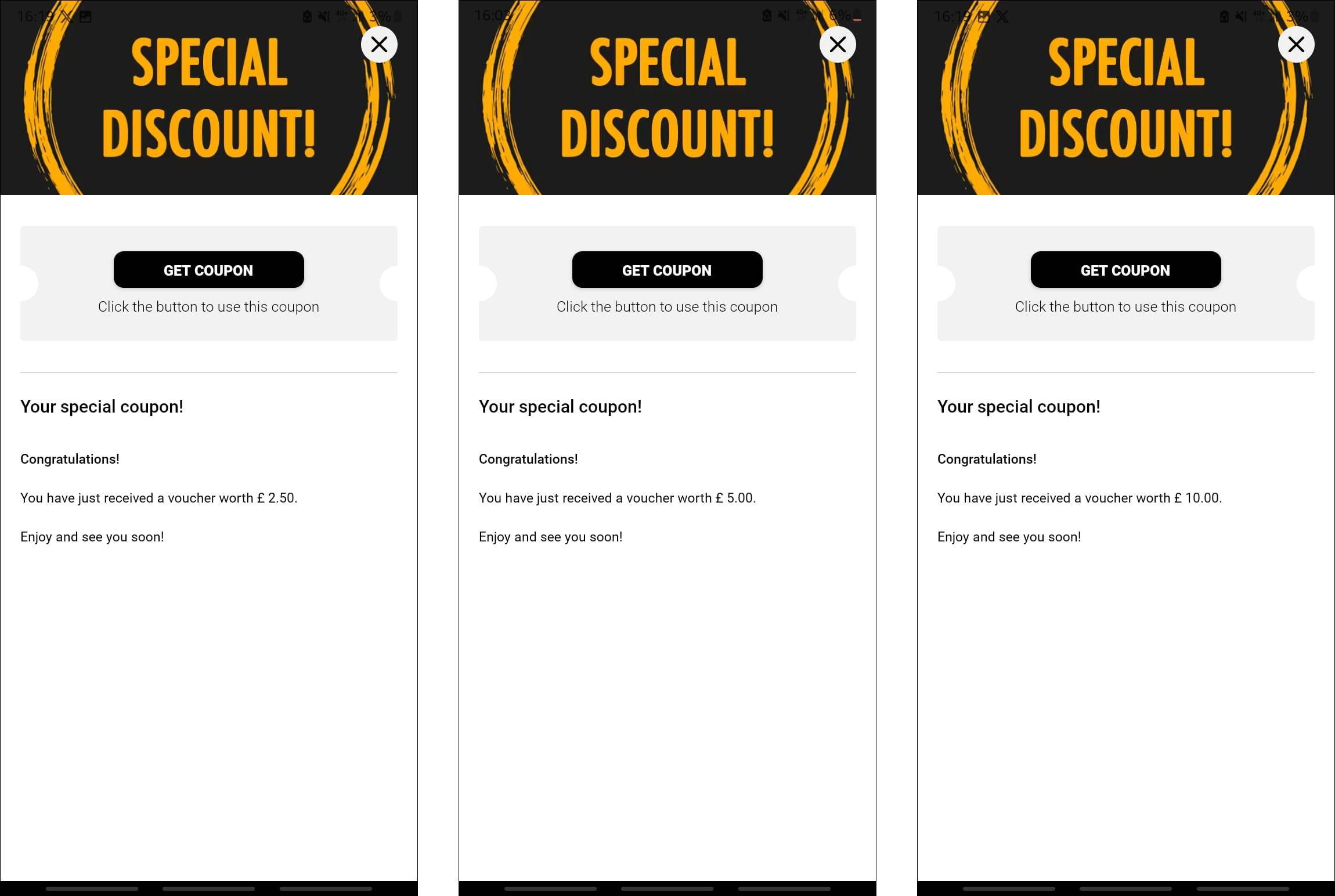
The following screenshot demonstrates the result in app as we've been changing the params value:
Preactivation
Pre-activation of Coupons
By default, customers need to manually activate a coupon before they can redeem it. However, in some cases, businesses may want to skip this step and provide customers with coupons that are already activated coupon assignment.
This is where the Activate on Assignment feature comes into play. You can choose one of two options:
- All coupons are already preactivated.
- Combination of coupons which need to be activated manually with preactivated coupons.
-
All coupons are already preactivated
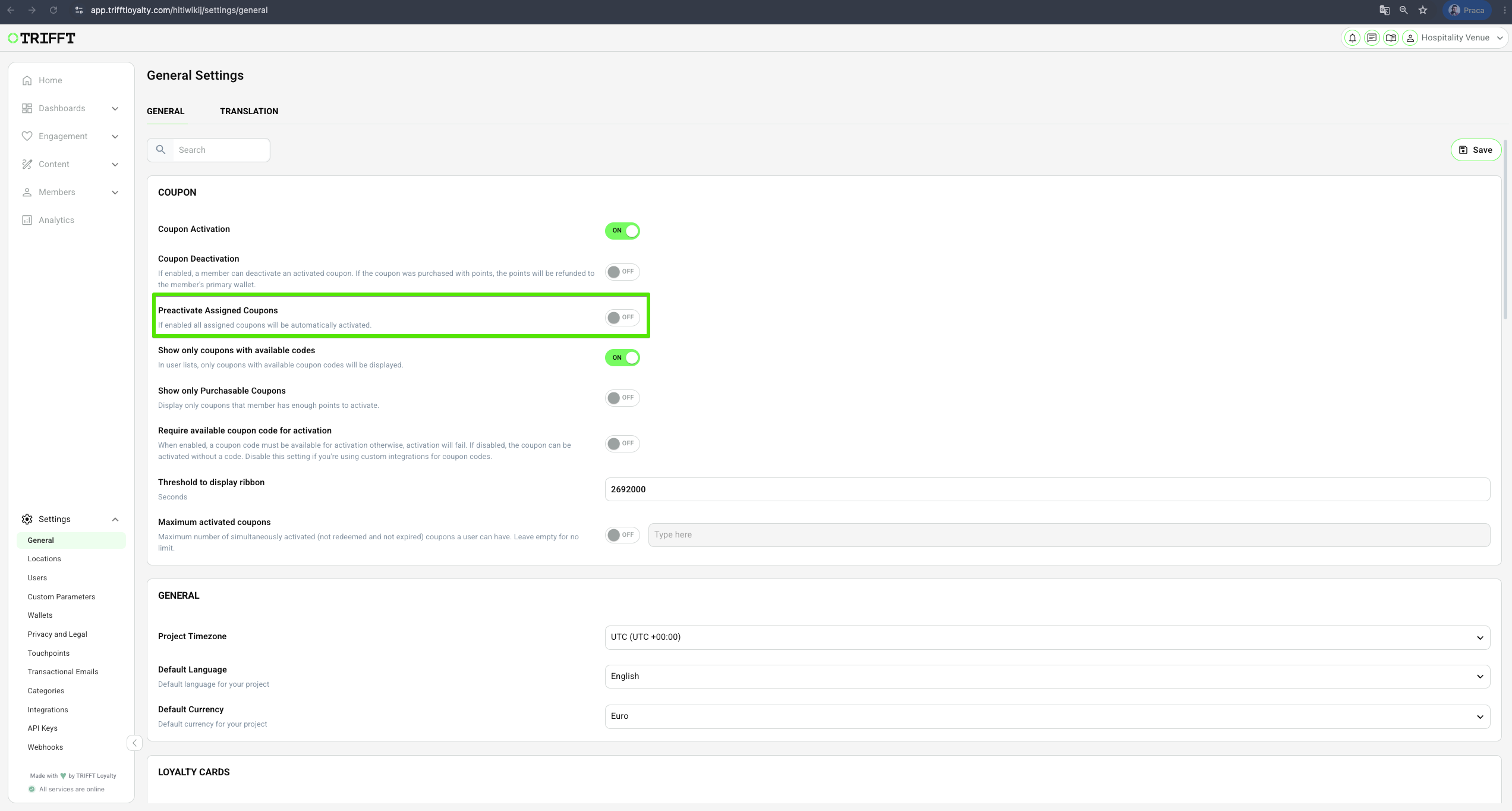
- In the Content Cockpit > Settings > General`` you can find function "Preactivate Assigned Coupons"
- Turn this function ON so all coupons will be automatically assigned as already activated.
-
Combination of both (not-activated & pre-activated coupons)
- Firstly, make sure that function Preactivate Assigned Coupons in Content Cockpit > Settings > General is turned OFF.
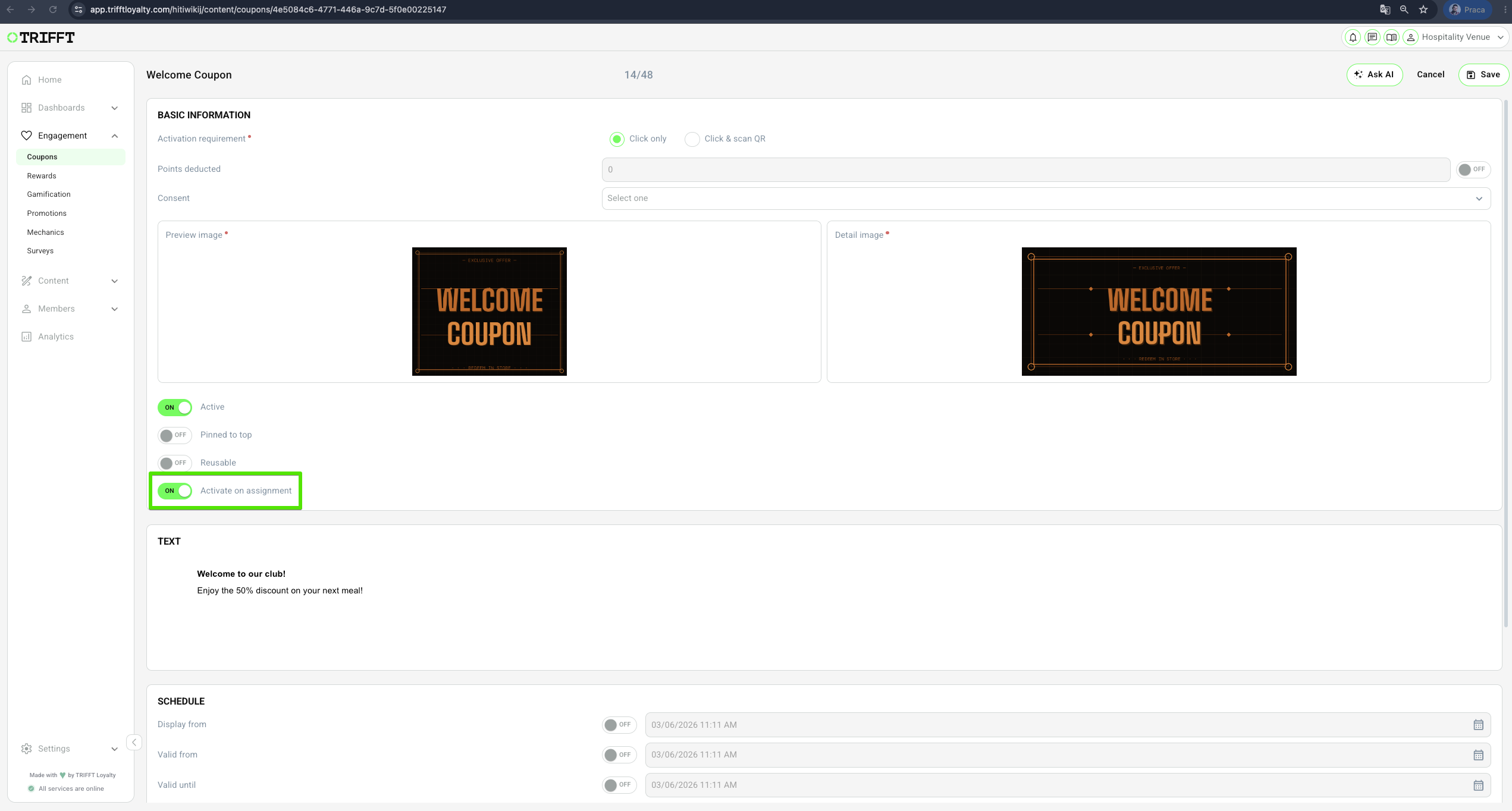
- Navigate to the coupon settings while creating or editing a coupon.
- Enable Activate on assignment so the coupon is automatically activated the moment it is assigned to a customer.
- From the customer’s perspective, the coupon appears in the app as already activated, eliminating the need for manual activation.
- This feature enhances user experience by removing unnecessary steps and making the redemption process more efficient but also keeps you an option to assign a coupons that need to be activated manually.
Updated about 1 month ago