
Mobile App Overview
The TRIFFT Mobile App channel controls the customer-facing structure, content, navigation, translations, and selected behavior of a project's mobile application. Administrators configure the channel in the TRIFFT Content Cockpit and assemble key screens from reusable widgets.
Use the Mobile App channel to:
- apply project branding and colors
- configure the app's default and available languages
- define the bottom navigation
- build the Homepage and Profile screens
- display loyalty information such as the member's card, points balance, and tier
- link customers to app content, specific content items, websites, or supported system actions
- personalize content by login state or member segment
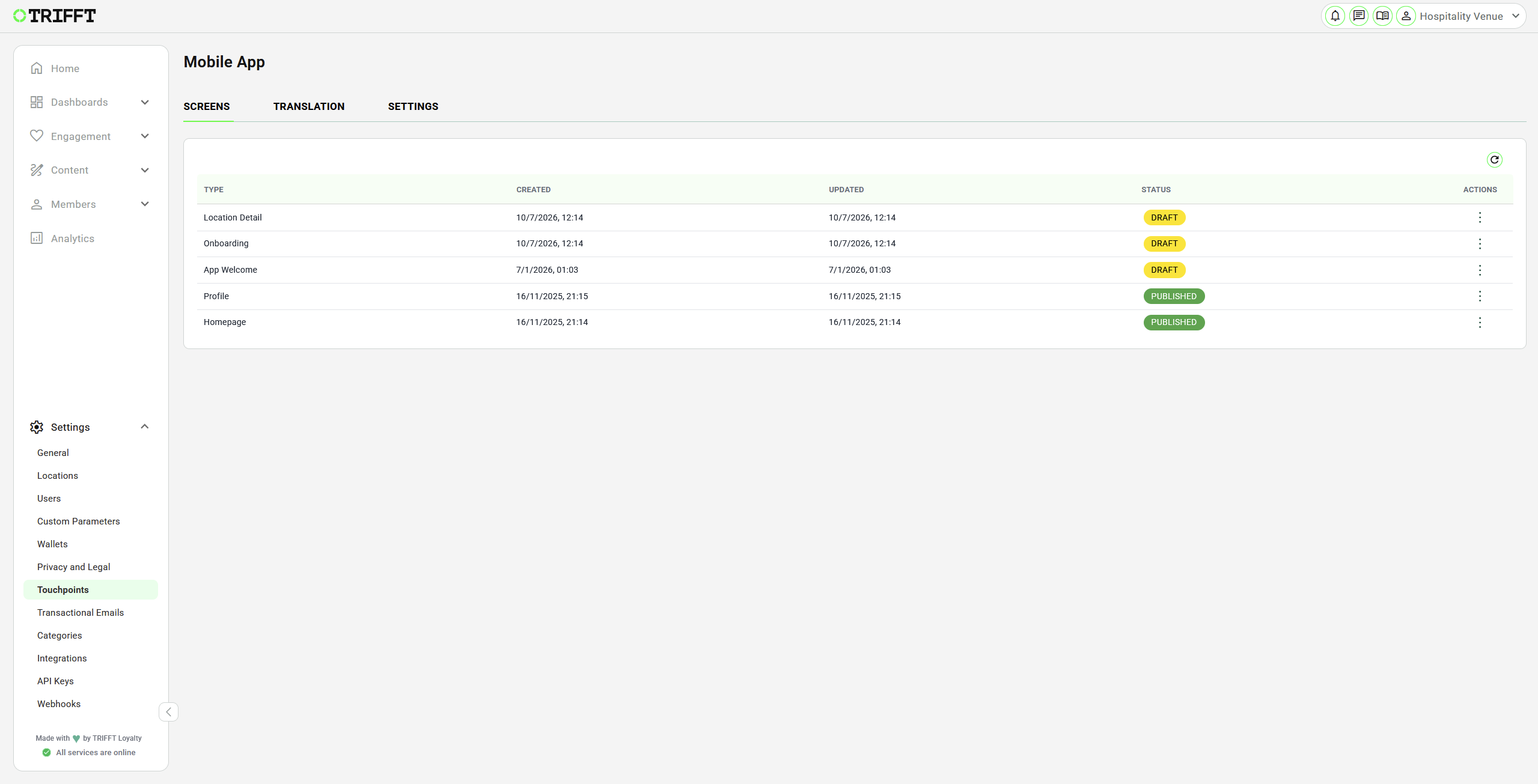
List of all actual screens in the Mobile App and their Status
Mobile App Channel Structure
Each Mobile App channel contains three tabs:
| Tab | Purpose |
|---|---|
| SCREENS | Configures the app's screens and the widgets displayed on them. The screen list also shows whether a configuration is a draft or published. |
| TRANSLATION | Stores customer-facing app text for each supported language. It also contains the URL used by the embed:menu_link navigation route. |
| SETTINGS | Controls channel-wide behavior, including colors, platform identifiers, languages, bottom navigation, shared header and footer widgets, map defaults, and optional modules. |
Configuration Hierarchy
Mobile App configuration follows this hierarchy:
- Channel settings define global behavior and visual defaults.
- Screens define the major stages and destinations in the app.
- Widgets define the content displayed on configurable screens.
- Widget rules determine who can see the content and where an interaction leads.
Settings at a more specific level can replace a global configuration. For example, a header configured under SETTINGS → HEADER WIDGETS is used across Mobile App screens unless a screen provides its own header configuration.
Main Screens
The screen list depends on the project configuration. The Mobile App channel can include the following screens:
| Screen | Purpose |
|---|---|
| App Welcome | First-run journey shown once after a fresh installation. It can introduce the app and allow the customer to choose a language. |
| Onboarding | Journey shown after the customer's first login or registration. It can introduce membership features and support loyalty-card pairing or generation. |
| Homepage | Main configurable screen. Administrators assemble it from ordered widgets. |
| Profile | Configurable profile screen assembled from the same widget system as the Homepage. |
| Location Detail | Location-specific detail screen when locations are used by the project. |
Customer Journey
The first-run sequence is different from the normal returning-member journey.
New Installation
- The customer opens the app after a fresh installation.
- App Welcome is displayed once.
- After going through App Welcome screens the app displays login or registration.
- After the first successful login or registration, Onboarding is displayed.
- The customer enters the main app experience, normally starting on the Homepage.
Returning Customer
A returning customer normally opens the main app experience directly. The screens and widgets that are visible depend on:
- whether the customer is logged in
- the widget's Visibility setting
- the member segments assigned to the widget
- the screen configuration and publication status
Homepage and Profile
The Homepage and Profile screens use the same widget-based editor. Widgets appear in the app in the order shown in the editor. Administrators can add, configure, reorder, or remove widgets and review the result in the preview panel.
Common widget uses include:
- displaying a static image or text
- providing buttons and navigation links
- showing coupons, rewards, leaflets, products, or other feed content
- displaying the member's card, points balance, profile information, or tier
- selecting a favorite venue
- showing contest progress or an unused contest token
- adding spacing, dividers, headers, or grouped links
The complete widget reference is available in Mobile App Other Functions.
Navigation
The Menu Routes setting determines which destinations appear in the bottom navigation and the order in which they appear.
For example:
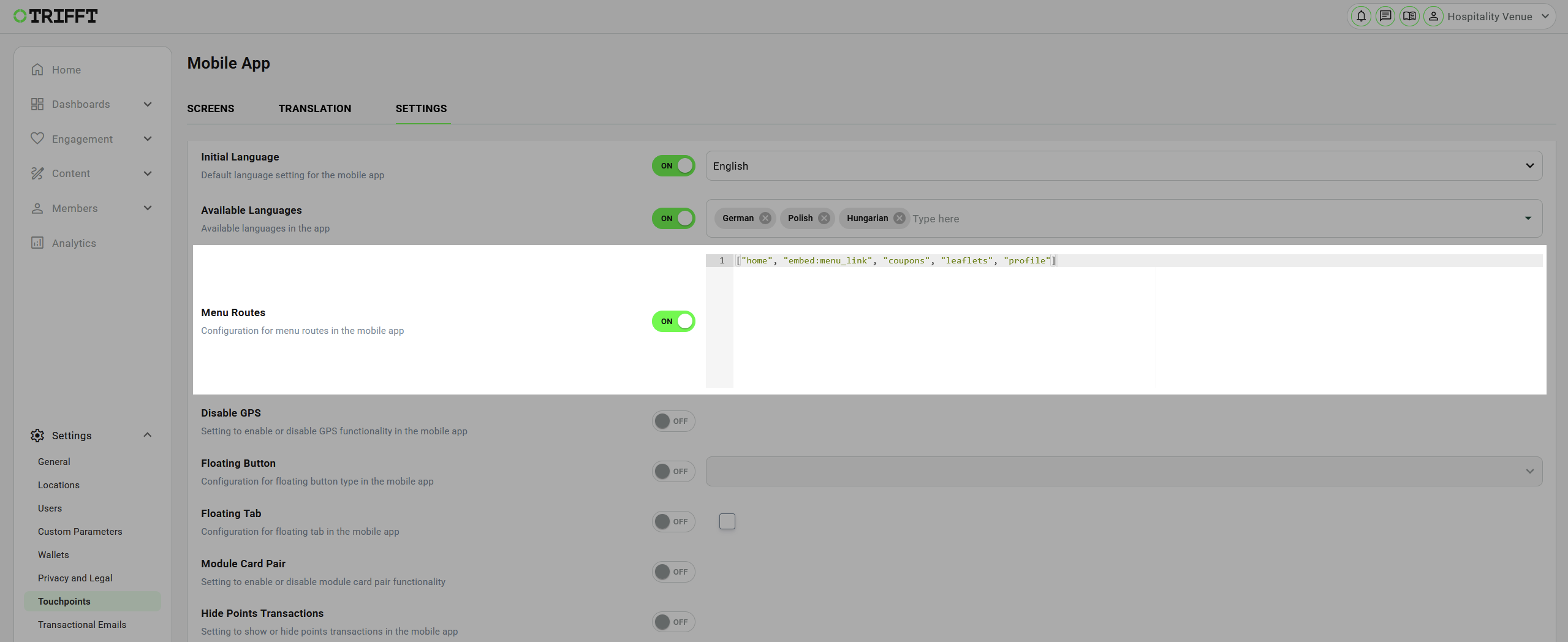
Example of Menu Routes in the App
In this example, the bottom navigation contains five items in the same order. The embed:menu_link route opens the URL stored in the Menu Link translation field (common.menu_link).
ImportantUse only route values supported by the project. An unsupported or incorrectly formatted route can result in a missing or non-functional navigation item.
Languages and Translations
The Mobile App channel separates language availability from translated content:
- Initial Language defines the default app language.
- Available Languages defines the languages customers can use.
- TRANSLATION contains the customer-facing text for each language.
Every enabled language should have a complete translation set. Some translation values include placeholders such as a count, amount, currency, or timestamp. Preserve these placeholders when translating the surrounding text.
Targeted Content
Most widgets provide two targeting controls:
| Control | Effect |
|---|---|
| Visibility | Shows the widget to everyone, anonymous customers only, logged-in customers only, or nobody. |
| Segments | Restricts the widget to members of the selected segments. If no segment is selected, the widget is not restricted by segment. |
The None visibility option is useful for preparing a widget without displaying it in the app.
Preview and Publication
The screen editor includes a mobile preview that reflects the current layout and styling. You can also switch the preview for logged in or logged out customers with the switch button Only logged in.
The channel also provides a Preview Code for previewing the touchpoint in the TRIFFT News application where this workflow is available.
The screen list distinguishes DRAFT and PUBLISHED configurations. Saving a draft does not make it the active published version.
ImportantThe editor preview is a configuration aid. Always test the published experience on physical devices with realistic member data, supported languages, login states, and segment memberships.
Documentation Structure
Follow the articles in this order:
- Mobile App Overview — understand the channel, screens, and customer journey.
- Mobile App Set Up — create and configure the channel, translations, navigation, first-run screens, Homepage, and Profile.
- Mobile App Other Functions — configure widget types, advanced links, shared widgets, targeting, and optional channel settings.
- Mobile App FAQ — resolve common configuration and visibility problems.
Next Step
Continue with Mobile App Set Up to create the channel and configure the complete baseline experience.
Updated 20 days ago