
Reward Set Up
This guide covers how to set up Rewards in TRIFFT from scratch, including validation steps.
Step-by-step setup
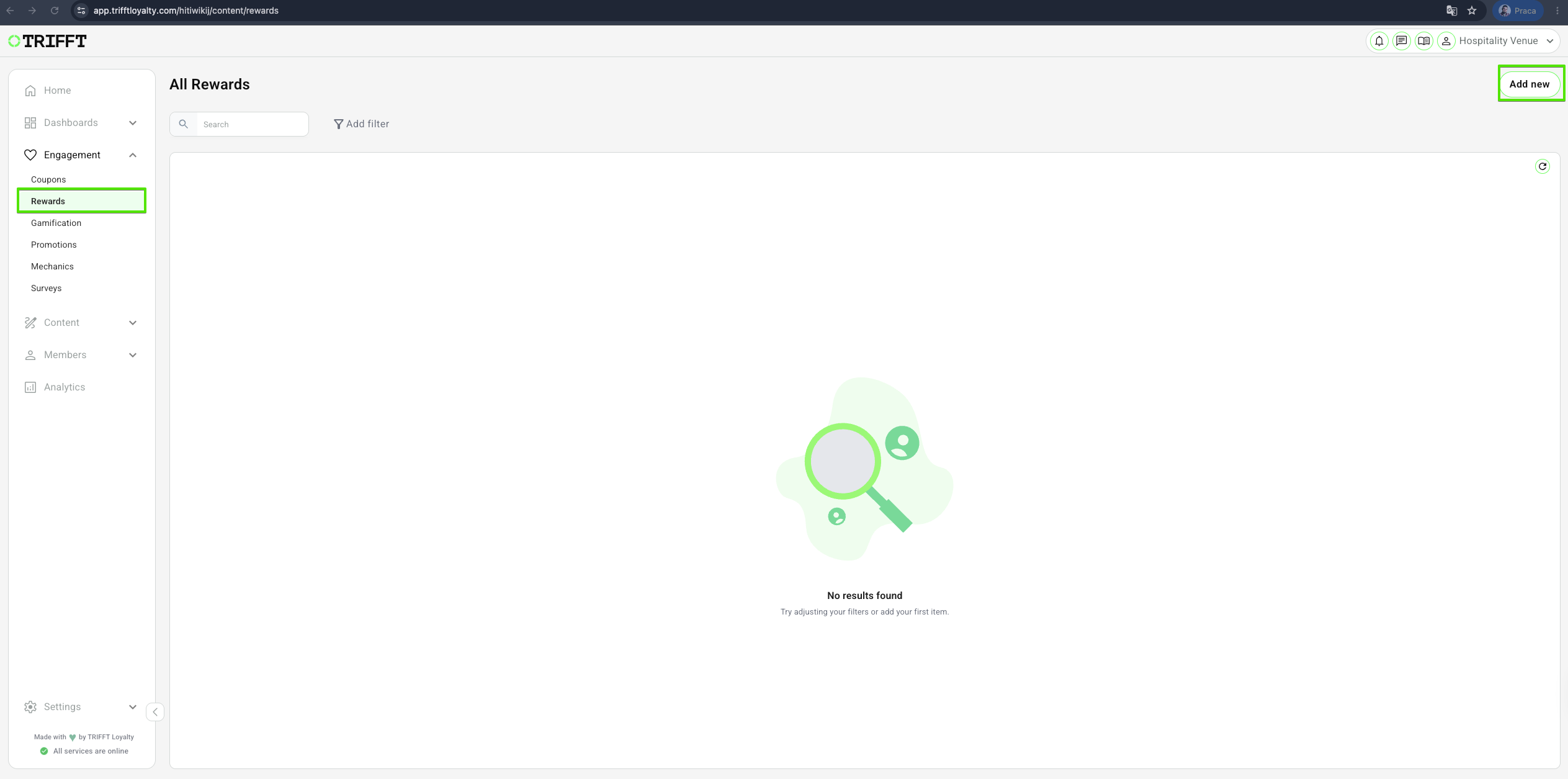
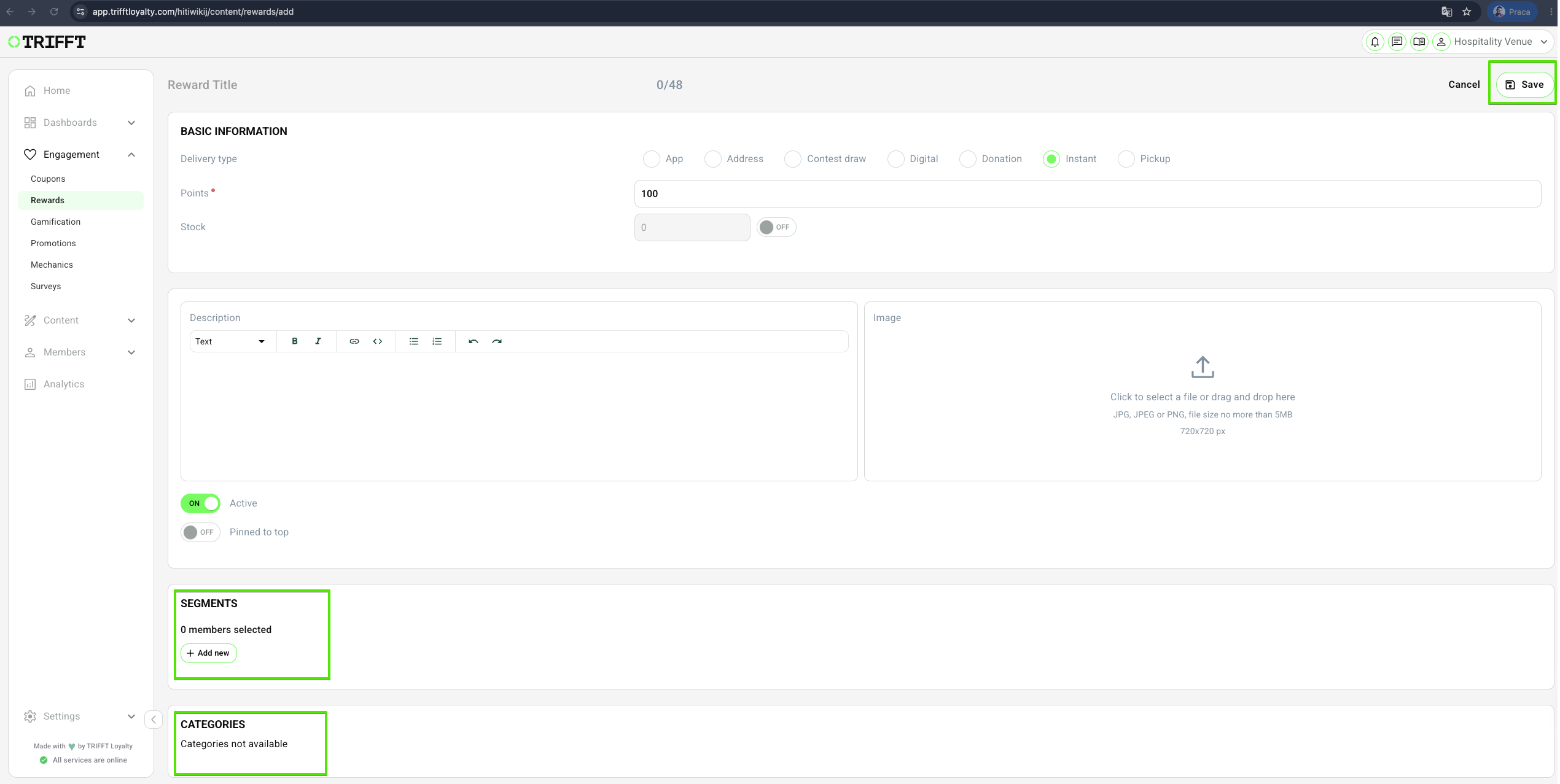
1. Open the Rewards panel
- Access the Content Cockpit and go to Engagement > Rewards > Add new.
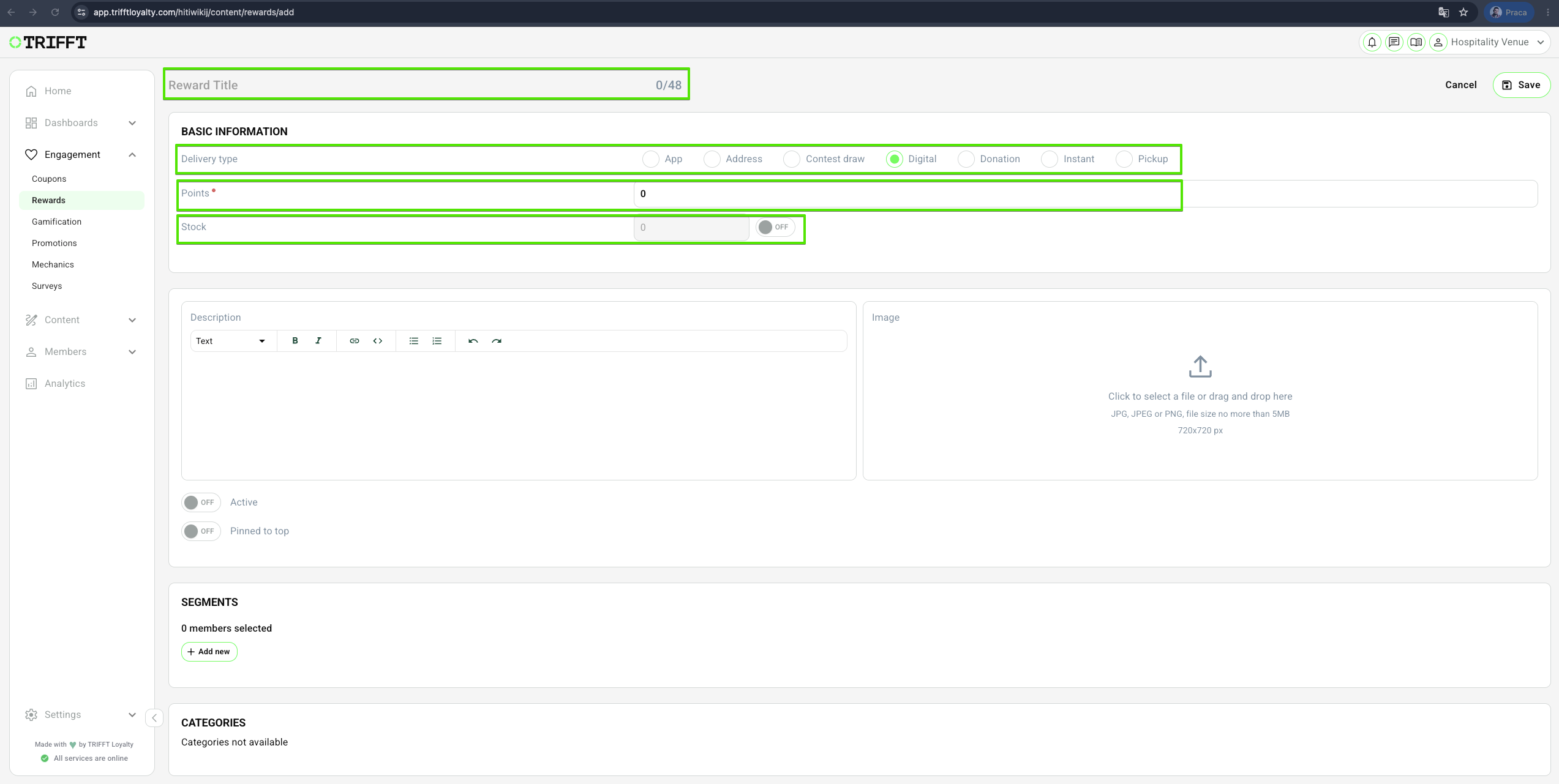
Fill out the Basic information
-
Enter the Reward Title
-
Choose a Delivery type:
- Choose one of the Delivery type for the Reward.
- This will affect the mechanic of redeeming the Reward.
- All details regarding delivery types can be found in the main article Rewards.
-
Set the Points value:
- Enter the number of points that should be deducted from the customer’s balance after selecting the given reward.
-
Select Stock:
- Select this only if you have limited number of rewards available. Once the stock is depleted, the reward will disappear from the list of available rewards. To activate this option, click the checkbox located next to the Stock field and enter the number of your stock.
Description and image
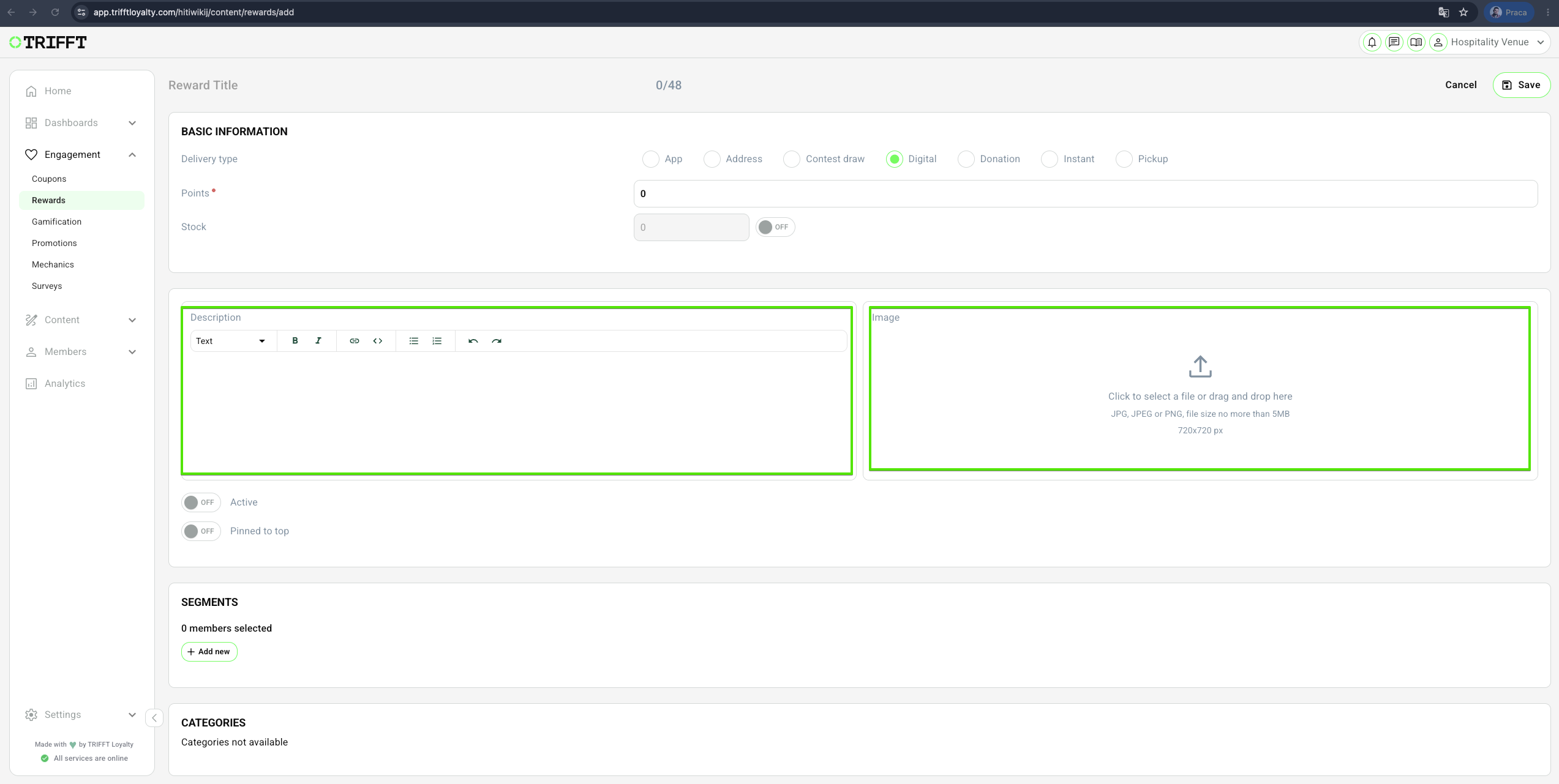
- Fill the Description of the reward.
- Description will be visible in the detail of reward.
- Upload an image.
- This image will be visible as the small preview in the list of all rewards but also in the detail of the reward.
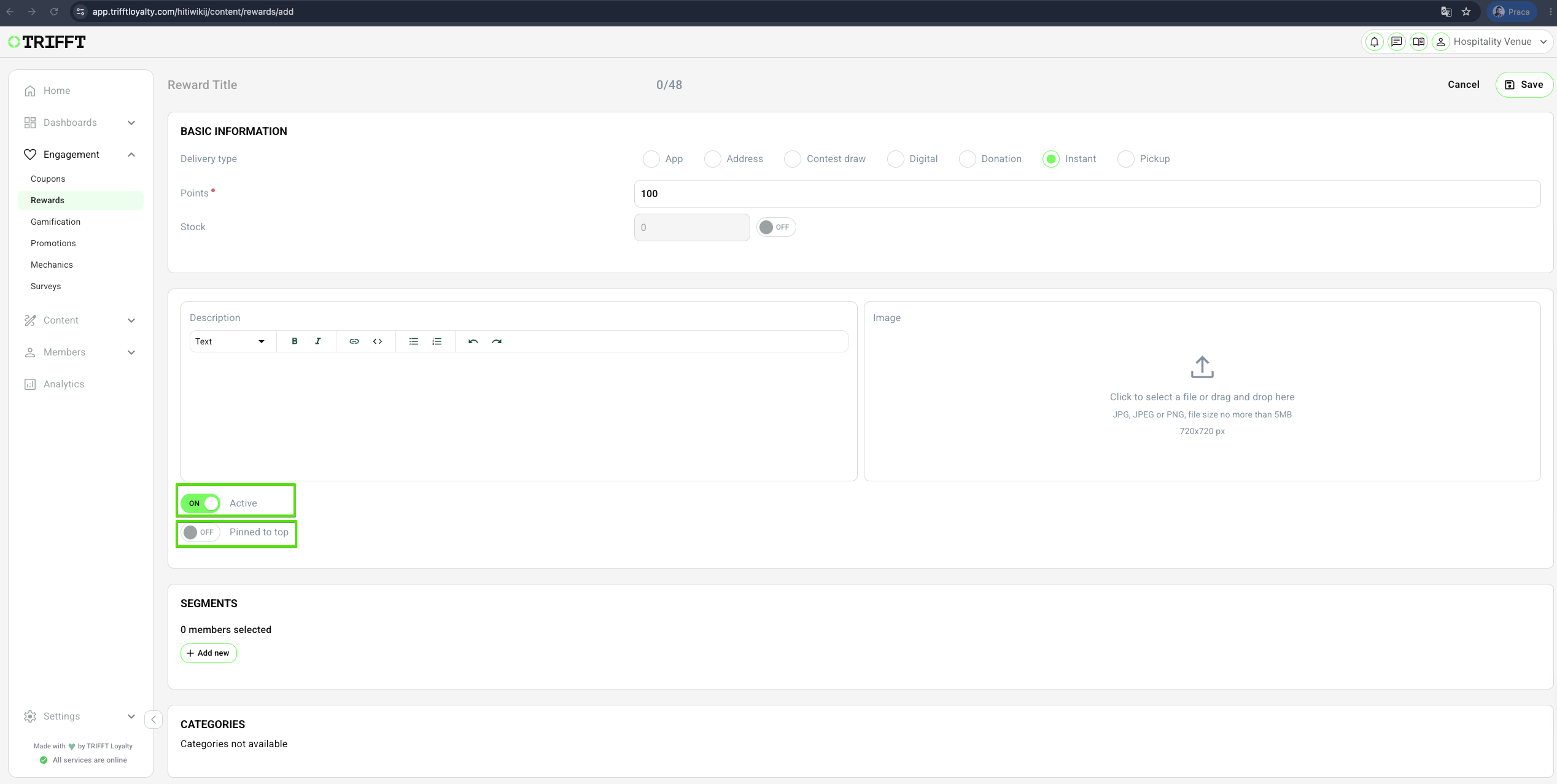
Activating and pinning the reward
-
Activating the reward
- Click the checkbox of the Active button to make the reward active and visible for customers.
- If this option is turned off, the reward doesn't appear in the app (customers can't see it) but is still visible in the administration.
-
Pinned to top (optional)
- The original sorting of your rewards is according to the number of points needed for the activation (lowest at the top).
- To ignore this sorting and keep the reward at the top of the list, turn on Pinned to top option.
Publishing the Reward
-
Add a segment
- Click Add New to add a segment.
- Select the desired segment to define who can view the Leaflet.
-
Categories
- If you already created categories, you can use this feature in rewards as well.
- In the article categories you can learn what this feature is and how to set it up.
-
Save the Reward
- Once all configurations are complete, click the Save button in the top-right corner to publish the Leaflet.
Configuration checklist
Run through this checklist before going live:
UX & Communication
- Point cost is achievable for an average member in 3-5 visits
- Redemption instructions (e.g., 'Show this to the cashier') are clear
- The reward is tagged with the correct Category (e.g., 'Food', 'Service')
Fulfillment & Stock
- Fulfillment codes (if digital) are linked to a valid Coupon Pool
- Inventory alerts are set if the item is physically limited
Updated 3 months ago
Did this page help you?