
Gamification Set Up
Prerequisites
Required access — You need permission to create and manage contests in the Gamification section.
Before you begin, prepare the following:
| Requirement | Details |
|---|---|
| Campaign objective | Define whether the contest should encourage frequency, cumulative spend, higher-value purchases, or immediate participation. |
| Mechanic | Choose between Collecting Points and Random Win. |
| Trigger | Decide whether the contest is triggered by purchase, wallet credit, or a test button. |
| Thresholds and conditions | Define minimum purchase value, required points, cumulative spend, and any other advanced rules. |
| Prizes | Prepare the coupons or other prizes that will be added to the contest. |
| Probability and stock | Define the intended chance and available quantity of every prize. |
| Creative assets | Prepare the preview image, background image, prize information image, and prize images where required. |
| Validity | Define the contest start and end date and time. |
| Consents | Decide whether participation requires acceptance of selected consents. |
Conditions that are not available directly in Content Cockpit must be configured manually by TRIFFT Support. Contact Support before launch and allow sufficient implementation time.
Step-by-step setup
1. Open Gamification
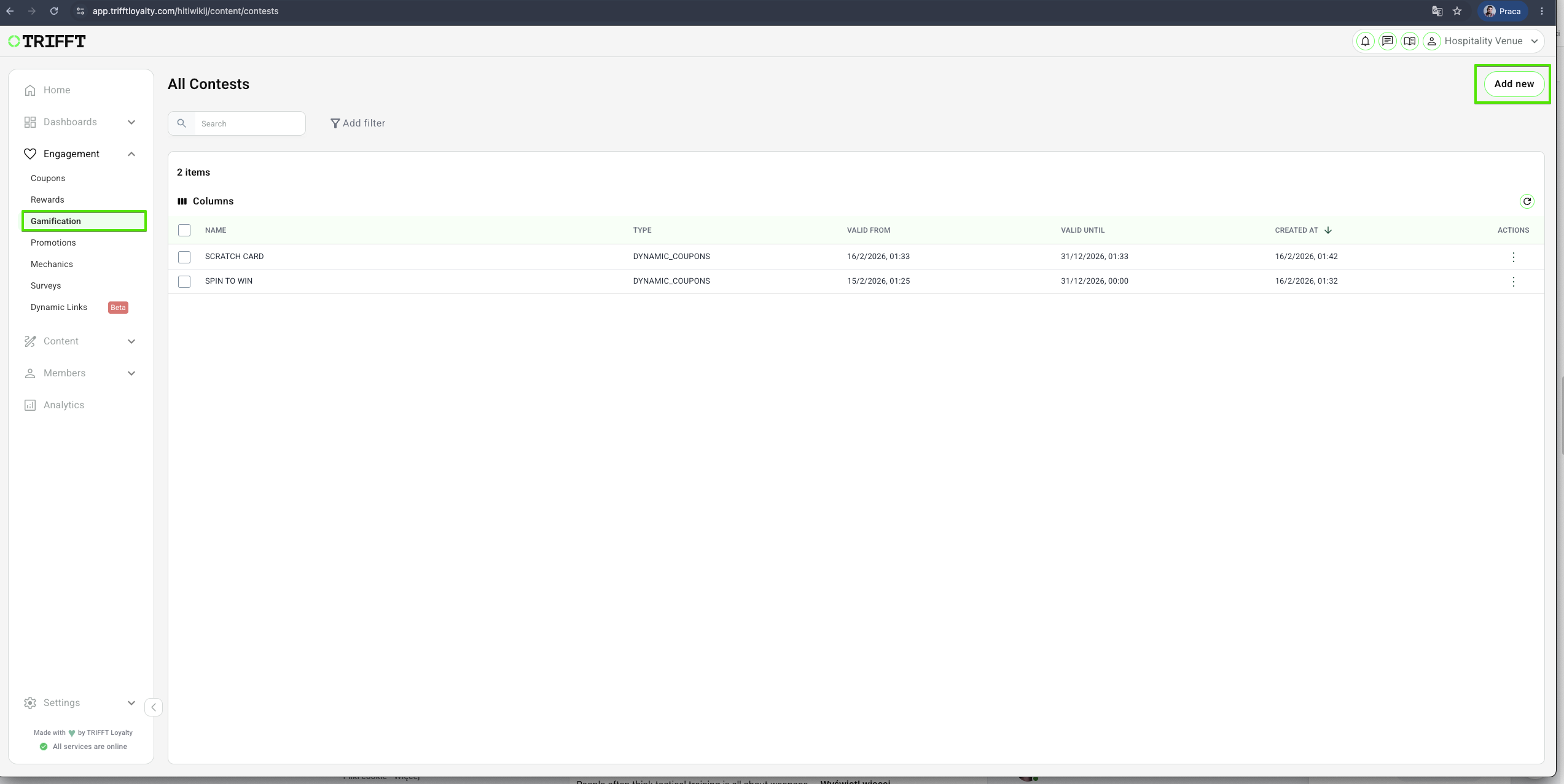
Navigate to the Engagement > Gamification section and click Add new.
2. Enter the contest title and description
Configure:
| Field | Description |
|---|---|
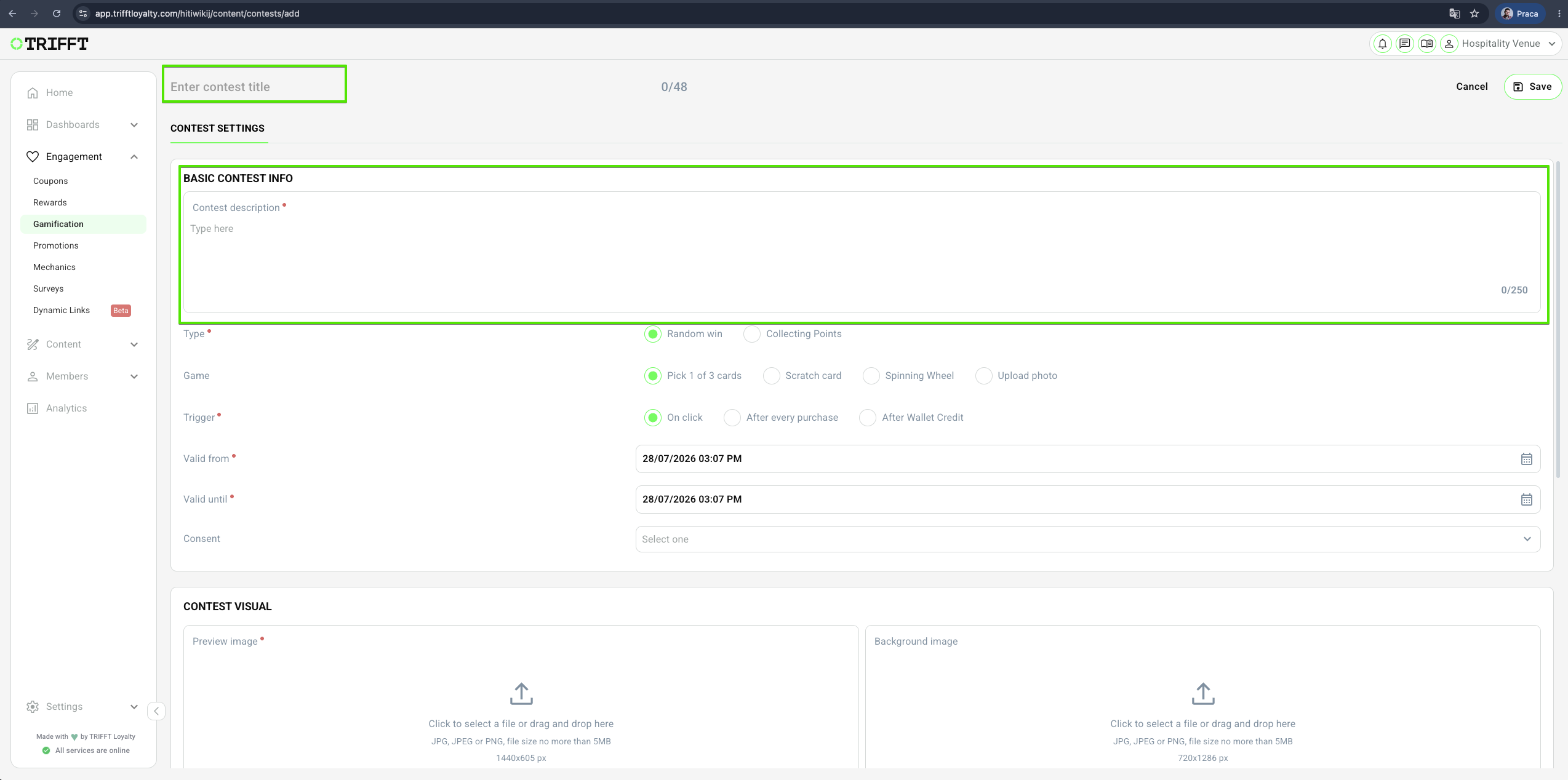
| Contest title | Internal and customer-facing contest name. Maximum length shown in the interface is 48 characters. |
| Contest description | Short description of the contest. Maximum length shown in the interface is 250 characters. |
3. Select the contest type
Choose one of the two core mechanics.
Random Win
Use when a qualifying action should immediately create a reward or contest opportunity.
Typical example:
After every qualifying purchase → create one contest entry
Collecting Points
Use when the member should accumulate progress before receiving a reward or contest opportunity.
Typical example:
After five qualifying purchases → trigger reward and reset progress
4. Select the game
Choose the member-facing animation:
- Pick 1 of 3 Cards
- Scratch Card
- Spinning Wheel
- Without Game — available for Collecting Points when the reward should be assigned immediately.
The game only controls how the result is presented. Prize probability and eligibility are configured separately.
5. Select the trigger
Choose how the contest is triggered or advanced.
On click
Displays a button that allows the member to trigger the contest manually.
Use On click only for testing. Members can use the button repeatedly, so it should not be used in a live production contest.
After every purchase
A real purchase transaction triggers or advances the contest.
Use this for:
- Buy & Win contests.
- Stamp Cards based on transaction count or transaction amount.
- Progress Bars based on spend.
- Purchase-value campaigns.
After Wallet Credit
Any credit movement in the member's wallet triggers or advances the contest.
6. Set the validity period
Configure:
- Valid from
- Valid until
The contest can only be used during this period.
7. Configure required consents
The Consent field is optional.
When one or more consents are connected, the member must accept them before participating in the contest.
8. Upload the contest visuals
Preview image
Used as the contest preview visual.
- Recommended size: 1440 × 605 px
- Formats: JPG, JPEG, PNG
- Maximum file size: 5 MB
Background image
Used as the contest background.
- Recommended size: 720 × 1286 px
- Formats: JPG, JPEG, PNG
- Maximum file size: 5 MB
9. Configure the Prizes and Info tab
This section is optional.
When completed, an additional information card is displayed in the contest. Use it for:
- Contest rules.
- Detailed prize information.
- Participation instructions.
- Campaign terms.
- Additional explanatory content.
Available content:
- Text
- Image - in case of contests that assign contest tokens, this image will be visible in the system contest push notification
Image requirements shown in the interface:
- Recommended size: 1440 × 605 px
- Formats: JPG, JPEG, PNG
- Maximum file size: 5 MB
10. Configure Contest Partners
This section is optional.
When completed, an additional card is displayed for contest partners or sponsors.
This is useful when an external company provides prizes or participates in the campaign.
Available fields shown in the interface:
- Text
- Excerpt
- Body
11. Configure the Participation Rules
Participation Rules define the conditions a member or transaction must meet to qualify for participation in a Contest.
| Rule | Description |
|---|---|
| Day of week | Restricts participation to selected days of the week (e.g., Monday only). |
| Exclude items on receipt | Excludes transactions containing specified items from participation. |
| Item on receipt | Requires a specific item to be present on the receipt. |
| Item type on receipt | Requires an item of a specified type to be present on the receipt. |
| Max transaction amount | Maximum transaction value allowed to qualify for participation. |
| Max transaction performed at | Latest transaction date and time allowed for participation. |
| Min age | Minimum member age required to participate. |
| Min days since registration | Minimum number of days since the member registered. |
| Min items count | Minimum number of items required in the transaction. |
| Min transaction amount | Minimum transaction value required to qualify for participation. |
| Min transaction performed at | Earliest transaction date and time allowed for participation. |
| Min wallet points | Minimum wallet points balance required to participate. |
| Newsletter subscribed | Requires the member to be subscribed to the newsletter. |
| Participation cooldown | Minimum waiting time between consecutive participations. |
| Participation count | Limits the number of times a member can participate. |
| Participation period | Defines the time period during which participation is evaluated or limited. |
| Push enabled | Requires the member to have push notifications enabled. |
| Redeemed coupons | Requires the member to have redeemed specified coupons. |
| Registered after | Requires the member to have registered after a specified date. |
| Registered before | Requires the member to have registered before a specified date. |
| Time of day | Restricts participation to specified hours (e.g., 14:00–17:00). |
| Transaction type | Restricts participation to specified transaction types. |
| Transaction venue | Requires the transaction to take place at a specified venue. |
| User in segment | Requires the member to belong to a specified segment. |
| User language | Restricts participation based on the member's selected language. |
| User not in segment | Requires the member not to belong to a specified segment. |
12. Save the basic contest settings
Click Save.
After saving, open the contest details and continue to the Prizes tab.
Configure prizes
13. Open the Prizes tab
Open the saved contest and select Prizes.
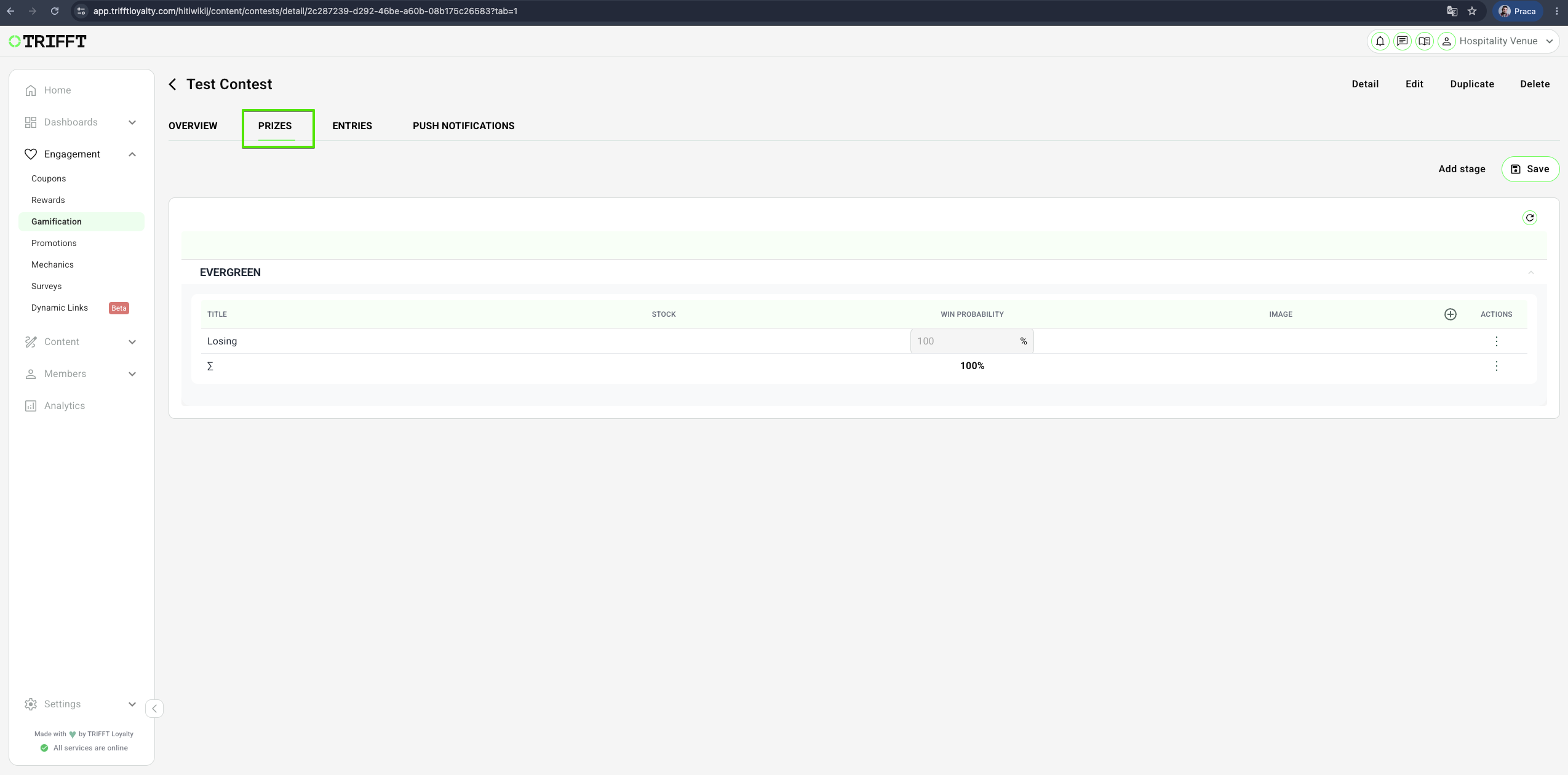
14. Add prizes
Click the + icon on the right side of the prize table.
Add the required Coupons or Dummy prizes.
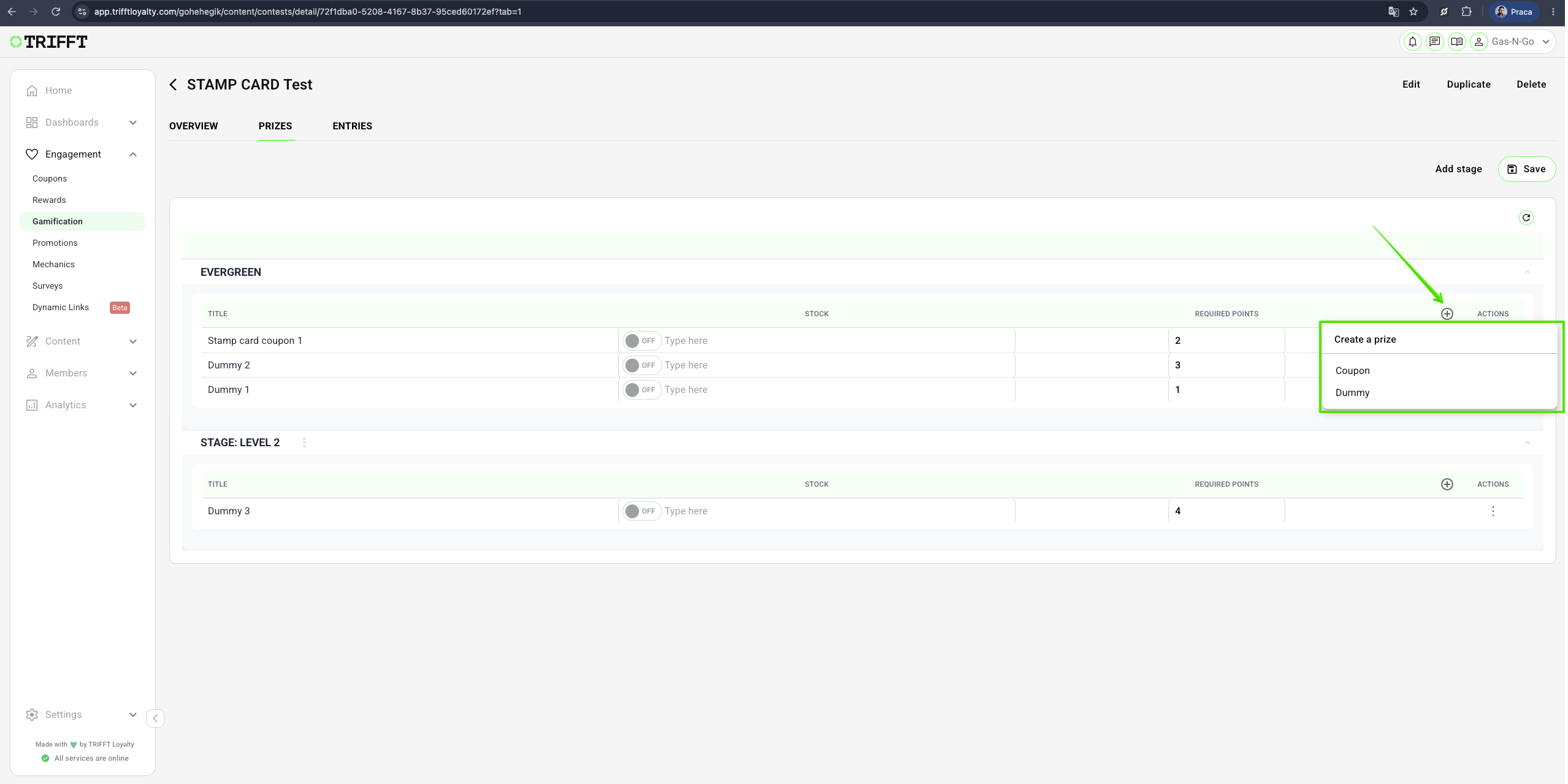
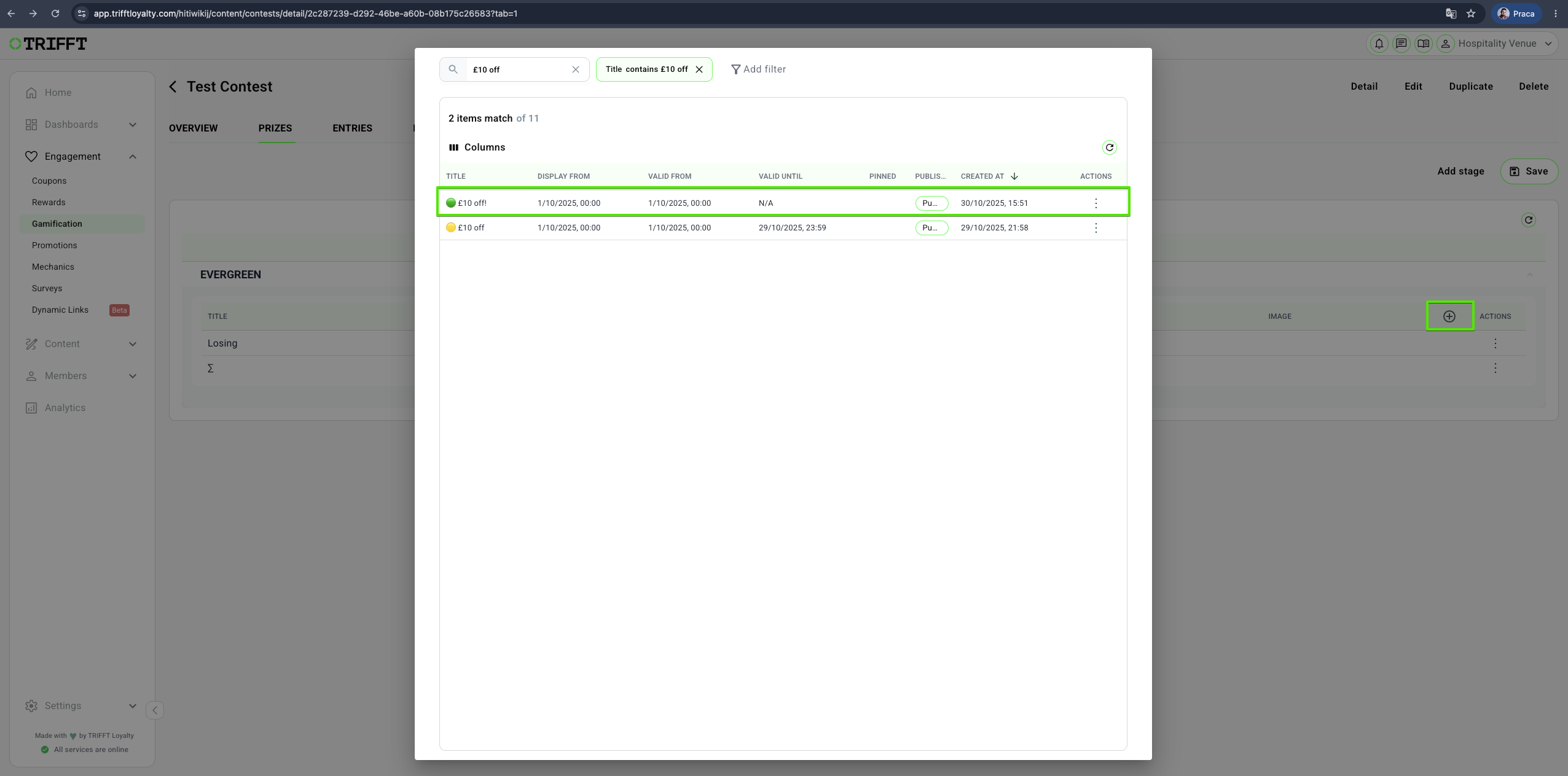
For each prize, configure:
| Setting | Description |
|---|---|
| Title | Coupon name is filled in automatically. |
| Stock | Optional maximum number of available units. Leave disabled for unlimited stock. |
| Win probability / Required points | Percentage chance that the member receives this prize. / Points required to receive this prize. |
| Prize image / Inactive prize image | Optional visual displayed for the prize and inactive prize. |
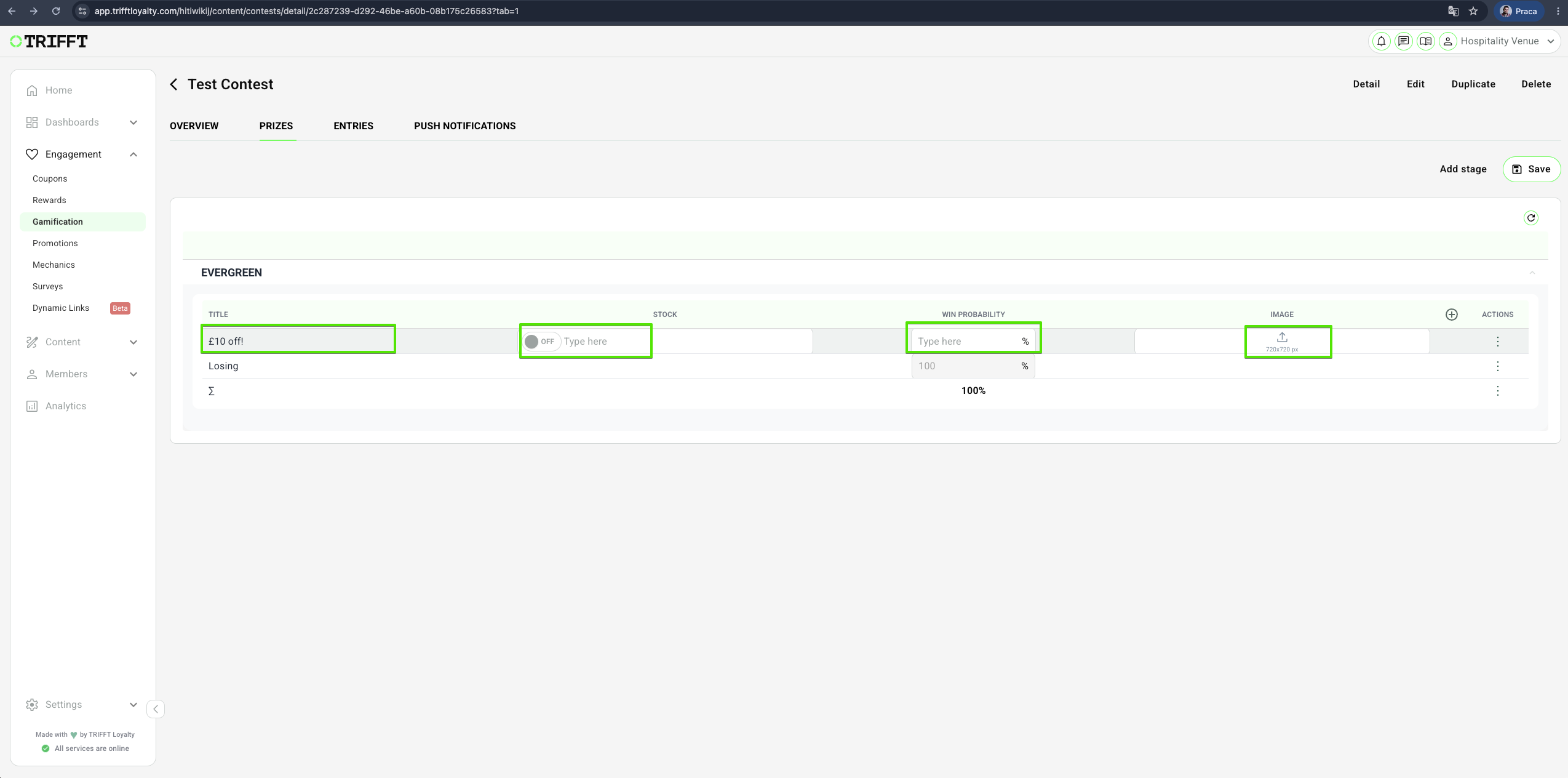
The prize and inactive prize image area in the current interface shows:
- Recommended size: 720 × 720 px
Add stage - optional
This option allows you to set up a schedule that can include various rewards over different time periods and with varying probabilities of winning, or the second option "Custom name", which is based on the number of points
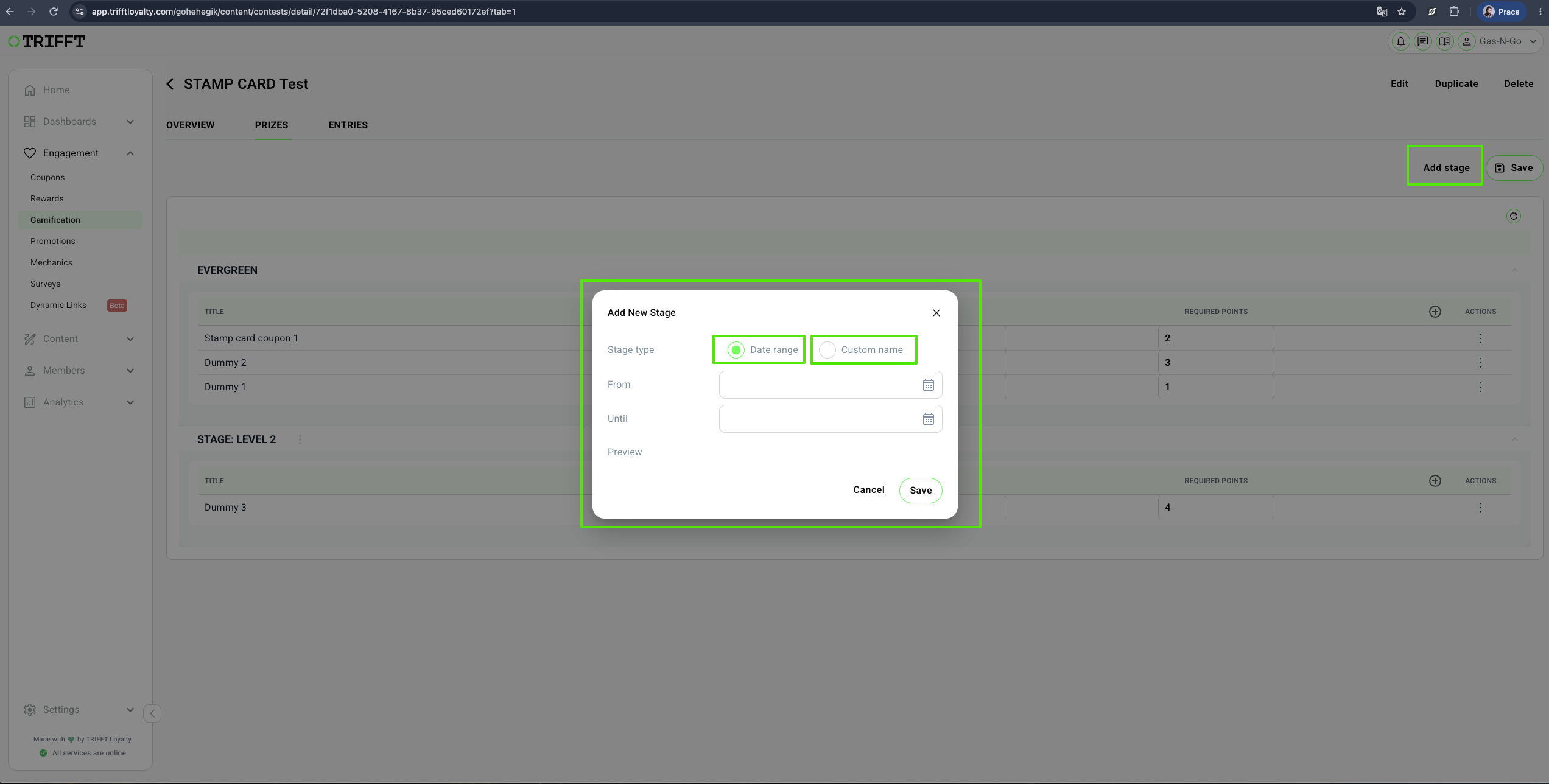
"Date range"
Set the date: From & Until
The name will be filled automatically
Configure the prizes like in the previous step
"Custom name"
Set the name
15. Configure Losing
The Losing row represents the probability that the member does not receive a prize.
The total probability must equal 100%.
Example:
| Result | Probability |
|---|---|
| Prize A | 40% |
| Prize B | 30% |
| Losing | 30% |
| Total | 100% |
16. Configure stock
Stock can be:
- Unlimited — Keep the stock restriction disabled.
- Limited — Enable stock and enter the available quantity.
When a prize reaches zero stock, its probability moves to Losing.
Example before stock is exhausted:
| Result | Probability | Stock |
|---|---|---|
| Prize A | 50% | 10 |
| Prize B | 50% | Unlimited |
| Losing | 0% | — |
Example after Prize A is exhausted:
| Result | Probability |
|---|---|
| Prize B | 50% |
| Losing | 50% |
The exhausted prize probability is not automatically transferred to another prize.
17. Configure Point Ranges for Random Win
For a Random Win contest, the Prizes tab can also display Point Ranges.
Point Ranges allow different probability distributions based on the spend of the triggering transaction.
Example ranges:
| Point Range | At least | Less than |
|---|---|---|
| Low spend | 1 | 100 |
| Medium spend | 100 | 500 |
| High spend | 500 | 9999999 |
Activate the required ranges and configure separate prize probabilities for each one.
Example:
| Prize | Low spend | Medium spend | High spend |
|---|---|---|---|
| Prize A | 95% | 80% | 20% |
| Prize B | 5% | 20% | 80% |
| Losing | 0% | 0% | 0% |
| Total | 100% | 100% | 100% |
Every active range must total 100%.
18. Save the prize configuration
Click Save after all prizes, probabilities, ranges, and stock limits are configured.
Configure advanced contest rules
Some contest conditions are not available directly in Content Cockpit.
Examples include:
- Resetting the Stamp Card point counter.
- One Stamp Card point is added only for purchases above GBP 50.
- A Progress Bar is completed after GBP 200 of accumulated spend.
- A completed threshold assigns a coupon.
- A completed threshold creates a token for a visual contest.
- More complex combinations of transaction and member conditions.
Contact TRIFFT Support with the complete contest specification.
Include:
| Information | Example |
|---|---|
| Contest mechanic | Collecting Points |
| Format | Stamp Card |
| Trigger | After every purchase |
| Qualification rule | Transaction above GBP 50 |
| Progress rule | One point per qualifying transaction |
| Threshold | Three points |
| Result | Assign coupon or contest token |
| Reset behavior | Reset after the threshold is reached |
| Launch date | Required production date |
Advanced setup time depends on the contest complexity and the current capacity of the technical team. Submit the request sufficiently in advance.
Publish the contest
19. Test before publication
Test:
- The selected trigger.
- The accumulation or immediate-entry behavior.
- Every prize probability.
- Limited stock behavior.
- Winning and losing results.
- Consent requirements.
- Visuals and information tabs.
- Backend conditions.
- Member visibility during the configured validity period.
- The Entries records created by the test.
20. Publish
After all configuration and testing are complete, open the contest settings and click Publish in the upper-right corner.
Saving a contest does not complete the launch. The contest must also be published.
Configuration checklist
Basic settings
- The correct mechanic is selected.
- The game matches the intended member experience.
- The production trigger is selected.
- The validity period is correct.
- Required consents are connected.
- All visuals are uploaded.
Prizes
- All prizes are added.
- Every probability total equals 100%.
- Stock is correctly set as limited or unlimited.
- Losing probability is intentional.
- Point Ranges are configured when required.
Advanced rules
- Support has configured all conditions unavailable in Content Cockpit.
- Minimum-spend and accumulation thresholds have been tested.
- Reset behavior is correct.
Launch
- Test entries show the expected Waiting, Win, or Loss result.
- The contest has been published.
Updated about 8 hours ago